1. Introduction
This manual provides essential information for the safe and efficient use of your LG 32-inch Curved FHD Monitor. Please read it thoroughly before operating the device and retain it for future reference.

Image: Front view of the LG 32-inch Curved FHD Monitor.

Image: The monitor shown from various angles, highlighting its curved screen and sleek design.
2. Safety Information
Observe the following safety precautions to prevent electric shock, fire, or damage to the monitor.
- Do not place the monitor near heat sources or in direct sunlight.
- Ensure proper ventilation around the monitor.
- Use only the power cord and adapter supplied by LG.
- Do not insert any metal objects into the monitor's openings.
- If smoke, strange sounds, or odors occur, immediately unplug the monitor and contact customer support.
- Keep the monitor away from water and excessive humidity.
3. Setup and Assembly
3.1 Physical Overview

Image: The monitor with its physical dimensions (width, height, depth) clearly labeled.
3.2 Unpacking
Carefully remove all components from the packaging. Ensure all parts listed in the packing list are present.
3.3 Stand Assembly
Attach the stand base to the stand neck, then attach the assembled stand to the monitor panel. Ensure all screws are tightened securely. The monitor also supports VESA 100x100mm wall mounting.

Image: Rear view of the monitor showing stand attachment and tilt adjustment capability.
3.4 Connecting Cables
Connect the power adapter to the monitor and then to a power outlet. Connect your computer or other devices using the appropriate cables (HDMI, D-Sub).
- HDMI Connection: Use an HDMI cable to connect your device to the monitor's HDMI port.
- D-Sub Connection: Use a D-Sub cable to connect your device to the monitor's D-Sub port.
- Headphone Out: Connect headphones or external speakers to the headphone out port.
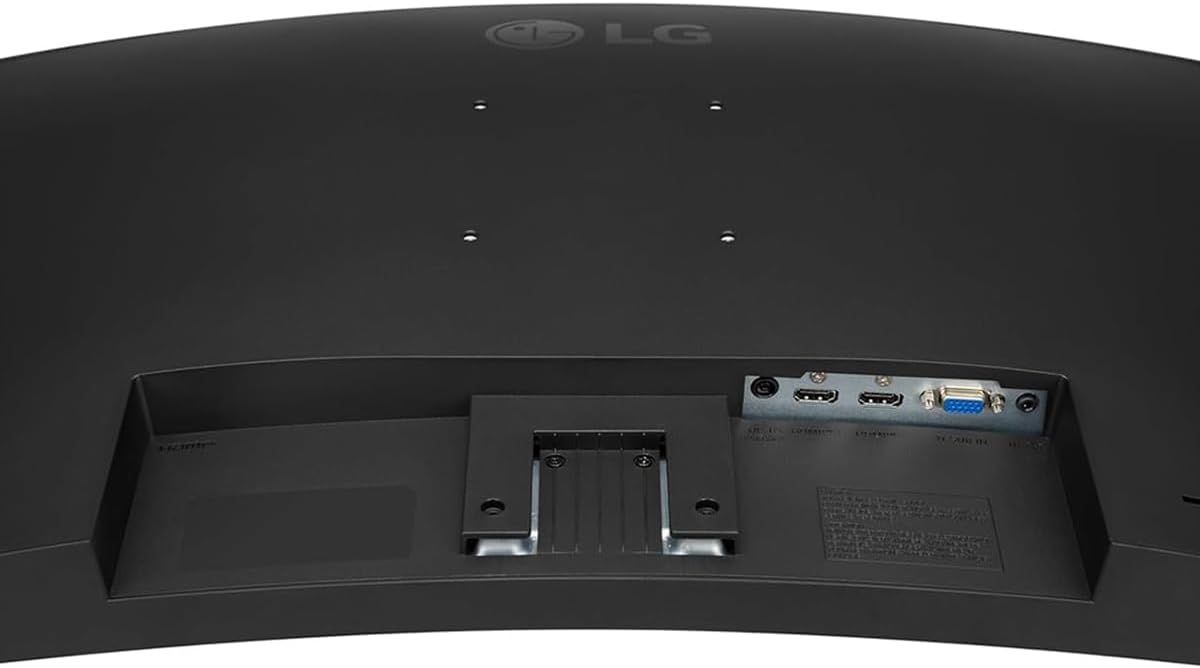
Image: Close-up of the monitor's rear panel showing HDMI, D-Sub, and power input ports.
3.5 Powering On
Press the power button (usually a joystick on the bottom center) to turn on the monitor. Select the correct input source using the OnScreen Display (OSD) menu.
4. Operating the Monitor
4.1 Basic Controls and OSD Menu
The monitor features a joystick button located at the bottom center for easy navigation of the OnScreen Display (OSD) menu. Press the joystick to access the main menu, then move it up/down/left/right to navigate and select options.
4.2 Key Features
- 100Hz Refresh Rate: Provides smoother motion for gaming and fast-paced content.
- AMD FreeSync: Synchronizes the monitor's refresh rate with your graphics card's frame rate to reduce screen tearing and stuttering. Enable this feature in your graphics card settings.
- Dynamic Action Sync: Minimizes input lag, making real-time strategy games and fast-paced shooters more responsive.
- Black Stabilizer: Brightens dark areas in games, allowing you to see details that might otherwise be hidden.
- Reader Mode & Flicker Safe:
Reader Mode reduces blue light emissions to alleviate eye strain during long reading sessions. Flicker Safe technology minimizes screen flicker, providing a more comfortable viewing experience.
- OnScreen Control: This software allows you to easily adjust monitor settings, split the screen into multiple sections, and manage display options directly from your computer.
- Auto Input Switch: Automatically detects and switches to an active input source.

Image: Visual comparison illustrating the difference between 60Hz and 100Hz refresh rates for smoother visuals.

Image: Screenshot demonstrating the Black Stabilizer feature, enhancing visibility in dark gaming environments.
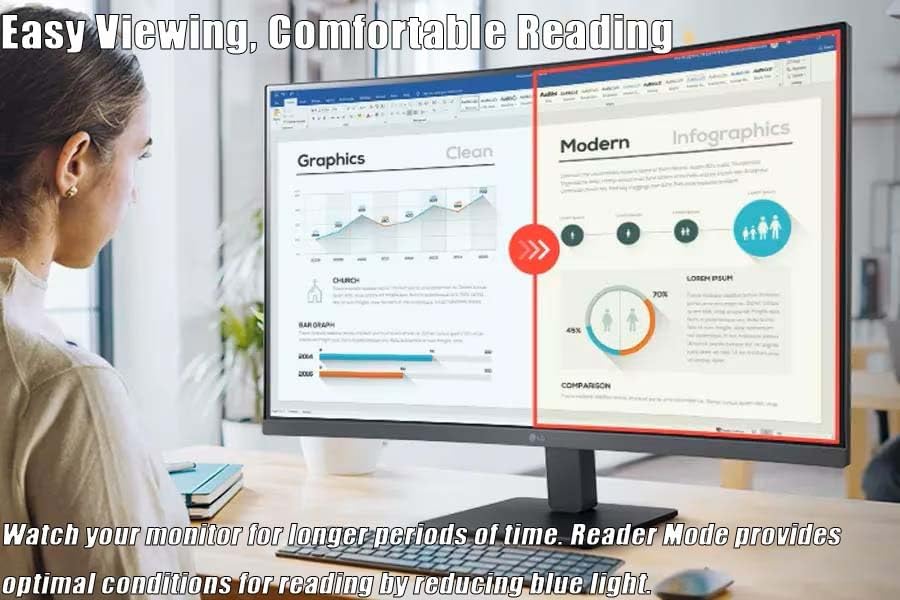
Image: A user viewing documents on the monitor, highlighting the benefits of Reader Mode for eye comfort.

Image: The OnScreen Control application interface, showing options for screen splitting and monitor settings.
5. Maintenance
5.1 Cleaning the Monitor
To clean the monitor screen, gently wipe it with a soft, lint-free cloth. For stubborn marks, slightly dampen the cloth with water or a mild, non-abrasive screen cleaner. Do not spray cleaner directly onto the screen.
For the monitor casing, use a soft, dry cloth. Avoid using strong detergents or abrasive cleaners.
5.2 Storage
If storing the monitor for an extended period, disconnect all cables and pack it in its original packaging to protect it from dust and physical damage. Store in a cool, dry place.
6. Troubleshooting
If you encounter issues with your monitor, refer to the following common problems and solutions:
| Problem | Possible Cause | Solution |
|---|---|---|
| No image on screen | Power cable disconnected, video cable loose, incorrect input source. | Check power and video cable connections. Select the correct input source via the OSD menu. |
| Screen flickering | Video cable issue, refresh rate mismatch, graphics driver outdated. | Ensure video cable is secure. Update graphics drivers. Check refresh rate settings in your computer's display settings. |
| Colors appear abnormal | Color settings incorrect, video cable issue. | Adjust color settings in the OSD menu. Check video cable connection. |
| OnScreen Control not working | Software not installed or outdated, monitor not connected to PC. | Download and install the latest OnScreen Control software from the LG website. Ensure the monitor is connected to your PC via HDMI or D-Sub. |
7. Specifications
| Feature | Detail |
|---|---|
| Screen Size | 31.5 inches (32 inches standing display) |
| Display Type | VA Panel |
| Curvature | Curved |
| Resolution | 1920 x 1080 (FHD) |
| Aspect Ratio | 16:9 |
| Refresh Rate | 100Hz |
| Response Time (GtG) | 5ms (at Faster) |
| Brightness (Typical) | 250 cd/m² |
| Contrast Ratio (Typical) | 3000:1 |
| Color Gamut (Typ.) | NTSC 72% (CIE1931) |
| Viewing Angle | 178°(R/L), 178°(U/D) |
| Adaptive Sync | AMD FreeSync |
| Connectivity | HDMI, D-Sub, Headphone Out |
| Wall Mount Size | 100 x 100 mm |
| Tilt Adjustment | -5~20° |
| Power Input | 100~240V (50/60Hz) |
| Dimensions with Stand (WxHxD) | 27.9" x 20.2" x 9.2" |
| Weight with Stand | 13.7 lbs |
8. Warranty and Support
For detailed warranty information, please refer to the warranty card included with your product or visit the official LG website. LG provides customer support for product inquiries, technical assistance, and service requests.
LG Customer Support:
- Website: www.lg.com/us/support
- Phone: Refer to your region's LG support page for local contact numbers.
Please have your monitor's model number and serial number ready when contacting support.