
1. Introduction
This manual provides essential instructions for setting up, operating, maintaining, and troubleshooting your Itel A100c smartphone. Please read this guide thoroughly to ensure proper use and to maximize the device's capabilities.
The Itel A100c smartphone features a 6.6-inch FHD+ IPS LCD display with a 90Hz refresh rate, an 8MP main camera, a 5MP front camera, 3GB RAM, 128GB internal storage (expandable up to 1TB via microSD), and a 5000mAh battery with Type-C charging. It operates on Android 14 and is powered by an octa-core Unisoc T7100 processor. Security features include a side-mounted fingerprint scanner and face unlock. It also supports Dual Nano SIM and 4G LTE connectivity, and includes an integrated infrared remote control.
2. Setup
2.1. Inserting SIM Cards and MicroSD Card
Locate the SIM tray on the side of your device. Use the provided SIM ejector tool to open the tray. Carefully place your Nano SIM cards and/or microSD card into the designated slots. Ensure the cards are correctly oriented as indicated on the tray. Gently push the tray back into the device until it clicks into place.

Image: Side view of the Itel A100c, illustrating the location of the SIM/microSD card tray and power/volume buttons.
2.2. Initial Power On and Charging
Press and hold the Power button (located on the side) until the Itel logo appears. Follow the on-screen instructions to complete the initial setup, including language selection, Wi-Fi connection, and Google account login. Before first use, it is recommended to fully charge the device using the provided Type-C charger.

Image: The Itel A100c smartphone being charged via its Type-C port, emphasizing its 5000mAh battery.
2.3. Setting Up Security Features
To enhance device security, navigate to Settings > Security > Fingerprint to register your fingerprints using the side-mounted sensor. For Face Unlock, go to Settings > Security > Face Unlock and follow the prompts to register your face.
3. Operating Instructions
3.1. Basic Navigation
The Itel A100c features a responsive touchscreen. Use gestures such as tap, swipe, pinch-to-zoom, and long-press to interact with the interface. The navigation bar at the bottom of the screen typically includes Back, Home, and Recent Apps buttons.

Image: The Itel A100c screen displaying a grid of application icons, representing the phone's user interface.
3.2. Making Calls and Sending Messages
- Calls: Open the Phone app, enter the number, and tap the call icon. To answer an incoming call, swipe up on the screen.
- Messages: Open the Messages app, tap the new message icon, enter the recipient's number or select from contacts, type your message, and tap send.
3.3. Camera Usage
Open the Camera app. The rear camera features an 8MP main sensor, while the front camera is 5MP. Tap the shutter button to take a photo. Swipe left or right to switch between photo, video, and other modes. Tap the camera switch icon to toggle between front and rear cameras.
3.4. Connectivity
- Wi-Fi: Go to Settings > Network & internet > Wi-Fi to connect to available networks.
- Bluetooth: Go to Settings > Connected devices > Bluetooth to pair with other Bluetooth devices. The UltraLink Free Call feature allows free connections via Bluetooth.
- Mobile Data (4G LTE): Ensure your SIM card is active and mobile data is enabled in Settings > Network & internet > Mobile network.
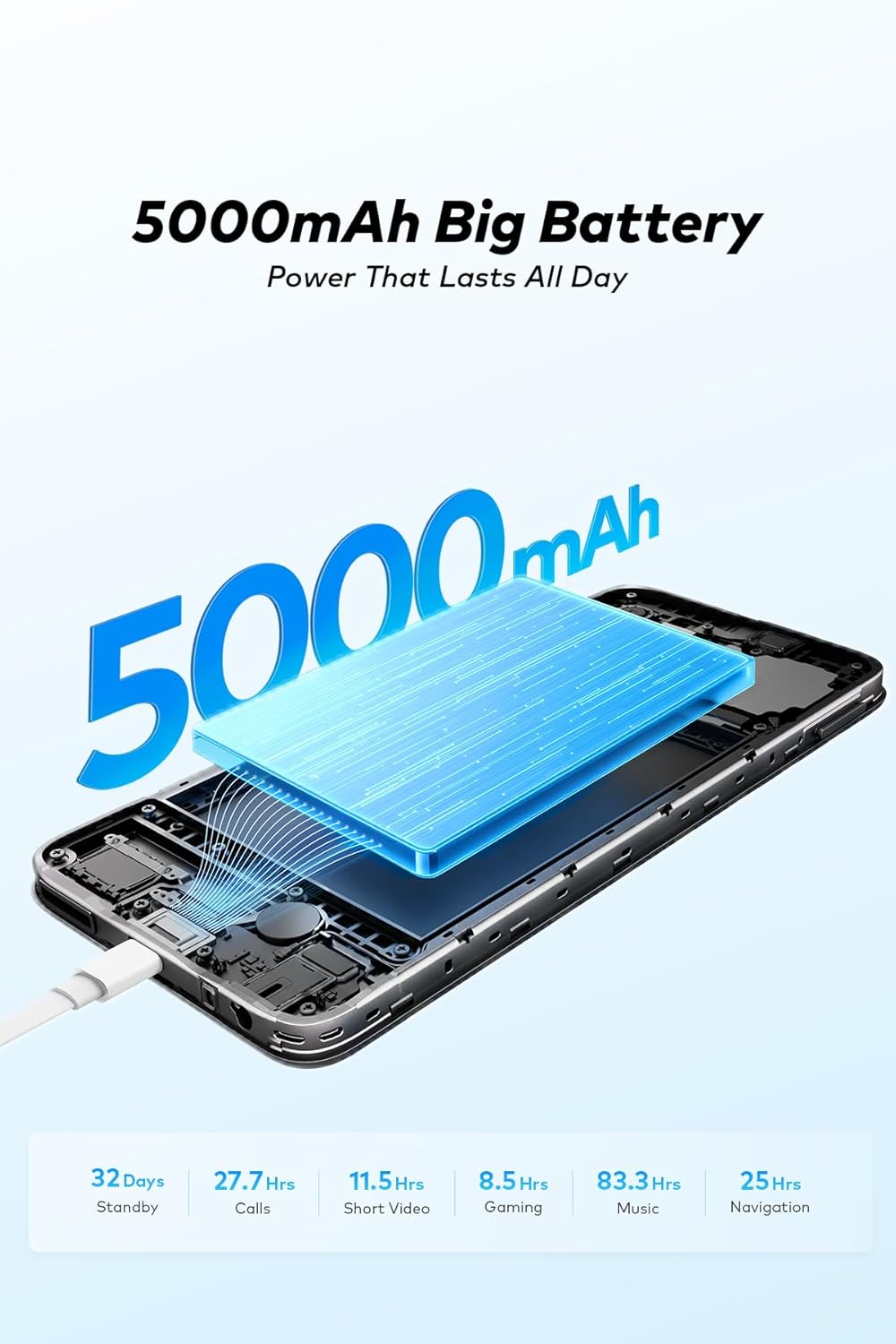
Image: Two Itel A100c smartphones demonstrating the UltraLink Free Call feature, connected wirelessly via Bluetooth.
3.5. Infrared Remote Control
The integrated infrared remote control allows you to control compatible home appliances. Open the pre-installed remote control application and follow the instructions to pair and manage your devices.
4. Maintenance
4.1. Cleaning the Device
Use a soft, lint-free cloth to clean the screen and body of your phone. Avoid using harsh chemicals or abrasive materials that could damage the finish. Do not expose the device to excessive moisture.
4.2. Battery Care
To prolong battery life, avoid extreme temperatures. Do not leave the phone charging for extended periods after it reaches 100%. For optimal performance, use the original charger and cable.
4.3. Software Updates
Regularly check for software updates by going to Settings > System > System update. Updates can improve performance, add new features, and enhance security.
4.4. Storage Management
Your device has 128GB of internal storage, expandable up to 1TB with a microSD card. To manage storage, go to Settings > Storage. Regularly clear unnecessary files, cache data, and uninstall unused applications to maintain optimal performance.
5. Troubleshooting
5.1. Device Not Turning On
- Ensure the battery is charged. Connect the charger and wait a few minutes before attempting to power on.
- Press and hold the Power button for at least 10-15 seconds to perform a forced restart.
5.2. Charging Problems
- Check if the charger and USB cable are securely connected to both the phone and the power outlet.
- Try using a different compatible charger and cable to rule out faulty accessories.
- Inspect the charging port for any debris or damage.
5.3. Network Connectivity Issues
- Restart the device.
- Toggle Airplane Mode on and off in Quick Settings.
- Check if your SIM card is properly inserted and active.
- Reset network settings: Settings > System > Reset options > Reset Wi-Fi, mobile & Bluetooth.
5.4. Factory Reset
If persistent issues occur, a factory reset may resolve them. Warning: This will erase all data on your phone. Back up important data before proceeding. Go to Settings > System > Reset options > Erase all data (factory reset).
6. Specifications
| Feature | Specification |
|---|---|
| Model Name | A100c |
| Item Model Number | P673l |
| Display | 6.6-inch FHD+ IPS LCD, 90Hz Refresh Rate |
| Resolution | 1570 x 720 pixels |
| Brightness | 400 nit (typical) |
| Processor | Unisoc T7100 Octa-core |
| RAM | 3GB |
| Internal Storage | 128GB |
| Expandable Storage | Up to 1TB via microSD card |
| Rear Camera | 8MP Main Sensor |
| Front Camera | 5MP |
| Battery Capacity | 5000mAh |
| Charging Port | Type-C |
| Operating System | Android 14 |
| Cellular Technology | 4G LTE |
| SIM Type | Dual Nano SIM |
| Security | Side-mounted Fingerprint, Face Unlock |
| Special Features | Infrared Remote Control, UltraLink Free Call (Bluetooth) |
| Dimensions | 18 x 9 x 4.6 cm |
| Weight | 340 grams |
| Country of Origin | China |
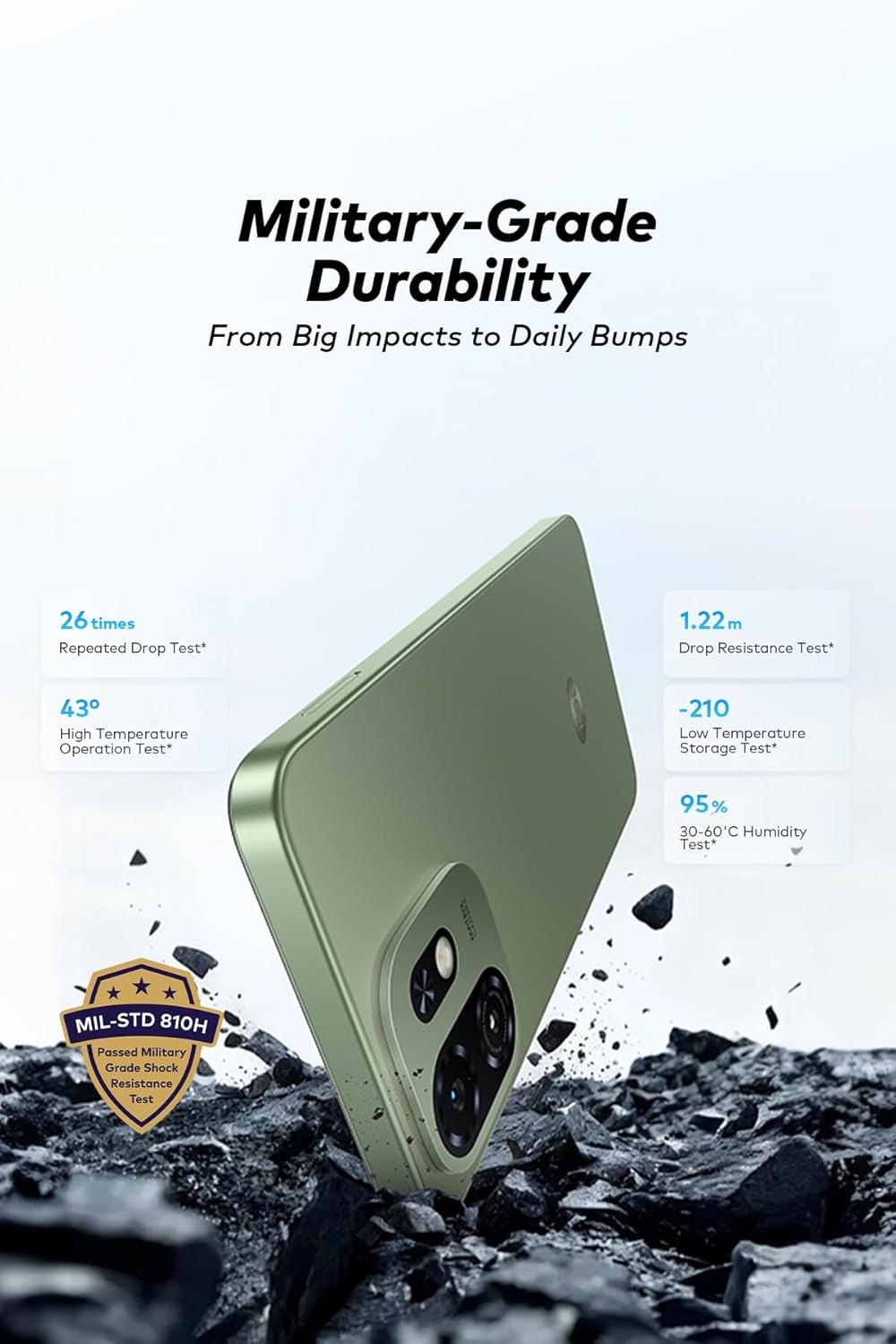
Image: Detailed display specifications for the Itel A100c, showing resolution, color depth, brightness, contrast ratio, and screen-to-body ratio.

Image: The Itel A100c emphasizing its military-grade durability, with details on drop resistance, high/low temperature operation, and humidity tests.
7. Warranty and Support
Your Itel A100c smartphone comes with a standard manufacturer's warranty. For specific warranty terms, duration, and conditions, please refer to the warranty card included in the product packaging or visit the official Itel website. Keep your proof of purchase for warranty claims.
For technical support, service, or further inquiries, please contact Itel customer service through their official website or the contact information provided in your product documentation.
