
1. Introduction
This manual provides detailed instructions for the installation, operation, and maintenance of your YoLuKe 5MP PTZ Security Camera (Model: P2-20X-5MP). This outdoor-rated camera features 5MP resolution, 20X optical zoom, Power over Ethernet (PoE) connectivity, auto-tracking, and human detection capabilities. Please read this manual thoroughly before using the product to ensure proper setup and functionality.
Key Features:
- 5MP Super HD Resolution: Provides clear and detailed surveillance footage.
- 20X Optical Zoom: Allows for detailed observation of distant objects without loss of image quality.
- Auto Tracking: Automatically detects and follows moving objects.
- Human Detection: Reduces false alarms by distinguishing human shapes.
- PoE Technology: Simplifies installation with a single cable for power and data.
- Outdoor Durability: Weather-resistant construction for reliable performance in various conditions.
- Pan/Tilt Functionality: 360° horizontal pan and 90° vertical tilt for comprehensive coverage.
- IR Night Vision: Up to 330ft (100m) infrared night vision for clear monitoring in low light.
- Two-Way Audio: Built-in microphone and speaker for communication.
2. What's in the Box
Verify that all components are present before proceeding with installation:
- YoLuKe 5MP PTZ Security Camera
- Wall Mount Bracket
- Installation Hardware (screws, anchors)
- Power Adapter (if not using PoE)
- Ethernet Cable
- User Manual

Image: Product Details showing the camera, bracket, metal shell, sensor, IR LEDs, lens, SD card slot, and included accessories like power adapter, Ethernet cable, and mounting hardware.
3. Setup
3.1 Mounting the Camera
The camera is designed for wall mounting. Choose a location that provides the desired viewing angle and is within reach of your network connection. Ensure the mounting surface is strong enough to support the camera's weight.
- Position the wall mount bracket against the desired mounting surface.
- Mark the drill holes through the bracket.
- Drill pilot holes and insert wall anchors if necessary.
- Secure the bracket to the wall using the provided screws.
- Attach the camera to the mounted bracket, ensuring it is firmly secured.
3.2 Network Connection Methods
The YoLuKe PTZ camera supports Power over Ethernet (PoE) for simplified installation, requiring only one Ethernet cable for both power and data. Alternatively, it can be powered via a DC 12V adapter and connected to a router.

Image: Diagram illustrating three network connection methods: working with a PoE switch, working with a PoE NVR, and working with a standard router using a DC 12V power adapter.
- Work with PoE Switch: Connect the camera's RJ-45 port to a PoE switch LAN port. The PoE switch connects to your router's LAN port. Your cell phone or PC can then access the camera via the router.
- Work with PoE NVR: Connect the camera's RJ-45 port to a PoE NVR port. The NVR connects to your router's LAN port. An HD monitor can be connected to the NVR's HDMI or VGA output. Your cell phone or PC can access the camera via the router.
- Work with Router (Non-PoE): Connect the camera to a DC 12V power source. Connect the camera's RJ-45 port to your router's LAN port. Your cell phone or PC can then access the camera via the router.

Image: Another diagram illustrating the three network connection methods for the IP camera.
3.3 App Installation and Initial Setup
Download the CamHi Pro app from your smartphone's app store (iOS or Android). Follow the in-app instructions to add your camera to the application. This typically involves scanning a QR code on the camera or manually entering its ID.
4. Operating Instructions
4.1 Pan, Tilt, and Zoom Control
The camera offers extensive movement capabilities:
- Pan: 360° horizontal rotation.
- Tilt: 90° vertical movement.
- Optical Zoom: 20X optical zoom for magnifying distant objects.
Control these functions via the CamHi Pro app or compatible NVR/web interface.
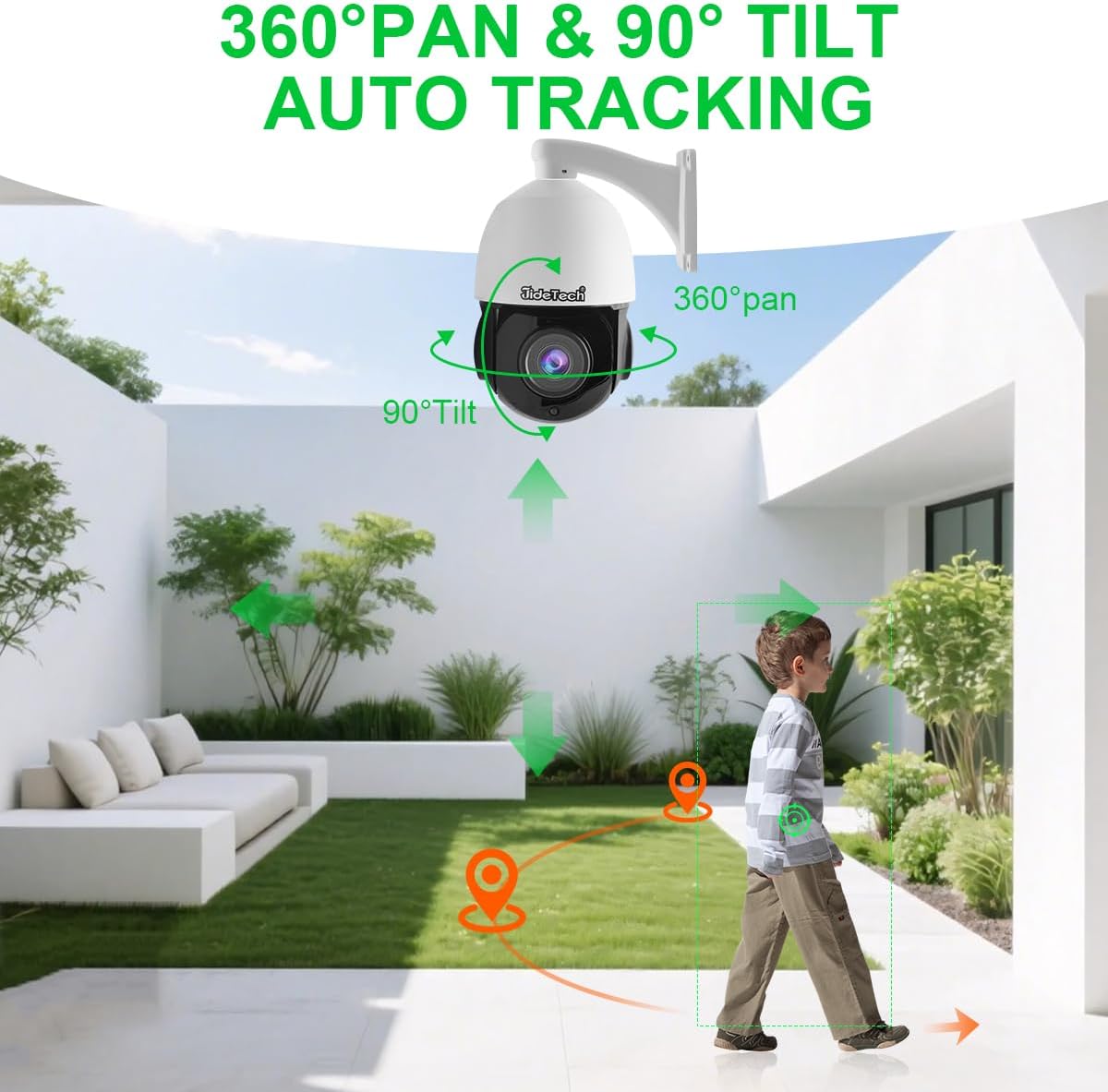
Image: The camera demonstrating its 360° pan and 90° tilt capabilities, with arrows indicating movement range and a person being tracked.

Image: A banner illustrating the camera's auto-tracking feature, showing it following a person in a yard.
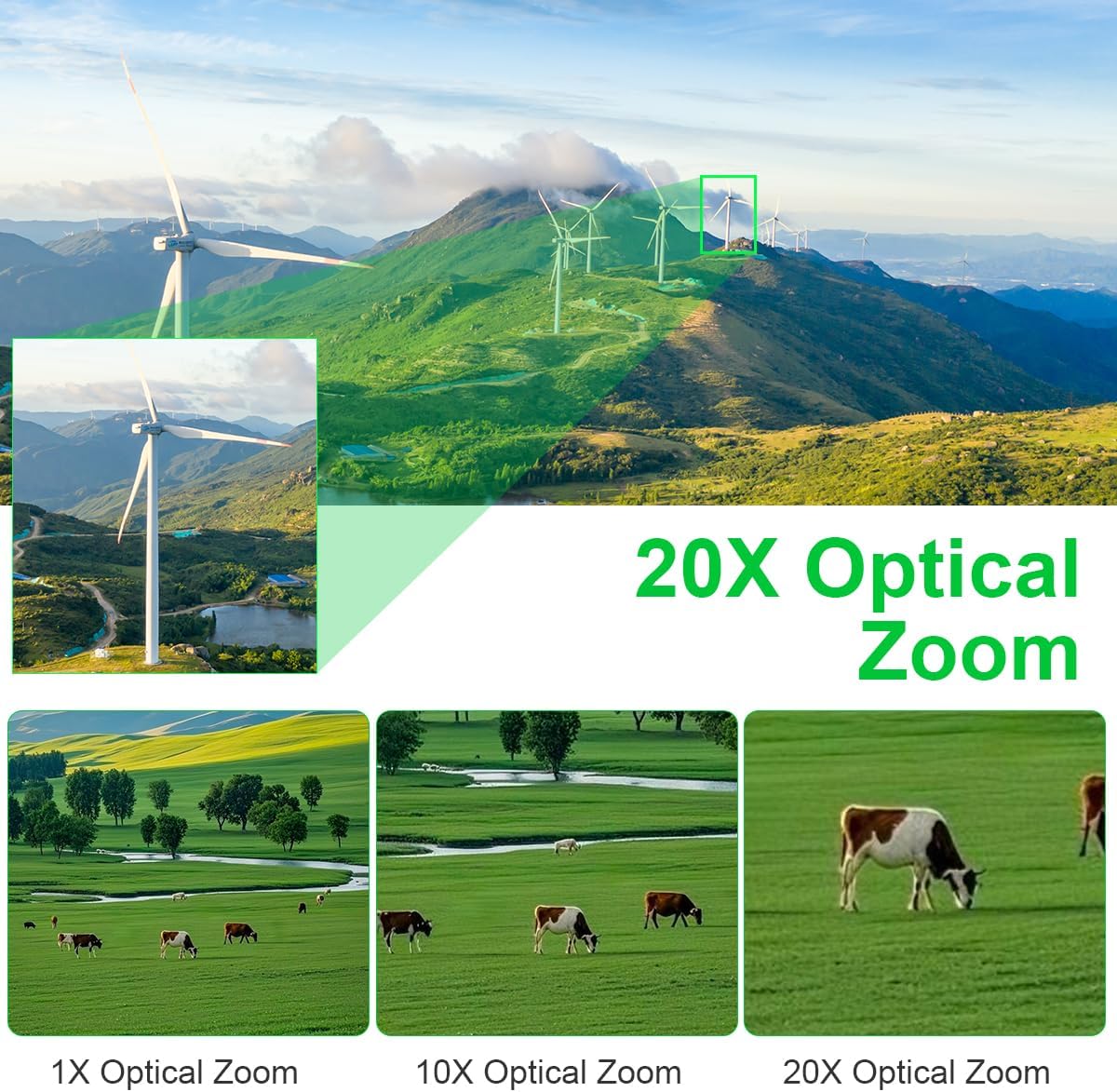
Image: A comparison showing 1X, 10X, and 20X optical zoom levels on distant objects (wind turbines and cows), highlighting the clarity maintained at maximum zoom.

Image: A banner emphasizing the 20X zoom capability for clearer and smoother viewing, along with a 100-meter infrared range.
4.2 Human and Vehicle Detection
The camera features advanced detection algorithms to identify human and vehicle shapes, reducing false alarms from pets, leaves, or other non-threatening movements. You can adjust sensitivity and set specific motion zones within the app.

Image: Icons representing email, push notifications, and FTP for alerts, with a scene showing a person and vehicle being detected by the camera.

Image: A banner detailing Smart AI Motion Detection, showing options to adjust sensitivity and set motion zones, and distinguishing between irrelevant triggers (bird, leaves, pet) and relevant ones (person, vehicles).
4.3 Night Vision
The camera is equipped with 6 powerful IR LEDs, providing up to 330ft (100m) of clear night vision. This ensures continuous monitoring even in complete darkness.

Image: A split image showing the camera's UltraHD 5MP view in daytime and its advanced infrared night vision effect at night, maintaining clarity.

Image: A comparison of the camera's UltraHD 5MP daytime view versus its advanced infrared night vision, demonstrating clear visibility in both conditions.
4.4 5MP Resolution
The camera captures video at 5MP (2592x1944 pixels), offering significantly more detail than standard 2MP (1920x1080 pixels) cameras. This higher resolution allows for clearer identification of faces and license plates.
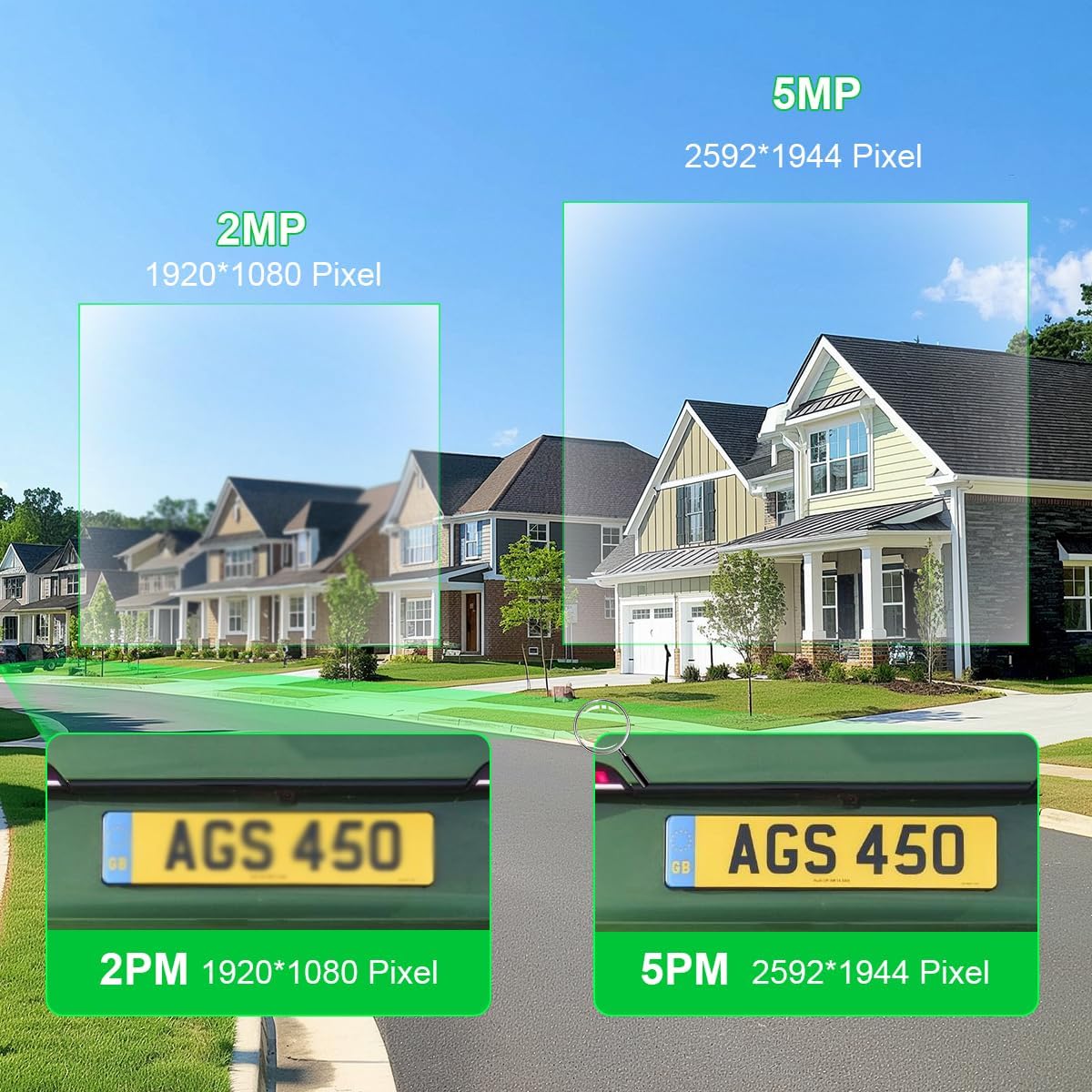
Image: A visual comparison between 2MP (1920*1080 Pixel) and 5MP (2592*1944 Pixel) resolution, showing a license plate with significantly more detail at 5MP.
4.5 Two-Way Audio
With a built-in microphone and speaker, the camera supports two-way audio communication. This allows you to listen to the environment and speak through the camera using the CamHi Pro app.

Image: A person receiving a package, with text bubbles indicating communication via the camera's two-way audio feature. Icons for microphone and speaker are also shown.

Image: A banner illustrating the two-way audio feature, showing a delivery person at a door and a user communicating via a smartphone app.
4.6 Recording and Storage
The camera supports various recording and storage options:
- MicroSD Card: Supports up to 128GB MicroSD cards (not included) for local storage.
- NVR: Compatible with most third-party NVRs that support ONVIF protocol for continuous recording.
- FTP: Supports uploading recordings to an FTP server.

Image: A banner showing the camera's compatibility with up to 256GB MicroSD cards (note: product specifications state 128GB max), third-party NVRs, and FTP for storage.
4.7 Real-Time Notifications and Alarms
When motion or human detection is triggered, the camera can send real-time notifications to your smartphone via the CamHi Pro app. It can also activate an audible and visual alarm if configured.

Image: A banner depicting a person in a monitoring area triggering an alarm, with icons for email, siren, and notice push notifications.
4.8 Intelligent Playback Mode
The CamHi Pro app offers an intelligent playback mode that uses filters to distinguish between recordings containing people and vehicles. This allows for efficient review of footage anytime, anywhere.

Image: A banner illustrating the Intelligent Playback Mode, highlighting filters for human/vehicle detection, 24/7 record, and schedule record, with a smartphone displaying the app interface.
5. Maintenance
5.1 Cleaning the Camera
Regularly clean the camera lens and housing to ensure optimal image quality and performance. Use a soft, damp cloth to wipe away dust and dirt. Avoid harsh chemicals or abrasive materials that could damage the lens or finish.
5.2 Firmware Updates
Periodically check the CamHi Pro app or the manufacturer's website for available firmware updates. Keeping your camera's firmware up-to-date ensures you have the latest features, security patches, and performance improvements.
6. Troubleshooting
If you encounter issues with your camera, refer to the following common problems and solutions:
| Problem | Possible Cause | Solution |
|---|---|---|
| Camera not powering on | No power supply; Faulty power adapter/PoE switch; Loose connection. | Check power source and connections. Ensure PoE switch is active or DC 12V adapter is working. |
| No video feed | Network connectivity issue; Incorrect IP settings; Camera offline. | Verify Ethernet cable connection. Check network settings in the app. Restart camera and router. |
| Poor image quality | Dirty lens; Low bandwidth; Incorrect resolution settings. | Clean the camera lens. Ensure stable network connection. Check resolution settings in the app. |
| Motion detection not working | Detection settings incorrect; Sensitivity too low; Motion zones not set. | Review motion detection settings in the CamHi Pro app. Adjust sensitivity and define motion zones. |
| Cannot connect to app | Incorrect Wi-Fi password; Camera not connected to network; App version outdated. | Ensure camera is connected to the same network as your phone. Re-add camera to the app. Update app to the latest version. |
7. Specifications
Detailed technical specifications for the YoLuKe 5MP PTZ Security Camera P2-20X-5MP:
| Feature | Detail |
|---|---|
| Model Name | Yoluke 5MP 20X Zoom PoE PTZ Camera |
| Item Model Number | P2-20X-5MP |
| Effective Still Resolution | 5 MP |
| Video Capture Resolution | 2592x1944 (5MP), 1080p |
| Optical Zoom | 20x |
| Pan/Tilt Range | 360 Degrees (Viewing Angle) |
| Night Vision Range | 164 Feet (Note: Product description states 330ft/100m IR Distance) |
| Connectivity Technology | Ethernet, IP, PoE |
| Power Source | Power Over Ethernet (PoE) |
| Voltage | 48 Volts |
| Wattage | 12 watts |
| Storage | Flash Memory Type: SD, Max Supported Size: 128 GB |
| Indoor/Outdoor Usage | Outdoor |
| Water Resistance Level | Waterproof (IP66 International Protection Rating) |
| Material | Aluminum, Metal |
| Item Dimensions (L x W x H) | 9.06 x 6.69 x 11.4 inches |
| Item Weight | 3.5 Pounds |
| Controller Type | Mobile App (CamHi Pro), Web Browser |
| Special Features | 20x Optical Zoom, 5MP Resolution, Auto Tracking, Human Detection, PTZ Technology |
| Video Encoding | H.264, H.265 |
| Frame Rate | 30fps |
| Focus Type | Auto Focus |
| Photo Sensor Technology | CMOS |
8. Warranty and Support
8.1 Warranty Information
YoLuKe products typically come with a limited warranty covering manufacturing defects. Please refer to the warranty card included with your product or visit the official YoLuKe website for specific warranty terms and conditions. Keep your purchase receipt as proof of purchase for warranty claims.
8.2 Customer Support
For technical assistance, troubleshooting, or any questions regarding your YoLuKe 5MP PTZ Security Camera, please contact YoLuKe customer support. Contact details can usually be found on the product packaging, the official YoLuKe website, or within the CamHi Pro application.
When contacting support, please have your product model number (P2-20X-5MP) and purchase information ready.