
Introduction
This manual provides detailed instructions for the assembly, operation, and maintenance of your DUMOS Conner Desk. Please read all instructions carefully before beginning assembly and retain this manual for future reference.

Image: Front view of the DUMOS Conner Desk in a gaming setup, featuring LED lighting and dual monitors.
Safety Information
- This desk is designed for a maximum weight capacity of 132 lbs (60 kg). Do not exceed this limit.
- This desk is not recommended for use as a standing desk.
- Always follow the assembly instructions carefully to ensure proper setup and safety.
- Keep all small parts and packaging materials away from children and pets to prevent choking hazards.
- Ensure all screws and fasteners are securely tightened before use. Periodically check and re-tighten as needed.
- Place the desk on a level surface to prevent tipping.
Setup and Assembly Instructions
Before you begin, ensure all parts are present and undamaged. Refer to the parts list provided in your packaging. Assembly typically requires two people.
Assembly Video Guide
Video: A detailed assembly instruction video for a corner computer desk, demonstrating step-by-step construction. This video is provided by VEDECASA.
Step-by-Step Assembly
- Unpack and Identify Parts: Carefully unpack all components and lay them out on a clean, soft surface to prevent scratches. Identify each part using the provided hardware list.
- Assemble the Frame: Begin by connecting the main metal frame components using the designated screws. Ensure all connections are secure but do not fully tighten until all parts are aligned.
- Attach Side Shelves: Secure the side storage shelves to the frame. These shelves provide additional space for books, a printer, or other accessories.
- Install the Desktop Panels: Place the desktop panels onto the assembled frame. Align the pre-drilled holes with the frame and secure them with screws.
- Mount the Monitor Stand: Attach the monitor stand to the top of the desktop. This raises your monitor to an ergonomic viewing height.
- Install the Keyboard Tray: Assemble and install the sliding keyboard tray beneath the main desktop. Ensure it slides smoothly.
- Attach Power Outlets and LED Lights: Secure the built-in power strip to the designated area on the desktop. Carefully attach the LED light strips to the underside of the monitor stand and desktop, ensuring proper cable management.
- Final Tightening: Once all components are in place and aligned, fully tighten all screws.
- Attach Adjustable Feet: Screw in the adjustable feet to the bottom of the desk legs to ensure stability on uneven floors.
Operating Instructions
1. Built-in Charging Station
The DUMOS Conner Desk features a convenient built-in power strip with 2 AC outlets and 2 USB ports. This allows for easy charging of your electronic devices directly from your desktop.
- AC Outlets: Plug in your laptop, monitor, or other AC-powered devices.
- USB Ports: Connect your smartphone, tablet, or other USB-powered devices for charging.
- Ensure the desk's main power cord is plugged into a wall outlet for the charging station to function.

Image: A close-up view of the integrated power strip on the desk, featuring two AC outlets and two USB ports, with a smartphone connected for charging.
2. Customizable LED Lighting
Enhance your workspace or gaming station with the integrated LED light strips. These lights offer various color and mode options to create a personalized ambiance.
- Control: The LED lights can be controlled via a button control unit or a dedicated app (refer to the LED light strip's separate instructions for app setup).
- Color Options: Choose from over 60,000 colors to match your mood or setup.
- Modes: Explore various modes including Mic Modes (lights react to sound), Music Modes (lights sync with music), and Timing Modes (set schedules for lights).

Image: An illustration detailing the control options for the RGB LED light strip, including a physical button controller and app control with icons for colors, mic modes, music modes, and timing modes.
Video: A short video showcasing the features of a small gaming desk with LED lights, demonstrating color changes and lighting effects. This video is provided by Merya.
3. Ergonomic Monitor Stand
The integrated monitor stand raises your screen to eye level, promoting a natural posture and reducing neck and shoulder strain during extended use.

Image: A diagram highlighting the ergonomic benefits of a monitor stand, showing how it helps maintain a healthy posture and reduces strain.
4. Sliding Keyboard Tray
The retractable keyboard tray provides a comfortable typing position and helps keep your desktop clutter-free when not in use.

Image: A close-up of the sliding keyboard tray, featuring a keyboard and mouse, illustrating its space-saving design.
5. Ample Storage Options
- Bottom Storage Shelf: Utilize the bottom shelf for storing books, a printer, or other office essentials.
- Convenient Side Hook: Hang your headphones or other accessories on the side hook for easy access and to keep your desktop clear.
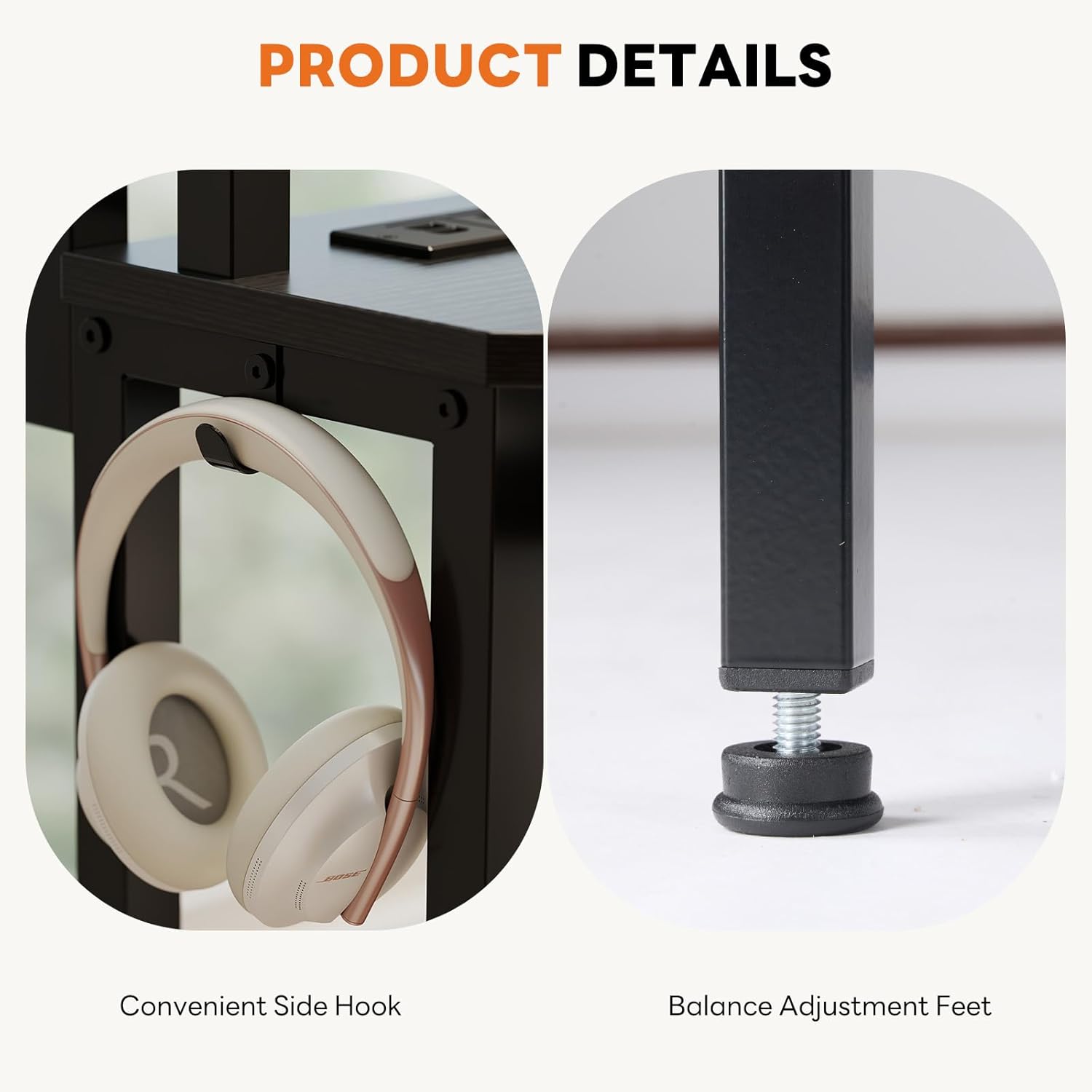
Image: A detailed view showing the convenient side hook for headphones and the adjustable feet for stability.
Maintenance
To maintain the appearance and longevity of your DUMOS Conner Desk, follow these simple care instructions:
- Cleaning: Wipe the desk surfaces with a dry, soft cloth. Avoid using harsh chemicals or abrasive cleaners, as these may damage the laminated finish.
- Spills: Immediately wipe up any spills to prevent moisture damage to the engineered wood.
- Fasteners: Periodically check all screws and fasteners to ensure they remain tight. Re-tighten as necessary to maintain stability.
- Heat and Moisture: Avoid placing hot items directly on the desk surface. Use coasters for drinks to prevent water rings.
Troubleshooting
If you encounter any issues with your DUMOS Conner Desk, please refer to the following common solutions:
- Desk Wobbles:
- Ensure all assembly screws are fully tightened.
- Adjust the leveling feet at the bottom of the desk legs to stabilize it on uneven floors.
- LED Lights Not Working:
- Check if the LED light strip is properly connected to its power source and the desk's power outlet.
- Ensure the desk's main power cord is plugged into a functional wall outlet.
- Verify that the control unit (button or app) is functioning correctly.
- Power Outlets/USB Ports Not Functioning:
- Confirm the desk's main power cord is securely plugged into a live wall outlet.
- Check if the device you are trying to charge is working correctly with other power sources.
If the issue persists, please contact DUMOS customer support for further assistance.
Specifications
| Brand | DUMOS |
| Model Number | D-2DZ01-31IN |
| Shape | Triangular (Corner) |
| Product Dimensions | 31.5"D x 31.5"W x 34.5"H |
| Item Weight | 29 Pounds |
| Color | Black |
| Top Material Type | Engineered Wood (Laminated) |
| Base Material | Metal |
| Special Features | Built-In USB Outlet, Ergonomic, Keyboard Tray Included, Monitor Stand, LED Lights |
| Included Components | Built-in Outlet, Built-in USB Port, Headphone Hook, Keyboard Tray |
| Maximum Weight Capacity | 132 lbs (60 kg) |
| Assembly Required | Yes |
| Product Care Instructions | Wipe with Dry Cloth |

Image: A detailed diagram illustrating the dimensions and weight capacities of various parts of the DUMOS Conner Desk.
Warranty and Support
Your DUMOS Conner Desk comes with a limited warranty. Please refer to the warranty card included in your product packaging for specific terms and conditions.
For technical support, missing parts, or any questions regarding your product, please contact DUMOS customer service through the retailer's platform or visit the official DUMOS website for contact information.
When contacting support, please have your model number (D-2DZ01-31IN) and purchase date available.