
MCHOSE A7 V2 Pro
MCHOSE A7 V2 Pro Wireless Gaming Mouse User Manual
Model: A7 V2 Pro
1. Introduction
Thank you for choosing the MCHOSE A7 V2 Pro Wireless Gaming Mouse. This manual provides detailed instructions for setting up, operating, and maintaining your new gaming mouse to ensure optimal performance and longevity. The A7 V2 Pro is designed for competitive gaming, featuring a lightweight design, high-precision sensor, and versatile connectivity options.
2. Product Features
- Ultra-lightweight Design: Weighing just 59g, the mouse features a centered gravity design for stable grip and efficient handling during extended gaming sessions.
- High Precision Tracking: Equipped with a PAW3395 optical sensor, offering up to 26,000 DPI for pixel-perfect tracking and accuracy.
- Tri-Mode Connectivity: Supports ultra-low-latency wireless (2.4GHz), wired (USB), and Bluetooth connectivity, suitable for various scenarios.
- Custom Software Support: The A7 supports onboard memory, allowing users to store custom settings for buttons, DPI adjustments, polling rates, and gaming modes via dedicated software.
- Extended Battery Life: Provides up to 130 hours of battery life on a single charge, minimizing interruptions during gameplay.

Figure 2.1: Ultra-lightweight design of the MCHOSE A7 V2 Pro.

Figure 2.2: PAW3395 optical sensor for high precision tracking.
3. Package Contents
Please check the package contents to ensure all items are present:
- MCHOSE A7 V2 Pro Wireless Gaming Mouse
- USB-C to USB-A Charging/Data Cable
- 2.4GHz USB Receiver (Dongle)
- Grip Tape Set
- User Manual
- Stickers
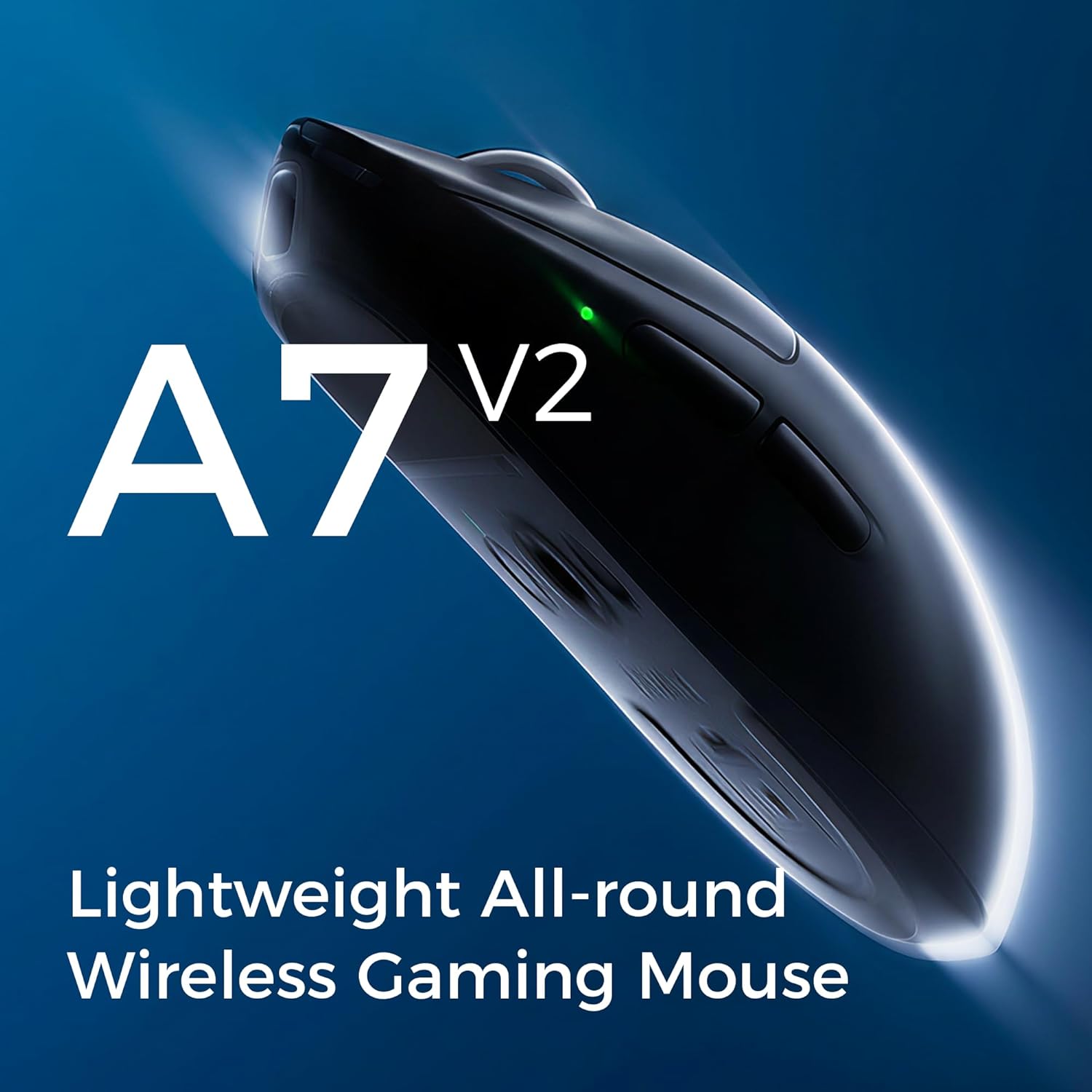
Figure 3.1: Contents of the MCHOSE A7 V2 Pro package.
4. Setup
4.1 Initial Charging
Before first use, it is recommended to fully charge the mouse. Connect the USB-C end of the charging cable to the mouse and the USB-A end to a powered USB port on your computer or a USB wall adapter. The LED indicator on the mouse will show charging status.

Figure 4.1: Mouse charging port.
4.2 Connecting the Mouse
The MCHOSE A7 V2 Pro offers three connection modes:
- 2.4GHz Wireless:
- Locate the 2.4GHz USB receiver (dongle) stored in the magnetic compartment on the underside of the mouse.
- Plug the USB receiver into an available USB port on your computer.
- Set the switch on the bottom of the mouse to the "2.4G" position. The mouse will automatically connect.
- Bluetooth:
- Set the switch on the bottom of the mouse to the "B" (Bluetooth) position.
- On your computer or device, go to Bluetooth settings and search for new devices.
- Select "MCHOSE A7 V2 Pro" from the list of available devices to pair.
- Wired:
- Connect the USB-C end of the charging cable to the mouse and the USB-A end to your computer.
- The mouse will function as a wired mouse and charge simultaneously.

Figure 4.2: Underside of the mouse with connection switch and receiver compartment.
4.3 Software Installation (Optional)
For advanced customization of DPI settings, button assignments, polling rates, and other features, download the MCHOSE M-HUB software from the official MCHOSE website. The software allows you to personalize your mouse experience and save profiles to the onboard memory.

Figure 4.3: MCHOSE M-HUB software interface.
5. Operating Instructions
5.1 DPI Adjustment
The MCHOSE A7 V2 Pro features a dedicated DPI button, usually located on the underside or top of the mouse, to cycle through preset DPI levels. You can customize these levels using the M-HUB software to match your preferences, up to 26,000 DPI.
5.2 Polling Rate
The mouse supports a wired polling rate of up to 8K Hz and a wireless polling rate of up to 1K Hz. Higher polling rates reduce input lag, providing a more responsive experience. Adjust this setting via the M-HUB software.

Figure 5.1: High polling rate for responsive performance.
5.3 Button Customization
All programmable buttons on the MCHOSE A7 V2 Pro can be customized using the M-HUB software. You can assign macros, media controls, or other functions to enhance your workflow or gaming performance.

Figure 5.2: Refined click structure for consistent and precise clicks.
6. Charging and Battery Life
The MCHOSE A7 V2 Pro is equipped with a long-lasting battery, providing up to 130 hours of usage on a single charge. When the battery is low, the LED indicator will signal the need for charging. Connect the mouse using the provided USB-C cable to recharge. You can continue to use the mouse in wired mode while it charges.
Figure 6.1: Mouse battery capacity illustration.
7. Maintenance
- Cleaning: Use a soft, dry cloth to clean the mouse surface. For stubborn dirt, a slightly damp cloth can be used, ensuring no liquid enters the mouse. Avoid harsh chemicals or abrasive materials.
- Sensor Care: Keep the optical sensor on the underside of the mouse clean and free from dust or debris to ensure accurate tracking.
- PTFE Feet: The mouse features large PTFE feet for smooth gliding. If they become worn, replacement feet can be purchased from authorized retailers.

Figure 7.1: Large PTFE feet for smooth movement.
8. Troubleshooting
| Problem | Possible Solution |
|---|---|
| Mouse not responding in 2.4GHz wireless mode. |
|
| Bluetooth connection issues. |
|
| Inaccurate tracking or cursor jitter. |
|
| Mouse not charging. |
|
9. Specifications
| Feature | Detail |
|---|---|
| Model | A7 V2 Pro |
| Sensor | PAW3395 Optical Sensor |
| DPI | Up to 26,000 DPI |
| Polling Rate (Wired) | Up to 8K Hz |
| Polling Rate (Wireless) | Up to 1K Hz |
| Connectivity | 2.4GHz Wireless, Bluetooth, USB Wired |
| Weight | 59 grams (approx. 2.08 ounces) |
| Battery Life | Up to 130 hours |
| Dimensions | 7.44 x 4.45 x 3.23 inches (Package Dimensions, actual mouse dimensions not explicitly given but can be inferred from A7 A5 COMP image) |
| Manufacturer | MCHOSE |

Figure 9.1: MCHOSE A7 V2 Pro dimensions (compared to A5).
10. Warranty and Support
MCHOSE products come with a standard manufacturer's warranty. For detailed warranty information, technical support, or service inquiries, please visit the official MCHOSE website or contact their customer support. You can also find more information on the MCHOSE Store on Amazon.
Related documentsA7 V2 Pro


Ask a question about this manual
Ask about setup, troubleshooting, compatibility, parts, safety, or missing instructions. Manuals+ will review the question and use this page’s manual context to help answer it.