
1. Product Overview
The ciciglow H410 Motherboard is a Micro ATX desktop board designed for 10th Generation Intel Core, Pentium Gold, and Celeron processors with an LGA 1200 socket. It supports dual-channel DDR4 memory up to 64GB and features comprehensive connectivity options including M.2 NVMe, USB 3.2, and HD Multimedia Interface/VGA outputs. This motherboard is engineered for stable performance and an enhanced audio experience.
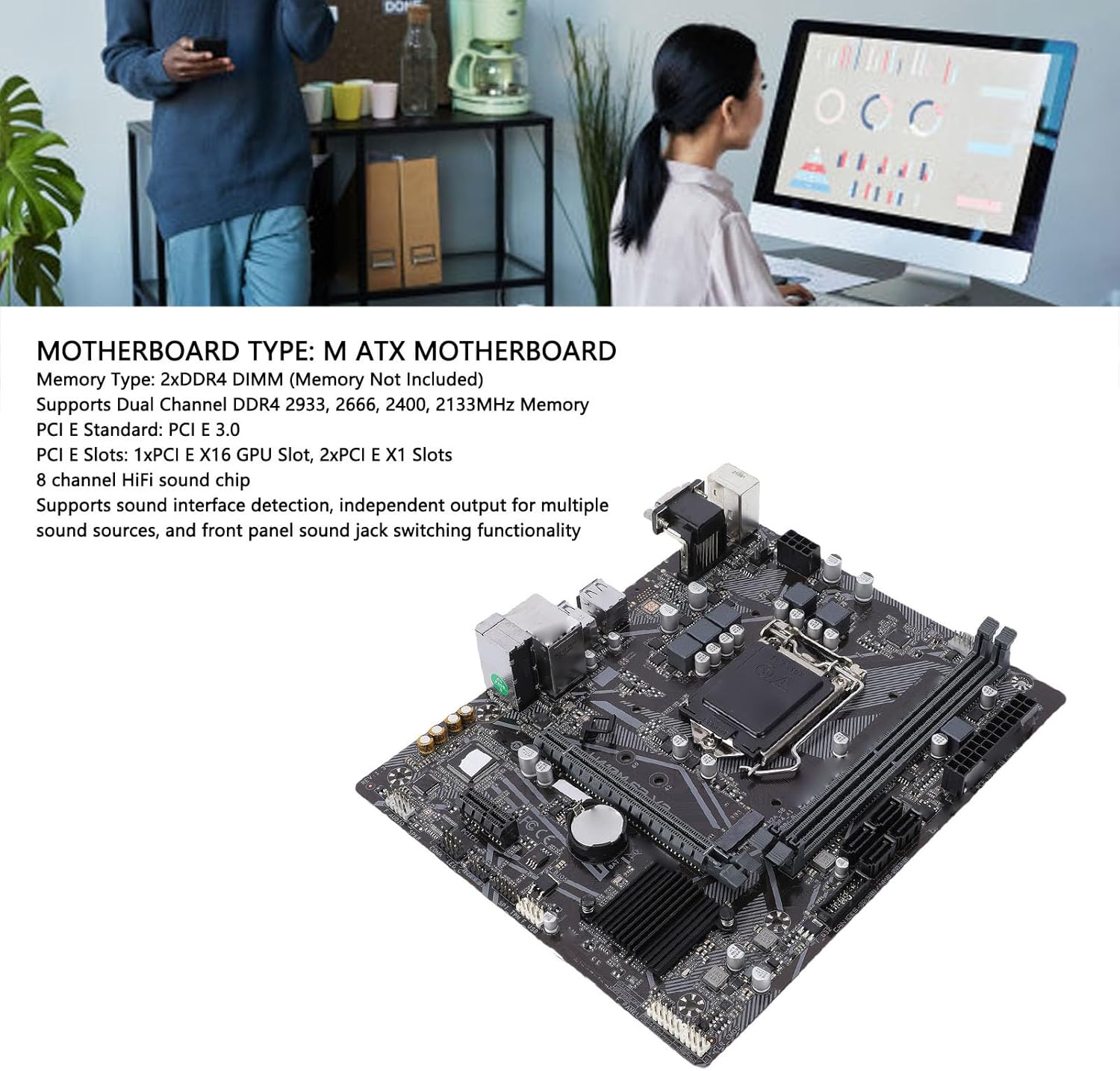
Figure 1.1: Overview of the ciciglow H410 Motherboard highlighting key features.
2. Package Contents
Please verify that all items are present and in good condition upon opening the package:
- 1 x ciciglow H410 Motherboard
- 1 x I/O Backplate
3. Setup Guide
This section provides instructions for installing the motherboard and its components into your system.
3.1. CPU Installation (LGA 1200)
- Locate the LGA 1200 CPU socket on the motherboard.
- Gently push down the load lever and pull it to the side to open the CPU socket cover.
- Carefully align the notches on your 10th Gen Intel CPU with the corresponding keys on the socket. Ensure the golden triangle on the CPU matches the triangle on the socket.
- Place the CPU into the socket without applying force. It should sit flush.
- Close the socket cover and push the load lever back into its locked position. This will secure the CPU.

Figure 3.1: The LGA 1200 CPU socket area on the motherboard.
3.2. Memory (RAM) Installation (DDR4 DIMM)
The motherboard features two DDR4 DIMM slots, supporting up to 64GB of memory.
- Open the clips at both ends of the DIMM slot.
- Align the notch on the DDR4 memory module with the key in the DIMM slot.
- Insert the memory module firmly into the slot until the clips snap into place, securing the module.

Figure 3.2: DDR4 DIMM slots and SATA ports.
3.3. Storage Device Installation (SATA, M.2 NVMe)
The motherboard supports both SATA 6Gb/s drives and M.2 NVMe SSDs.
- SATA Drives: Connect your SATA SSDs or HDDs to the available SATA III interfaces using SATA data cables. Connect the other end of the cable to your storage device. Ensure power cables from your power supply are also connected to the drives.
- M.2 NVMe SSD: Locate the M.2 socket 3 slot. Insert your M.2 NVMe SSD into the slot at an angle, then gently push it down and secure it with the provided screw.
3.4. Expansion Card Installation (PCIe)
The motherboard includes one PCIe 3.0 x16 slot for graphics cards and two PCIe 3.0 x1 slots for other expansion cards.
- Align your expansion card with the appropriate PCIe slot.
- Press down firmly until the card is seated correctly in the slot.
- Secure the card to your PC case with a screw.
3.5. Connecting Peripherals and Power
Connect your power supply unit (PSU) to the motherboard's 24-pin ATX power connector and the 8-pin CPU power connector. Connect front panel headers (USB, audio, power/reset buttons, LEDs) according to the motherboard manual. Finally, connect your monitor, keyboard, mouse, and other peripherals to the rear I/O ports.

Figure 3.3: Rear I/O panel with USB, Ethernet, and audio ports.
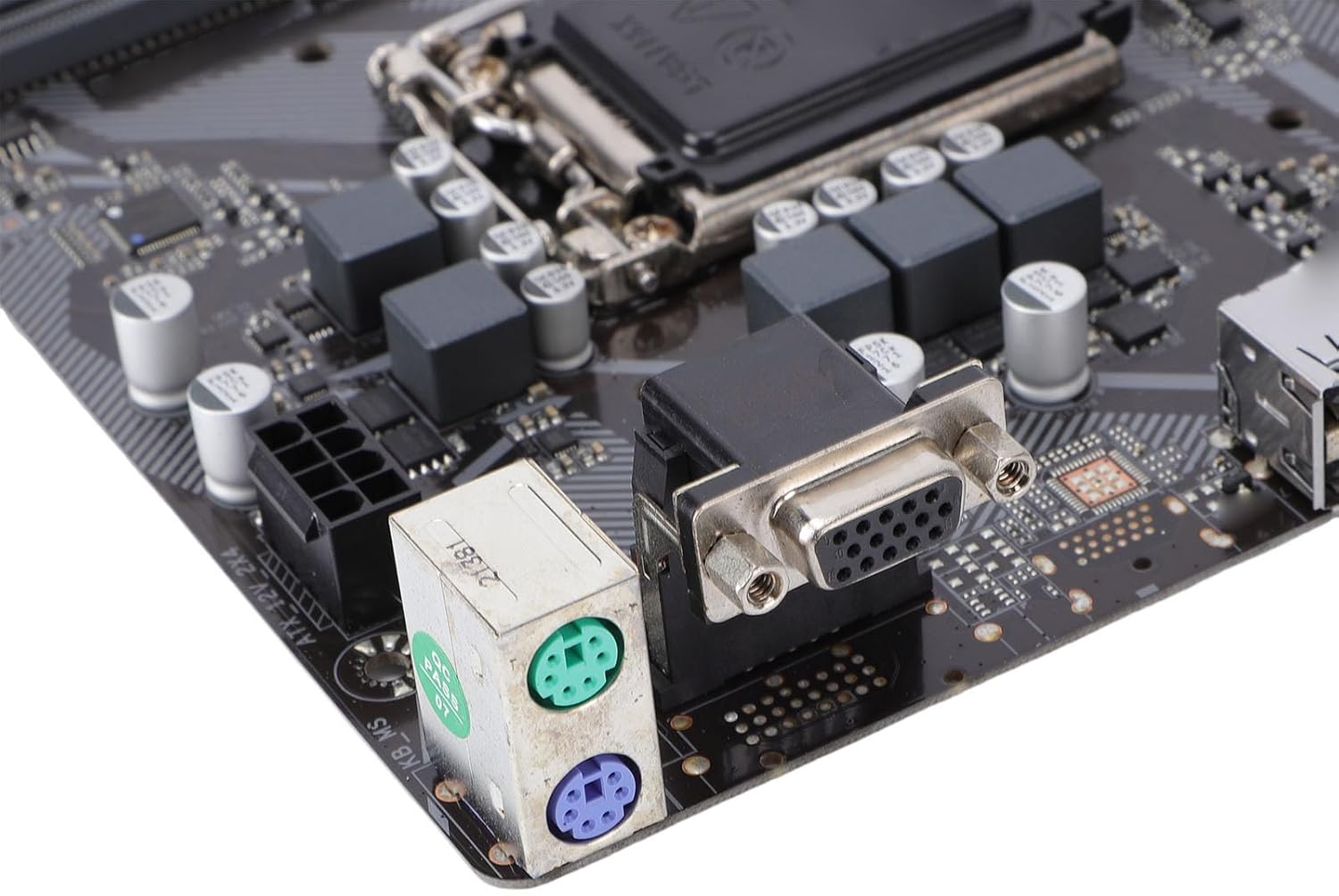
Figure 3.4: PS/2 ports for legacy keyboard/mouse and VGA port for display output.
4. Operating Instructions
4.1. Initial Boot-Up and BIOS Access
After assembling your system, connect it to a power source and a monitor. Press the power button. During the initial boot sequence, repeatedly press the DEL or F2 key (check your screen for the exact key) to enter the BIOS/UEFI setup utility. Here you can configure boot order, system time, and other advanced settings.
4.2. Driver Installation
After installing your operating system, it is crucial to install the latest drivers for your motherboard's components. These typically include chipset drivers, network drivers, audio drivers, and any other specific drivers for integrated peripherals. You can usually find these on the manufacturer's website or on a provided driver CD/USB drive.
5. Maintenance
Proper maintenance ensures the longevity and stable operation of your motherboard and system.
- Dust Removal: Regularly clean dust from inside your PC case, especially from heatsinks and fans, using compressed air. Dust accumulation can lead to overheating.
- Airflow: Ensure good airflow within your PC case. Keep cables tidy and ensure intake and exhaust fans are functioning correctly.
- BIOS Updates: Periodically check the manufacturer's website for BIOS/UEFI updates. These updates can improve compatibility, stability, and performance. Follow the update instructions carefully to avoid system damage.
6. Troubleshooting
This section addresses common issues you might encounter.
- No Power: Ensure all power cables (24-pin ATX, 8-pin CPU) are securely connected to the motherboard and the power supply is switched on. Check the power button connection to the front panel header.
- No Display: Verify that your monitor is connected to the correct graphics output (either integrated graphics on the motherboard or your dedicated graphics card). Reseat your graphics card and RAM modules.
- System Instability/Crashes: This can be caused by various factors. Check RAM seating, CPU temperature, and ensure all drivers are up to date. Run memory diagnostic tools.
- POST Errors/Beep Codes: If your system emits a series of beeps and fails to boot, consult the motherboard's specific beep code guide (often found in the full manual or manufacturer's website) to diagnose the issue (e.g., RAM error, graphics card error).
7. Specifications
Detailed technical specifications for the ciciglow H410 Motherboard.
| Feature | Specification |
|---|---|
| Brand | ciciglow |
| Model Name | H410 |
| CPU Socket | LGA 1200 |
| Compatible Processors | 10th Gen Intel Core, Pentium Gold, Celeron (up to 65W) |
| Chipset | Intel H410 |
| RAM Memory Technology | DDR4 |
| Memory Slots | 2 x DDR4 DIMM |
| Maximum Memory Capacity | 64GB |
| Memory Clock Speed | 2133, 2400, 2666, 2933 MHz (Dual Channel, XMP support) |
| Graphics Card Interface | PCI Express |
| PCIe Slots | 1 x PCIe 3.0 x16, 2 x PCIe 3.0 x1 |
| Storage Interfaces | 4 x Serial ATA III (6Gb/s), 1 x M.2 Socket 3 (PCIe 3.0 x4 mode) |
| USB Interfaces | 2 x USB 3.2 Gen1 (rear), 2 x USB 3.2 Gen1 (internal header), 4 x USB 2.0 (rear), 2 x USB 2.0 (internal header) |
| Video Interfaces | 1 x HD Multimedia Interface 1.4b, 1 x VGA |
| Network Chip | Realtek RTL8111H Gigabit Network Card |
| Sound Chip | Realtek ALC887 7.1 Channel HD Audio |
| Motherboard Type | Micro ATX |
| Power Connectors | 1 x 24-pin ATX, 1 x 8-pin CPU |
8. Warranty Information
The ciciglow H410 Motherboard comes with a manufacturer warranty for 90 days from the date of purchase. Please retain your proof of purchase for warranty claims. For detailed terms and conditions, refer to the warranty documentation provided with your product or contact ciciglow customer support.
9. Support
For further assistance, technical support, or inquiries regarding your ciciglow H410 Motherboard, please refer to the following resources:
- Online Resources: Visit the official ciciglow website for updated drivers, FAQs, and additional product information.
- Customer Service: Contact ciciglow customer support through their official channels for personalized assistance.


