
1. Introduction
The Zebra ZQ220 Plus is a versatile mobile thermal printer designed for on-the-go professionals. This portable device offers reliable, high-quality receipt and label printing capabilities, making it suitable for various applications including retail, hospitality, and field services. Featuring Bluetooth 5.0 connectivity and a durable design, the ZQ220 Plus ensures efficient operation in diverse working environments. Its thermal printing technology eliminates the need for ink or toner, simplifying maintenance.
2. Safety Information
- Read all instructions before operating the printer.
- Do not expose the printer to extreme temperatures, direct sunlight, or high humidity.
- Use only Zebra-approved accessories and power sources.
- Avoid dropping the printer or subjecting it to severe impacts.
- Keep the printer away from water and other liquids.
- Do not attempt to disassemble or repair the printer yourself. Refer to qualified service personnel.
3. Package Contents
Verify that all items are present in the package:
- Zebra ZQ220 Plus Mobile Thermal Printer
- Rechargeable Battery
- USB Charging Cable
- Quick Start Guide
- Sample Thermal Paper Roll
4. Product Overview
Familiarize yourself with the components of your ZQ220 Plus printer.

Figure 4.1: Front View of the ZQ220 Plus Printer
This image displays the front of the ZQ220 Plus printer, highlighting its compact design. The top panel features an LCD display and three control buttons: Power, Settings, and Connectivity. The paper output slot is visible below the control panel.
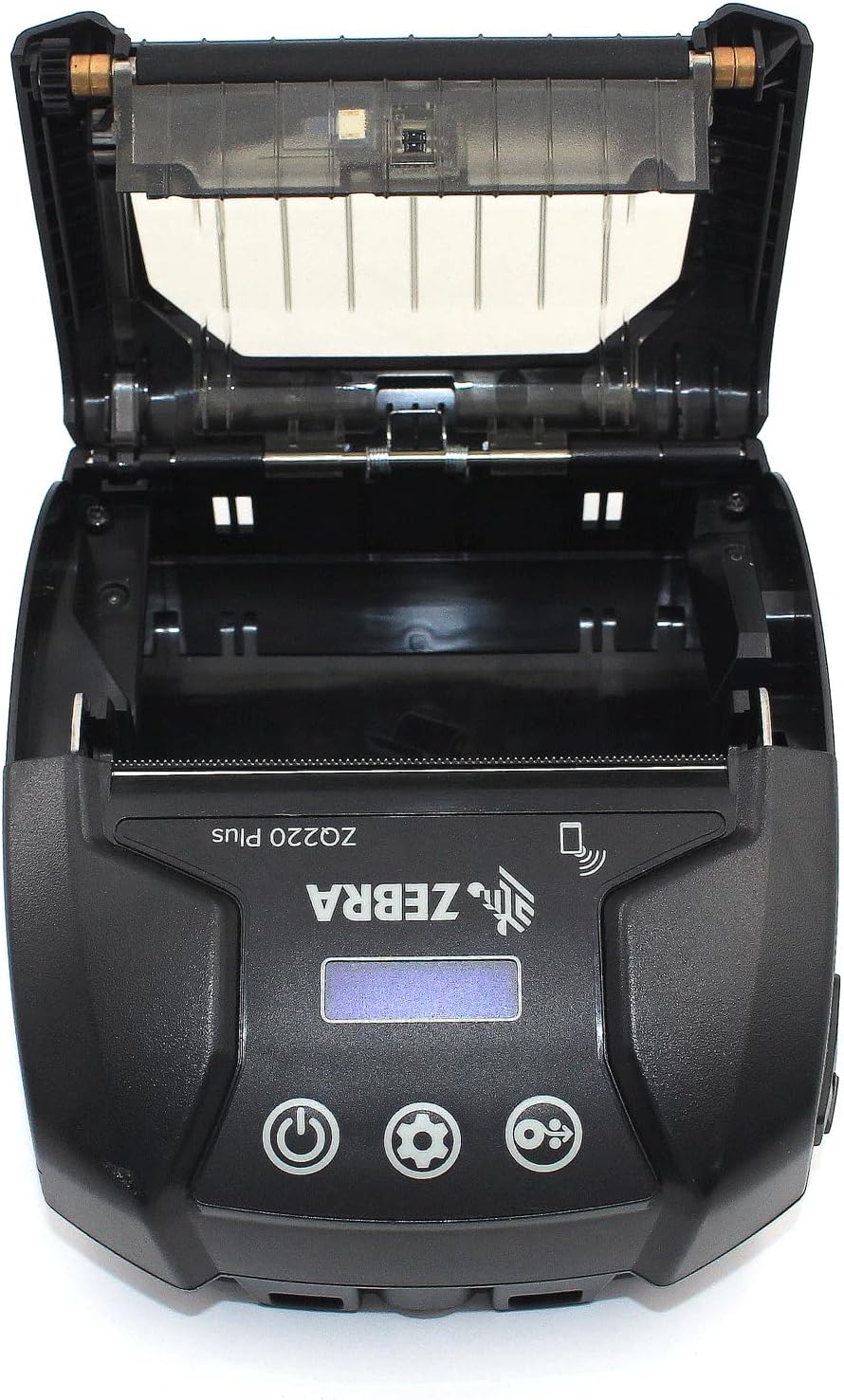
Figure 4.2: Media Compartment Open
This image shows the printer with its top cover open, providing access to the media compartment. The thermal printhead is visible, along with the spindle for loading paper rolls. This view is essential for understanding how to load printing media.

Figure 4.3: Media Roll Insertion
This image demonstrates the media loading process. The side view with the cover open clearly shows how a roll of thermal paper is placed into the printer's media bay, ensuring correct alignment for printing.
5. Setup
5.1. Battery Installation
- Ensure the printer is powered off.
- Locate the battery compartment cover on the back or bottom of the printer.
- Open the cover and insert the rechargeable battery, ensuring the contacts align correctly.
- Close the battery compartment cover securely.
5.2. Loading Print Media
- Open the media compartment cover (refer to Figure 4.2).
- Place the thermal paper roll into the compartment with the leading edge feeding from the bottom of the roll.
- Pull a small amount of paper past the printhead.
- Close the media compartment cover firmly until it latches.
5.3. Initial Power On and Charging
- Connect the USB charging cable to the printer and a power source (e.g., USB wall adapter, vehicle USB port).
- Allow the battery to fully charge before first use. The charging indicator light will show the status.
- Press and hold the Power button until the printer powers on. The LCD display will illuminate.
6. Operating the Printer
6.1. Bluetooth Pairing
- Ensure the printer is powered on and within range of your host device (smartphone, tablet, etc.).
- On your host device, navigate to the Bluetooth settings and enable Bluetooth.
- Search for available devices. The printer will appear as 'ZQ220 Plus' or a similar identifier.
- Select the printer from the list to initiate pairing. If prompted, enter the default PIN (usually '0000' or '1234').
- Once paired, the Bluetooth icon on the printer's display will indicate a successful connection.
6.2. Printing
- Ensure the printer is paired with your host device and has sufficient media loaded.
- Open your printing application (e.g., ZLabel Designer Mobile App for Android or iOS, or other compatible software).
- Select the ZQ220 Plus as your target printer within the application.
- Initiate the print command from your application. The printer will begin printing the document or label.
6.3. USB Charging
The ZQ220 Plus supports simple USB charging. Connect the printer to any standard USB power source using the provided USB cable. This allows for convenient charging in vehicles or from portable power banks.
7. Maintenance
7.1. Cleaning the Printer
- Exterior: Wipe the exterior of the printer with a soft, damp cloth. Do not use harsh chemicals or abrasive cleaners.
- Printhead: Periodically clean the thermal printhead using a printhead cleaning pen or a cotton swab lightly dampened with isopropyl alcohol. Ensure the printer is off and cool before cleaning. Allow to dry completely before use.
- Platen Roller: Clean the platen roller with a lint-free cloth dampened with isopropyl alcohol to remove paper dust or adhesive residue.
7.2. Storage
When not in use for extended periods, store the printer in a cool, dry place, away from direct sunlight and extreme temperatures. Remove the battery if storing for several months to prevent discharge or damage.
8. Troubleshooting
| Problem | Possible Cause | Solution |
|---|---|---|
| Printer does not power on | Low or depleted battery Improperly installed battery | Charge the battery Reinstall the battery correctly |
| No print output | No paper loaded Paper loaded incorrectly Printhead dirty or damaged | Load thermal paper Reload paper correctly Clean the printhead |
| Poor print quality | Dirty printhead Low battery Incorrect media type | Clean the printhead Charge the battery Ensure correct thermal media is used |
| Cannot connect via Bluetooth | Bluetooth not enabled on device Printer not in pairing mode Out of range | Enable Bluetooth on host device Ensure printer is discoverable Move device closer to printer |
| Printer stops during operation | Low battery Paper jam Overheating | Charge the battery Clear any paper jam Allow printer to cool down |
9. Specifications
| Feature | Specification |
|---|---|
| Model Name | ZQ220 PLUS |
| Printing Technology | Direct Thermal |
| Print Resolution | 203 DPI (Dots Per Inch) |
| Max Print Speed (Monochrome) | 20 ppm |
| Supported Media Widths | 80 mm (3.14 in), 76.2 mm (3 in), 58 mm (2.28 in) |
| Connectivity | Bluetooth 5.0, USB |
| Battery Capacity | 2500 mAh |
| Memory | 8 MB |
| Durability Rating | IP54 (resistance to dust and liquids) |
| Product Dimensions (D x W x H) | 3.15" x 2.25" x 3" |
| Item Weight | 4 ounces (0.25 lbs) |
| Included Components | Printer, Battery, USB Cable |
10. Warranty and Support
10.1. Warranty Information
The Zebra ZQ220 Plus Mobile Thermal Printer comes with a Limited Manufacturer Warranty. Please refer to the warranty card included with your product or visit the official Zebra website for detailed terms and conditions regarding coverage, duration, and claims procedures.
10.2. Technical Support
For technical assistance, troubleshooting beyond this manual, or service inquiries, please contact Zebra customer support. Contact information can typically be found on the official Zebra website or in your product documentation.


