Introduction
Thank you for choosing the Philips EVNIA SPK9718 Wireless Gaming Mouse. This manual provides essential information for setting up, operating, and maintaining your new gaming mouse. Please read it carefully to ensure optimal performance and longevity of your device.
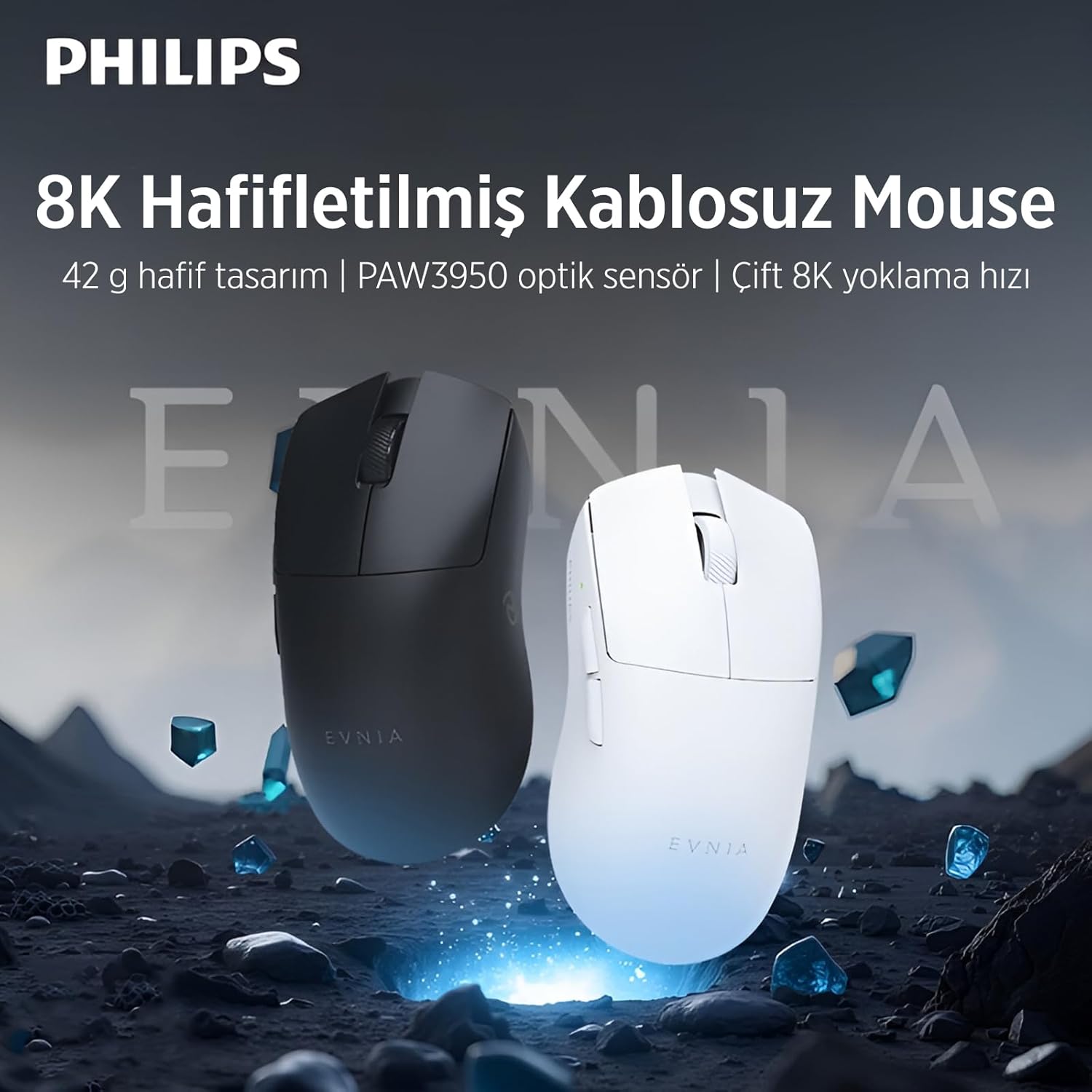
Image: Philips EVNIA SPK9718 Wireless Gaming Mouse, showcasing both black and white color variants. This mouse features an 8K polling rate and a lightweight design.
Product Features
- PAW3950 Sensor: Ultra-fast and precise PAW3950 sensor with Omron Light technology for millimeter-level cursor control.
- Adjustable DPI: Sensitivity range from 400 to 30,000 DPI, customizable for various gaming styles and daily use.
- Triple Connectivity Modes: Supports wired, 2.4GHz wireless (dongle), and Bluetooth 5.1 connections for versatile use.
- HyperPolling 8K: 8K Hz EVNIA HyperPolling technology for ultra-fast data transmission and zero latency, with 1K Hz and 8K Hz modes.
- Long Battery Life: 500 mAh rechargeable battery providing up to 156 hours at 1K Hz or 32.89 hours at 8K Hz polling rate.
- Lightweight Design: Weighs approximately 42g for enhanced stability and speed.
- Ergonomic Design: Suitable for medium to large hands, supporting various grip styles (palm, claw, fingertip).

Image: Exploded view of the Philips EVNIA SPK9718 mouse, highlighting internal components such as the PAW3950 sensor, 500 mAh battery, special encoder, and micro switch, contributing to its 42g lightweight body.
Setup Instructions
1. Charging the Mouse
Before first use, ensure the mouse is fully charged. Connect the mouse to a USB power source using the provided USB cable. The LED indicator will show charging status.

Image: The Philips EVNIA SPK9718 mouse, illustrating its 500mAh battery capacity, which provides approximately 250 hours of use at 1K polling rate and 40 hours at 8K polling rate.
2. Connecting the Mouse
The Philips EVNIA SPK9718 offers three connection modes:

Image: The Philips EVNIA SPK9718 mouse demonstrating its triple connection modes: 2.4G Wireless, Bluetooth, and Wired connection.
2.1. 2.4GHz Wireless Connection (Dongle)
- Locate the 2.4GHz USB dongle (receiver) in the mouse packaging.
- Plug the USB dongle into an available USB port on your computer.
- Turn on the mouse using the power switch located on the bottom of the mouse.
- The mouse should automatically connect to the dongle. The LED indicator may flash briefly and then become steady.

Image: The special 8 KHz receiver dongle for the Philips EVNIA SPK9718 mouse, capable of reporting data every 0.125 milliseconds, sending data 8 times per second.
2.2. Bluetooth 5.1 Connection
- Turn on the mouse.
- Switch the connection mode to Bluetooth (refer to the mouse's bottom switch or button for mode selection).
- On your computer or device, go to Bluetooth settings and enable Bluetooth.
- Search for new devices. The mouse should appear as "Philips EVNIA SPK9718" or similar.
- Select the mouse to pair. The LED indicator will confirm successful pairing.
2.3. Wired Connection
- Connect the USB cable to the mouse and to an available USB port on your computer.
- The mouse will automatically switch to wired mode and begin charging.
Operating Instructions
1. DPI Adjustment
The mouse features a dedicated DPI button (usually located behind the scroll wheel) to cycle through different sensitivity levels. Press the DPI button to change the cursor speed. The mouse supports a range from 400 to 30,000 DPI.

Image: The white Philips EVNIA SPK9718 mouse, illustrating its ultra-low latency performance with both wired and wireless 8K reporting rates.
2. Polling Rate Adjustment (8K Hz HyperPolling)
The mouse supports 1K Hz and 8K Hz polling rates. Specific software or button combinations may be required to switch between these modes. Refer to the official Philips EVNIA software for advanced customization.
3. Ergonomics and Grip Styles
The ergonomic design of the SPK9718 mouse accommodates various grip styles for comfortable use during long gaming sessions.

Image: The Philips EVNIA SPK9718 mouse demonstrating three common grip styles: Palm Grip, Claw Grip, and Fingertip Grip, highlighting its ergonomic adaptability.
Maintenance
- Cleaning: Use a soft, dry cloth to clean the mouse surface. Avoid using harsh chemicals or abrasive materials.
- Sensor Care: Keep the optical sensor on the bottom of the mouse clean and free from dust or debris to ensure accurate tracking.
- Storage: When not in use for extended periods, store the mouse in a dry, cool place.
Troubleshooting
| Problem | Solution |
|---|---|
| Mouse not responding (Wireless) |
|
| Mouse cursor erratic or inaccurate |
|
| Connectivity issues |
|
Specifications
| Feature | Detail |
|---|---|
| Brand | Philips |
| Model | EVNIA SPK9718 |
| Connectivity Technology | Bluetooth 5.1, 2.4GHz Wireless (USB Dongle), USB Wired |
| Movement Detection Technology | Optical (PAW3950 Sensor) |
| DPI Range | 400 - 30,000 DPI |
| Polling Rate | 1K Hz, 8K Hz (HyperPolling) |
| Tracking Speed | 750 IPS |
| Maximum Acceleration | 50G |
| Battery | 500 mAh Rechargeable |
| Battery Life | Up to 156 hours (1K Hz), Up to 32.89 hours (8K Hz) |
| Weight | Approximately 42g |
| Key Features | Ergonomic Design, Lightweight, Wireless, Portable, Rechargeable |
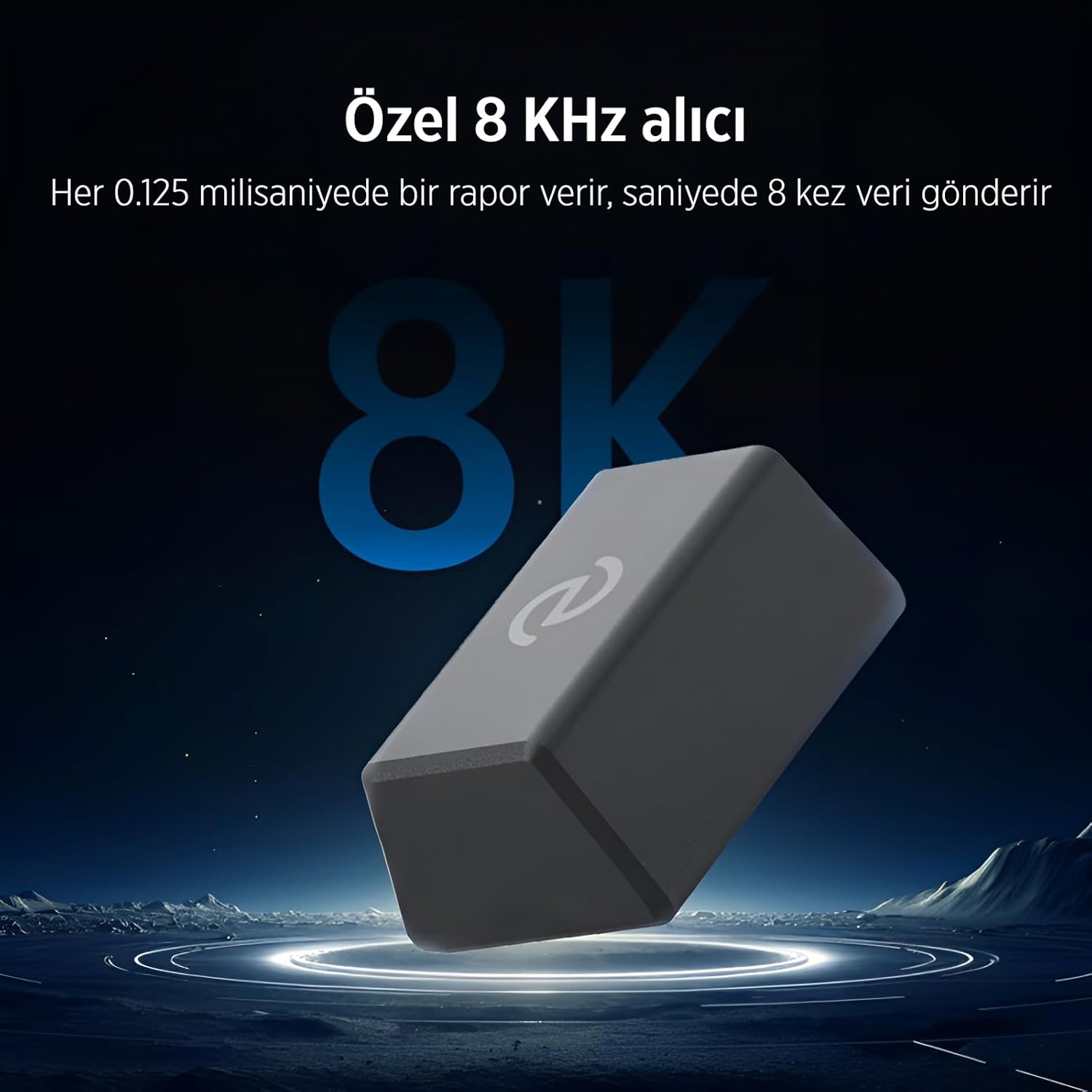
Image: Detailed specifications of the flagship PAW3950 sensor, showing 30,000 DPI resolution, 750 IPS tracking speed, and 50G maximum acceleration, ensuring high precision and performance.
Warranty and Support
This Philips EVNIA SPK9718 Wireless Gaming Mouse is covered by a Philips Turkey Warranty. For warranty claims, technical support, or service inquiries, please contact Philips customer support or visit the official Philips website for your region.
Keep your proof of purchase for warranty validation.


