
1. Introduction
This manual provides detailed instructions for the setup, operation, and maintenance of your XIWBSY T08-PRO Google TV Projector. Please read this manual thoroughly before using the device to ensure proper functionality and safety. The XIWBSY T08-PRO is a versatile projector featuring integrated Google TV, 1500 ANSI lumens brightness, 4K support, automatic focus and keystone correction, WiFi 6, Bluetooth 5.3, and a 360-degree rotatable stand for flexible projection.
2. Safety Information
- Do not block the ventilation openings of the projector. Ensure adequate airflow to prevent overheating.
- Do not look directly into the projector lens when the lamp is on, as the bright light can cause eye damage.
- Keep the projector away from water or other liquids. Do not operate in humid environments.
- Use only the power adapter provided with the projector.
- Do not attempt to disassemble or repair the projector yourself. Contact qualified service personnel for assistance.
- Place the projector on a stable, level surface to prevent it from falling.
- Keep the remote control batteries out of reach of children.
3. Package Contents
Verify that all items are present in the package:
- XIWBSY Projector & Stand
- Power Cable
- AV & HDMI Cable
- Remote Control
- User Manual
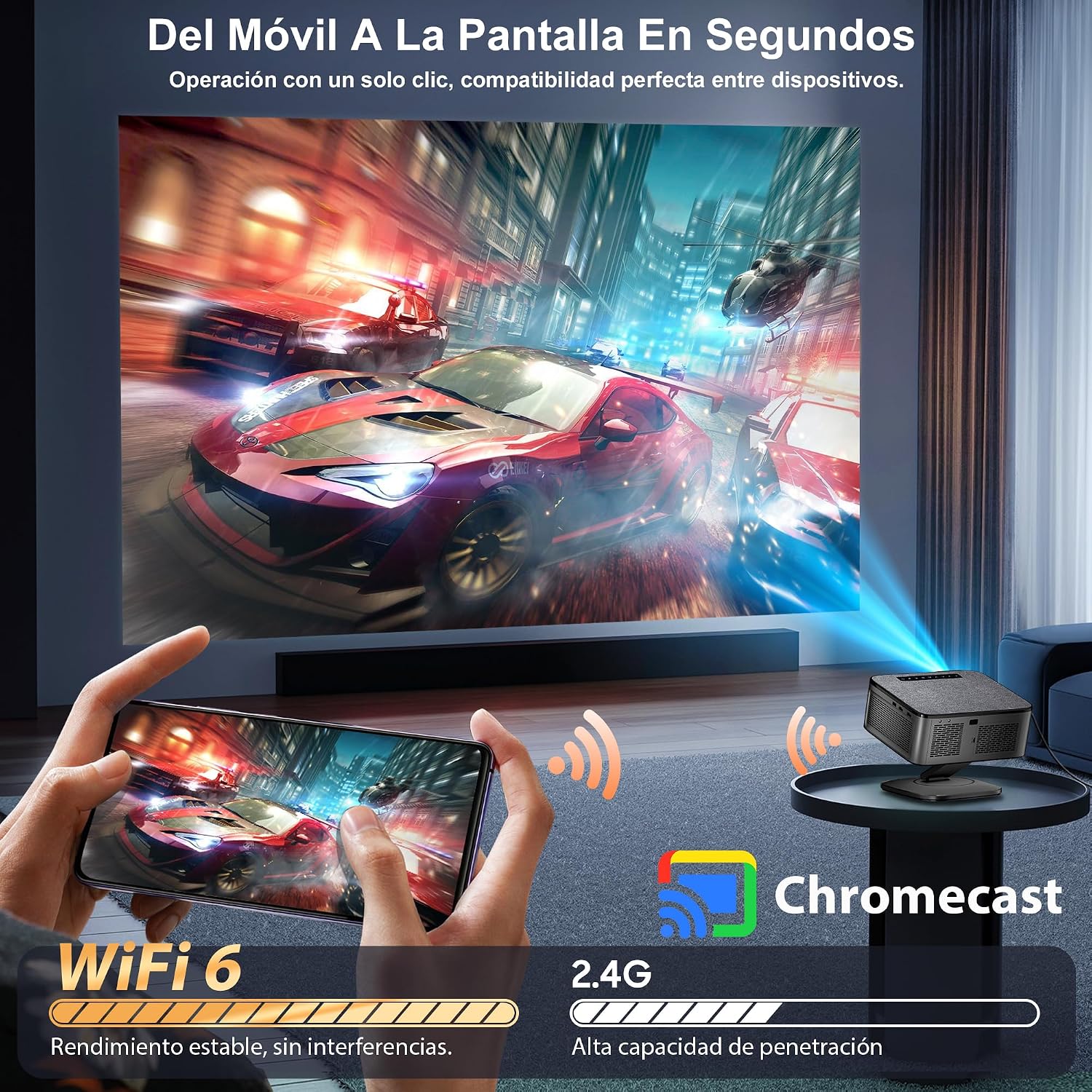
Figure 3.1: Included components of the XIWBSY T08-PRO projector package.
4. Product Overview
4.1 Design and Features
The XIWBSY T08-PRO projector features a premium design with a woven texture on its top surface, providing a soft, retro visual effect and a unique tactile experience. This design also helps reduce glare and prevent fingerprints. Blue backlit touch buttons are centrally located on the top, complementing the woven texture for a modern aesthetic. The projector is lightweight and portable, allowing for use in various locations.

Figure 4.1: Premium material design of the projector, highlighting metallic accents and woven fabric.

Figure 4.2: Premium metallic design details of the projector's lens area.
4.2 Ports and Connections
The projector is equipped with multiple ports for various connectivity options:
- HDMI: For connecting to laptops, gaming consoles, and other HDMI-enabled devices.
- USB: For media playback from USB drives or connecting external devices.
- AV: For connecting to older audio/video equipment.
- Bluetooth: For wireless audio output to external speakers or headphones.
- Wi-Fi 6: For high-speed wireless internet and screen mirroring.

Figure 4.3: Connectivity ports on the projector.
5. Setup
5.1 Placement and Positioning
The projector's 360-degree rotatable stand offers flexible placement options. It can be used on a desktop, mounted on a tripod, or installed on a wall or ceiling (M4 screw at the bottom). Adjust the projector's position to achieve the desired screen size and angle.
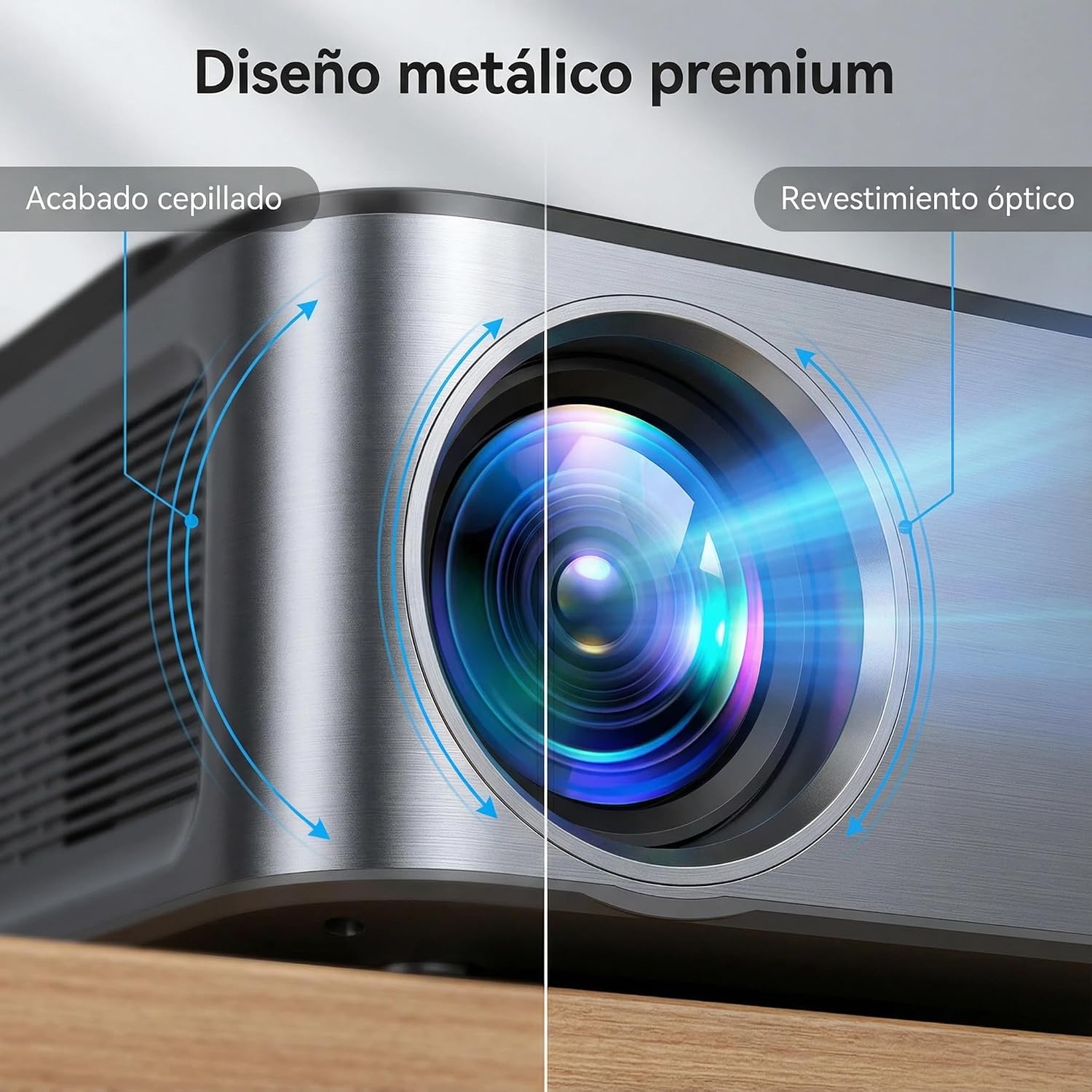
Figure 5.1: Flexible 360-degree rotational projection.
5.2 Power Connection
Connect the provided power cable to the projector's power input and then to a power outlet. The projector will power on automatically or can be turned on using the power button on the device or remote control.
5.3 Initial Setup and Image Adjustment
The projector features full AI visual calibration for easy setup:
- Auto Focus: The image will automatically sharpen within seconds, even if the projector is bumped.
- Automatic Keystone Correction: Corrects image distortion caused by angled projection.
- Obstacle Avoidance: Automatically adjusts the image to avoid obstacles like power outlets or picture frames.
- Automatic Screen Fit: Adjusts the image to perfectly fit the screen.
- Digital Zoom: Adjust the image size from 100% to 50% for optimal viewing.

Figure 5.2: Automatic focus and keystone correction in action.

Figure 5.3: Smart automatic image adjustments for optimal viewing.
6. Operating Instructions
6.1 Google TV Interface
The projector comes with officially authorized Google TV, providing access to a wide range of applications such as Netflix, YouTube, Prime Video, and Shopify. The intelligent recommendation system adapts content to your preferences. Apps launch quickly for a fluid experience.

Figure 6.1: Google TV interface with various applications.

Figure 6.2: Access to over 10,000+ licensed Google TV applications.
6.2 Google Voice Assistant
Control your projector with voice commands using the Google Voice Assistant. Simply press the microphone button on the remote control and speak commands like "Open Netflix," "What's the weather?" or "Increase the volume." This feature supports multiple languages.

Figure 6.3: Using Google Voice Assistant for hands-free control.
6.3 Chromecast and Screen Mirroring
The integrated Chromecast allows for seamless wireless screen mirroring and content streaming from Android, iOS, or Chrome devices without the need for external devices. Enjoy perfect compatibility and duplication in seconds.

Figure 6.4: Mobile screen mirroring to the projector via Chromecast.
7. Connectivity
7.1 Wi-Fi 6
Equipped with the latest Wi-Fi 6 technology, the projector ensures faster and more stable wireless performance for streaming movies, browsing the internet, and other online activities.

Figure 7.1: Wi-Fi 6 for stable and fast wireless connectivity.
7.2 Bluetooth 5.3
The projector features Bluetooth 5.3, allowing you to connect external Bluetooth speakers or headphones for an enhanced audio experience. The built-in 2*10W HiFi stereo speakers also provide immersive sound without additional equipment.

Figure 7.2: Bluetooth 5.3 for connecting external audio devices.
7.3 Wired Connections
Utilize the HDMI, USB, and AV ports for connecting various devices such as gaming consoles, laptops, USB drives, and older media players.
8. Maintenance
To ensure the longevity and optimal performance of your projector, follow these maintenance guidelines:
- Cleaning the Lens: Use a soft, lint-free cloth specifically designed for optical lenses. Do not use abrasive cleaners or cloths.
- Cleaning the Exterior: Wipe the projector's exterior with a soft, dry cloth. Avoid using harsh chemicals.
- Ventilation: Regularly check that the ventilation openings are clear of dust and debris to prevent overheating.
- Lamp Life: The projector lamp has a lifespan of 100,000 hours, ensuring long-term use without frequent lamp replacement.

Figure 8.1: Projector lamp designed for 100,000 hours of use.
9. Troubleshooting
If you encounter issues with your projector, refer to the following common problems and solutions:
| Problem | Possible Cause | Solution |
|---|---|---|
| No image on screen | Power cable disconnected, incorrect input source, lens cap on. | Check power connection, select correct input source (HDMI, AV), remove lens cap. |
| Blurred image | Out of focus, incorrect keystone correction. | Allow auto-focus to adjust, or manually adjust focus if available. Ensure auto keystone correction is enabled. |
| No sound | Volume too low, external speakers not connected, incorrect audio output setting. | Increase volume, check Bluetooth connection to external speakers, verify audio output settings in Google TV. |
| Remote control not working | Batteries depleted, obstruction between remote and projector. | Replace batteries, ensure clear line of sight to the projector's IR receiver. |
| Wi-Fi connection issues | Incorrect password, router too far, network interference. | Verify Wi-Fi password, move projector closer to router, restart router. |
10. Specifications
| Feature | Specification |
|---|---|
| Brand | XIWBSY |
| Model | T08-PRO |
| Product Dimensions | 25.7 x 22 x 15 cm; 3.5 kg |
| Hardware Interface | AV, Bluetooth, HDMI, USB |
| Compatible Devices | Speaker, Game Console, Laptop, Smartphone, Tablet |
| Special Features | Integrated Google TV, Google Voice Assistant, Google Cast, 1500 ANSI Lumens, Auto Focus/Keystone, 360° Detachable/Foldable/Rotatable Stand, 4K Support, Low Noise, Wi-Fi 6, Bluetooth 5.3, HDR10 |
| Display Technology | LCD |
| Image Brightness | 38000 Lumens (Marketing Lumens), 1500 ANSI Lumens |
| Image Contrast Ratio | 20000:1 |
| Aspect Ratio | 16:9 |
| Native Display Resolution | 1920 x 1080 (Full HD) |
| Maximum Resolution Support | 4096 x 2160 Pixels (4K) |
| Noise Level | 35 Decibels |
| Voltage | 220 Volts |
| Electrical Power | 105 Watts |
| Batteries Required | No |
| Refresh Rate | 60 Hz |
| Connectivity Technology | Bluetooth, Chromecast, HDMI, USB, Wi-Fi |
| Form Factor | Portable |
| Mounting Compatibility | Ceiling Mount, Floor Mount, Wall Mount, Table Mount, Tripod Mount |
| Recommended Uses | Home Cinema, Education, Professional, Video Games |
11. Warranty and Support
The manufacturer provides lifetime technical support for the XIWBSY T08-PRO projector. For any questions or assistance, please contact our customer service team via email at support01@lthjm.com. Our team is available 24/7 to help you.

