
1. Product Overview
The DBIT AX3000 WiFi 6 Router (WR-X30) is designed to provide high-speed wireless internet connectivity for home environments. It supports the latest WiFi 6 standard, offering enhanced performance, coverage, and security for multiple connected devices.
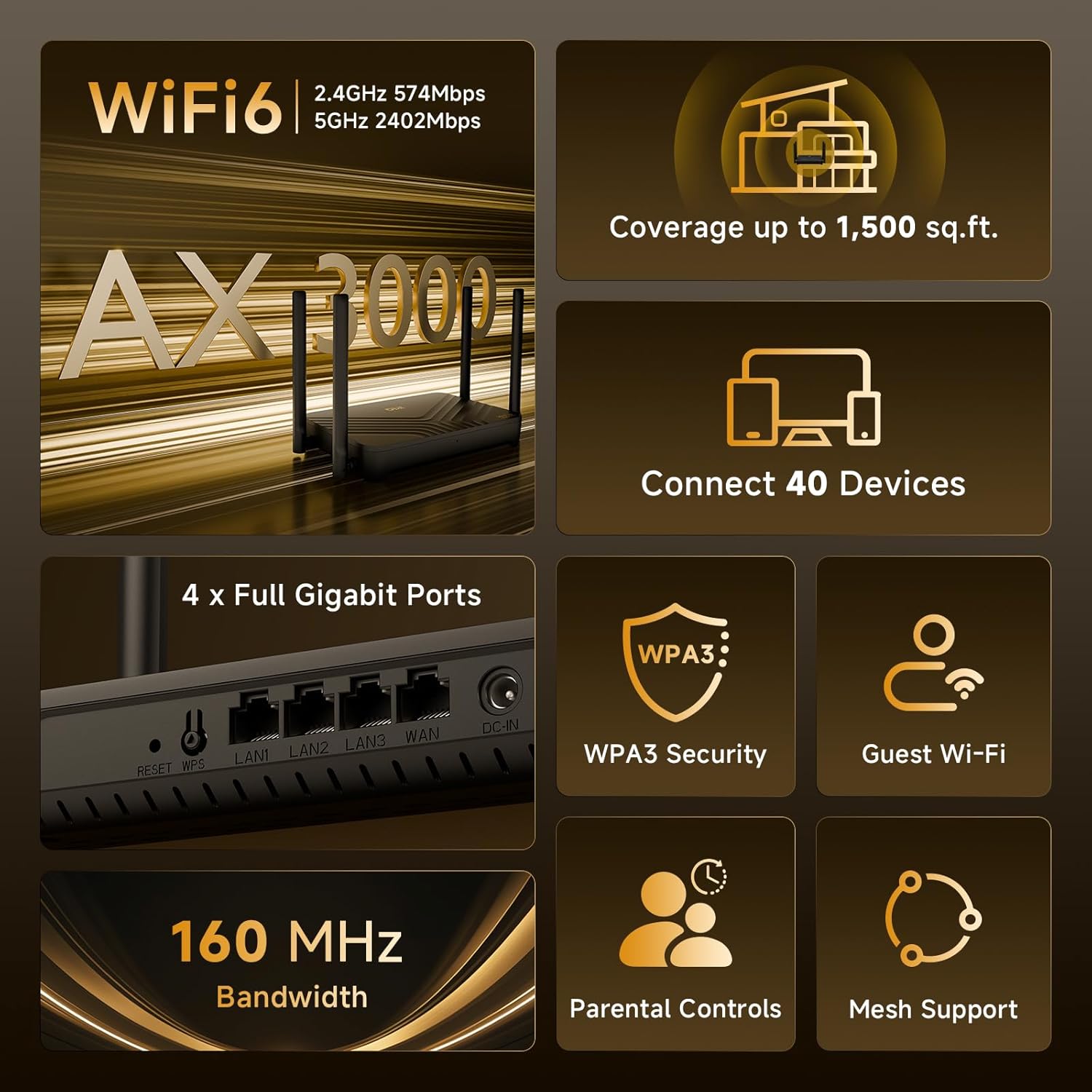
Image 1.1: DBIT AX3000 WiFi 6 Router (WR-X30)
Key Features:
- High-Speed WiFi 6: Dual-band AX3000 support delivers combined speeds up to 2976 Mbps (574Mbps on 2.4GHz + 2402Mbps on 5GHz) for smooth streaming and gaming.
- Extended Coverage: Four independent signal enhancement modules (FEMs) and 5dBi high-gain antennas, combined with Beamforming technology, provide stable Wi-Fi coverage up to 1,500 sq. ft.
- Gigabit Wired Connectivity: Features 1 Gigabit WAN port and 3 Gigabit LAN ports for reliable high-speed wired connections.
- Multi-Device Support: OFDMA and MU-MIMO technology efficiently support up to 40 devices simultaneously.
- Mesh Networking: Supports seamless whole-home Mesh networks by adding multiple WR-X30 units.
- Advanced Security: WPA3 encryption standard protects your network.
- Flexible Remote Access: Built-in VPN (PPTP/L2TP) capabilities for secure remote connections.
2. Package Contents
Verify that all items are present in the package:
- DBIT AX3000 WiFi Router (WR-X30)
- Power Adapter
- Ethernet Cable
- Quick Installation Guide
3. Physical Components
Familiarize yourself with the ports and buttons on your router:

Image 3.1: Router Rear Panel
- Reset Button: Long press to reset the router to factory default settings.
- WPS Button: Short press to activate the WPS function for easy device connection.
- LAN Ports (LAN1, LAN2, LAN3): Connect wired devices such as PCs, gaming consoles, or smart TVs.
- WAN Port: Connect to your modem or internet service provider's (ISP) device.
- DC-IN: Connect the provided power adapter.
4. Setup Guide
Step 1: Physical Connections
Connect the router to your modem and power source.
- Connect an Ethernet cable from your modem's LAN/Internet port to the router's WAN/Internet port.
- Connect the power adapter to the router's DC-IN port and plug it into a power outlet.
- Wait 1-2 minutes for the router to fully start up. The indicator light should turn green.

Image 4.1: Connecting the Router to the Modem
Step 2: Connect to the Router
Choose one method to access the router's setup interface:
- Wired: Use an Ethernet cable to connect your computer to any LAN port on the router.
- Wireless: On your computer or phone, go to Wi-Fi settings. Look for the router's default wireless network name (SSID) and password, which are typically found on a label on the router. Connect to it.

Image 4.2: Connecting Devices to the Router
Step 3: Access the Admin Panel
Open a web browser and navigate to the router's administration page.
- Open a web browser (e.g., Chrome, Firefox, Edge).
- In the address bar, type the router's default IP address (common: 192.168.10.1 or muwifi.tech). Check the label on your router for the exact address.
- Press Enter. You will see the router's login page.
- Enter the default username and password (also on the label; defaults are often admin/admin). If you have set these before, use your custom credentials.

Image 4.3: Router Admin Panel Login
Step 4: Run Wizard Setup
The setup wizard will guide you through essential configurations.
- Follow the on-screen prompts to complete your personalized settings, including setting a new Wi-Fi name (SSID) and password.

Image 4.4: Router Setup Wizard
Step 5: Reconnect to WiFi
After completing the setup, reconnect your devices to the new Wi-Fi network.
- Use your custom credentials (new SSID and password) to reconnect to the router's Wi-Fi.

Image 4.5: Successful Wi-Fi Connection
5. Operating Modes
The DBIT AX3000 router supports various operating modes to suit your network needs.

Image 5.1: Router Operating Modes
5.1 Router/Bridge Mode
In Router Mode, the device acts as your primary internet gateway, managing IP addresses and network traffic. In Bridge Mode (also known as Access Point mode), the router transforms an existing wired connection into a flexible wireless network, while another device handles routing and DHCP.
5.2 Mesh Networking Mode
The WR-X30 can be integrated into a Mesh network. By adding multiple WR-X30 units, you can create a seamless whole-home Wi-Fi blanket, extending coverage and eliminating dead zones with a single network name.
6. Advanced Features
6.1 Parental Controls
Manage internet access for connected devices. Features include internet time control, device terminal management, and website filtering to ensure a safer online environment.
6.2 Guest Wi-Fi
Create a separate Wi-Fi network for guests, keeping your main network secure and private. Guests can access the internet without gaining access to your local network resources.
6.3 WPA3 Security
The router supports WPA3, the latest Wi-Fi security protocol, providing enhanced encryption and protection against cyber threats for your network and connected devices.

Image 6.1: WPA3 Network Security
6.4 VPN Support
The router includes built-in VPN (PPTP/L2TP) capabilities, allowing you to establish secure, encrypted connections to your home or office network from remote locations.
7. Maintenance
7.1 Firmware Updates
Regularly check for and install firmware updates through the router's admin panel. Firmware updates provide security enhancements, bug fixes, and new features.
7.2 Optimal Placement
Place the router in a central location in your home, away from obstructions and devices that may cause interference (e.g., microwaves, cordless phones). Elevating the router can also improve signal distribution.
7.3 Regular Rebooting
Periodically reboot your router (unplug from power for 10 seconds, then plug back in) to clear its memory and ensure optimal performance.
8. Troubleshooting
8.1 No Internet Access
- Check all cable connections between the modem, router, and power outlet.
- Reboot both your modem and router.
- Verify that your ISP service is active.
- Access the router's admin panel to check WAN status and internet settings.
8.2 Weak Wi-Fi Signal or Dead Zones
- Relocate the router to a more central position.
- Ensure antennas are positioned vertically for optimal signal.
- Minimize interference from other electronic devices.
- Consider utilizing the Mesh Networking feature by adding another WR-X30 unit for extended coverage.
8.3 Cannot Access Router Admin Panel
- Ensure your device is connected to the router's network (wired or wireless).
- Verify the correct IP address or domain (e.g., 192.168.10.1 or muwifi.tech) is entered in the browser.
- Try clearing your browser's cache or using a different browser.
- If you forgot the password, perform a factory reset using the Reset button (this will erase all custom settings).
9. Specifications
| Feature | Detail |
|---|---|
| Brand | DBIT |
| Model Name | WR-X30 |
| Wireless Standard | 802.11ax (WiFi 6), 802.11ac, 802.11n, 802.11g, 802.11b |
| Frequency Band Class | Dual-Band (2.4 GHz & 5 GHz) |
| Data Transfer Rate | Up to 3000 Mbps (574Mbps on 2.4GHz + 2402Mbps on 5GHz) |
| LAN Port Bandwidth | 10/100/1000Mbps (Gigabit) |
| Number of Ports | 1 WAN, 3 LAN |
| Antenna Type | 4 Fixed External 5dBi Antennas |
| Coverage | Up to 1,500 sq. ft. |
| Security Protocol | WPA3 |
| Special Features | Beamforming, Guest Mode, Internet Security, Mesh Networking, Parental Control, VPN (PPTP/L2TP) |
| Compatible Devices | Gaming Console, PC, Tablet, Smart TV, Smartphone, Printer, Security Camera |
| Item Weight | 12 ounces |
| Dimensions (L x W x H) | 10.24" x 4.84" x 7.09" |
10. Warranty and Support
10.1 Warranty Information
This DBIT AX3000 WiFi 6 Router (WR-X30) comes with a 1-Year Manufacturer Warranty from the date of purchase. This warranty covers defects in materials and workmanship under normal use. It does not cover damage caused by accidents, misuse, unauthorized modifications, or external causes.
10.2 Technical Support
For technical assistance, troubleshooting, or warranty claims, please refer to the contact information provided in your Quick Installation Guide or visit the official DBIT support website. Ensure you have your product model number (WR-X30) and proof of purchase available when contacting support.


