
1. Introduction
This manual provides detailed instructions for the setup, operation, maintenance, and troubleshooting of your SOLAKAKA A99 Pro Mechanical Keyboard. Please read this manual thoroughly to ensure proper use and to maximize your keyboard's features.
2. Package Contents
- SOLAKAKA A99 Pro Mechanical Keyboard
- Keycap Puller
- USB Cable (USB-C to USB-A)
- User Manual
3. Product Overview
The SOLAKAKA A99 Pro is a 96% layout mechanical keyboard featuring 97 keys, an LCD screen, and a multifunctional metal knob. It supports tri-mode connectivity (Bluetooth 5.0, 2.4GHz wireless, and USB-C wired) and is compatible with Windows, iOS, Mac, and Android systems. The keyboard includes RGB backlighting, hot-swappable switches, and PBT keycaps.
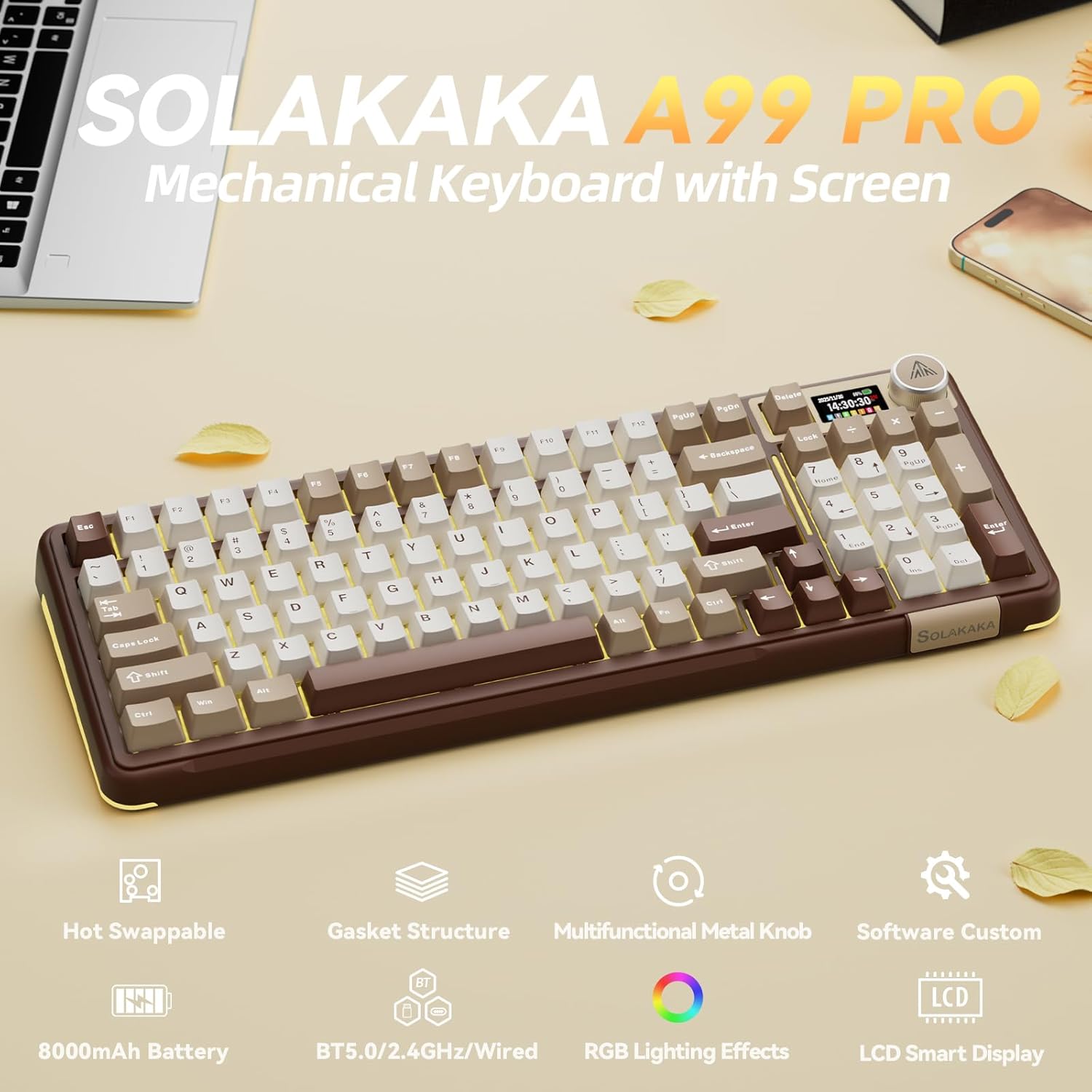
Image: SOLAKAKA A99 Pro Mechanical Keyboard, showcasing its layout, LCD screen, and metal knob.
4. Setup and Connection
4.1. Powering On/Off
Locate the power switch on the side or back of the keyboard to turn it on or off.
4.2. Tri-Mode Connectivity
The keyboard supports three connection modes: USB-C wired, 2.4GHz wireless, and Bluetooth 5.0. A switch on the keyboard allows selection between these modes.
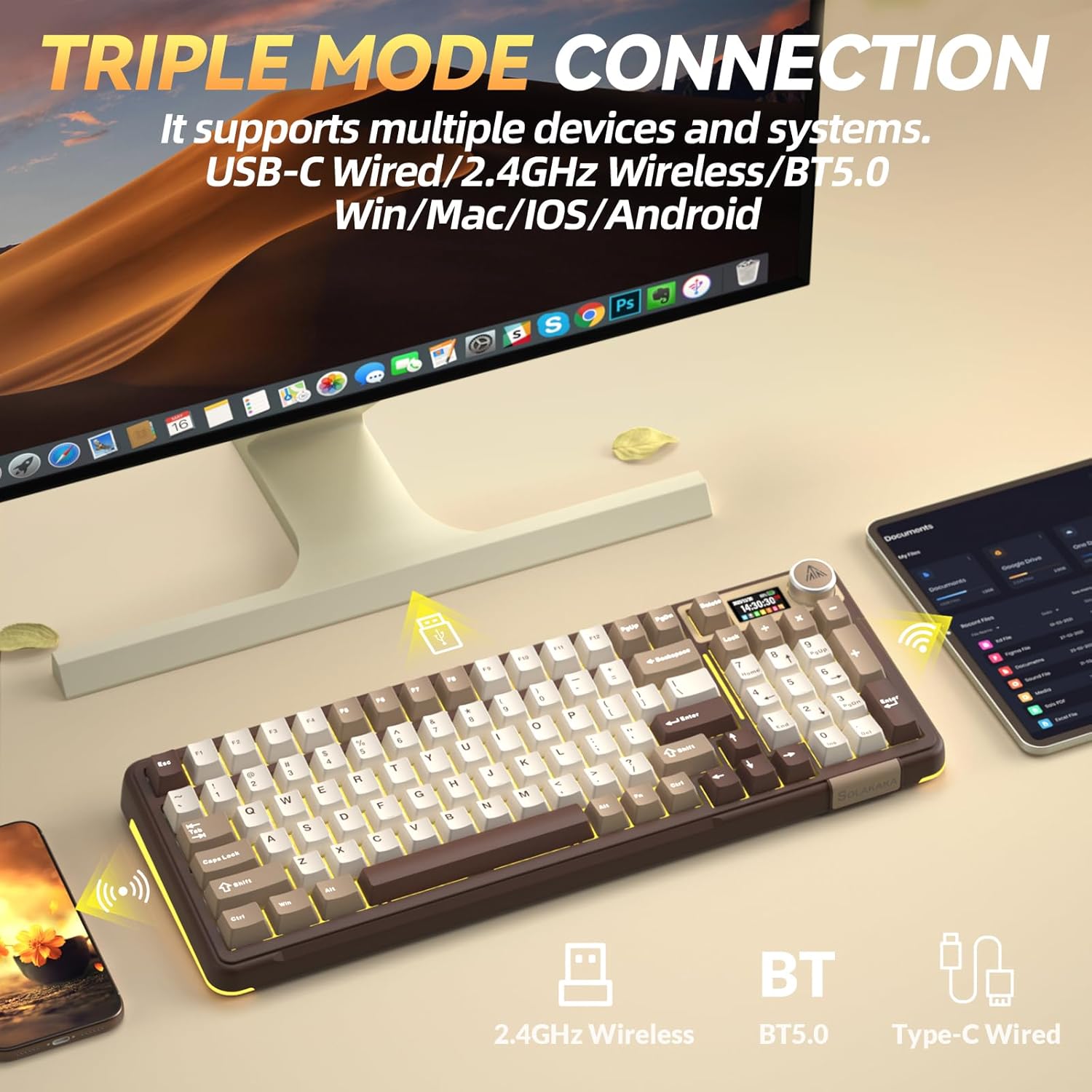
Image: The SOLAKAKA A99 Pro keyboard connected to a desktop and a tablet, illustrating its triple-mode connectivity.
4.2.1. 2.4GHz Wireless Connection
- Locate the 2.4GHz USB receiver, typically stored in a slot on the keyboard.
- Plug the USB receiver into an available USB port on your computer or device.
- Switch the keyboard to 2.4GHz mode using the selector switch. The keyboard should automatically connect.
Video: Demonstrates the various connection modes and features of the SOLAKAKA A99 Pro Mechanical Keyboard, including the 2.4GHz wireless connection.
4.2.2. Bluetooth 5.0 Connection
- Switch the keyboard to Bluetooth mode using the selector switch.
- On your device (computer, tablet, phone), enable Bluetooth and search for new devices.
- Select "SOLAKAKA A99 Pro" (or similar) from the list of available devices to pair.
- The keyboard can save up to 5 devices. Refer to the LCD screen for pairing indicators (B1, B2, A1, etc.).
4.2.3. USB-C Wired Connection
- Connect the provided USB-C cable to the keyboard's USB-C port.
- Connect the other end of the cable (USB-A) to your computer or device.
- The keyboard will automatically switch to wired mode and begin charging if necessary.
4.3. Charging the Keyboard
Connect the keyboard via the USB-C cable to a powered USB port. The LCD screen will display the battery level. The keyboard features an 8000mAh rechargeable battery.

Image: The SOLAKAKA A99 Pro keyboard highlighting its 8000mAh battery capacity and estimated usage times.
5. Operating Instructions
5.1. LCD Smart Display and Multifunctional Knob
The LCD screen displays essential information such as date, time, battery level, connected system, and connection mode. The metal knob allows for quick adjustments.
- Rotation: Adjusts volume, lighting brightness, or navigates menu options.
- Short Press: Confirms selection or switches between modes/settings.
- Long Press: Accesses advanced settings or specific functions.

Image: Detailed view of the LCD screen and multifunctional knob, showing various display options like home screen, system connection, lighting modes, colors, brightness, speed, volume, language, time, and GIF display.
Video: Demonstrates how to switch between different operating systems (Windows/Mac) and adjust lighting effects using the keyboard's knob and function keys.
Video: Shows the process of setting up custom GIF images on the keyboard's LCD screen using the driver software.
5.2. System Switching
The keyboard is compatible with Windows, iOS, Mac, and Android systems. You can switch between Windows and Mac modes using the LCD screen or shortcut keys.
- Via LCD Screen: Rotate the knob to navigate to "System" settings, then short press to confirm and select "WIN" or "MAC".
- Shortcut Keys:
- Press Fn + W to switch to Windows mode.
- Press Fn + M to switch to Mac mode.
5.3. RGB Backlighting
The keyboard features 16 RGB lighting modes for the main keys and 5 modes for the side lights. South-facing LEDs enhance light transmission.
- Change Backlight Mode: Press Fn + \
- Adjust Backlight Brightness: Press Fn + F5 / F6
- Change Backlight Color: Press Fn + D
- Change Side Backlight Lighting Effects: Press Fn + P
- Adjust Side Backlight Brightness: Press Fn + ↑ / ↓
- Change Side Backlight Color: Press Fn + Tab

Image: The RGB backlit keyboard showing various function key combinations for controlling backlight modes, brightness, and colors for both main keys and side lights.
5.4. Programmable Software
Customize your keyboard functions using the dedicated driver software. This software is compatible with Windows systems only and requires a wired connection for operation.
- Set sleep time, key mapping, and sensitivity.
- Optimize key bounce.
- Add GIF images to the LCD screen.
- Switch lighting modes and colors.
- Add music rhythm backlighting.
- Record macro files.
Download the software from: solakakadriver.com

Image: Screenshot of the SOLAKAKA A99 Pro's programmable software, showing options for adjusting lighting effects, setting shortcut keys, recording macros, and managing GIF images.
6. Maintenance
To ensure the longevity and optimal performance of your keyboard, follow these maintenance guidelines:
- Cleaning: Use a soft, dry cloth to wipe the keyboard surface. For deeper cleaning, use a keycap puller to remove keycaps and clean underneath with compressed air or a small brush. Avoid using harsh chemicals or abrasive materials.
- Storage: Store the keyboard in a cool, dry place away from direct sunlight and extreme temperatures.
- Switch Replacement: The keyboard is hot-swappable, allowing for easy replacement of 3/5-pin switches without soldering. Use the provided keycap puller and switch puller (if included) for safe removal and installation.

Image: A close-up of the SOLAKAKA A99 Pro keyboard demonstrating its full hot-swappable feature, showing switches being removed and the underlying PCB with south-facing LEDs.
7. Troubleshooting
- Keyboard not responding:
- Ensure the keyboard is powered on.
- Check the connection mode (2.4GHz, Bluetooth, or wired) and ensure it matches your device's connection.
- For 2.4GHz, ensure the USB receiver is properly plugged in.
- For Bluetooth, ensure the keyboard is paired and selected on your device.
- Try connecting via USB-C cable to rule out wireless issues.
- Ensure the battery is charged.
- LCD screen issues (e.g., detached):
- If the screen appears loose or detached, gently press it back into place. If the issue persists, contact customer support.
- Lighting not working or incorrect:
- Ensure the keyboard is powered on and not in a low-power state.
- Use the Fn key combinations or the multifunctional knob to cycle through lighting modes and adjust brightness/color.
- If using programmable software, ensure settings are correctly applied.
- Software not detecting keyboard:
- Ensure the keyboard is connected via USB-C wired mode. The software only supports Windows systems and requires a wired connection.
- Restart the software and/or your computer.
- Reinstall the driver software from solakakadriver.com.
8. Specifications
| Feature | Detail |
|---|---|
| Model | A99 Pro |
| Layout | 96% (97 keys) |
| Connectivity | Bluetooth 5.0, 2.4GHz Wireless, USB-C Wired |
| Switches | LEOBOG Star Vector Switches, Full Hot-Swappable (3/5-pin) |
| Keycaps | Double-shot PBT, OEM Height |
| Backlighting | RGB (16 modes main, 5 modes side), South-facing LEDs |
| Battery Capacity | 8000mAh |
| Special Features | LCD Screen, Multifunctional Metal Knob, Gasket Structure, Programmable Software |
| Compatible Devices | Laptop, PC, Tablet |
| Operating Systems | Windows, iOS, Mac, Android |
| Item Weight | 2.99 pounds |
| Package Dimensions | 16.61 x 7.2 x 2.28 inches |

Image: An exploded diagram illustrating the multi-layer gasket structure of the SOLAKAKA A99 Pro keyboard, detailing components like the multifunctional knob, PBT keycaps, switches, positioning plate, and various sound-dampening pads.
9. Warranty and Support
For warranty information, technical support, or any product-related inquiries, please refer to the official SOLAKAKA website or contact their customer service directly. Keep your purchase receipt for warranty claims.

