Welcome
Thank you for choosing the LXZ 34-inch Curved Gaming Monitor (Model LX340YS). This manual provides essential information for setting up, operating, and maintaining your new monitor. Please read this manual thoroughly before use to ensure optimal performance and safety.
Important Safety Instructions
- Always place the monitor on a stable, flat surface to prevent it from falling.
- Do not block ventilation openings. Ensure adequate space around the monitor for proper airflow.
- Use only the power adapter supplied with the monitor.
- Keep the monitor away from water, moisture, and direct sunlight.
- Do not attempt to repair the monitor yourself. Refer all servicing to qualified personnel.
- Unplug the monitor from the power outlet during lightning storms or when unused for long periods.
Package Contents
Please check the package for the following items:
- LXZ 34-inch Curved Gaming Monitor
- Monitor Stand (Base and Neck)
- Power Adapter and Cable
- HDMI Cable
- DisplayPort Cable
- User Manual (this document)
Setup
Assembling the Stand
Attach the monitor stand to the back of the monitor. Ensure all screws are tightened securely. The stand allows for height and tilt adjustments for optimal viewing.

Image: Monitor dimensions and stand assembly. The image illustrates the monitor's overall dimensions (80.0cm width, 36.3cm height for screen, 59.2cm total height with stand) and the stand's capabilities, including 100mm height adjustment and -5 to 15 degree tilt.
Connecting the Monitor
Connect the appropriate video cable (HDMI or DisplayPort) from your computer or gaming console to the corresponding port on the monitor. The monitor supports two HDMI 2.0 ports and two DisplayPort 1.4 ports.

Image: Rear view of the monitor displaying the input ports. It shows 2 HDMI ports, 2 DisplayPort (DP) ports, a DC power input, and an earphone jack. It also highlights the VESA 100mm x 100mm mounting pattern.
Powering On
Connect the power adapter to the monitor's DC input and then plug it into a power outlet. Press the power button, usually located on the back or bottom of the monitor, to turn it on.
Operating Instructions
Basic Controls
The monitor features an On-Screen Display (OSD) menu, typically controlled by buttons or a joystick on the back or bottom of the monitor. Use these controls to navigate through settings such as brightness, contrast, input source, and color modes.
Adjusting Display Settings
Optimize your viewing experience by adjusting settings like brightness, contrast, and color temperature. The monitor supports 8-bit color depth with 72% NTSC range and a 6500K color temperature for accurate and vibrant visuals.
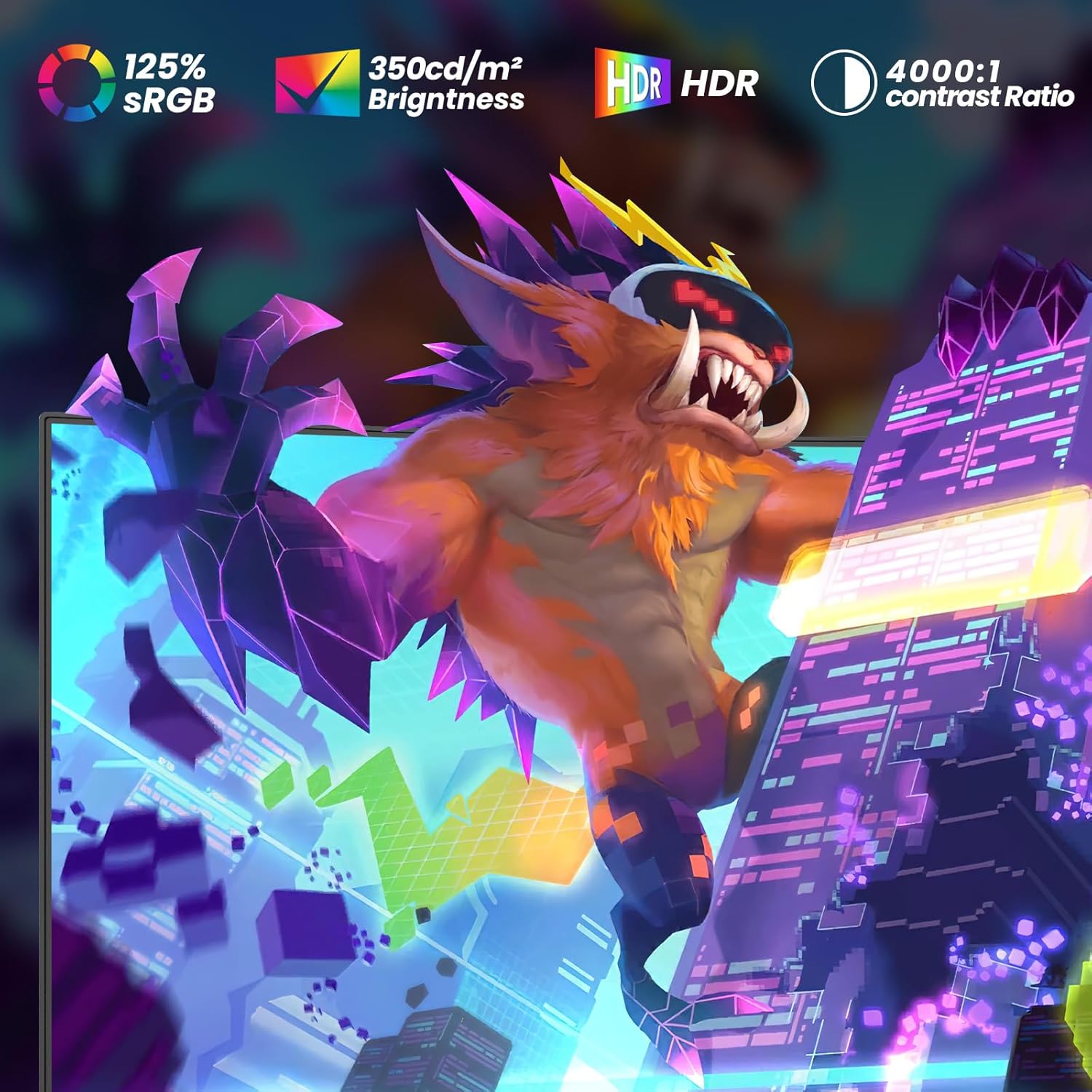
Image: Visual representation of the monitor's display quality features, including 125% sRGB color gamut, 350 cd/m² brightness, HDR support, and a 4000:1 contrast ratio, enhancing visual comfort and professional color reproduction.
Gaming Features
This monitor is designed for an immersive gaming experience with a 165Hz refresh rate and 1ms MPRT (Moving Picture Response Time), ensuring smooth and fluid motion in fast-paced games.

Image: A dynamic image illustrating the smoothness of 165Hz refresh rate and 1ms response time, compared to 120Hz, showing a fast-moving car with enhanced clarity and reduced motion blur.
The monitor also supports AMD FreeSync and G-Sync compatible technology, which synchronizes the monitor's refresh rate with your GPU's frame rate to eliminate screen tearing and stuttering, providing a seamless visual experience.

Image: A split image demonstrating the effect of FreeSync Technology. One side shows a smooth image (ON) while the other side shows screen tearing (OFF), highlighting the benefit of FreeSync for an immersive gaming experience.
Ergonomic Adjustments
The monitor stand allows for flexible viewing angles. You can tilt the screen from -5° to 15° and adjust its height by up to 100mm to find the most comfortable position for long work or gaming sessions. Refer to the 'Assembling the Stand' section for visual guidance.
Maintenance
To ensure the longevity and optimal performance of your monitor, follow these maintenance guidelines:
- Cleaning the Screen: Gently wipe the screen with a soft, lint-free cloth. For stubborn marks, lightly dampen the cloth with a screen-cleaning solution (non-ammonia based). Do not spray cleaner directly onto the screen.
- Cleaning the Casing: Use a soft, dry cloth to clean the monitor casing. Avoid using abrasive cleaners or solvents.
- Ventilation: Keep the ventilation openings clear of dust and debris to prevent overheating.
- Storage: If storing the monitor for an extended period, unplug it and cover it to protect it from dust.
Troubleshooting
If you encounter any issues with your monitor, please refer to the following common solutions:
- No Power: Ensure the power cable is securely connected to both the monitor and the power outlet. Check if the power adapter is functioning correctly.
- No Signal: Verify that the video cable (HDMI/DisplayPort) is properly connected to both the monitor and your computer/device. Ensure the correct input source is selected in the monitor's OSD menu.
- Display Problems (Flickering, Distorted Image): Check the video cable for damage. Try a different cable or input port. Ensure your graphics card drivers are up to date. Adjust the refresh rate in your computer's display settings.
- Screen Tearing/Stuttering: Ensure AMD FreeSync or G-Sync compatible technology is enabled in both your monitor's OSD menu and your graphics card's control panel.
- Sound Issues: If using the earphone jack, ensure your audio output settings on your computer are configured correctly and the volume is not muted.
Specifications
| Feature | Specification |
|---|---|
| Brand | LXZ |
| Model Number | LX340YS |
| Screen Size | 34 Inches |
| Panel Type | VA |
| Curvature | 1500R |
| Resolution | UWQHD 3440 x 1440 |
| Aspect Ratio | 21:9 |
| Refresh Rate | 165 Hz |
| Response Time | 1ms MPRT |
| Contrast Ratio | 4000:1 |
| Brightness | 350 cd/m² |
| Color Depth | 8-bit |
| NTSC Range | 72% |
| Hardware Interface | 2 x HDMI 2.0, 2 x DisplayPort 1.4 |
| VESA Mount | 100mm x 100mm |
| Product Dimensions (with stand) | 86 x 17.8 x 42.5 cm |
| Weight | 7.54 kg |
Warranty and Support
LXZ monitors come with a standard manufacturer's warranty. For specific warranty terms and conditions, please refer to the warranty card included in your package or visit the official LXZ website. For technical support, troubleshooting assistance, or service inquiries, please contact LXZ customer support through the contact information provided on the official website.


