
1. Introduction
This manual provides detailed instructions for the installation, operation, and maintenance of your INSEETECH 4MP Solar WiFi Security Camera Outdoor AOV, Model INC008. This camera is designed for outdoor surveillance, featuring 4MP resolution, 24/7 continuous recording, 10x digital zoom, auto-tracking, 355° pan and 90° tilt (PTZ) capabilities, a solar panel for power, a rechargeable battery, color night vision, WiFi 6 connectivity, and two-way audio communication.
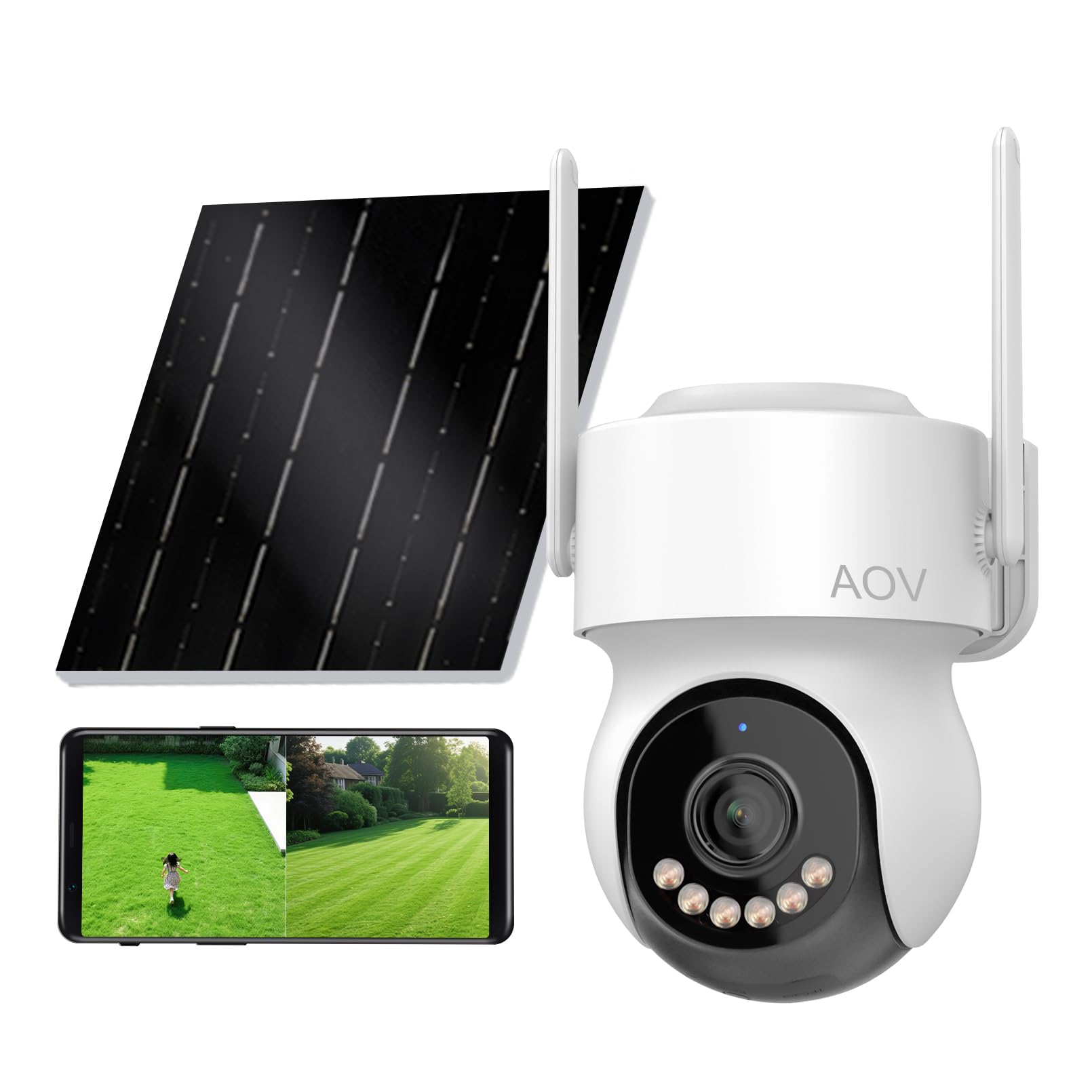
Figure 1: INSEETECH 4MP Solar WiFi Security Camera with solar panel and live view on a smartphone.
2. What's in the Box
Verify that all components are present in the package before proceeding with installation.
- 1 x Outdoor Security Camera (with solar panel)
- 1 x Camera Bracket
- 1 x Mounting Plate
- 1 x User Manual
- Screws and Wall Plugs
- Reset Auxiliary Tweezers

Figure 2: Contents of the INSEETECH 4MP Solar WiFi Security Camera package.
Video 1: Unboxing of the INSEETECH AOV 4MP Solar Security Camera. This video demonstrates the contents of the product package.
3. Setup
3.1 Mounting the Camera
The camera offers flexible installation options for both wall and ceiling mounting to achieve optimal viewing angles.
- Choose a suitable location for the camera and solar panel, ensuring the solar panel receives adequate sunlight.
- Use the provided mounting plate as a template to mark drill holes.
- Drill holes, insert wall plugs, and secure the mounting plate with screws.
- Attach the camera bracket to the mounting plate.
- Mount the camera onto the bracket and adjust its position.
- Connect the solar panel cable to the camera's charging port.

Figure 3: Wall and ceiling mounting options for the camera.
3.2 App Connection
To operate your camera, download the companion app and follow the on-screen instructions for a one-tap connection.
- Download the official INSEETECH app from your smartphone's app store.
- Register for an account using your email address. If you do not receive a verification code, check your spam or junk folder.
- Power on the camera.
- Open the app and follow the prompts to add a new device. The app will search for nearby devices.
- Select your camera from the list and enter your 2.4 GHz WiFi network credentials. The camera supports WiFi 6 for stable connectivity.
- Complete the connection process as guided by the app.

Figure 4: Steps for one-tap connection via the mobile application.
Video 2: How to Install INSEETECH AOV 4MP Solar Security Camera. This video provides a visual guide for the installation process.
4. Operating Instructions
4.1 Continuous Recording (AOV)
The camera features Always-On Video (AOV) technology for 24/7 continuous monitoring. It records at 25 frames per second (fps) during activity and reduces to 1 fps during quiet periods to conserve energy, ensuring constant coverage while optimizing power usage. Multiple power-saving settings are available in the app.

Figure 5: The camera provides 24/7 continuous recording capabilities.
4.2 Video Quality and Digital Zoom
The 4MP single lens captures detailed footage. Utilize the 10x digital zoom feature through the app to view specific areas with greater clarity. Note that digital zoom may introduce pixelation at higher magnifications.

Figure 6: Comparison of 4MP Ultra HD resolution versus 2MP.
4.3 Pan-Tilt-Zoom (PTZ) Control
Control the camera's viewing angle remotely via the app. The camera supports 355° horizontal pan and 90° vertical tilt, allowing comprehensive coverage of large outdoor areas.

Figure 7: Camera's pan and tilt range for wide-angle monitoring.
4.4 Smart Motion Detection and Auto Tracking
The camera features advanced AI human detection to accurately identify human movement, reducing false alerts. Upon detection, the camera can automatically track the motion, activate lighting, and send instant notifications to your device.

Figure 8: Auto-tracking in action, following detected movement.
4.5 Night Vision Modes
The camera offers multiple night vision options for clear surveillance in low-light conditions:
- Color Night Vision: Provides full-color images in low light.
- Infrared Night Vision: Delivers clear black and white images using infrared LEDs.
- Dual Light Night Vision: Combines infrared with spotlights for enhanced visibility and deterrence.

Figure 9: Different night vision modes for optimal visibility.
4.6 Two-Way Audio
Communicate directly with visitors or deter intruders using the built-in microphone and speaker. This feature allows for real-time two-way conversations through the app.

Figure 10: Two-way audio communication via the camera.
4.7 WiFi 6 Connectivity
Equipped with WiFi 6 technology, the camera ensures efficient data transmission, faster speeds, lower latency, and a stable connection for seamless live streaming and real-time alerts. WPA3 encryption provides enhanced security for your data.

Figure 11: Benefits of dedicated WiFi 6 connectivity.
4.8 Local Storage
The camera supports up to 256GB of local storage via a Micro SD card (not included), allowing for extended recording retention without requiring subscription fees.
5. Maintenance
To ensure optimal performance and longevity of your INSEETECH security camera, follow these maintenance guidelines:
- Regular Cleaning: Periodically clean the camera lens and solar panel with a soft, damp cloth to remove dust, dirt, or debris that may obstruct the view or reduce charging efficiency. Avoid abrasive cleaners.
- Solar Panel Placement: Ensure the solar panel remains in a location that receives direct sunlight for several hours each day to maintain battery charge. Trim any overhanging branches or clear obstructions.
- Firmware Updates: Check the app regularly for available firmware updates. Updates often include performance improvements, new features, and security enhancements.
- Weather Resistance: The camera is IP66 waterproof rated, designed to withstand rain, snow, and various outdoor conditions. However, avoid submerging the camera in water or exposing it to extreme pressure washing.

Figure 12: The camera's IP66 waterproof rating ensures durability in various weather conditions.
6. Troubleshooting
If you encounter issues with your camera, refer to the following common troubleshooting steps:
- Camera Not Connecting to WiFi:
- Ensure your WiFi network is 2.4 GHz. The camera does not support 5 GHz networks.
- Verify the WiFi password is entered correctly in the app.
- Move the camera closer to your WiFi router to improve signal strength.
- Restart your router and the camera.
- No Power/Battery Issues:
- Check the connection between the solar panel and the camera.
- Ensure the solar panel is clean and receiving direct sunlight.
- If the battery is completely drained, it may take some time to recharge sufficiently to power on.
- Poor Image Quality:
- Clean the camera lens.
- Ensure there are no obstructions in the camera's field of view.
- Check your internet connection speed, as slow speeds can affect streaming quality.
- Motion Detection Not Working:
- Verify that motion detection is enabled in the app settings.
- Adjust motion sensitivity settings.
- Ensure the camera's view is not obstructed.
- Resetting the Camera: If issues persist, locate the reset button (often under a rubber cover) and use the provided tweezers or a pin to press and hold it for approximately 5-10 seconds until you hear a prompt or see an indicator light change. This will restore factory settings.
7. Specifications
| Feature | Specification |
|---|---|
| Brand | INSEETECH |
| Model Name | INC008 |
| Connectivity Technology | Wireless (Wi-Fi 6) |
| Indoor/Outdoor Usage | Outdoor |
| Effective Still Resolution | 4 MP |
| Video Capture Resolution | 4MP (2560) |
| Frame Rate | 12 fps |
| Viewing Angle | 355 degrees (Pan) |
| Optical Zoom | 10x (Digital Zoom) |
| Power Source | Solar Powered (6.2W solar panel) |
| Battery Capacity | 7800 mAh |
| Night Vision Range | 98 feet |
| Night Vision Type | Starlight full color/infrared night vision |
| Waterproof Rating | IP66 |
| Storage | Micro SD (up to 256 GB, not included) |
| Special Features | 2-Way Audio, AOV, Low power consumption, Night Vision, PTZ Technology, AI Human Detection, Auto Tracking |
| Item Dimensions | 3.93 x 3.93 x 5.11 inches |
| Item Weight | 2 pounds |
8. Warranty and Support
For warranty information, technical support, or any inquiries regarding your INSEETECH 4MP Solar WiFi Security Camera, please refer to the contact details provided with your purchase documentation or visit the official INSEETECH website. Keep your purchase receipt for warranty claims.