
Introduction
This manual provides essential instructions for the setup, operation, and maintenance of your ZMDCAM M5 Mini Security Camera. The M5 camera offers 1080P HD resolution with a 150° wide-angle view, dual WiFi and Bluetooth connectivity for quick setup, and supports remote viewing via a smartphone application. It is designed for indoor security, monitoring babies, pets, or general home surveillance.
What's in the Box
- ZMDCAM M5 Mini Security Camera
- USB Charging Cable
- User Manual
Note: A micro SD card (up to 256GB) is required for local storage and is not included.
Product Overview
Key Features
- 1080P HD Resolution: Captures clear video footage.
- 150° Wide-Angle Lens: Provides broad coverage to minimize blind spots.
- Dual Connectivity (WiFi & Bluetooth): Enables quick and easy pairing with your home network.
- 24/7 Operation: Supports continuous monitoring when connected to a power source.
- Enhanced Motion Detection: Sends instant alerts to your mobile device upon detecting movement.
- Multi-User Viewing: Allows sharing access with family members and connecting multiple cameras to one account.
- Large Storage Support: Compatible with micro SD cards up to 256GB (not included).
Camera Components
The ZMDCAM M5 is a compact device featuring a camera lens, power button, mode button, USB charging port, and a micro SD card slot. Refer to the diagram below for component identification.
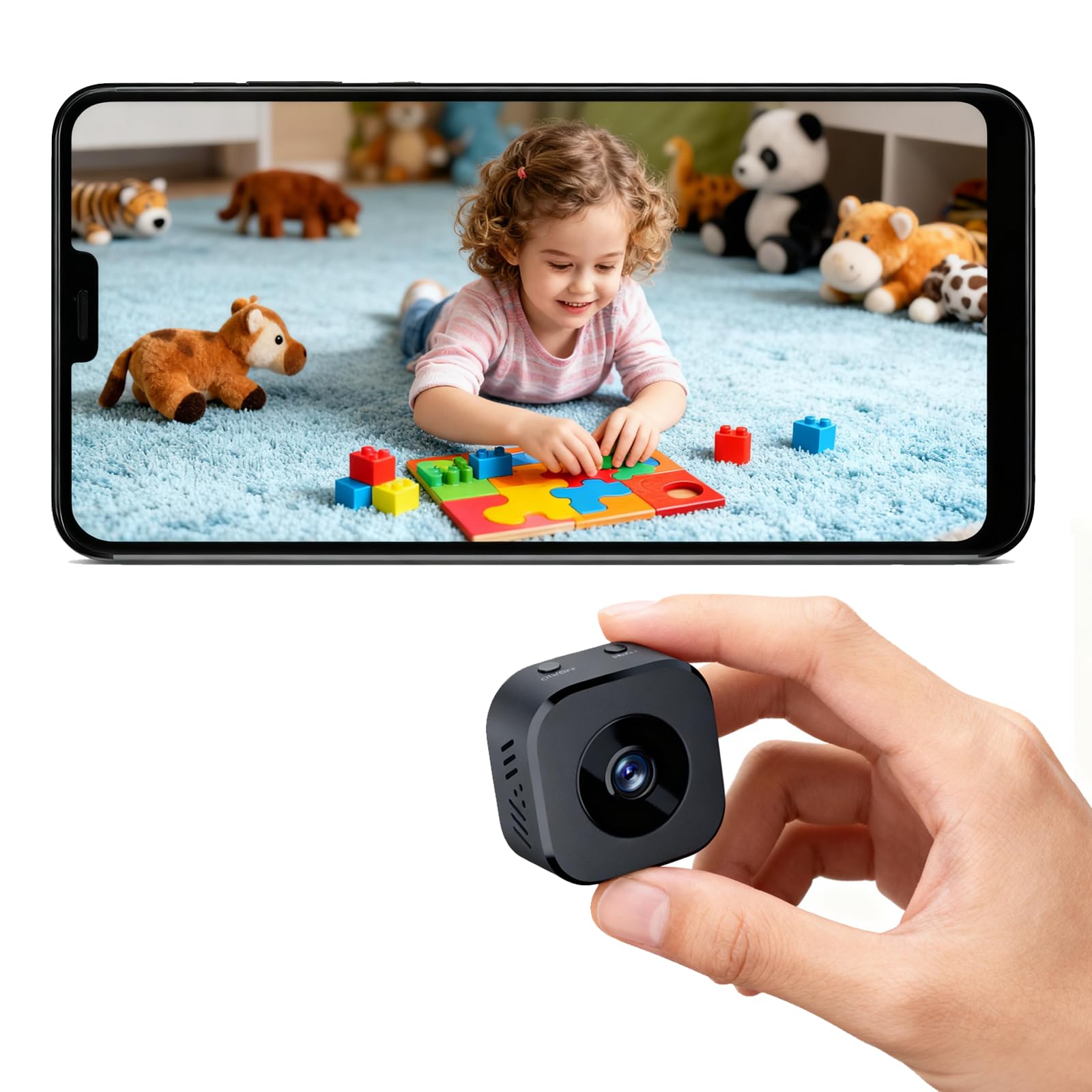
Image: ZMDCAM M5 Mini Security Camera. This image displays the compact design of the camera, highlighting its WiFi and Bluetooth connectivity features, and shows a smartphone displaying live footage from the camera.
Setup Instructions
1. Charging the Camera
Before initial use, fully charge the camera using the provided USB cable. Connect the cable to the camera's USB port and a standard USB power adapter (not included). The camera has a built-in rechargeable battery providing up to 120 minutes of continuous use. For 24/7 operation, keep the camera connected to a power source.
2. Inserting a Micro SD Card
Locate the micro SD card slot on the camera. Gently insert a micro SD card (up to 256GB, not included) into the slot until it clicks into place. Ensure the card is inserted correctly to avoid damage.
3. App Download and Installation
Download the official ZMDCAM application from the App Store (iOS) or Google Play Store (Android). Search for "ZMDCAM" or refer to the QR code in the quick start guide (if provided).
4. Connecting the Camera to Your Smartphone
The M5 camera supports dual WiFi and Bluetooth connectivity for a quick setup process.
- Power on the camera.
- Open the ZMDCAM app on your smartphone.
- Follow the in-app instructions to add a new device. The app will guide you through connecting the camera to your home WiFi network using either WiFi or Bluetooth. This process typically takes about 10 seconds.
- Once connected, you can view live footage and configure settings.

Image: Two Ways of Connection. This diagram illustrates connecting the camera to a wireless router for remote viewing anywhere, and direct connection via Bluetooth or camera hotspot when the smartphone is near the camera.
Operating Instructions
1. Remote Viewing
After successful setup, open the ZMDCAM app to access live video streams from your camera. You can monitor your home, baby, pets, or other areas from anywhere with an internet connection.

Image: Real-Time Remote Viewing. This image shows different applications of the camera, such as monitoring a baby, pets, an elderly person, and a bedroom, all viewed remotely via a smartphone.
2. Motion Detection and Alerts
The camera is equipped with enhanced motion detection. When movement is detected, the camera will send instant alerts to your mobile app. Tap the alert to view live footage or recorded events.
3. Multi-User Viewing and Sharing
The ZMDCAM app supports family sharing. You can grant access to other family members to view the camera feed. Additionally, you can connect multiple ZMDCAM cameras to a single account for comprehensive surveillance.

Image: Multi-User Viewing. This image depicts multiple users simultaneously viewing the camera feed on their mobile devices, demonstrating the camera's family sharing capability.
4. Video Recording
When a micro SD card is inserted, the camera will record video footage based on your settings (e.g., continuous recording, motion-triggered recording). You can access recorded videos through the ZMDCAM app.
Maintenance
1. Cleaning
Wipe the camera lens and body with a soft, dry cloth. Do not use liquid cleaners or abrasive materials, as they may damage the device.
2. Battery Care
To prolong battery life, avoid exposing the camera to extreme temperatures. If the camera is not used for an extended period, charge it periodically.
3. SD Card Management
Regularly check the storage capacity of your micro SD card. Format the card periodically through the app settings to maintain optimal recording performance and free up space.
Troubleshooting
- Camera not connecting to WiFi/Bluetooth: Ensure the camera is powered on and within range of your router. Verify your WiFi network credentials. Restart both the camera and your router. Ensure your smartphone is connected to a 2.4GHz WiFi network during initial setup, as some cameras may not support 5GHz.
- Poor video quality or lag: Check your internet connection speed. Ensure the camera is placed in an area with strong WiFi signal. Reduce the video resolution setting in the app if available.
- Motion detection alerts not working: Verify that motion detection is enabled in the app settings. Check alert schedules and notification permissions on your smartphone.
- SD card not recording or recognized: Ensure the micro SD card is inserted correctly and fully. Try formatting the SD card through the app. If issues persist, try a different compatible micro SD card.
- Camera becomes hot during operation: It is normal for electronic devices to generate some heat. If the camera becomes excessively hot or malfunctions, disconnect it from power immediately and contact support.
- Battery life is short: The built-in battery provides up to 120 minutes of continuous use. For extended or 24/7 operation, the camera must be connected to a continuous power source via the USB cable.
Specifications
| Model Name | M5 |
| Brand | ZMDCAM |
| Video Capture Resolution | 1080p |
| Viewing Angle | 150 Degrees |
| Connectivity Technology | WiFi, Bluetooth |
| Power Source | Battery Powered (rechargeable), USB Power |
| Compatible Devices | Smartphone (iOS, Android) |
| Storage Support | Micro SD card up to 256GB (not included) |
| Indoor/Outdoor Usage | Indoor |
| Item Dimensions | 1 x 1 x 0.7 inches |
Warranty and Support
The ZMDCAM M5 Mini Security Camera comes with a 30-day money-back guarantee and 1-year technical support. If you encounter any issues with setup or operation, please contact ZMDCAM customer support for assistance. Contact information can typically be found on the product packaging or the official ZMDCAM website.