
1. Introduction
Thank you for choosing the Newsoul 18.5-inch 120Hz Portable Gaming Monitor. This monitor is designed to provide a high-quality visual experience with its 18.5-inch Full HD display, 120Hz refresh rate, and wide color gamut. Its portable design and versatile connectivity make it ideal for both productivity and entertainment on the go. This manual will guide you through the setup, operation, and maintenance of your new monitor.
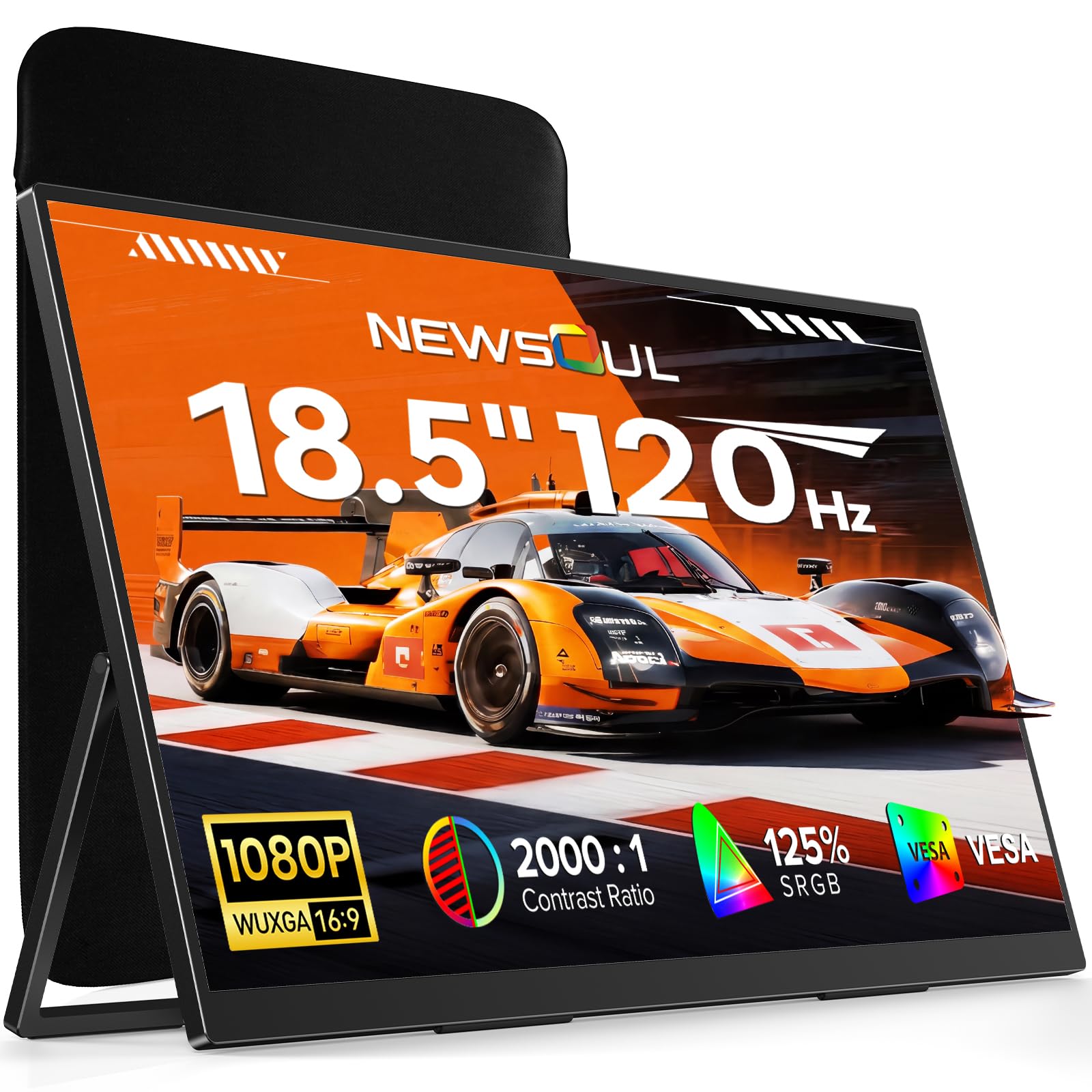
Image 1.1: Newsoul 18.5-inch Portable Monitor, showcasing its sleek design.
2. Product Overview
2.1 Package Contents
- Newsoul 18.5-inch Portable Monitor
- Protective Carrying Case
- USB-C to USB-C Cable (Full-featured)
- Mini HDMI to HDMI Cable
- USB-A to USB-C Power Cable
- Power Adapter
- User Manual (this document)
2.2 Monitor Features
- 18.5-inch Full HD Display: A wide-view panel that clearly displays every image detail with 1080P resolution.
- 120Hz Refresh Rate: Ensures smooth visuals, especially beneficial for fast-paced gaming and video content.
- 125% sRGB Color Gamut: Provides vivid and precise color reproduction for an enhanced viewing experience.
- HDR Support: Naturally reproduces details in both bright and dark areas of the image.
- Anti-Glare Panel: Reduces reflections and minimizes eye strain during extended use.
- Versatile Connectivity: Features Mini HDMI and two full-function Type-C ports for seamless device switching.
- Single-Cable Solution: Type-C connection supports both video signal and power delivery with one cable.
- Adjustable Stand: Integrated metal stand allows for 0-180 degree smooth adjustment of viewing angles.
- VESA Mount Compatible: Supports 75x75mm VESA standard for monitor arms or wall mounting (arm sold separately).
- Portrait and Landscape Modes: Adaptable screen orientation to suit various work or entertainment needs.
- Protective Case: Included for easy and safe portability.

Image 2.1: Visual representation of the 120Hz refresh rate for smooth motion.

Image 2.2: The monitor being placed into its dedicated protective carrying case.
3. Setup
3.1 Connecting to Devices
Your Newsoul portable monitor offers flexible connectivity options for various devices.
3.1.1 USB-C Connection (Single Cable for Video & Power)
For devices with a full-featured USB-C port (supporting DisplayPort Alternate Mode and Power Delivery), you can connect the monitor using a single USB-C to USB-C cable (included). This cable will transmit both video signal and power to the monitor.
- Connect one end of the USB-C to USB-C cable to a full-featured USB-C port on your device (e.g., laptop, smartphone).
- Connect the other end of the cable to either of the full-featured Type-C ports on the monitor.
- The monitor should automatically detect the signal and power on. If the brightness is low or flickering occurs, connect the included power adapter to the other USB-C port on the monitor.

Image 3.1: Connecting the monitor to a smartphone via a single USB-C cable.
3.1.2 Mini HDMI Connection
For devices with an HDMI output (e.g., game consoles, older laptops, mini PCs), use the Mini HDMI to HDMI cable. This connection requires a separate power source for the monitor.
- Connect the Mini HDMI end of the cable to the Mini HDMI port on the monitor.
- Connect the standard HDMI end of the cable to the HDMI output port on your device.
- Connect the USB-A to USB-C power cable to the monitor's USB-C power input port and the other end to the included power adapter, then plug it into a power outlet.

Image 3.2: Connecting the monitor to a laptop using Mini HDMI and a separate power cable.
3.2 Adjusting the Stand
The monitor features an integrated metal stand that allows for flexible viewing angles.
- Gently pull out the stand from the back of the monitor.
- Adjust the stand to your desired angle (0-180 degrees) for comfortable viewing in either landscape or portrait orientation.

Image 3.3: The monitor's integrated stand allows for angle adjustments up to 180 degrees.
3.3 VESA Mounting
The monitor is compatible with 75x75mm VESA mounts, allowing for attachment to monitor arms or wall mounts (sold separately).
- Ensure the monitor is powered off and disconnected from all cables.
- Carefully remove the integrated stand if it interferes with the VESA mount.
- Attach the VESA mount bracket to the four screw holes on the back of the monitor using M4*4mm screws (included).
- Mount the monitor to your VESA-compatible arm or wall mount according to its instructions.

Image 3.4: The monitor supports VESA mounting for flexible desk setups.
4. Operating Instructions
4.1 Power On/Off
- To power on, ensure the monitor is connected to a power source and press the power button.
- To power off, press and hold the power button for a few seconds until the screen turns off.
4.2 On-Screen Display (OSD) Menu
The OSD menu allows you to adjust various display settings. Use the control buttons on the side of the monitor to navigate and select options.
Common OSD Settings:
- Brightness/Contrast: Adjust the overall luminance and difference between light and dark areas.
- Color Settings: Fine-tune color temperature, hue, and saturation.
- Input Source: Manually select between USB-C and Mini HDMI inputs.
- HDR Mode: Enable or disable High Dynamic Range for compatible content.
- FreeSync: Enable for smoother gaming experience with compatible graphics cards.
- Low Blue Light: Reduces blue light emission to minimize eye strain.
- Aspect Ratio: Adjust the display aspect ratio (e.g., 16:9).

Image 4.1: The monitor features low blue light technology to reduce eye fatigue.
4.3 Screen Orientation (Portrait/Landscape)
The monitor supports both landscape and portrait orientations. You may need to adjust your device's display settings to match the monitor's orientation.
- For Windows: Right-click on the desktop, select 'Display settings', and choose the desired orientation.
- For macOS: Go to 'System Settings' > 'Displays', and select the rotation option for the external monitor.
- For Smartphones: Ensure auto-rotate is enabled or manually set the display orientation in your phone's settings.

Image 4.2: The monitor can be used in portrait mode for enhanced productivity.
5. Maintenance
5.1 Cleaning the Monitor
- Always power off the monitor and disconnect all cables before cleaning.
- Use a soft, lint-free cloth slightly dampened with water or a mild, non-abrasive screen cleaner.
- Do not spray cleaner directly onto the screen. Apply it to the cloth first.
- Avoid using harsh chemicals, alcohol, or ammonia-based cleaners, as they can damage the screen surface.
5.2 Storage and Handling
- When not in use, store the monitor in its protective carrying case to prevent scratches and damage.
- Avoid placing heavy objects on the monitor or case.
- Keep the monitor away from extreme temperatures, direct sunlight, and high humidity.
6. Troubleshooting
If you encounter issues with your monitor, please refer to the following common problems and solutions:
| Problem | Possible Cause | Solution |
|---|---|---|
| No display/No signal | Incorrect cable connection, wrong input source, device not outputting signal. | Ensure cables are securely connected. Select the correct input source via the OSD menu. Check your device's display settings. Try a different cable. |
| Monitor does not power on | No power, faulty power adapter/cable. | Ensure the power adapter is connected and plugged into a working outlet. Try a different USB-C port for power. |
| Screen flickering or low brightness | Insufficient power supply. | Connect the included power adapter to the monitor's power input USB-C port, even if using a single USB-C cable for video. |
| Image is distorted or incorrect resolution | Incorrect display settings on the connected device. | Adjust the resolution and refresh rate settings on your connected device to match the monitor's native resolution (1920x1080) and desired refresh rate (up to 120Hz). |
| No sound from monitor speakers | Volume too low, incorrect audio output selected on device. | Increase monitor volume via OSD. Ensure the monitor is selected as the audio output device on your connected computer or console. |
7. Specifications
| Feature | Detail |
|---|---|
| Brand | Newsoul |
| Model Number | 173JP-ST08S-CASE |
| Screen Size | 18.5 inches |
| Resolution | FHD 1080p (1920 x 1080 pixels) |
| Aspect Ratio | 16:9 |
| Screen Surface | Non-glare |
| Contrast Ratio | 2000:1 |
| Refresh Rate | 120 Hz |
| Display Type | LCD (IPS Panel) |
| Viewing Angle | 178 degrees |
| Brightness | 350 cd/m² |
| Color Gamut Value | 125% sRGB |
| Dimensions (D x W x H) | 300 x 15 x 218 mm (approx.) |
| Connectivity | Mini HDMI, USB Type-C (x2) |
| Adaptive Sync | FreeSync |
| Additional Features | Energy efficient, Built-in speakers, Lightweight, Height adjustable (via stand) |
| Compatible Devices | Game consoles, Smartphones, Tablets, Desktops, Laptops |
| Color | Black |
8. Warranty and Support
8.1 Warranty Information
This Newsoul monitor comes with a 2-year manufacturer's warranty from the date of purchase. This warranty covers defects in materials and workmanship under normal use. It does not cover damage caused by misuse, accidents, unauthorized modifications, or external factors.
Please retain your proof of purchase for warranty claims.
8.2 Customer Support
For technical assistance, warranty claims, or any questions regarding your Newsoul portable monitor, please contact our customer support team. Refer to the contact information provided with your product packaging or visit the official Newsoul website for support details.


