
1. Introduction
Thank you for purchasing the Gustard Audalytic DR70N R2R Network Streaming Desktop DAC. This device is designed to provide high-fidelity audio conversion and streaming capabilities. This manual will guide you through the installation, operation, and maintenance of your DR70N to ensure optimal performance and longevity.
2. Safety Information
- Power Supply: Use only the specified AC 115V/230V, 50/60Hz power supply. Ensure the voltage matches your region's standard.
- Ventilation: Do not block ventilation openings. Ensure adequate airflow around the unit to prevent overheating.
- Moisture: Keep the device away from water, moisture, and high humidity environments.
- Cleaning: Disconnect power before cleaning. Use a soft, dry cloth. Do not use liquid or aerosol cleaners.
- Servicing: Do not attempt to service this product yourself. Refer all servicing to qualified service personnel.
- Placement: Place the unit on a stable, level surface. Avoid placing it near heat sources or in direct sunlight.
3. Package Contents
Verify that all items are present in the package:
- Gustard Audalytic DR70N Unit x 1
- Remote Control x 1
- User Manual x 1
4. Product Overview
4.1 Front Panel
The front panel features a display area and touch-sensitive controls for standby, input selection, and volume adjustment.

Image: Front panel of the DR70N, showing the touch standby control, display area, and touch interface for navigation and settings. The unit is shown in a desktop setup with an accompanying HP70 unit.
4.2 Rear Panel
The rear panel provides all necessary input and output connections for audio sources and amplifiers.

Image: Rear panel of the Gustard Audalytic DR70N, clearly labeling all input and output ports including XLR L/R, RCA L/R, COAX1, COAX2, OPT, USB-C, LAN, DC12V-10V power input, and AC 115V/230V power inlet. A Bluetooth antenna port is also visible.
4.3 Internal Components
The DR70N incorporates advanced internal components for superior audio performance.
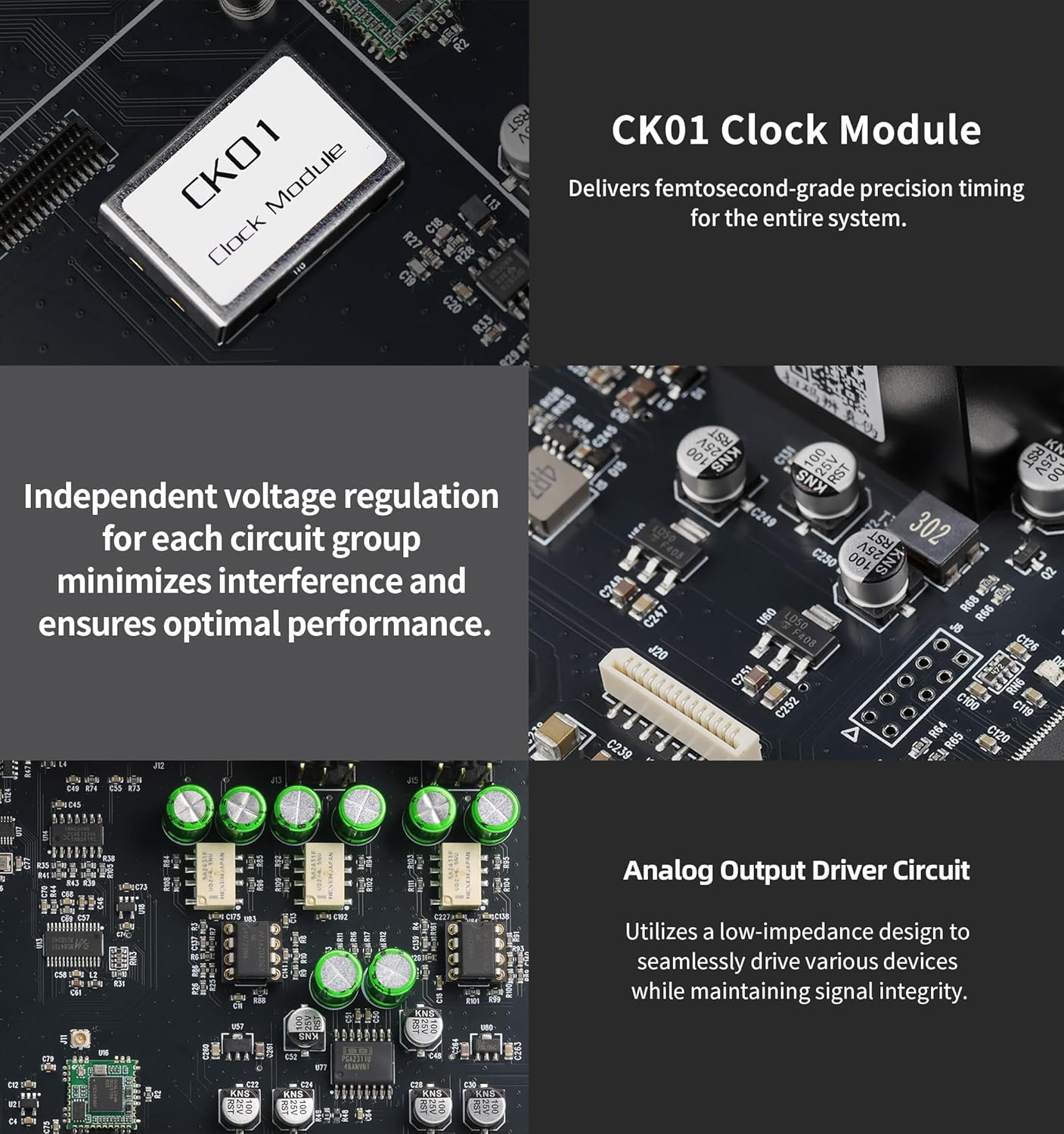
Image: Close-up view of the internal circuitry, highlighting the CK01 Clock Module which provides femtosecond-grade precision timing, and the Analog Output Driver Circuit designed for low impedance and signal integrity.

Image: Detailed view of internal components, showcasing the Bluetooth 5.0 module supporting LDAC/AAC/SBC/aptX codecs, and the XMOS XU316 USB Audio chip, which supports PCM up to 768kHz and DSD512.
5. Setup
5.1 Power Connection
- Ensure the power switch on the rear panel is in the OFF position.
- Connect the provided AC power cable to the AC inlet on the rear panel and then to a suitable wall outlet.
- Alternatively, for DC power, connect a 12V DC power supply to the DC12V-10V input.
5.2 Audio Connections
Connect your audio sources and amplifiers to the DR70N using appropriate cables.
- Digital Inputs: Use COAX1, COAX2 (Coaxial), OPT (Optical), or USB-C for digital audio sources.
- Network Streaming: Connect an Ethernet cable to the LAN port for network streaming capabilities.
- Bluetooth: Attach the provided Bluetooth antenna to the dedicated port for wireless audio reception.
- Analog Outputs: Connect to your amplifier using XLR (balanced) or RCA (single-ended) cables.
5.3 Driver Installation (for USB Host)
For Windows operating systems (7/8/10/11), a dedicated driver may be required for optimal USB audio performance. Drivers are typically available on the manufacturer's official website. macOS and Linux systems generally do not require specific drivers.
6. Operating Instructions
6.1 Power On/Off
Press the power button on the front panel or the remote control to turn the unit on or off. The display will illuminate upon power-on.
6.2 Input Selection
Use the touch interface on the front panel or the input selection buttons on the remote control to cycle through available digital inputs (COAX1, COAX2, OPT, USB-C, Bluetooth, LAN).
6.3 Bluetooth Pairing
- Select the Bluetooth input on the DR70N. The display will indicate pairing mode.
- On your mobile device, search for Bluetooth devices and select 'DR70N' to pair.
- Once paired, audio from your device will be streamed to the DR70N.
6.4 Network Streaming
When connected via the LAN port, the DR70N supports network streaming protocols such as Roon and UPNP. Configure your streaming software or device to output audio to the DR70N.
6.5 DSD Modes and Filters
The DR70N supports various DSD modes, including native DSD512. In DIRECT DSD mode, the DSD signal bypasses PCM conversion for a pure analog output. The device may also offer filter options, such as NOS (Non-Oversampling) mode, which can be selected via the menu for different sonic characteristics.
6.6 Firmware Upgrade
Periodically check the manufacturer's website for firmware updates. Follow the provided instructions carefully. During a firmware update, ensure the device remains powered on and connected. Updates typically take a few minutes; avoid interrupting the process.
7. Maintenance
7.1 Cleaning
To clean the unit, first disconnect it from the power supply. Use a soft, dry, lint-free cloth to wipe the exterior. Do not use abrasive cleaners, solvents, or chemical sprays.
7.2 Storage
If storing the unit for an extended period, disconnect all cables and store it in a cool, dry place, preferably in its original packaging to protect it from dust and physical damage.
8. Troubleshooting
- No Power: Ensure the power cable is securely connected and the wall outlet is functional. Check the fuse on the rear panel.
- No Sound: Verify that the correct input is selected on the DR70N. Check all audio cable connections to your amplifier and speakers. Ensure the amplifier is powered on and set to the correct input.
- Distorted Sound: Check cable connections for looseness or damage. Ensure the source audio file is not corrupted. Verify that the sample rate and bit depth settings are compatible with the DR70N.
- Bluetooth Connection Issues: Ensure the Bluetooth antenna is properly attached. Try unpairing and re-pairing the device. Move closer to the DR70N to reduce interference.
- Network Streaming Problems: Verify the LAN cable connection. Ensure your network is functioning correctly and the DR70N has obtained an IP address. Check firewall settings on your computer or router if applicable.
- Firmware Update Stuck: If a firmware update appears to be stuck, wait for at least 10 minutes. If it does not progress, it may have completed in the background. Power cycle the device and check the firmware version.
9. Specifications
9.1 Digital Input
- COAX/OPT: PCM 16-24 bit/44.1-192 kHz; DSD DoP64
- USB/Streamer: PCM 16-32 bit/44.1-768 kHz; DSD DoP64-DoP256; Native DSD: DSD64-DSD512
- Bluetooth 5.0: LDAC, AAC, SBC, aptX (LDAC supports 24-bit/96 kHz high-resolution transmission)
- USB Host Compatibility: Windows 7/8/10/11 (32/64-bit); macOS; Linux
9.2 Analog Output
- Frequency Response: 20 Hz-20 kHz (± 0.2 dB, OS mode)
- Dynamic Range: > 111 dB
- Signal-to-Noise Ratio: > 113 dB
- Channel Crosstalk: -125dB at 1 kHz
- THD+N: ≤0.004% at 1 kHz
- IMD: ≈0.009% @ -2dBFS
- RCA Output Level: 2 V rms (fixed)
- RCA Output Impedance: 100Ω
- XLR Output Level: 4Vrms (fixed)
- XLR Output Impedance: 100Ω
9.3 General
- Power Supply: AC 115 V/230 V, 50/60 Hz
- Power Consumption: <10 W
- Dimensions (W x D x H): 220 x 170 x 50 mm (without protrusions)
- Net Weight: 1.5 kg
- Manufacturer: Gustard
- Country of Origin: China

Image: A table detailing the D/A converter specifications for PCM, DSD (Native), and DSD (DoP) across USB/Streamer, Coaxial/Optical, and Bluetooth 5.0 interfaces. Below the table, a diagram illustrates the product dimensions: 220mm width, 170mm depth, and 50mm height.
10. Warranty and Support
10.1 Manufacturer's Warranty
The Gustard Audalytic DR70N comes with a 1-year manufacturer's warranty. This warranty covers defects in materials and workmanship under normal use. It does not cover damage caused by misuse, accidents, unauthorized modifications, or improper installation.
10.2 Technical Support
For technical assistance, troubleshooting beyond this manual, or warranty claims, please contact your retailer or the official Gustard support channels. Refer to the product packaging or the official Gustard website for the most current contact information.


