1. Introduction
The Havit MS966SE is a high-performance tri-mode gaming mouse designed for versatility, precision, and comfort. It features a PixArt PMW3325 optical sensor, offering exceptional tracking accuracy and adjustable DPI settings up to 10,000. With its tri-mode connectivity, you can seamlessly switch between 2.4GHz wireless, Bluetooth 5.3, and USB-C wired modes to suit your gaming or work environment. The lightweight and ergonomic design ensures comfortable use during extended sessions, complemented by dynamic RGB lighting for a personalized aesthetic.

Figure 1: Havit MS966SE Gaming Mouse with USB-C cable.
2. Setup
2.1 Unpacking
Carefully remove the mouse and all accessories from the packaging. Ensure all components are present:
- Havit MS966SE Gaming Mouse
- USB-C to USB-A Cable
- 2.4GHz USB Receiver
- User Manual (this document)
2.2 Connecting the Mouse
The MS966SE offers three connectivity options:
2.2.1 2.4GHz Wireless Mode
- Insert the 2.4GHz USB receiver into an available USB-A port on your computer.
- Locate the mode switch on the bottom of the mouse and slide it to the 2.4G position.
- The mouse will automatically connect to your computer.
2.2.2 Bluetooth 5.3 Mode
- Locate the mode switch on the bottom of the mouse and slide it to the BT position.
- On your computer or mobile device, open Bluetooth settings and search for new devices.
- Select "Havit MS966SE" from the list of available devices to pair.
2.2.3 USB-C Wired Mode
- Connect one end of the provided USB-C cable to the mouse and the other end to an available USB-A port on your computer.
- The mouse will automatically switch to wired mode and begin charging.
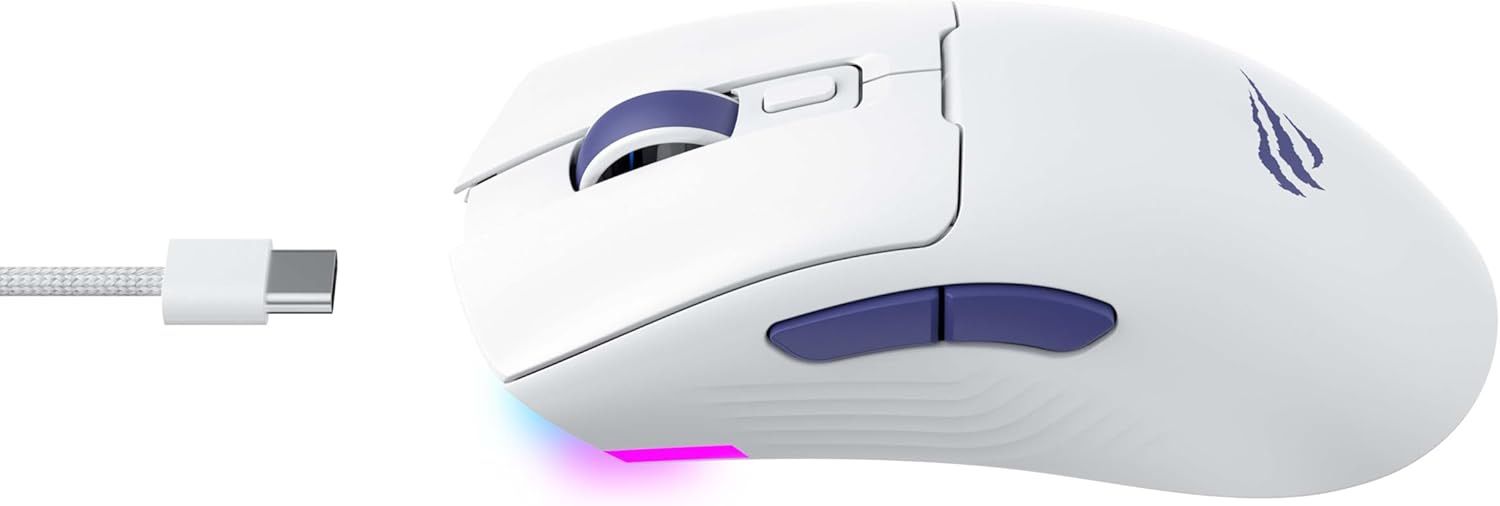
Figure 2: Side view of the mouse, highlighting the USB-C port.
2.3 Charging the Mouse
To charge the mouse, connect it to your computer using the USB-C cable. The mouse can be used in wired mode while charging. An indicator light on the mouse will show the charging status (refer to the manufacturer's website or product packaging for specific light behaviors).
3. Operating Instructions
3.1 Button Functions
The Havit MS966SE features several programmable buttons for enhanced control:
- Left Click Button: Standard primary click function.
- Right Click Button: Standard secondary click function.
- Scroll Wheel: Scrolls up/down, and acts as a middle click button.
- DPI Cycle Button: Located behind the scroll wheel, this button cycles through preset DPI sensitivity levels.
- Side Buttons (Forward/Backward): Typically used for navigation in web browsers or can be programmed for in-game actions.

Figure 3: Side buttons and ergonomic design.
3.2 DPI Adjustment
The PixArt PMW3325 sensor allows for adjustable DPI settings up to 10,000. Press the DPI cycle button (located behind the scroll wheel) to switch between different sensitivity levels. Each press will cycle to the next preset DPI, allowing you to quickly adapt to various tasks or game scenarios.
3.3 Connectivity Mode Switching
To switch between 2.4GHz wireless, Bluetooth, and wired modes, use the physical switch located on the bottom of the mouse. Ensure the correct mode is selected based on your connection preference.
3.4 RGB Lighting
The mouse features dynamic RGB lighting. Specific controls for RGB lighting effects, colors, and brightness may be available through dedicated software provided by Havit. Please visit the official Havit website for software downloads and further customization options.
4. Maintenance
4.1 Cleaning
- Disconnect the mouse from your computer before cleaning.
- Use a soft, dry, lint-free cloth to wipe the surface of the mouse.
- For stubborn dirt, slightly dampen the cloth with water or a mild cleaning solution. Avoid harsh chemicals.
- Use a cotton swab or compressed air to clean around buttons and the scroll wheel.
- Do not immerse the mouse in water or any liquid.
4.2 Storage
When not in use for extended periods, store the mouse in a cool, dry place away from direct sunlight and extreme temperatures. If storing for a long time, ensure the mouse is fully charged to maintain battery health.
5. Troubleshooting
5.1 Mouse Not Responding
- Check Power: Ensure the mouse is turned on and has sufficient battery charge.
- Check Connectivity:
- Wired Mode: Ensure the USB-C cable is securely connected to both the mouse and the computer. Try a different USB port.
- 2.4GHz Wireless: Ensure the USB receiver is properly inserted and the mouse is set to 2.4G mode. Try a different USB port for the receiver.
- Bluetooth Mode: Ensure Bluetooth is enabled on your device and the mouse is paired. Try unpairing and re-pairing the mouse.
- Restart: Restart your computer and the mouse.
5.2 DPI Not Changing
- Ensure you are pressing the correct DPI cycle button.
- If using custom software, check the DPI settings within the software.
5.3 Lag or Disconnections in Wireless Mode
- Interference: Move the mouse closer to the receiver/device. Avoid obstacles between the mouse and receiver.
- Battery Level: Low battery can affect wireless performance. Charge the mouse.
- USB Port: Try connecting the 2.4GHz receiver to a different USB port, preferably a USB 2.0 port if available, as some USB 3.0 ports can cause interference.
6. Specifications
| Brand | Havit |
| Model | MS966SE |
| Connectivity Technology | Tri-Mode: 2.4GHz Wireless, Bluetooth 5.3, USB-C Wired |
| Sensor Technology | Optical (PixArt PMW3325) |
| DPI Levels | Up to 10,000 adjustable DPI |
| Special Features | Ergonomic Design, Dynamic RGB Lighting |
| Compatible Operating Systems | Windows, macOS, Linux |
| Compatible Devices | Notebook, Personal Computer, Tablet, Smartphone |
| Mouse Weight | Approximately 68 grams |
| Battery Type | Lithium-ion |
7. Warranty and Support
7.1 Warranty Information
This Havit MS966SE Gaming Mouse comes with a 1 Year Manufacturer Warranty. Please retain your proof of purchase for warranty claims. The warranty covers defects in materials and workmanship under normal use.
7.2 Customer Support
For technical assistance, troubleshooting beyond this manual, or warranty inquiries, please contact Havit customer service directly. You can find the most up-to-date contact information and support resources on the official Havit website (www.havit.com).


