
1. Introduction
Thank you for choosing the EMPIRE GAMING RF906 Wireless Gaming Mouse. This manual provides detailed instructions for setting up, operating, and maintaining your new gaming mouse. Please read this manual carefully before use to ensure optimal performance and longevity of your device.
2. Package Contents
Please check the package contents to ensure all items are present:
- EMPIRE GAMING RF906 Wireless Gaming Mouse
- USB 2.4 GHz Receiver
- USB-C to USB-A Charging/Data Cable
- User Manual (this document)
3. Product Overview
Familiarize yourself with the various components and features of your RF906 gaming mouse.
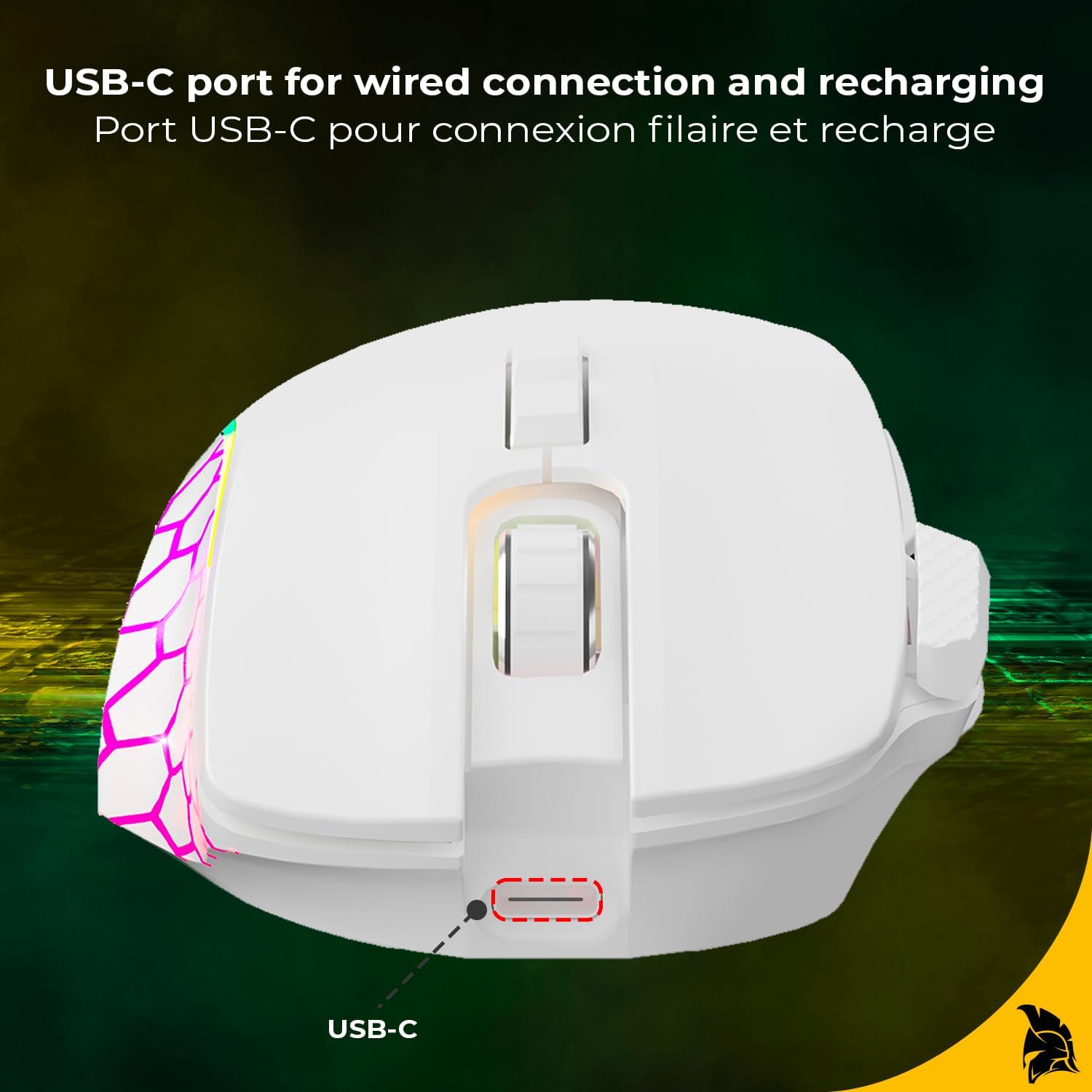
Image 3.1: Top View with Programmable Buttons
This image shows the top view of the EMPIRE GAMING RF906 mouse, highlighting the main left and right click buttons, scroll wheel, and two additional programmable buttons located near the scroll wheel.

Image 3.2: Ergonomic Design and RGB Lighting
This image displays an angled view of the mouse, emphasizing its ergonomic shape, soft-touch material for comfortable grip, a dedicated thumb rest, and the customizable RGB lighting zones along the sides and logo.

Image 3.3: Bottom View and Connection Switches
The bottom of the RF906 mouse is shown, indicating the ON/OFF power switch, the mode selection switch for WiFi (2.4 GHz) and Bluetooth (BT1/BT2), the optical sensor, and the storage slot for the USB 2.4 GHz receiver.
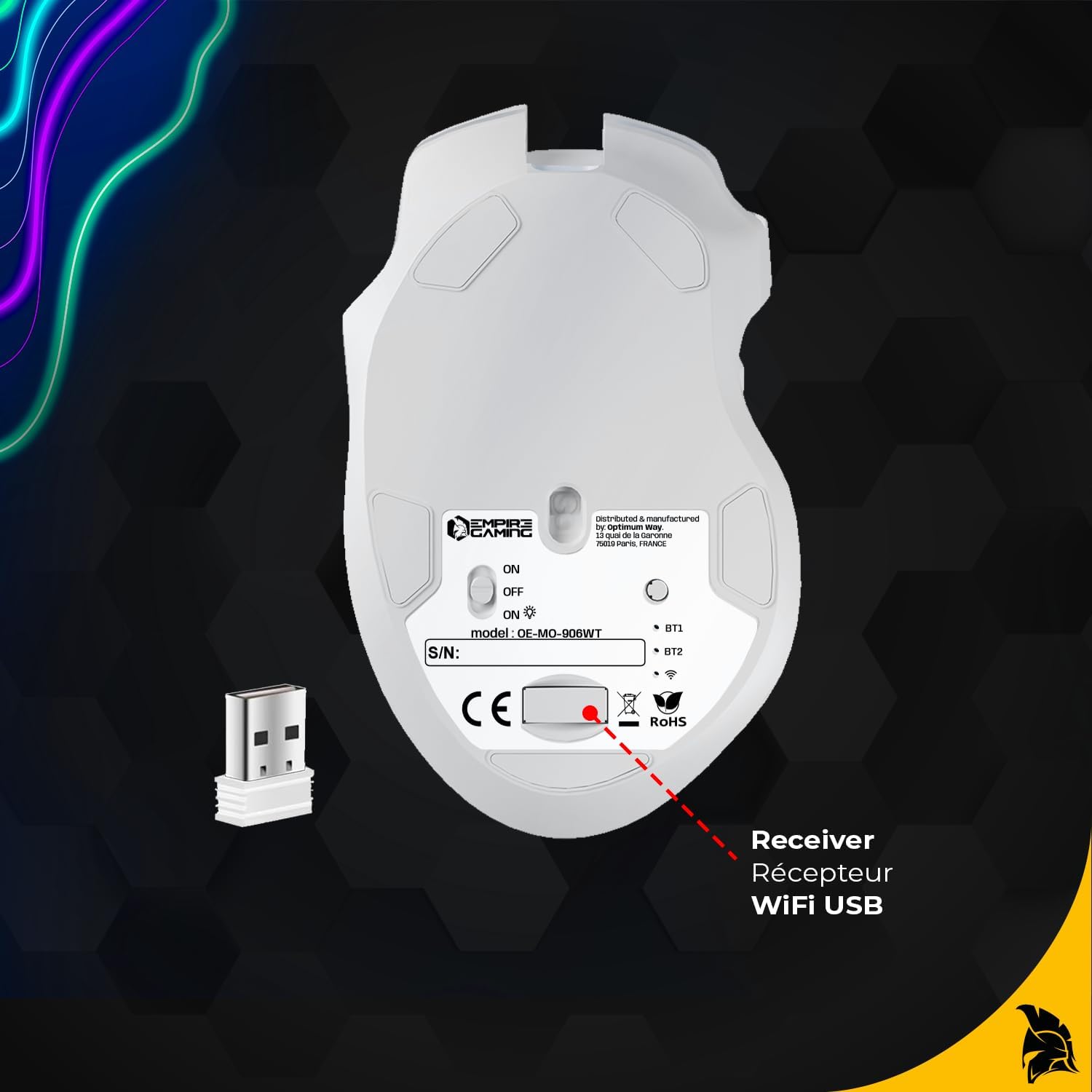
Image 3.4: USB-C Port
This image highlights the USB-C port located at the front of the mouse, used for wired connection and charging the internal battery.
4. Setup and Connection
The RF906 mouse offers three connection modes: 2.4 GHz Wireless, Bluetooth, and Wired.
4.1. 2.4 GHz Wireless Connection
- Locate the USB 2.4 GHz receiver stored in the compartment on the bottom of the mouse (refer to Image 3.3).
- Plug the USB receiver into an available USB port on your computer.
- Turn the power switch on the bottom of the mouse to the 'ON' position.
- Set the mode switch on the bottom of the mouse to the '2.4G' position.
- The mouse should automatically connect to your computer. If not, press any button to wake it up.
4.2. Bluetooth Connection
- Turn the power switch on the bottom of the mouse to the 'ON' position.
- Set the mode switch on the bottom of the mouse to either 'BT1' or 'BT2' position.
- On your computer, open Bluetooth settings and search for new devices.
- The mouse should appear as 'RF906' or similar. Select it to pair.
- If prompted, confirm the pairing code.
4.3. Wired Connection
- Connect the supplied USB-C cable to the USB-C port on the front of the mouse (refer to Image 3.4).
- Connect the USB-A end of the cable to an available USB port on your computer.
- The mouse will automatically switch to wired mode and begin charging.

Image 4.1: Wireless Connectivity and Battery Life
This image illustrates the wireless capabilities of the RF906 mouse, supporting both 2.4 GHz WiFi and Bluetooth connections, and highlighting its battery life of up to 40 hours on a single charge.
5. Operating Instructions
5.1. DPI Adjustment
The RF906 mouse features 6 adjustable DPI levels, up to 10000 DPI, allowing you to switch between precision and speed. Use the dedicated DPI button (usually located behind the scroll wheel) to cycle through the preset DPI settings. The RGB lighting may change color to indicate the current DPI level.
5.2. Programmable Buttons
The mouse is equipped with 8 programmable buttons. These buttons can be customized for various functions, macros, or shortcuts using the dedicated software. This is particularly useful for FPS, MOBA, and MMORPG games.
5.3. RGB Lighting Customization
The RF906 mouse features customizable RGB backlighting. You can personalize the lighting effects, colors, and patterns to match your gaming setup or personal preference. This customization is performed through the mouse's software.

Image 5.1: RGB Backlighting
This image demonstrates the dynamic and customizable RGB lighting effects available on the RF906 mouse, enhancing the aesthetic of your gaming environment.
5.4. 1000 Hz Polling Rate
The mouse operates with a 1000 Hz polling rate, ensuring exceptional responsiveness and precision. Every movement is instantly registered on screen, providing a smooth and accurate gaming experience.
6. Software Installation
To unlock the full potential of your EMPIRE GAMING RF906 mouse, including button programming and advanced RGB lighting customization, please install the dedicated software. The software can typically be downloaded from the official EMPIRE GAMING website. Follow the on-screen instructions for installation.
7. Maintenance
7.1. Cleaning
To clean your mouse, use a soft, dry cloth. For stubborn dirt, a slightly damp cloth with mild soap can be used, but ensure no liquid enters the mouse. Avoid using harsh chemicals or abrasive materials.
7.2. Battery Charging
The RF906 mouse is equipped with a built-in Lithium-polymer battery. When the battery is low, connect the mouse to your computer using the supplied USB-C cable. The mouse can be used in wired mode while charging.
8. Troubleshooting
If you encounter issues with your RF906 mouse, please refer to the following common solutions:
- Mouse not responding: Ensure the mouse is powered on and correctly connected (2.4 GHz receiver plugged in, Bluetooth paired, or USB-C cable connected). Check the battery level.
- Lag or disconnections in wireless mode: Ensure the USB receiver is not too far from the mouse and there are no major obstructions. Try plugging the receiver into a different USB port. Reduce interference from other wireless devices.
- DPI not changing: Ensure the mouse software is installed and updated. Try resetting the mouse to factory settings via the software if available.
- RGB lighting not working: Check software settings for RGB customization. Ensure the mouse is not in a power-saving mode that disables lighting.
- Buttons not working: Verify button assignments in the mouse software. Test the mouse on another computer to rule out system-specific issues.
If problems persist, please contact EMPIRE GAMING customer support.
9. Specifications
| Brand | EMPIRE GAMING |
| Model | RF906 |
| Connectivity Technology | 2.4 GHz Wireless, Bluetooth, USB Wired |
| DPI Levels | 6 levels, up to 10000 DPI |
| Polling Rate | 1000 Hz |
| Number of Buttons | 8 (Programmable) |
| Sensor Technology | Optical |
| Lighting | Customizable RGB Backlighting |
| Battery Type | Lithium-polymer |
| Battery Life | Up to 40 hours (wireless) |
| Compatibility | PC/Mac |
| Dimensions (L x W x H) | 12.8 x 7.9 x 4.2 cm |
| Weight | 122 g |
| Hand Orientation | Ambidextrous |
10. Warranty and Support
10.1. Manufacturer Warranty
The EMPIRE GAMING RF906 Wireless Gaming Mouse comes with a 2-year manufacturer warranty. This warranty covers defects in materials and workmanship under normal use. Please retain your proof of purchase for warranty claims.
10.2. Customer Support
For technical assistance, warranty claims, or any questions regarding your EMPIRE GAMING RF906 mouse, please visit the official EMPIRE GAMING website or contact their customer support directly. Contact information can typically be found on the product packaging or the brand's website.


