
Introduction
The Arturia KeyStep mk2 is a versatile 32-key controller and sequencer designed for expressive musical control. It features a velocity-sensitive Slimkey keyboard with aftertouch, a polyphonic step sequencer, a 16-mode arpeggiator, and extensive connectivity options including USB-C MIDI, MIDI DIN, sync I/O, and configurable CV outputs. This manual provides instructions for setting up, operating, maintaining, and troubleshooting your KeyStep mk2.
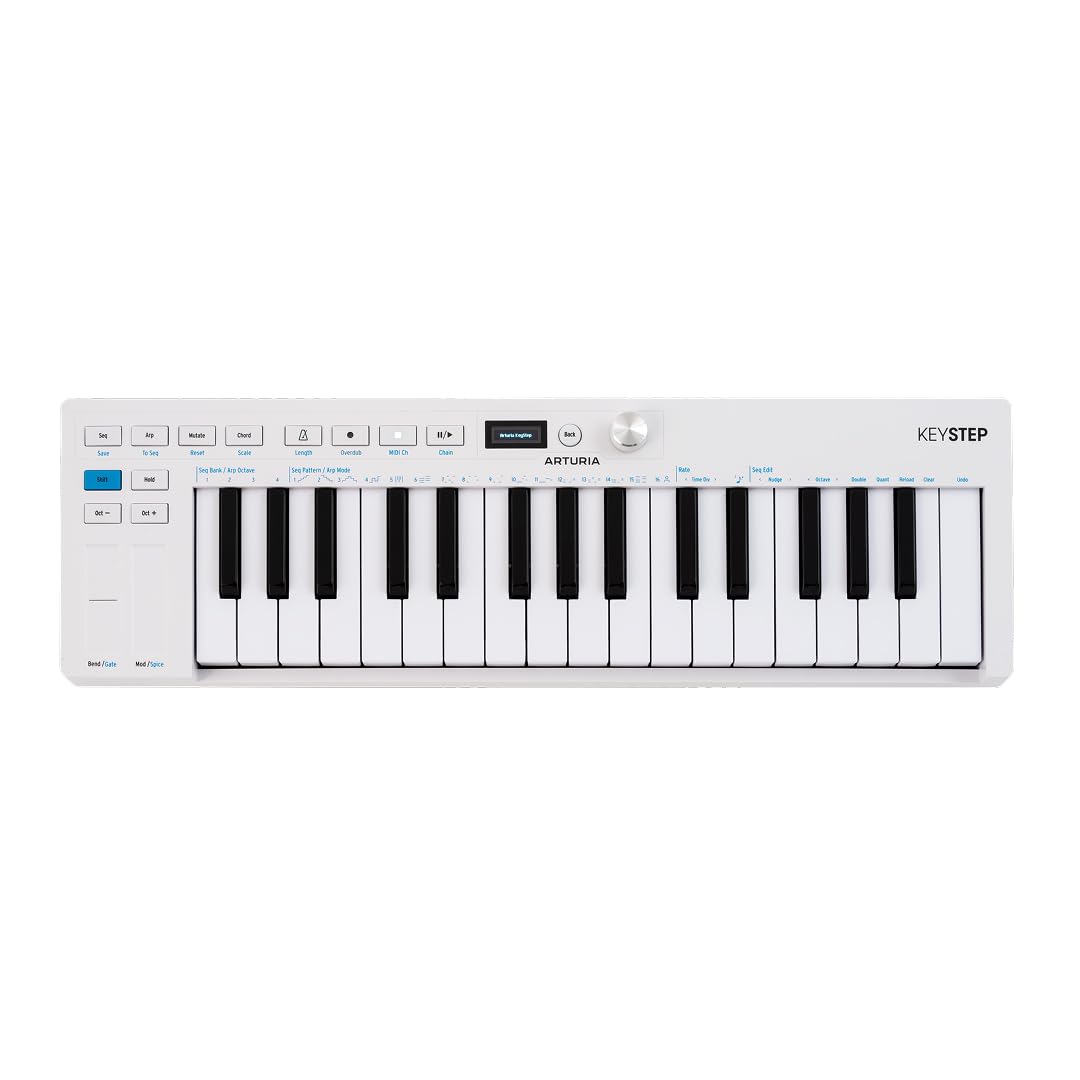
Figure 1: Top-down view of the Arturia KeyStep mk2 controller.
Setup
1. Unpacking and Contents
Carefully remove the KeyStep mk2 from its packaging. Verify that all components are present:
- Arturia KeyStep mk2 unit
- USB Cable
- MIDI Cable
- Ableton Live Software (download code or instructions)
2. Powering the Device
Connect the provided USB cable from the KeyStep mk2's USB-C port to a powered USB port on your computer or a compatible USB power adapter. The device will power on automatically.
3. Connecting to Other Devices
The KeyStep mk2 offers various connectivity options:
- USB-C MIDI: For connection to a computer (PC/Mac) or compatible DAW software. This provides both power and MIDI communication.
- MIDI DIN: Use the included MIDI cable to connect to external MIDI hardware (synthesizers, drum machines). Connect the KeyStep mk2's MIDI OUT to the MIDI IN of your external device, and MIDI IN to MIDI OUT if bi-directional communication is needed.
- Sync I/O: For synchronization with other analog gear using clock signals.
- Pedal Input: Connect a sustain pedal for expressive control.
- CV Outputs: Four CV outputs (Pitch, Gate, Mod 1, Mod 2) are available for controlling modular synthesizers and other CV-compatible hardware. Mod 2 is configurable for velocity, aftertouch, or mod wheel control.

Figure 2: Rear panel connections of the KeyStep mk2, including USB-C, MIDI, Sync, Sustain, and CV outputs.
4. Software Installation
If connecting to a computer, ensure your Digital Audio Workstation (DAW) software (e.g., Ableton Live) is installed and updated. The KeyStep mk2 is generally class-compliant and should be recognized automatically. Refer to your DAW's documentation for specific MIDI controller setup instructions.
Operating Instructions
1. Basic Controls and Interface
The KeyStep mk2 features a clear layout for intuitive operation:
- 32 Slimkey Keyboard: Velocity-sensitive keys with aftertouch for expressive playing.
- Pitch and Mod Strips: Touch-sensitive strips for real-time pitch bend and modulation control.
- OLED Display: Provides visual feedback on parameters, modes, and settings.
- Data Encoder: Used for navigating menus and adjusting values on the OLED display.
- Transport Controls: Play, Stop, Record buttons for sequencer and arpeggiator control.
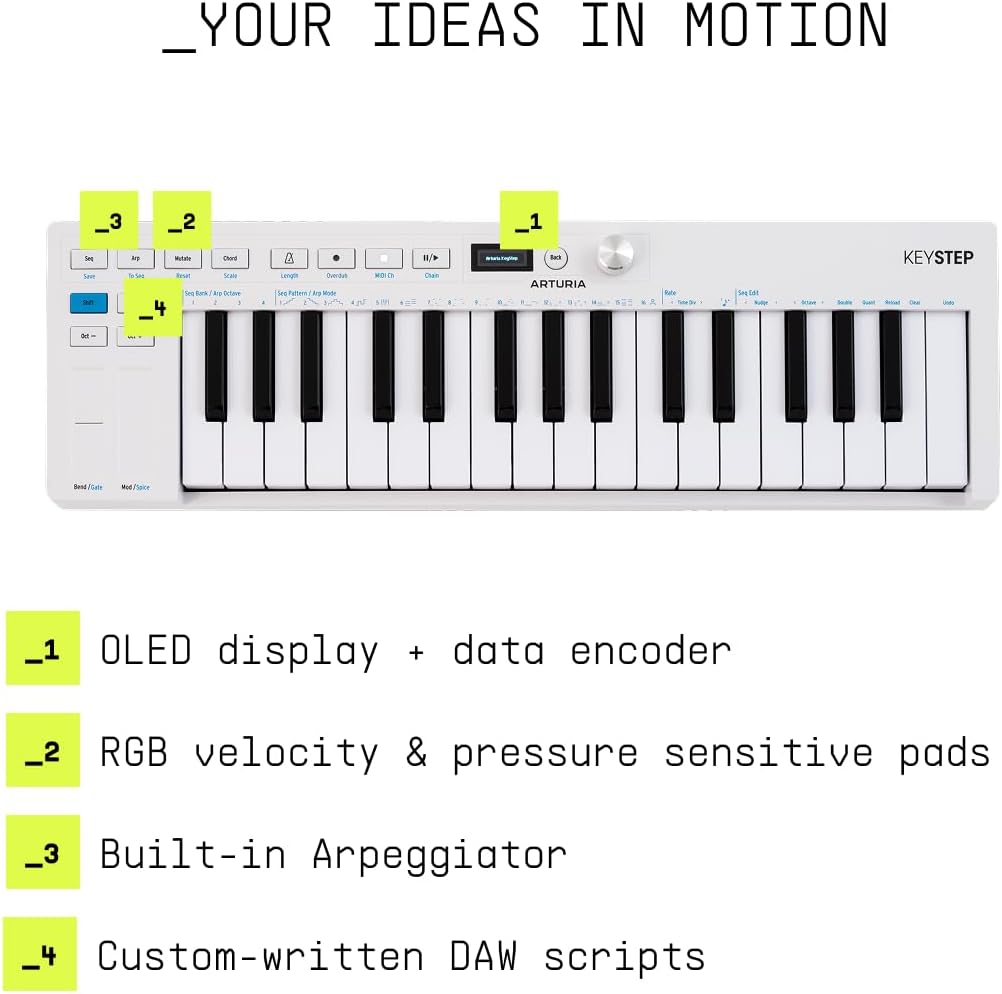
Figure 3: KeyStep mk2 control surface highlighting the OLED display, RGB velocity/pressure sensitive pads, built-in Arpeggiator, and custom-written DAW scripts.
2. Operating Modes
The KeyStep mk2 operates in three primary modes:
- Sequencer Mode: Create and edit polyphonic step sequences.
- Arpeggiator Mode: Generate arpeggiated patterns from held notes with 16 different modes.
- Controller Mode: Use the keyboard and controls as a standard MIDI controller for external instruments or software.

Figure 4: Overview of the three main operating modes: Sequencer, Arpeggiator, and Controller.
3. Using the Sequencer
To enter Sequencer Mode, press the 'Seq' button. You can record notes in real-time or step-by-step. Features include:
- Polyphonic Step Sequencer: Record multiple notes per step.
- Pattern Chaining: Link multiple sequences together for longer compositions.
- Mutate: Generate new variations of your sequences on the fly.
- Overdub: Add additional notes to an existing sequence.
- Note Length and Silences: Adjust individual note durations and insert rests.
4. Using the Arpeggiator
To enter Arpeggiator Mode, press the 'Arp' button. Hold down multiple keys, and the KeyStep mk2 will play them in a rhythmic pattern. Use the data encoder to select from 16 different arpeggiator modes and adjust parameters like rate and gate length.
5. CV Output Configuration
The Mod 2 CV output can be configured to send different control voltages. Refer to the KeyStep mk2's advanced settings menu (accessed via the OLED display and data encoder) to assign Mod 2 to velocity, aftertouch, or mod wheel data.
Maintenance
1. Cleaning
To clean the KeyStep mk2, use a soft, dry, lint-free cloth. For stubborn dirt, slightly dampen the cloth with water. Avoid using abrasive cleaners, solvents, or alcohol, as these can damage the finish and components.
2. Storage
Store the KeyStep mk2 in a dry environment, away from direct sunlight, extreme temperatures, and excessive dust. When transporting, use a protective case to prevent physical damage.
Troubleshooting
If you encounter issues with your KeyStep mk2, consider the following common solutions:
- No Power: Ensure the USB cable is securely connected to a powered USB port. Try a different USB port or cable.
- No Sound/MIDI Output:
- Verify that the KeyStep mk2 is recognized by your computer or external MIDI device.
- Check MIDI channel settings on both the KeyStep mk2 and your receiving device.
- Ensure the correct input is selected in your DAW or external instrument.
- For CV connections, confirm correct patching and voltage ranges.
- Keys Not Responding: Check for any stuck keys or debris. If the issue persists, perform a factory reset (refer to the Arturia website for instructions).
- Sequencer/Arpeggiator Issues: Ensure the device is in the correct mode. Check clock synchronization settings if using external sync.
For more detailed troubleshooting or persistent issues, please visit the official Arturia support website.
Specifications
| Feature | Detail |
|---|---|
| Model Name | KeyStep mk2 |
| Item Model Number | 430301 |
| Number of Keys | 32 (Slimkey, velocity-sensitive with aftertouch) |
| Connectivity Technology | USB |
| Connector Type | USB, USB Type C, MIDI DIN |
| Hardware Interface | USB 3.0 Type C |
| Compatible Devices | Laptop, PC, DAW (Digital Audio Workstation) software |
| Supported Software | Ableton Live |
| Special Features | Polyphonic Step Sequencer, Arpeggiator, Pattern Chaining, Creative Tools, CV Outputs |
| Item Weight | 2.4 pounds |
| Product Dimensions | 20.98 x 7 x 3.11 inches |
| Hardware Platform | PC/Mac |
| Color Name | White |
Warranty
Arturia products are covered by a manufacturer's warranty. For specific details regarding the warranty period and terms for your KeyStep mk2, please refer to the warranty information included with your product packaging or visit the official Arturia website. Keep your proof of purchase for warranty claims.
Support
For further assistance, technical support, or to download the latest firmware and software updates for your Arturia KeyStep mk2, please visit the official Arturia support page:
You can also find additional resources, tutorials, and frequently asked questions on their website.


