
Introduction
Thank you for choosing the Jedel WD154 Wireless Mouse. This manual provides essential information for setting up, operating, and maintaining your new mouse. Please read these instructions carefully before use to ensure optimal performance and longevity of your device.
Package Contents
- Jedel WD154 Wireless Mouse
- USB-C Charging Cable
- 2.4GHz USB Receiver
- User Manual

Image: The retail packaging for the Jedel WD154 Wireless Mouse, displaying the mouse, its features, and technical specifications on the box.
Product Overview
The Jedel WD154 features a transparent 6D design with RGB lighting and a digital LED battery display. It offers dual-mode connectivity for versatile use.
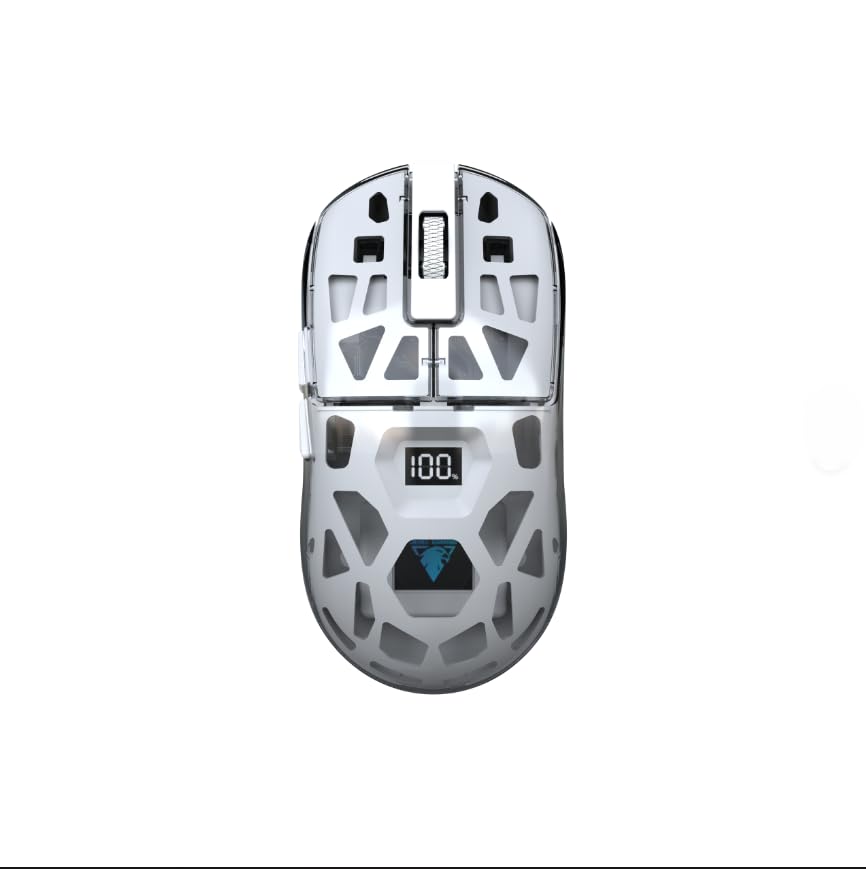
Image: A close-up side view of the Jedel WD154 Wireless Mouse, showcasing its unique transparent shell and the integrated digital LED display indicating a 100% battery charge.
Button Functions:
- Left Click Button: Standard left-click function.
- Right Click Button: Standard right-click function.
- Scroll Wheel: Scroll up/down, middle-click.
- DPI Button: Adjusts mouse sensitivity (DPI).
- Forward Button: Navigates forward in web browsers/applications.
- Backward Button: Navigates backward in web browsers/applications.
- Mode Switch Button (underneath): Toggles between 2.4GHz and Bluetooth modes.
Setup
1. Charging the Mouse
Before first use, fully charge the mouse using the provided USB-C cable.
- Connect the USB-C end of the cable to the mouse's charging port.
- Connect the USB-A end to a power source (e.g., computer USB port, USB wall adapter).
- The digital LED display will show the charging progress. A full charge is indicated by '100'.

Image: A detailed view of the front of the Jedel WD154 Wireless Mouse, illustrating the USB-C charging port with the charging cable securely connected.
2. Connecting via 2.4GHz Wireless
- Locate the 2.4GHz USB receiver, usually stored in a compartment on the underside of the mouse.
- Plug the USB receiver into an available USB port on your computer or device.
- Turn on the mouse using the power switch on the underside.
- Press the Mode Switch button (if present) until the mouse is in 2.4GHz mode (often indicated by a specific LED color or pattern).
- The mouse should automatically connect.
3. Connecting via Bluetooth 5.1
- Turn on the mouse using the power switch on the underside.
- Press the Mode Switch button (if present) until the mouse is in Bluetooth mode. The LED indicator will typically flash, indicating it's in pairing mode.
- On your device (PC, Mac, tablet, smartphone), go to Bluetooth settings.
- Search for new devices and select "Jedel WD154" (or similar name) from the list.
- Follow any on-screen prompts to complete the pairing process.
Operating Instructions
DPI Adjustment
The mouse features adjustable DPI settings (800/1200/1600) to control cursor sensitivity.
- Press the DPI button (usually located behind the scroll wheel) to cycle through the available DPI settings.
- Each press will change the sensitivity, allowing you to find your preferred speed for different tasks or games.
RGB Lighting Control
The mouse features dynamic RGB lighting.
- The RGB lighting typically activates automatically when the mouse is powered on.
- Specific button combinations (e.g., DPI button + a side button) might cycle through different lighting modes or turn the RGB on/off. Refer to the quick start guide for specific controls if available.

Image: A compilation of images demonstrating the Jedel WD154 Wireless Mouse with its RGB lighting set to various colors, showcasing the customizable aesthetic.
Power Management
- The digital LED display shows the current battery percentage (1-100%).
- When the battery is low, recharge the mouse using the USB-C cable.
- The mouse may enter an automatic sleep mode after a period of inactivity to conserve battery. Move the mouse or click a button to wake it up.
Maintenance
- Cleaning: Use a soft, dry cloth to clean the mouse. For stubborn dirt, a slightly damp cloth can be used, but ensure no moisture enters the device.
- Storage: Store the mouse in a cool, dry place away from direct sunlight and extreme temperatures.
- Battery Care: Avoid fully discharging the battery frequently. Charge it regularly to maintain battery health.
- Avoid Drops: Protect the mouse from drops and impacts, which can damage internal components or the transparent casing.
Troubleshooting
| Problem | Possible Solution |
|---|---|
| Mouse not responding |
|
| Cursor movement is erratic or slow |
|
| RGB lighting not working |
|
| Cannot connect via Bluetooth |
|
Specifications
- Model: WD154
- Connectivity Technology: Bluetooth 5.1 + 2.4GHz (Dual Mode)
- DPI Settings: 800 / 1200 / 1600 (Adjustable)
- Number of Buttons: 6
- Movement Detection: Optical
- Special Features: Transparent Design, RGB Lighting, Digital Battery Percentage Display
- Power Source: Rechargeable Battery (USB-C)
- Compatible Devices: PC, Laptop, Tablet, Smartphone
- Compatible Operating Systems: Windows, Mac OS
- Item Weight: 96 grams
- Product Dimensions (L x W): 12.7 cm x 6.4 cm
Warranty and Support
Warranty Information
This product comes with a 14-day warranty from the date of purchase. This warranty covers manufacturing defects under normal use. It does not cover damage caused by misuse, accidents, unauthorized modifications, or normal wear and tear.
Customer Support
For technical assistance, troubleshooting, or warranty claims, please contact your retailer or the point of purchase. Please have your proof of purchase and product model number (WD154) ready when contacting support.


