
1. Introduction
The ICUIXIAN 16x16 HDMI Matrix Switch is a professional device designed for switching and distributing high-resolution HDMI digital signals. It allows you to select any of 16 HDMI input signals and route them to any of 16 display devices. This matrix switch supports HDMI 1.4a standard, EDID management, and resolutions up to 1080p@60Hz.
Key features include:
- 1080P@60Hz Input/Output support
- High-bandwidth chip architecture
- Arbitrary switching between inputs and outputs
- HDMI signal distribution
- Advanced EDID management
- Integrated liquid crystal display for status
- Embedded audio support
- Electrostatic discharge (ESD) protection
- Power-off memory function
- Support for long-distance transmission
- Multiple control methods: Web GUI, RS-232, IR remote, and front panel buttons

Figure 1: Quick overview of product features, including 1080P support, high-bandwidth chips, arbitrary switching, HDMI distribution, EDID management, and multiple control methods.
2. Product Overview
The ICUIXIAN 16x16 HDMI Matrix Switch features 16 HDMI input ports and 16 HDMI output ports, along with various control interfaces for flexible integration into your audio-visual system.

Figure 2: Front and Rear Panel Layout. The front panel includes an LCD display and control buttons. The rear panel features 16 HDMI inputs, 16 HDMI outputs, a DC 5V power input, RS-232 IN/OUT ports, and an RJ45 LAN port.
2.1 Front Panel
- LCD Display: Shows current input/output status and menu options.
- Control Buttons: For local switching, menu navigation, and EDID settings.
- IR Receiver: For remote control commands.
2.2 Rear Panel
- HDMI IN 1-16: Connect your HDMI source devices (e.g., Blu-ray players, PCs, game consoles).
- HDMI OUT 1-16: Connect your HDMI display devices (e.g., TVs, projectors, monitors).
- DC 5V: Power input port.
- RS-232 IN/OUT: Serial communication ports for control via a computer or control system.
- RJ45 (LAN): Ethernet port for Web GUI control.
3. Setup and Installation
Follow these steps to set up your ICUIXIAN 16x16 HDMI Matrix Switch:
- Power Off: Ensure all devices (sources, displays, and the matrix switch) are powered off before making connections.
- Connect HDMI Sources: Connect your HDMI source devices (e.g., DVD players, TV boxes, computers) to the HDMI IN 1-16 ports on the rear panel of the matrix switch using high-quality HDMI cables.
- Connect HDMI Displays: Connect your HDMI display devices (e.g., TVs, projectors) to the HDMI OUT 1-16 ports on the rear panel of the matrix switch using high-quality HDMI cables.
- Connect Control Cables (Optional):
- For RS-232 control, connect an RS-232 cable from your control computer or system to the RS-232 IN port on the matrix switch.
- For Web GUI control, connect an Ethernet cable from your network router/switch to the RJ45 (LAN) port on the matrix switch.
- Connect Power: Connect the provided DC 5V power adapter to the DC 5V port on the matrix switch, then plug the adapter into a power outlet.
- Power On: Power on the matrix switch, then power on your display devices, and finally your source devices.

Figure 3: Connection Diagram. Illustrates how to connect up to 16 HDMI source devices to the input ports and assign them to any of the 16 HDMI displays independently.
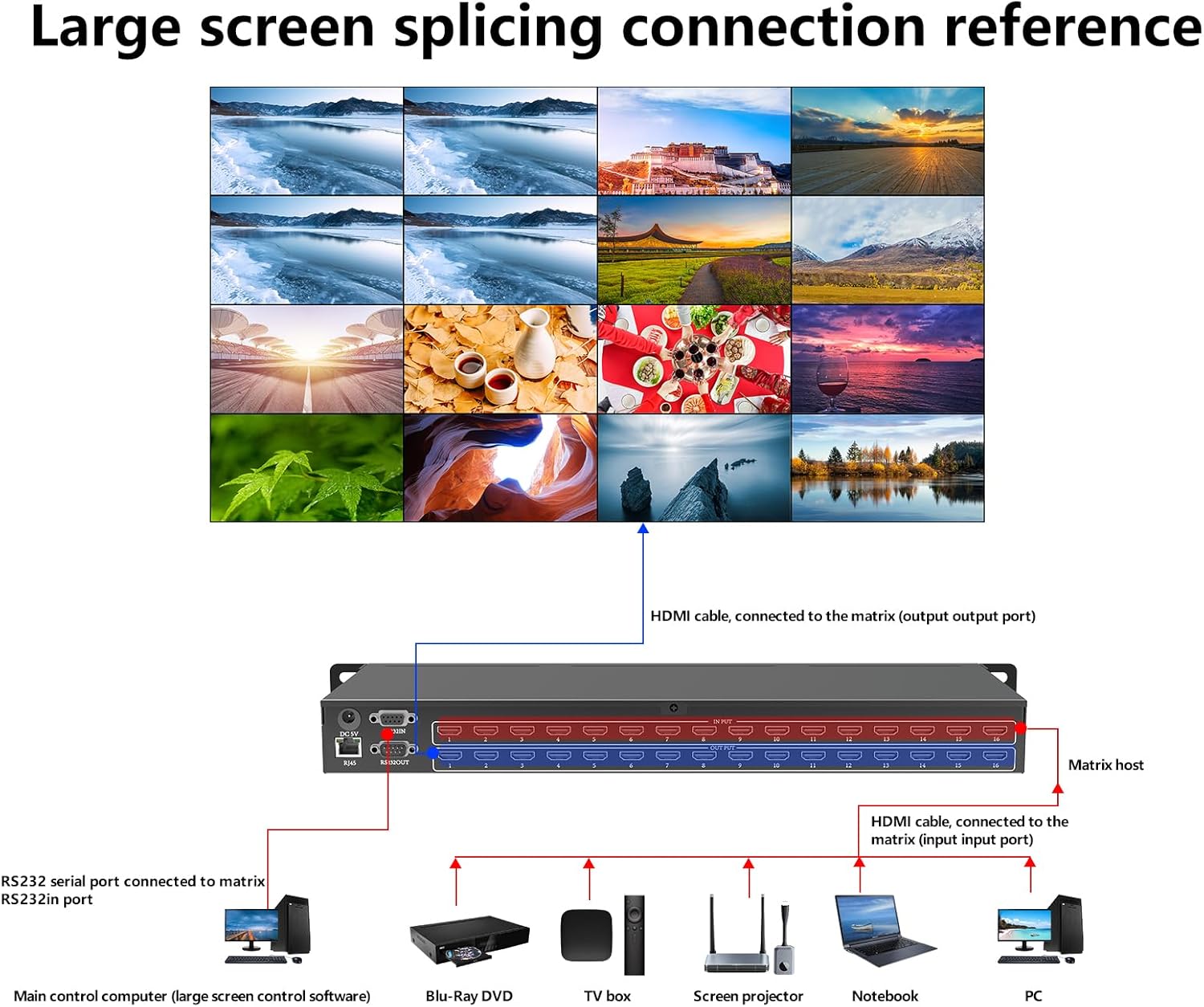
Figure 4: Large Screen Splicing Connection Reference. This diagram shows a typical setup for connecting various sources to the matrix and distributing signals to multiple displays, including a main control computer for management.
4. Operating Instructions
The ICUIXIAN 16x16 HDMI Matrix Switch offers multiple control methods for flexible operation.
4.1 Control Methods
You can control the matrix switch using the following methods:
- Web GUI Control: Access the device's web interface via a browser on a computer, mobile phone, or tablet connected to the same network. No software installation is required.
- RS-232 Control: Use RS-232 commands from a control system or computer for integration into professional setups.
- IR Remote Control: Use the included infrared remote control for convenient local operation.
- Front Panel Buttons: Directly switch inputs and outputs, and navigate settings using the buttons on the front panel.

Figure 5: Four Convenient Switching Methods. This image details the various ways to control the matrix switch, including Web GUI, RS-232, IR remote, and front panel buttons.
4.2 Input/Output Switching
The matrix allows for flexible routing of any input to any output. You can configure various display scenarios:
- Independent Display: Each display shows a different input source.
- Shared Input: Multiple displays show the same input source.
- Partial Sharing: A group of displays share one input, while others show different inputs.

Figure 6: Various Screen Configurations. This image demonstrates different ways to configure input-to-output routing, from individual displays to shared content across multiple screens.
4.3 EDID Management
The matrix switch supports EDID management, which is crucial for ensuring compatibility between source devices and displays. It features integrated proactive management and allows you to set up to 32 scenes for quick access and switching with a single button. This includes real-time device information display, rapid switching of input and output signals, and the ability to retrieve and save preview plans.
4.4 Audio and Video Output
The device supports lossless audio and video copy output from various HDMI input devices, ensuring high-quality signal distribution to multiple outputs.

Figure 7: Audio and Video Copy Output. This diagram illustrates how various HDMI source devices can be connected to the matrix for seamless audio and video distribution.
5. Maintenance
To ensure the longevity and optimal performance of your ICUIXIAN 16x16 HDMI Matrix Switch, follow these maintenance guidelines:
- Cleaning: Use a soft, dry cloth to clean the exterior of the device. Avoid using liquid cleaners or solvents, as they may damage the finish or internal components.
- Ventilation: Ensure the device has adequate ventilation. Do not block any ventilation openings.
- Environment: Operate the device in a cool, dry environment, away from direct sunlight, excessive heat, humidity, and dust.
- Power: Disconnect the power adapter when the device is not in use for extended periods.
- Cable Management: Ensure all cables are securely connected and not under strain. Avoid bending HDMI cables sharply.
6. Troubleshooting
If you encounter issues with your ICUIXIAN 16x16 HDMI Matrix Switch, refer to the following troubleshooting tips:
6.1 No Video Output
- Check Connections: Ensure all HDMI cables are securely connected to both the source devices, the matrix switch, and the display devices.
- Power: Verify that the matrix switch and all connected devices are powered on.
- Input/Output Selection: Confirm that the correct input is selected for the desired output on the matrix switch.
- Cable Quality: Try using different, high-quality HDMI cables, especially for longer runs.
- Resolution Compatibility: Ensure the output resolution of the source device is compatible with the display device. The matrix supports up to 1080p@60Hz.
- EDID Settings: Adjust EDID settings if there are compatibility issues. Refer to the EDID management section for details.
6.2 Poor Video Quality
- Cable Quality: Use certified high-speed HDMI cables.
- Cable Length: Excessive cable length can degrade signal quality. Consider using HDMI extenders if necessary.
- Source/Display Settings: Check the resolution and refresh rate settings on your source and display devices.
6.3 Control Issues
- IR Remote: Ensure there are no obstructions between the remote and the IR receiver on the front panel. Check battery levels.
- Web GUI/LAN: Verify network connectivity. Ensure the matrix switch has an IP address and is accessible on the network. Check firewall settings on your control device.
- RS-232: Confirm correct cable wiring and serial port settings (baud rate, data bits, parity, stop bits) on your control system.
7. Specifications
| Feature | Specification |
|---|---|
| Brand | ICUIXIAN |
| Model Number | 16x16 Matrix DC |
| Color | Black |
| Number of Ports | 16 (Input) x 16 (Output) |
| Compatible Devices | Projector, Television |
| Cable Type | HDMI |
| Analog RGB Input | HDMI |
| Item Weight | 3 Kilograms |
| Item Dimensions (Depth x Width x Height) | 48P x 18l x 4H cm (Note: 'P' likely refers to Depth, 'l' to Width, 'H' to Height) |
| HDMI Standard | HDMI 1.4a |
| Resolution Support | Up to 1080p@60Hz, 1080P 3D@60Hz |
| HDCP Support | Yes |
| EDID Management | Yes, with 32 scene presets |
| Control Interfaces | Web GUI, RS-232, IR, Front Panel Buttons |
8. Warranty and Support
ICUIXIAN offers a warranty and friendly customer service for this product. If you encounter any rare issues or have questions, please contact our professional customer service team. We are committed to resolving all problems for you.
For support, please refer to the contact information provided with your purchase or on the official ICUIXIAN website.