
Introduction
Thank you for choosing the Elevon 4L Automatic Pet Feeder. This device is designed to provide scheduled meals for your pets, ensuring they are fed consistently even when you are away. It features programmable meal times, portion control, a voice recorder, and a desiccant bag to keep food fresh. Please read this manual thoroughly before use to ensure proper setup and operation.
Product Components
Carefully unpack all items and ensure you have the following components:
- Elevon 4L Automatic Pet Feeder Body
- Food Tray
- Power Adapter
- Desiccant Bag (pre-installed or separate)
- User Manual (this document)

Image: The Elevon 4L Automatic Pet Feeder with its detachable food tray.
Setup
- Placement: Place the feeder on a flat, stable surface in a dry area, away from direct sunlight or heat sources.
- Assemble Food Tray: Attach the food tray to the main body of the feeder. Ensure it is securely clicked into place.
- Install Desiccant Bag: If not pre-installed, open the lid of the food reservoir and locate the desiccant compartment. Insert the desiccant bag to help keep the pet food fresh. Replace the desiccant bag every 1-2 months for optimal freshness.
- Fill Food Reservoir: Open the top lid and pour dry pet food into the reservoir. The feeder has a 4-liter capacity. Ensure the food kibble size is appropriate for the dispenser mechanism (typically 0.2-0.6 inches in diameter). Close the lid securely.
- Power Connection: Connect the power adapter to the feeder's power port and plug it into a standard electrical outlet. The feeder will power on, and the display will illuminate.
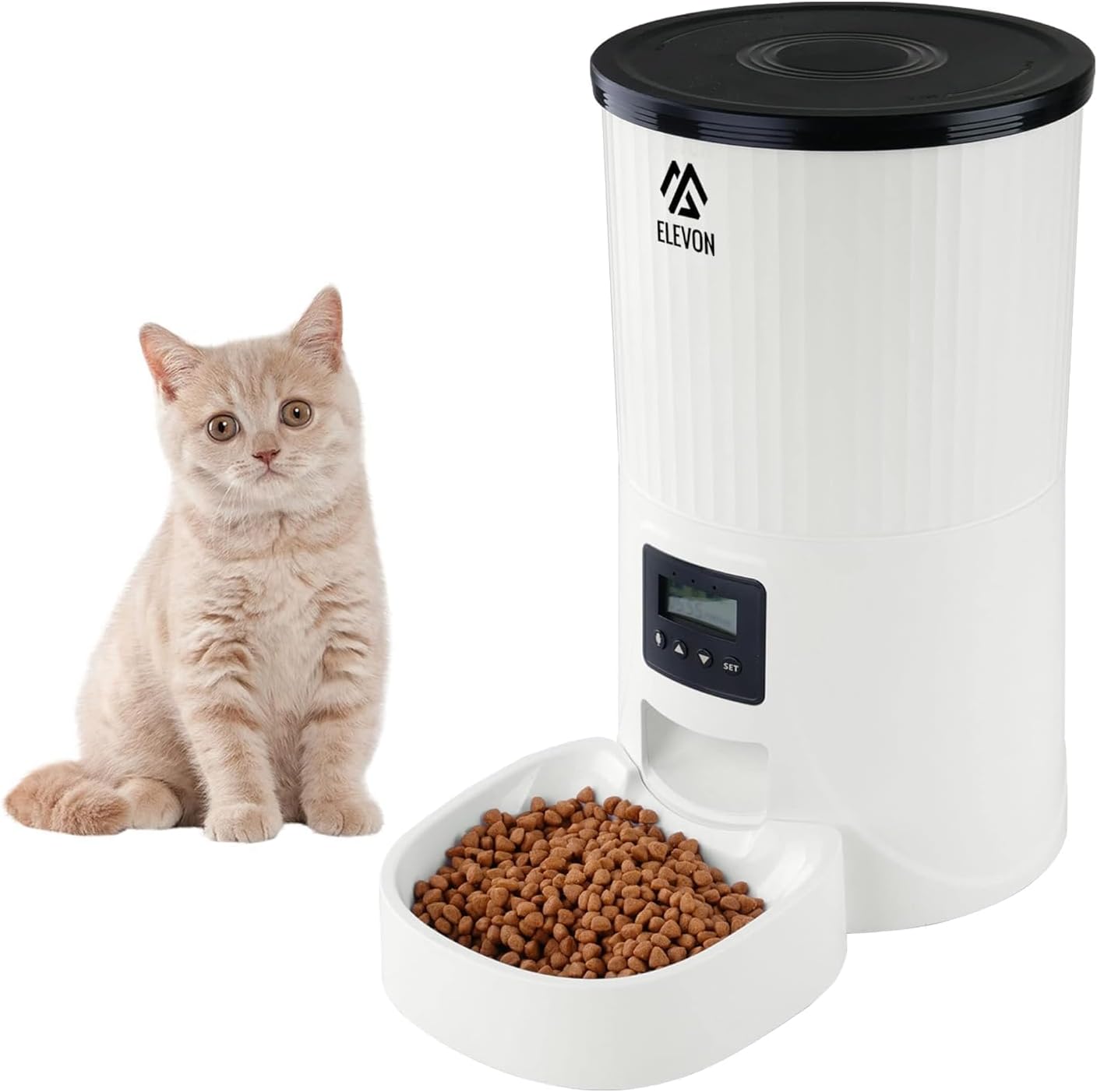
Image: The Elevon 4L Automatic Pet Feeder showing its dimensions (12.2 in. L x 7.2 in. W x 12.6 in. H).
Operating Instructions
The control panel allows you to program feeding schedules, record voice messages, and adjust settings.

Image: Close-up view of the feeder's control panel, showing the display and control buttons.
Control Panel Overview:
- Display Screen: Shows current time, meal settings, and other indicators.
- SET Button: Used to enter programming mode and confirm settings.
- UP/DOWN Arrows: Used to navigate menus and adjust values.
- RECORD Button: Used to record and play voice messages.
1. Unlocking the Screen
To prevent accidental changes, the screen automatically locks. Long press the DOWN arrow button for 3 seconds to unlock the screen.
2. Setting System Time
- Unlock the screen.
- Long press the SET button for 3 seconds until the hour digit flashes.
- Use the UP/DOWN arrows to adjust the hour. Press SET to confirm and move to minutes.
- Adjust minutes using UP/DOWN arrows. Press SET to confirm and exit time setting.
3. Programming Meal Times and Portions
The feeder allows you to schedule multiple meals per day with customizable portion sizes.
- Unlock the screen.
- Short press the SET button to cycle through meal settings (Meal 1, Meal 2, etc.).
- When the desired meal number is displayed, the time will flash. Use UP/DOWN arrows to set the feeding time (hour and minute). Press SET to confirm.
- Next, the portion size will flash. Use UP/DOWN arrows to select the number of portions (each portion is approximately 10-15g, depending on kibble size). Press SET to confirm.
- Repeat for additional meals as needed. To disable a meal, set its portion size to '0'.
4. Custom Voice Recording
Record a 10-second voice message to call your pet at meal times.
- Unlock the screen.
- Press and hold the RECORD button. The display may show a recording indicator.
- Speak clearly into the microphone (usually located near the control panel) for up to 10 seconds.
- Release the RECORD button to save the message.
- To play back the recording, short press the RECORD button. The recording will automatically play during each scheduled feeding.
5. Manual Feeding
To dispense food immediately, long press the UP arrow button. Each long press will dispense one portion. This will not affect your programmed feeding schedule.
Maintenance
Regular cleaning and maintenance ensure the longevity and hygienic operation of your pet feeder.
- Cleaning: The food tray and food reservoir are removable for cleaning. Hand wash only with mild soap and water. Rinse thoroughly and dry completely before reassembling. Do not immerse the main feeder body in water.
- Desiccant Bag: Replace the desiccant bag every 1-2 months to maintain food freshness and prevent moisture buildup.
- Food Refill: Monitor the food level in the reservoir and refill as needed to ensure continuous feeding.
- Inspection: Periodically check the feeder for any signs of damage or wear. Ensure the power cord is intact.
Troubleshooting
| Problem | Possible Cause | Solution |
|---|---|---|
| Feeder not dispensing food. | Food jammed, low food level, incorrect programming. | Check food level. Clear any food blockages in the dispenser. Verify meal times and portion settings. Ensure kibble size is appropriate. |
| Display screen is off. | No power, power adapter issue. | Ensure power adapter is securely plugged into the feeder and a working outlet. Try a different outlet. |
| Voice recording not playing. | No recording saved, low volume. | Re-record the voice message. Ensure the volume is not set to minimum (if adjustable, refer to specific model features). |
| Food not fresh. | Desiccant bag expired, lid not sealed. | Replace the desiccant bag. Ensure the top lid is securely closed to maintain an airtight seal. |
Specifications
| Feature | Detail |
|---|---|
| Model Number | QD740-ELV-SPF-2 |
| Capacity | 4 Liters |
| Product Dimensions (L x W x H) | 12.2 x 7.2 x 12.6 inches |
| Item Weight | 3.5 Pounds |
| Material | Acrylonitrile Butadiene Styrene (ABS) |
| Power Source | Corded Electric |
| Operation Mode | Automatic |
| Special Features | Durable, Feeding Schedule, Portable, Removable, Timer, Voice Recorder |
| Product Care Instructions | Hand Wash Only (removable parts) |
| Target Species | Cat, Dog (Small to Large) |
Warranty and Support
For warranty information, technical support, or service inquiries, please refer to the official Elevon website or contact their customer service directly. Keep your purchase receipt as proof of purchase.
Contact Information: Please visit the official Elevon brand store or website for the most up-to-date support contact details.