Introduction
This manual provides detailed instructions for setting up, operating, maintaining, and troubleshooting your GEEKOM GeekBook X14 Pro laptop. Please read this manual thoroughly before using your device to ensure proper functionality and longevity. Keep this manual for future reference.
What's in the Box
Upon unboxing your GEEKOM GeekBook X14 Pro, verify that all the following items are included:
- GEEKOM GeekBook X14 Pro Laptop
- GEEKOM GeekBook X14 Pro Premium Packaging
- 65W PD GaN Fast Charger
- USB-C to USB-C Cable
- Docking Station
- User Manual

Product Overview
The GEEKOM GeekBook X14 Pro is an ultra-light and thin laptop designed for professionals. It features a magnesium alloy unibody chassis, weighing only 999g and tapering to 6mm at its thinnest point.

Key Features:
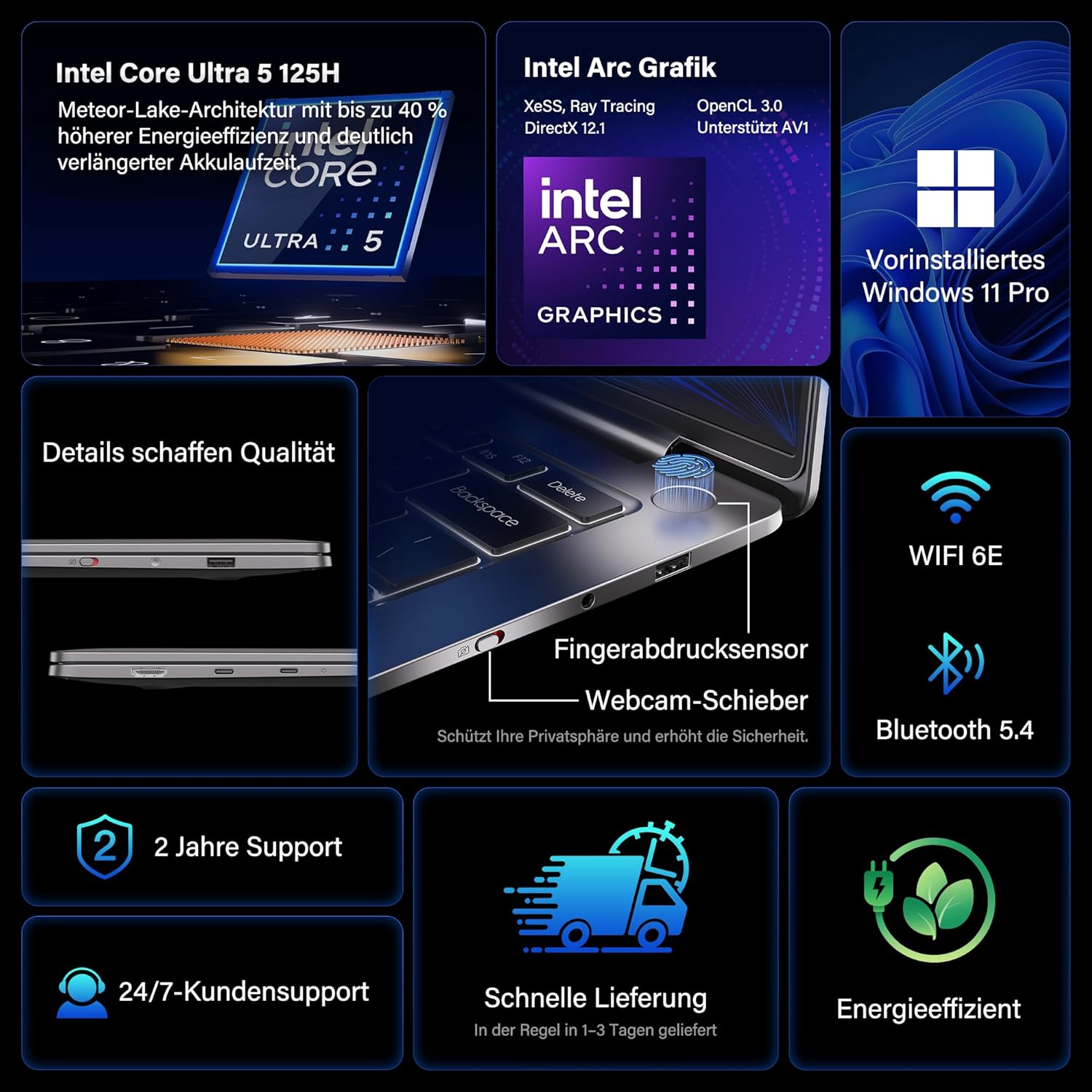
- Processor: Intel Core Ultra 5 125H (14 cores, 18 threads, up to 4.5 GHz)
- Graphics: Intel Arc Graphics with Xe-LPG architecture
- Display: 14-inch 2.8K OLED (2880 x 1800) with 120Hz refresh rate, 100% DCI-P3, up to 450 nits brightness
- Memory: 32GB LPDDR5x RAM (7500 MT/s)
- Storage: 1TB PCIe 4.0 NVMe SSD
- Operating System: Pre-installed Windows 11 Pro
- Connectivity: 2x USB4 (40 Gbps), 1x USB 3.2 Gen 1 Type-A (5 Gbps), HDMI 2.0, Wi-Fi 6E, Bluetooth 5.4
- Security: Fingerprint sensor in power button, physical webcam slider
- Audio: DTS:X Ultra Audio
- Battery: 72 Wh, up to 16 hours battery life, 65W USB-C fast charging
- Cooling: GEEKOM IceBlade 2.0 cooling system with adjustable fan profiles

Ports and Connectors:
- 2x USB4 (40 Gbps)
- 1x USB 3.2 Gen 1 Type-A (5 Gbps)
- 1x HDMI 2.0
- 1x 3.5mm Audio Jack
- Power Input (via USB-C)

Setup
1. Initial Power On and Charging
- Connect the 65W PD GaN Fast Charger to a power outlet and then to one of the USB-C ports on your laptop.
- Allow the laptop to charge for at least 30 minutes before initial use, or until the battery indicator shows sufficient charge.
- Press the power button (integrated with the fingerprint sensor) to turn on the laptop.
2. Windows 11 Pro Setup
Follow the on-screen prompts to complete the initial Windows 11 Pro setup. This includes:
- Selecting your region and keyboard layout.
- Connecting to a Wi-Fi network.
- Signing in with a Microsoft account or creating a local account.
- Setting up privacy settings.
3. Fingerprint Sensor Setup
For enhanced security and quick login, set up the fingerprint sensor:
- Go to Settings > Accounts > Sign-in options.
- Under "Ways to sign in," select Fingerprint recognition (Windows Hello) and follow the instructions to register your fingerprints.
Operating Instructions
Display Features
The 14-inch 2.8K OLED display offers vibrant colors and sharp details. With a 120Hz refresh rate, scrolling and animations are smooth. The display covers 100% DCI-P3 color gamut and reaches up to 450 nits brightness, ensuring clear visibility in various lighting conditions.

Performance
Equipped with an Intel Core Ultra 5 125H processor, 32GB LPDDR5x RAM, and a 1TB PCIe 4.0 NVMe SSD, the GeekBook X14 Pro delivers efficient performance for demanding tasks, quick application launches, and seamless multitasking.

Connectivity
The laptop supports Wi-Fi 6E for fast and stable wireless internet connections and Bluetooth 5.4 for connecting peripherals. The two USB4 ports offer high-speed data transfer (40 Gbps) and support up to three 4K external displays simultaneously via the included mini docking station or direct connection.
Audio
Experience clear and spatial audio with DTS:X Ultra technology, enhancing your video calls, movies, and music playback.
Cooling System (GEEKOM IceBlade 2.0)
The GEEKOM IceBlade 2.0 cooling system ensures optimal performance even under sustained load. It features a quiet fan and a dual-heatpipe design to efficiently dissipate heat. You can switch between three intelligent fan profiles (Silent, Standard, Performance) by pressing Fn+P to balance noise and cooling efficiency.

Battery and Charging
The 72 Wh battery provides up to 16 hours of usage. The included 65W USB-C PD GaN fast charger can charge the battery up to 80% in approximately one hour, allowing for quick power-ups on the go.

Webcam Privacy Slider
For enhanced privacy, the laptop includes a physical slider to cover the webcam when not in use.
Maintenance
Cleaning
- Use a soft, lint-free cloth to clean the screen and chassis.
- For stubborn smudges, lightly dampen the cloth with water or a screen-safe cleaning solution.
- Avoid using harsh chemicals, abrasive materials, or excessive moisture.
- Ensure the laptop is powered off and unplugged before cleaning.
Software Updates
Regularly check for and install Windows updates and driver updates to ensure optimal performance, security, and compatibility. You can check for Windows updates via Settings > Windows Update.
Troubleshooting
Laptop Does Not Power On
- Ensure the charger is securely connected to both the laptop and a working power outlet.
- Allow the laptop to charge for at least 30 minutes.
- Try a different power outlet or USB-C port if available.
Display Issues
- If the screen is black, ensure the laptop is powered on and not in sleep mode. Press any key or the power button briefly.
- Check display settings in Windows if external monitors are not detected or showing incorrect resolution.
Slow Performance
- Close unnecessary applications running in the background.
- Ensure Windows and drivers are up to date.
- Check for sufficient free storage space on the SSD.
- Monitor CPU/RAM usage in Task Manager to identify resource-intensive processes.
Connectivity Problems
- Wi-Fi: Restart your router and the laptop. Ensure Wi-Fi is enabled in Windows settings.
- Bluetooth: Ensure Bluetooth is enabled and devices are in pairing mode. Remove and re-pair devices if issues persist.
- USB/HDMI: Ensure cables are securely connected. Test with different cables or ports if possible.
For further assistance, refer to the Warranty and Support section.
Specifications
| Feature | Detail |
|---|---|
| Brand | GEEKOM |
| Model Name | GeekBook X14 Pro |
| Model Number | NX14CM |
| Color | Titanium Gray |
| Form Factor | Ultra-portable and Ultra-light Notebook |
| Screen Size | 14 Inches |
| Screen Resolution | 2.8K (2880 x 1800 pixels, 16:10) |
| Processor Type | Intel Core Ultra 5 125H |
| Processor Speed | Up to 4.5 GHz |
| RAM Size | 32 GB |
| RAM Technology | LPDDR5x |
| Memory Clock Speed | 7500 MHz |
| Hard Disk Size | 1 TB |
| Hard Disk Type | SSD (PCIe x4) |
| Graphics Coprocessor | Intel Arc Graphics |
| Wireless Type | 802.11ax (Wi-Fi 6E), Bluetooth 5.4 |
| USB Ports | 2x USB4, 1x USB 3.2 Gen 1 Type-A |
| HDMI Ports | 1 (HDMI 2.0) |
| Operating System | Windows 11 Pro |
| Average Battery Life | Up to 16 Hours (72 Wh) |
| Item Weight | 999g (Laptop only) |
| Special Features | Fingerprint sensor, Webcam privacy slider, DTS:X Ultra Audio, GEEKOM IceBlade 2.0 cooling, Mini docking station included |
Warranty and Support
The GEEKOM GeekBook X14 Pro comes with a 2-year warranty. GEEKOM provides 24/7 customer support for any technical assistance or inquiries you may have.
For support, please visit the official GEEKOM website or contact their customer service directly. Keep your purchase receipt and product serial number handy when contacting support.
The product undergoes extensive reliability testing, including thermal shock, vibration, humidity, and impact tests, to ensure durability and high quality.


