
1. Introduction and Overview
The Acogedor USB Fingerprint Reader provides a secure and convenient biometric authentication solution for your Windows 10 or 11 PC. This device integrates seamlessly with Windows Hello, allowing for quick, one-touch login without the need for traditional passwords. Its advanced 360-degree capacitive fingerprint recognition technology ensures high accuracy and rapid response times.
This compact and lightweight zinc alloy scanner enhances data security by preventing unauthorized access and offers an encryption function for sensitive files and website passwords. The self-learning algorithm continuously improves recognition performance over time, adapting to subtle changes in your fingerprints.

Image: The Acogedor USB Fingerprint Reader enables biometric login and one-key screen lock for both desktop PCs and laptops.

Image: The fingerprint reader simplifies login, eliminating the need for traditional passwords.
2. Setup Instructions
2.1 Package Contents
- 1 x Acogedor USB Fingerprint Reader
- 1 x User Manual
2.2 Connecting the Device
Connect the USB-A connector of the fingerprint reader's 1.5-meter braided nylon cable into an available USB port on your computer. The device is designed for plug-and-play functionality.

Image: The device features a durable 1.5m (4.9ft) knit nylon USB cable for flexible placement.
2.3 Driver Installation
The Acogedor USB Fingerprint Reader supports automatic driver installation. Upon connecting the device to your Windows 10 or 11 PC, the operating system should automatically detect and install the necessary drivers. No manual driver installation is typically required.
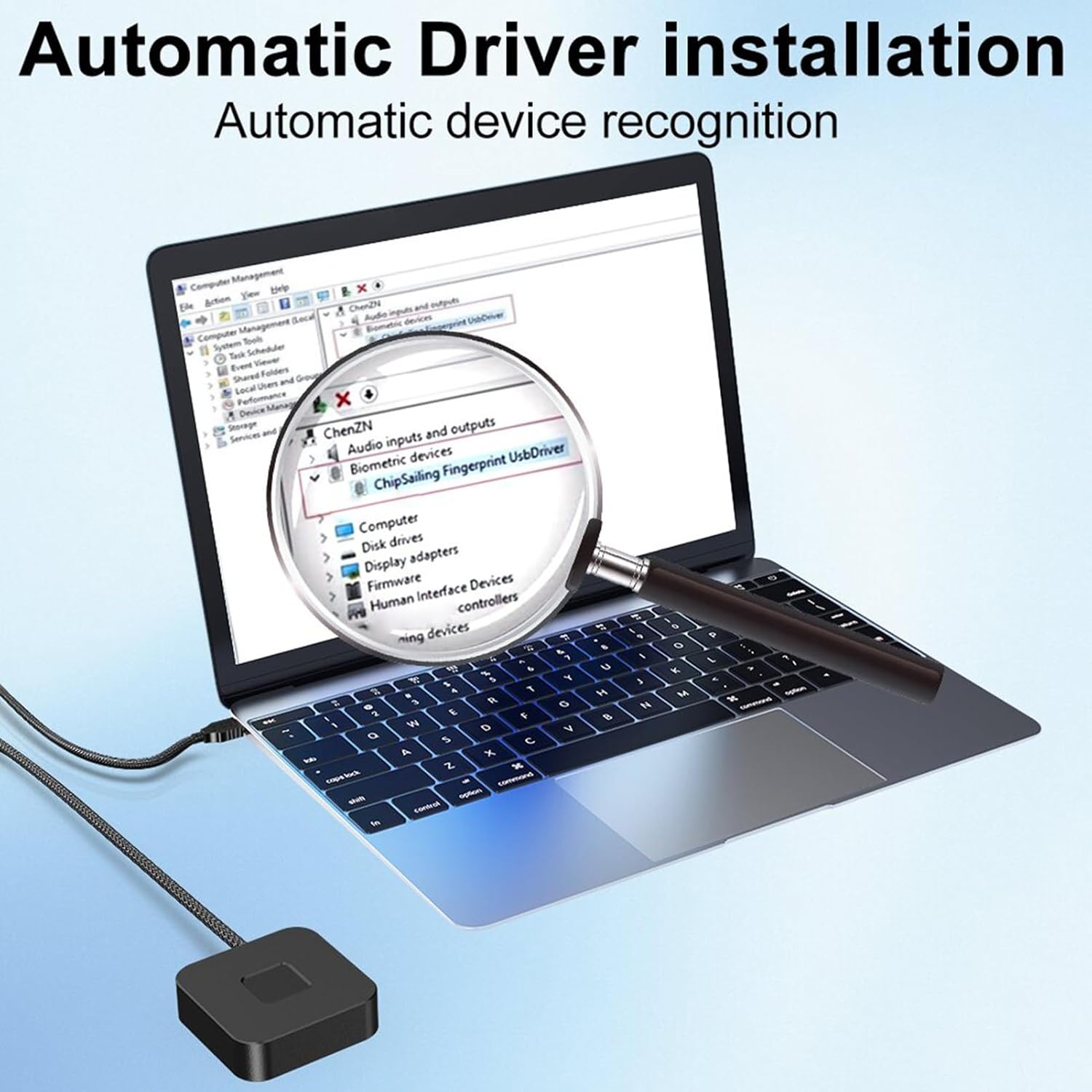
Image: The system automatically installs drivers upon connection, visible in Device Manager under Biometric devices.
2.4 Fingerprint Registration (Windows Hello)
After successful driver installation, you can register your fingerprints through Windows Hello:
- Go to Settings > Accounts > Sign-in options.
- Under 'Windows Hello Fingerprint', click Set up.
- Follow the on-screen prompts to scan your finger multiple times from different angles until the registration is complete.
- You can register up to 10 fingerprints per user account.

Image: The device is plug-and-play, allowing for quick setup and login with Windows Hello.
3. Operating Instructions
3.1 Logging In with Fingerprint
Once your fingerprint is registered, you can use it to log in to your Windows account:
- At the Windows login screen, select the 'Fingerprint' sign-in option.
- Place your registered finger on the fingerprint reader. The system will authenticate your identity and log you in automatically within approximately 0.3 seconds.

Image: Securely log in to your desktop or laptop using the touch ID fingerprint reader.

Image: The device offers fast login within 1 second and highly accurate 360-degree fingerprint recognition.
3.2 Managing Fingerprints
To add or remove fingerprints, navigate to Settings > Accounts > Sign-in options. From there, you can manage your registered fingerprints under the 'Windows Hello Fingerprint' section.
3.3 Encryption Functionality
The device supports encryption features for enhanced security:
- Website Password Encryption: Encrypt and securely store passwords for various websites.
- Folder Encryption: Set up an encryption area to automatically encrypt all files within a designated folder.
Access to encrypted data is granted instantly via fingerprint authentication, providing a secure, fast, and efficient alternative to browser-saved passwords.
4. Maintenance
To ensure optimal performance and longevity of your Acogedor USB Fingerprint Reader, follow these maintenance guidelines:
- Cleaning: Gently wipe the fingerprint sensor surface with a soft, dry, lint-free cloth. Avoid using abrasive cleaners, solvents, or excessive moisture, as these can damage the sensor.
- Storage: When not in use, store the device in a clean, dry environment away from direct sunlight and extreme temperatures.
- Handling: Avoid dropping the device or subjecting it to strong impacts, which could damage internal components.
5. Troubleshooting
If you encounter issues with your fingerprint reader, please refer to the following common problems and solutions:
- Fingerprint Not Recognized:
- Ensure your finger is clean and dry.
- Place your entire finger pad firmly on the sensor.
- Try different angles or re-register your fingerprint if recognition issues persist.
- Ensure the sensor surface is clean (refer to Maintenance section).
- Device Not Detected:
- Try plugging the device into a different USB port on your computer.
- Restart your computer.
- Check Device Manager in Windows to see if the device is listed under 'Biometric devices' and if there are any error indicators.
- Ensure your Windows operating system is up to date.
- Windows Hello Setup Issues:
- Ensure you have a PIN set up for your Windows account, as it is required for Windows Hello.
- Verify that the fingerprint reader is properly connected and its drivers are installed.
6. Specifications

Image: Key dimensions and features of the fingerprint reader, including its zinc alloy and ABS plastic construction.
| Feature | Detail |
|---|---|
| Item Type | USB Fingerprint Reader |
| Model Number | Accwovg1f3dz-11 |
| Material | Zinc Alloy (front and side), ABS Plastic (back) |
| Color | Black |
| Input Interface | USB A |
| Device Dimensions | Approx. 50 x 50 x 14.5 mm (1.97 x 1.97 x 0.57 inches) |
| Cable Length | Approx. 1.5 m (4.9 feet) |
| Touch Type | 360-degree Capacitive Touch |
| Fingerprint Image Size | 68 x 118 pixels, 508 dpi |
| Fingerprint Capacity | Max 10 fingerprints per user account |
| Match Time | 50 ms |
| Compatibility | Windows 10/11 (32-bit and 64-bit versions) |
| Weight | Approx. 125 g |
7. Warranty and Support
For any product-related inquiries, technical support, or warranty claims, please contact your retailer or the manufacturer directly. Please refer to your purchase documentation for specific warranty terms and contact information.