
1. Product Overview
The MOES Zigbee Fingerbot Plus is a smart button pusher designed to automate traditional switches and buttons. It offers touch control and integrates with smart home systems like Alexa and Tuya Smart Life, requiring a MOES Zigbee Gateway for full functionality.

Image: The MOES Zigbee Fingerbot Plus device shown attached to a standard light switch, demonstrating its compact design and how it interacts with physical buttons.
2. Key Features
- Zigbee Connectivity: Requires a MOES Zigbee Gateway (sold separately) for 2.4GHz WiFi connection and smart home integration.
- Built-in Touch Button: Allows for manual control of the robotic arm directly on the device.
- Adaptable to Traditional Appliances: Compatible with various buttons and switches (excluding touch switches). Can be used with adhesive stickers to operate devices like computers, TVs, coffee makers, garage doors, and wall switches.
- Smart Scene Linkage: Seamlessly integrates with other MOES smart products via the MOES APP to create customized scene modes.
- Compact Design & Easy Installation: Small footprint for discreet placement and straightforward setup.

Image: A comparison graphic highlighting the enhanced features of the Fingerbot Plus, including increased clicking life, movement range, battery capacity, and force compared to the standard Fingerbot.
3. Package Contents
The standard package for the MOES Zigbee Fingerbot Plus includes:
- MOES Zigbee Fingerbot Plus device
- 1 CR2 battery (pre-installed or included separately)
- Adhesive stickers for mounting
- User Manual (this document)
Note: The MOES Zigbee Gateway is required for smart functionality and is sold separately.
4. Setup Guide
4.1. Requirements
- MOES Zigbee Gateway (required, sold separately)
- 2.4GHz WiFi network (5G networks are not supported)
- Tuya Smart Life App (available on iOS and Android)
- A clean, flat surface for mounting the Fingerbot Plus
4.2. Installation Steps
- Prepare the Surface: Ensure the surface of the button or switch you intend to automate is clean and dry.
- Attach Adhesive: Peel the protective film from the adhesive sticker and attach it to the back of the Fingerbot Plus.
- Mount the Device: Carefully align the Fingerbot Plus so its robotic arm can press the target button or flip the switch. Press firmly to secure it in place.
- Insert Battery: If not already installed, open the battery compartment and insert the CR2 battery, ensuring correct polarity.

Image: The Fingerbot Plus shown installed on a standard wall light switch, illustrating how it physically interacts with the switch lever.
4.3. Pairing with MOES Zigbee Gateway and App
- Connect Gateway: Ensure your MOES Zigbee Gateway is powered on and connected to your 2.4GHz WiFi network.
- Open Tuya Smart Life App: Launch the Tuya Smart Life application on your smartphone.
- Add Device: In the app, navigate to your Zigbee Gateway and select the option to add a new sub-device.
- Activate Pairing Mode: Follow the app's instructions to put the Fingerbot Plus into pairing mode (usually involves pressing and holding the touch button on the device until an indicator light flashes).
- Complete Pairing: The app will detect the Fingerbot Plus. Confirm the pairing process.

Image: A visual representation emphasizing that a MOES Zigbee Hub is essential for the smart control features of the Fingerbot Plus.
5. Operating Instructions
5.1. Manual Control
The Fingerbot Plus features a built-in touch button on its top surface. A gentle press on this button will activate the robotic arm, allowing for direct manual operation of the connected switch or button.
5.2. App Control (Tuya Smart Life)
Once paired with the Tuya Smart Life app via the Zigbee Gateway, you can control the Fingerbot Plus remotely:
- On/Off: Tap the virtual button in the app to activate or deactivate the Fingerbot.
- Customization: Adjust parameters such as the "Down Movement" (how far the arm extends) and "Up Movement" (how far it retracts) to suit different button types.
- Scheduling: Set schedules or timers for automatic activation/deactivation.
- Scene Linkage: Create smart scenes to trigger the Fingerbot Plus based on other smart devices or conditions (e.g., turn on coffee maker when motion is detected).
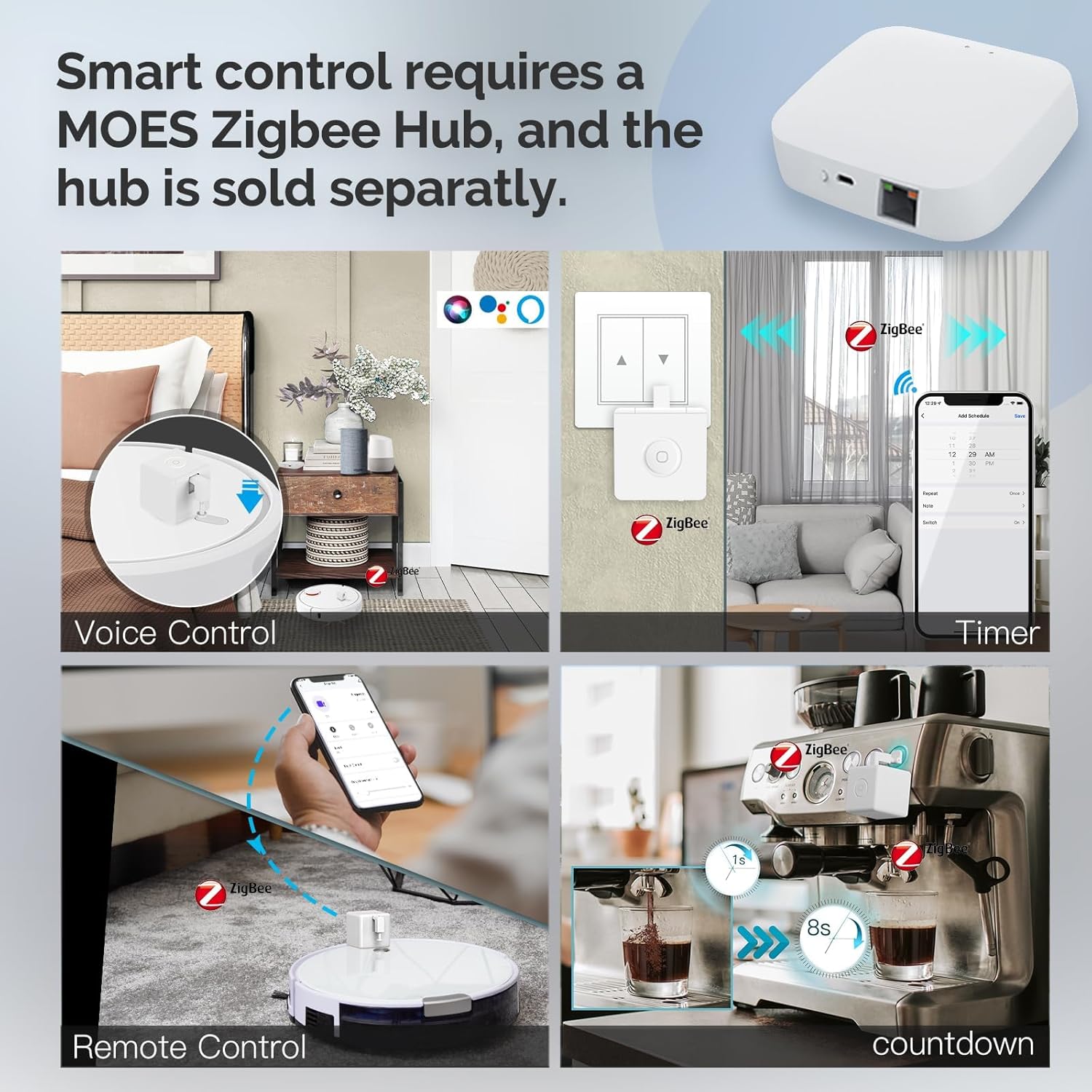
Image: A collage demonstrating different smart control methods for the Fingerbot Plus, including voice control via Alexa, remote control through the app, and scheduled operations using timers.
5.3. Voice Control (Alexa)
After linking your Tuya Smart Life account to Alexa, you can use voice commands:
- Ensure your Fingerbot Plus is named appropriately in the Tuya Smart Life app (e.g., "Coffee Machine," "Living Room Light").
- Use commands such as: "Alexa, turn on [device name]," or "Alexa, turn off [device name]."

Image: A diagram illustrating the connection flow from a WiFi router to a Gateway (Hub) and then to the Zigbee Fingerbot Plus, enabling integration with smart home platforms like Homekit, Google, and Smartthings.
5.4. Group Control and Sharing
The Tuya Smart Life app allows you to group multiple Fingerbot Plus devices and share control with family members.
- Create Groups: In the app, select multiple Fingerbot devices and create a group to control them simultaneously.
- Share Device: Grant access to other family members by inviting them through the app, allowing them to control the devices from their own smartphones.
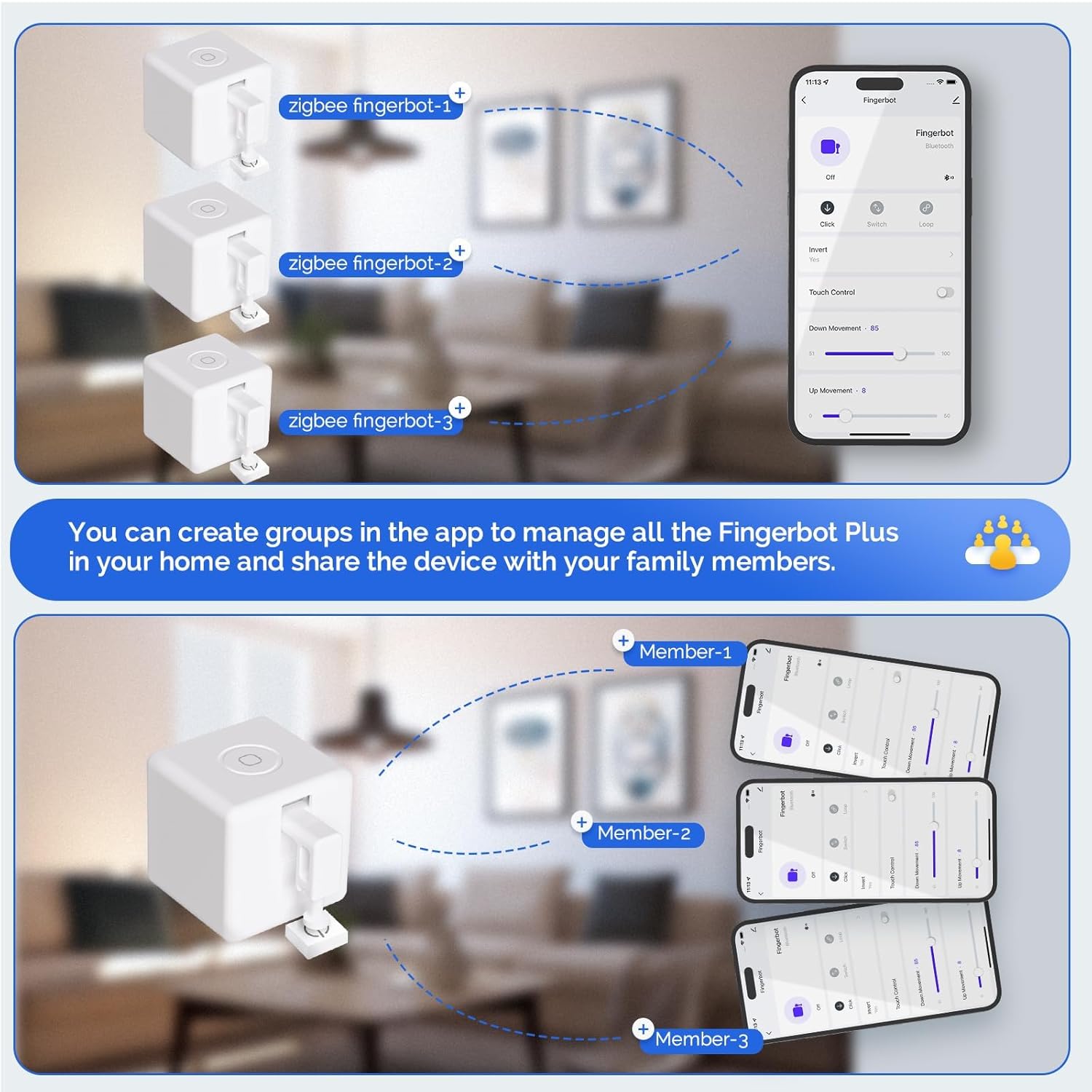
Image: A visual guide demonstrating how to create groups of Fingerbot Plus devices within the app for unified control and how to share device access with multiple family members.
6. Maintenance
- Battery Replacement: The Fingerbot Plus uses a CR2 battery. Replace the battery when the device's performance degrades or the app indicates low battery.
- Cleaning: Wipe the device with a dry, soft cloth. Do not use liquid cleaners or immerse the device in water.
- Adhesive Check: Periodically check the adhesive for secure attachment. If it loosens, replace it with new adhesive stickers.
7. Troubleshooting
| Problem | Possible Cause | Solution |
|---|---|---|
| Device not responding | Low battery; Not paired; Out of Zigbee range; Gateway offline. | Replace CR2 battery; Re-pair with Zigbee Gateway; Move device closer to Gateway; Check Gateway's power and internet connection. |
| Cannot pair with app | Incorrect pairing mode; 5GHz WiFi network; Gateway not connected. | Ensure device is in pairing mode; Confirm your WiFi is 2.4GHz; Verify Zigbee Gateway is online and connected to the app. |
| Robotic arm not pressing button correctly | Incorrect mounting; App settings for movement range. | Re-position the Fingerbot Plus for optimal alignment; Adjust "Down Movement" and "Up Movement" settings in the Tuya Smart Life app. |
| Voice control not working | Alexa not linked to Tuya Smart Life; Incorrect device name. | Ensure Tuya Smart Life skill is enabled and linked in the Alexa app; Verify the device name in Tuya Smart Life matches the name used for voice commands. |
8. Product Specifications
| Feature | Detail |
|---|---|
| Brand | MOES |
| Model | Fingerbot Plus |
| Operation Mode | ON-OFF |
| Control Method | Touch, App (Tuya Smart Life), Voice (Alexa) |
| Connectivity Protocol | ZigBee |
| Wireless Frequency | 2.4GHz WiFi (requires Zigbee Gateway) |
| Compatible Devices | Smart home devices, Traditional appliances, Alexa |
| Battery Type | 1 CR2 battery (included) |
| Item Weight | 1.76 ounces |
| Package Dimensions | 2.28 x 2.24 x 1.93 inches |
| Material | Copper (likely internal contacts) |
9. Warranty and Support
Specific warranty information is not provided in the product details. Please refer to the manufacturer's official website or contact MOES customer support for detailed warranty terms and conditions.
For technical support or further assistance, please visit the MOES Store on Amazon or consult the Tuya Smart Life app's help section.


