
1. Introduction
Thank you for choosing the Lemorele Wireless USB C HDMI Transmitter and Receiver. This device allows for high-definition wireless video and audio transmission from your USB-C enabled devices to an HDMI display. It supports multiple projection modes and offers a plug-and-play experience without the need for drivers or applications.
This manual provides detailed instructions for setting up, operating, and maintaining your device. Please read it carefully before use and retain it for future reference.
2. Product Overview
2.1 Package Contents
The package includes the following components:
- 1 x Wireless HDMI Transmitter (TX)
- 1 x Wireless HDMI Receiver (RX)
- 1 x USB-C Power Cable (for RX)
- 1 x User Manual

Image: Packaging and included accessories, showing the TX and RX units, a USB-C cable, and the manual.
2.2 Key Features
- Three Flexible Screen Projection Modes: Supports Miracast, AirPlay, and TX-RX direct transmission.
- Wide Compatibility: Fully compatible with Windows, Android, iOS, and macOS systems.
- Plug & Play: No application or driver installation required for operation.
- Full HD 1080P@60Hz Transmission: Delivers high-definition wireless video up to 1080P at 60Hz.
- Low Latency & High Stability: Ensures smooth video and audio synchronization.
- Smart Power Options: TX supports USB-C PD fast charging and HDMI input; RX is powered via USB-C 5V/2A.
- Portable Design: Compact and lightweight for easy transport and versatile use.
3. Setup Instructions
Follow these steps to set up your Lemorele Wireless USB C HDMI Transmitter and Receiver:
- Connect the Receiver (RX): Plug the RX unit into an available HDMI port on your display device (e.g., TV, monitor, projector). Connect the USB-C power cable to the RX unit and then to a 5V/2A power source (e.g., USB wall adapter, TV USB port). Ensure the RX unit is powered on.
- Connect the Transmitter (TX): Plug the TX unit into the USB-C port of your source device (e.g., laptop, tablet, smartphone). The TX unit will draw power from your source device. If your source device does not provide sufficient power or if you experience instability, connect a USB-C power adapter to the TX unit's power input port.
- Automatic Pairing: Once both the TX and RX units are powered on and connected, they will automatically pair within a few seconds. The display will show the mirrored or extended screen from your source device.

Image: Visual guide showing the three setup steps: 1. Connect RX to screen and power, 2. Plug TX to laptop/PC, 3. Auto pairing in 5 seconds.
Note: For optimal performance, ensure the TX and RX units are within the recommended transmission range (up to 50 meters / 164 feet) and have a clear line of sight.
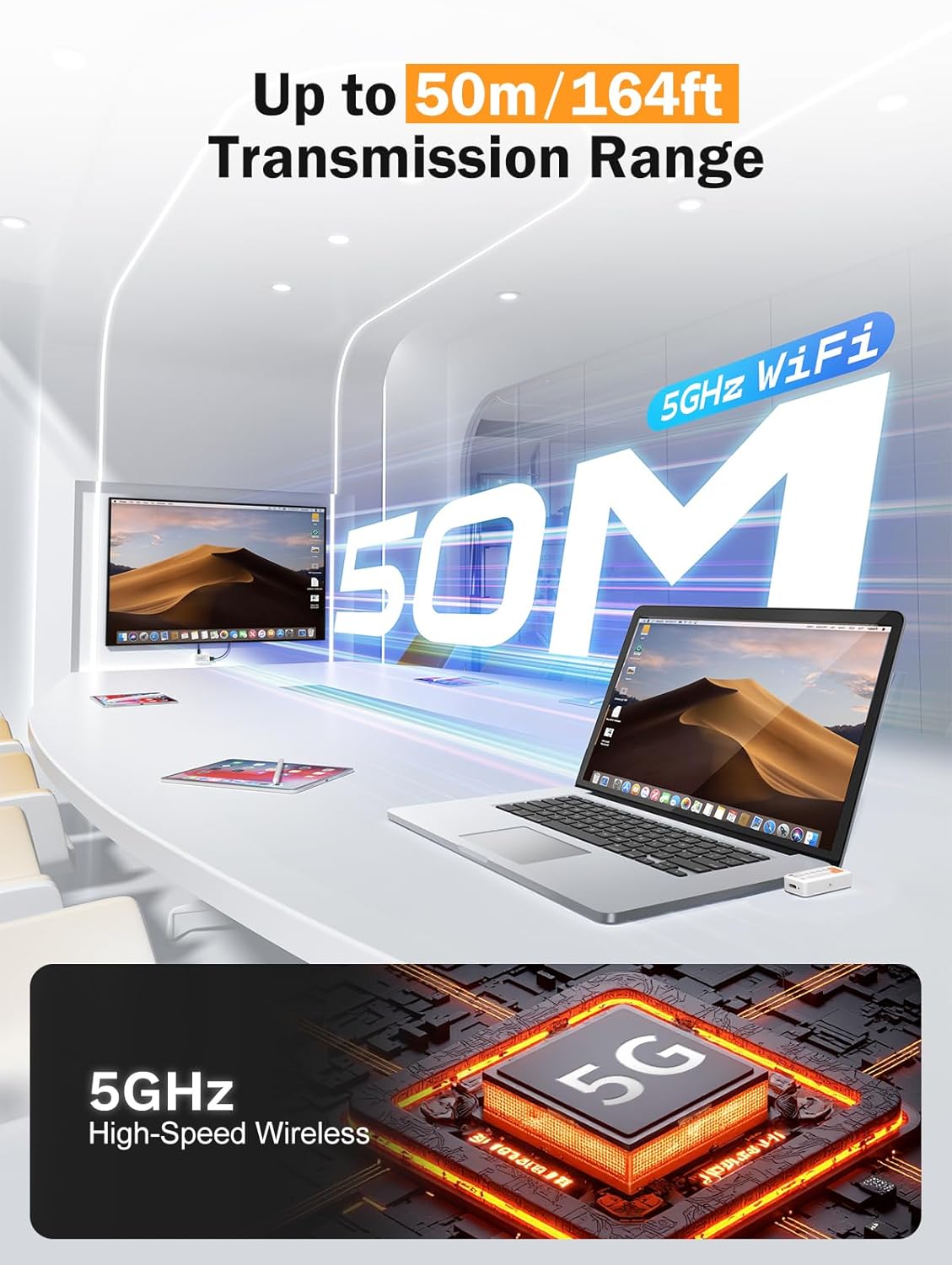
Image: Diagram illustrating the 50-meter wireless transmission range using 5GHz WiFi technology.
4. Operating Instructions
4.1 Basic Operation (Plug & Play)
After successful setup and pairing, the device operates automatically. Your source device's screen will be mirrored or extended to the connected display.

Image: A laptop connected to the TX unit and a TV connected to the RX unit, demonstrating the plug-and-play functionality for wireless display.
4.2 Supported Modes
The device supports Miracast, AirPlay, and TX-RX direct transmission. The mode selection is typically handled automatically by your source device or the system's display settings.
- Miracast: For Windows and Android devices.
- AirPlay: For iOS and macOS devices.
- TX-RX Direct: For direct wireless connection between the transmitter and receiver units.
4.3 Usage Scenarios
The compact and versatile design makes it suitable for various applications:
- Home Theater: Enjoy movies and games on a large screen wirelessly.
- Business Presentations: Share presentations (PPTs) and videos in meetings without cables.
- Classroom Projection: Facilitate interactive learning by projecting content wirelessly.
- Exhibitions: Showcase content on large displays with ease.

Image: Collage showing the device being used in a classroom for teaching, an office for presentations, and a home for entertainment.
5. Maintenance
To ensure the longevity and optimal performance of your device, follow these maintenance guidelines:
- Cleaning: Use a soft, dry cloth to clean the device. Do not use liquid cleaners or aerosols.
- Storage: Store the device in a cool, dry place away from direct sunlight and extreme temperatures.
- Handling: Avoid dropping or subjecting the device to strong impacts.
- Power: Always use the recommended 5V/2A power source for the RX unit.
- Heat: The TX unit may become warm during extended use. This is normal. Ensure adequate ventilation around the device.
6. Troubleshooting
If you encounter issues with your Lemorele Wireless USB C HDMI Transmitter and Receiver, refer to the following troubleshooting tips:
| Problem | Possible Cause | Solution |
|---|---|---|
| No display on screen. |
|
|
| Intermittent signal or poor video quality. |
|
|
| Audio not working. |
|
|
| TX unit gets warm. | Normal operation. | Ensure adequate ventilation around the TX unit. If it becomes excessively hot or malfunctions, discontinue use and contact support. |
7. Specifications
| Feature | Detail |
|---|---|
| Brand | Lemorele |
| Model Number | P400 |
| Connectivity Technology | Miracast, AirPlay, HDMI |
| Special Features | TX-RX, Full HD 1080p@60Hz, Plug & Play |
| Compatible Devices | Smart Television, Tablet, Smartphone, Laptop, Personal Computer |
| Connector Type | HDMI (output from RX), USB-C (input to TX) |
| Color | Black |
| Power Consumption | 10 Watts |
| Audio Output Type | HDMI |
| Wireless Technology | 5GHz WiFi, Miracast |
| Transmission Range | Up to 50 meters (164 feet) |
| Country of Origin | China |
8. Warranty Information
The Lemorele Wireless USB C HDMI Transmitter and Receiver comes with a standard manufacturer's warranty. Please refer to the product packaging or the official Lemorele website for specific warranty terms and conditions.
In France, consumers are entitled to a legal guarantee of conformity for 2 years from the date of purchase for any defects or non-conformities. A legal guarantee against hidden defects also applies.
9. Customer Support
For technical assistance, troubleshooting beyond this manual, or warranty claims, please contact Lemorele customer support:
- Online Support: Visit the official Lemorele website for FAQs, support resources, and contact information.
- Email: Refer to your product packaging or the Lemorele website for the support email address.
Before contacting support, please have your product model number (P400) and purchase information ready.


