
Introduction
This manual provides instructions for the setup, operation, maintenance, and troubleshooting of your MOFII Wireless Keyboard and Mouse Combo. Please read this manual thoroughly before using the product to ensure proper function and longevity.
Safety Information
- Keep the device away from water and other liquids.
- Avoid exposing the device to extreme temperatures.
- Do not attempt to disassemble or repair the device yourself. Contact qualified service personnel.
- Dispose of batteries according to local regulations.
Package Contents
- MOFII Wireless Keyboard
- MOFII Wireless Mouse
- USB Nano Receiver (stored in the mouse battery compartment)
- Cleaning Brush (for keycaps)
Setup
- Install Batteries:
Open the battery compartment on the underside of both the keyboard and the mouse. Insert one AA battery into each device, ensuring correct polarity. Batteries are not included.
- Locate USB Receiver:
The USB nano receiver is stored in the battery compartment of the mouse for convenience during transport.
- Connect Receiver:
Plug the USB nano receiver into an available USB port on your computer (PC, Laptop, Desktop, Smart TV). The system will automatically detect and install the necessary drivers.
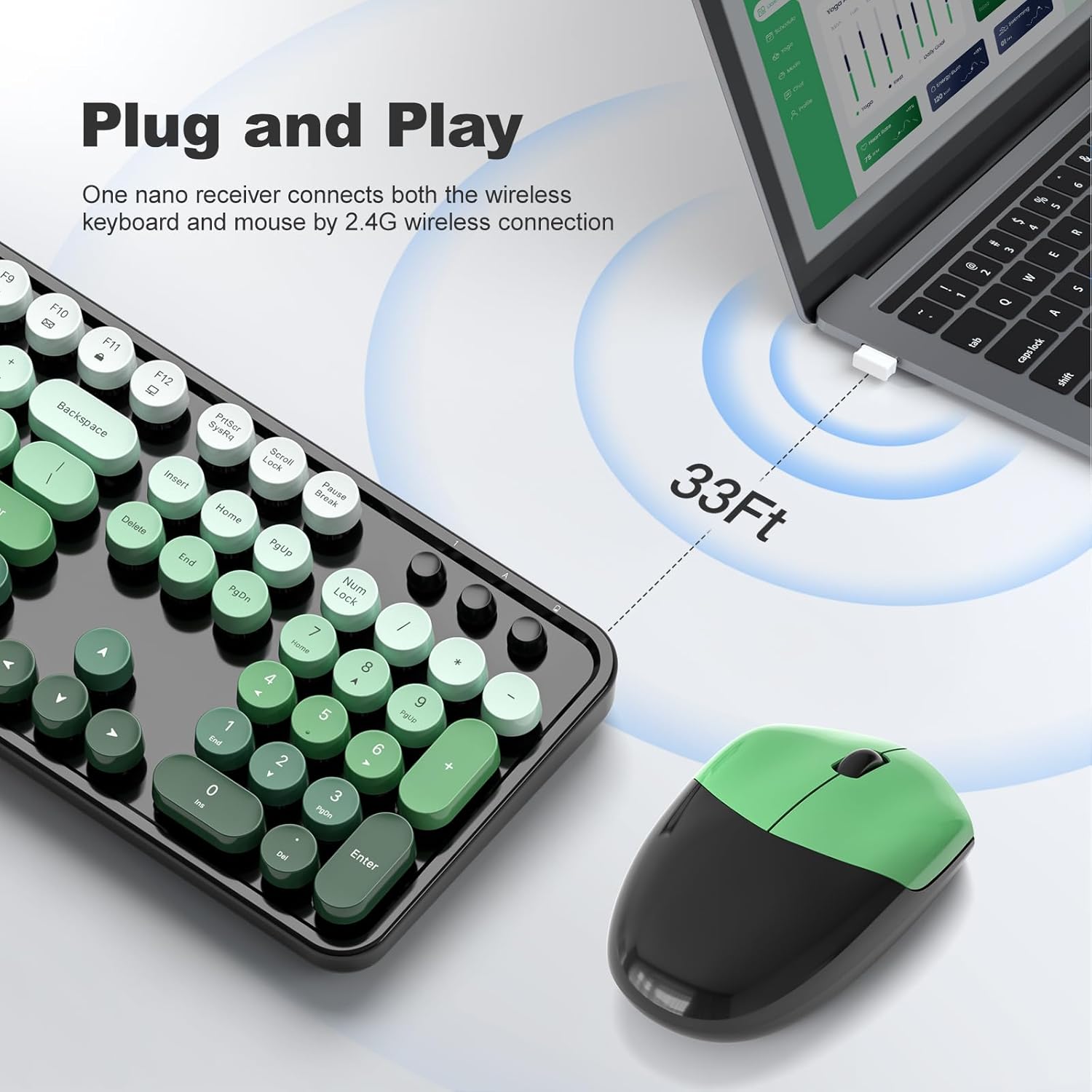
Figure 1: Plug and Play connection with USB receiver.
- Power On:
Turn on the keyboard and mouse using their respective power switches, usually located on the underside of each device. The devices are now ready for use.
Operating Instructions
Keyboard Features
- Full-Size Layout: The keyboard features a 104-key full-size layout, including a numeric keypad for efficient data entry.
- Multimedia Shortcuts: Access 13 multimedia shortcuts (Fn + F1-F12, etc.) to control audio/video playback, volume, web browsing, and email. Refer to the key legends for specific functions.
- Ergonomic Design: The keyboard includes foldable stands and anti-slip pads to adjust the typing angle and reduce wrist pressure.
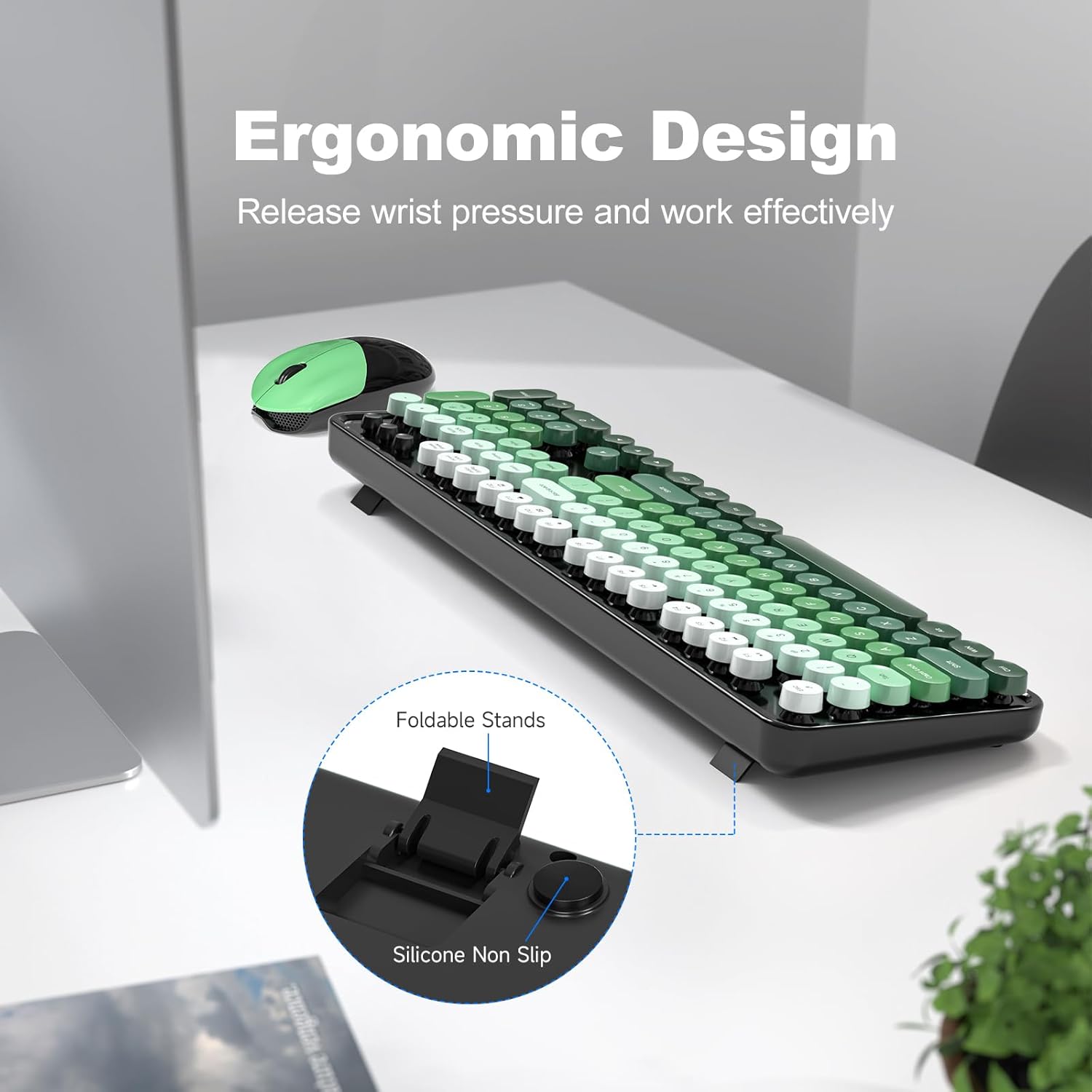
Figure 2: Ergonomic design with foldable stands.
Mouse Features
- Standard Functionality: The mouse provides standard left-click, right-click, and scroll wheel functions.
- Smooth Tracking: Designed for precise and smooth cursor movement.
Auto Sleep Mode
To conserve battery life, both the keyboard and mouse will automatically enter sleep mode after 5 minutes of inactivity. To wake them up, simply click any key on the keyboard or move/click the mouse. This feature helps extend battery life to approximately 18 months, though actual battery life may vary based on usage.

Figure 3: Intelligent Auto-Sleep feature.
Maintenance
- Cleaning Keycaps: The round keycaps are detachable for easy cleaning. Use the provided cleaning brush to remove dust and debris from between the keys.
- General Cleaning: Wipe the keyboard and mouse with a soft, damp cloth. Avoid using harsh chemicals or abrasive materials.
- Battery Replacement: When performance degrades, replace the AA batteries in both the keyboard and mouse.

Figure 4: Detachable keycaps and cleaning brush.
Troubleshooting
- No Connection:
- Ensure the USB receiver is securely plugged into a working USB port.
- Check if the keyboard and mouse are powered on.
- Verify that the batteries are correctly installed and have sufficient charge.
- Try plugging the receiver into a different USB port.
- Restart your computer.
- Lag or Intermittent Connection:
- Ensure the devices are within the 33ft operating range of the receiver.
- Minimize obstructions between the devices and the receiver.
- Avoid using the devices near strong electromagnetic interference sources.
- Replace batteries if they are low.
- Keys Not Responding:
- Check battery levels.
- Ensure the keyboard is powered on and connected.
- Clean under the keycaps if debris is suspected.
- Mouse Not Moving:
- Check battery levels.
- Ensure the mouse is powered on and connected.
- Clean the optical sensor on the underside of the mouse.
- Ensure you are using the mouse on a suitable surface.
Specifications
| Brand | MOFII |
| Model | B0FZ84SQFD |
| Color | Black Green Gradient Color |
| Connectivity Technology | 2.4GHz Wireless (USB Receiver) |
| Special Features | Round Keycaps, Detachable Keycaps, Ergonomic Design, Auto Sleep Mode, Multimedia Keys |
| Compatible Devices | Laptop, Personal Computer, Desktop, Smart TV |
| Operating System Compatibility | Windows 7/8/10/11/XP/Vista, Linux, Chrome |
| Battery Type | AA (1 for keyboard, 1 for mouse - not included) |
| Wireless Range | Up to 33 feet (10 meters) |
| Keyboard Dimensions | Approximately 17.4 inches (length) |
| Mouse Dimensions | Approximately 4 inches (length) x 2.9 inches (width) x 1.7 inches (height) |
| Item Weight | 0.2 Pounds (approximate, likely for mouse only) |

Figure 5: Keyboard and mouse dimensions.
Warranty and Support
The product comes with a 1-year warranty as specified by the manufacturer. For technical support, warranty claims, or further assistance, please contact MOFII customer service through their official website or the retailer where the product was purchased. Please retain your proof of purchase for warranty purposes.
For additional information, you may visit the MOFII Store on Amazon.


