
1. Safety Information
Read all safety instructions before operating the Twotrees TS1 Mini Laser Engraver. Failure to follow these instructions may result in injury or damage to the device.
- Eye Protection: Always wear the provided safety goggles when the laser is active. The laser beam can cause permanent eye damage.
- Enclosed Design: The TS1 Mini features a fully enclosed acrylic cover designed to contain laser light and debris. Ensure this cover is properly installed during operation.
- Ventilation: Operate the engraver in a well-ventilated area to dissipate any fumes or smoke produced during engraving.
- Material Safety: Only engrave materials specified as safe for laser engraving. Avoid materials that produce toxic fumes or are highly flammable.
- Adult Supervision: When used in family workshops or classrooms, ensure constant adult supervision.
- Emergency Stop: Familiarize yourself with the power switch location for immediate shutdown in case of an emergency.
2. Package Contents
Verify that all items listed below are included in your package. If any items are missing or damaged, contact customer support.

Image: The packing list for the Twotrees TS1 Mini Laser Engraver, displaying the main unit, safety goggles, USB cable, kraft paper, and thin aluminum sheets.
- Twotrees TS1 Mini Laser Engraver Unit
- Laser Safety Protective Goggles
- USB Extension Cable
- Kraft Paper (for testing)
- Thin Aluminum Sheet (for testing)
- Power Adapter
- Screwdriver
- User Manual (this document)
3. Setup
3.1 Unboxing and Initial Assembly
The TS1 Mini is designed for quick setup with minimal assembly required. Follow these steps to prepare your engraver for use.
Video: This video demonstrates the unboxing and initial assembly of the Twotrees TS1 Mini Laser Engraver, including attaching the protective shield.
- Carefully remove all components from the packaging.
- Remove the protective film from the laser lens.
- Attach the main unit to the base stand.
- Peel off the protective film from the yellow acrylic shield and install it around the engraving area.
3.2 Connecting the Device
Connect the TS1 Mini to a power source and your control device.
- Plug the power adapter into the engraver and a wall outlet.
- For computer control, connect the engraver to your computer using the provided USB cable.
- For smartphone control, ensure Bluetooth is enabled on your device.
3.3 Focus Adjustment
Proper focus is critical for optimal engraving results. Adjust the laser focus before each engraving task.
Video: This video illustrates the process of adjusting the laser focus on the Twotrees TS1 Mini to achieve a precise circular laser spot for engraving.
To adjust the focus, rotate the laser head until the laser spot on the material surface is as small and circular as possible. The optimal distance for the auto-focus laser head is between 2.5cm and 6.5cm from the material.
4. Operation
The TS1 Mini offers flexible control options via smartphone or computer.
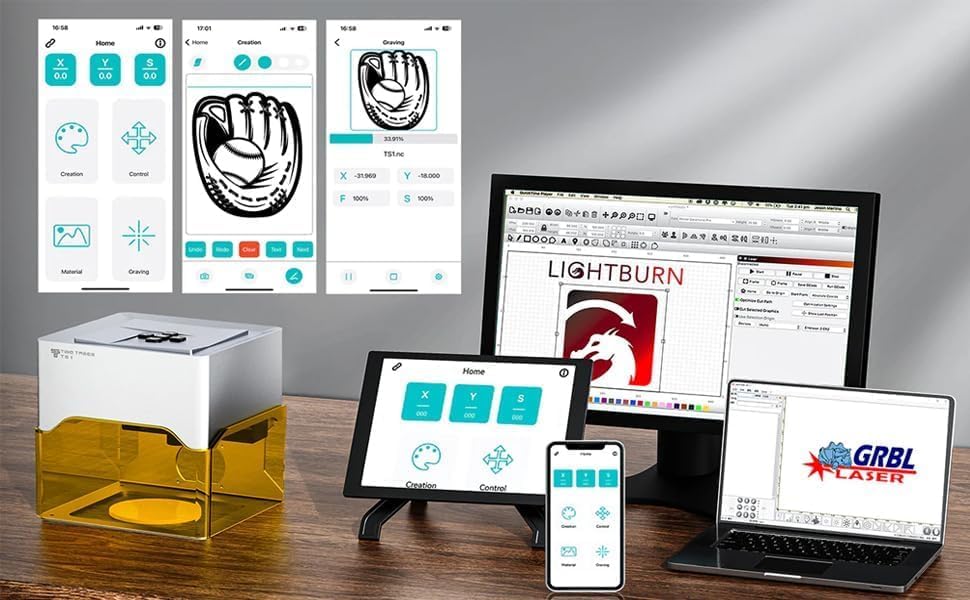
Image: The Twotrees TS1 Mini Laser Engraver displayed alongside various control interfaces, including a smartphone app (MKSLaser) and computer software (LightBurn, GRBL Laser).
4.1 Smartphone Control (MKSLaser App)
- Download the MKSLaser app from your device's app store (iOS or Android).
- Open the app and connect to the TS1 Mini via Bluetooth.
- Upload your desired image or design within the app.
- Adjust engraving settings such as work speed, laser power, and size.
- Preview the engraving area and start the job.
4.2 Computer Control (LightBurn/GRBL)
The TS1 Mini supports USB connection to computers and is compatible with popular software like LightBurn and GRBL. It supports .NC and .Gcode files.
- Install the necessary drivers and software (e.g., LightBurn) on your computer.
- Connect the engraver to your computer via USB.
- Open your chosen software and ensure the engraver is recognized.
- Import your design file (.NC, .Gcode, or other supported formats).
- Configure engraving parameters (speed, power, passes) according to your material and desired outcome.
- Initiate the engraving process.
Video: This video demonstrates the general operation of the Twotrees TS1 Mini Laser Engraver, including connecting to a computer and engraving various materials.
4.3 Offline Engraving
The TS1 Mini supports offline engraving. The machine can remember the last engraving parameters, allowing you to repeat jobs without a constant connection to a device.

Image: A close-up of the Twotrees TS1 Mini control panel, highlighting the buttons used for offline engraving, with examples of engraved wooden items.
5. Maintenance
Regular maintenance ensures the longevity and optimal performance of your TS1 Mini Laser Engraver.
- Cleaning: Regularly clean the engraving area and the laser lens to prevent debris buildup, which can affect engraving quality and laser lifespan. Use a soft, lint-free cloth.
- Lens Care: The laser lens is a delicate component. Handle it with care and clean it only with appropriate lens cleaning solutions and cloths.
- Storage: Store the engraver in a dry, dust-free environment when not in use.
6. Troubleshooting
This section addresses common issues you might encounter with your TS1 Mini Laser Engraver.
| Problem | Possible Cause | Solution |
|---|---|---|
| Poor engraving quality (e.g., dotted lines, blurry images) | Incorrect laser focus. Inappropriate speed/power settings. Dirty laser lens. | Adjust the laser focus until the spot is small and circular. Experiment with different speed and power settings for your material. Clean the laser lens. |
| Device not connecting to computer/app | Loose USB cable. Bluetooth not enabled. Driver issues (for PC). App malfunction. | Ensure USB cable is securely connected. Verify Bluetooth is on and the app is paired. Reinstall drivers or try a different USB port. Restart the app and engraver. |
| Software language issues | Default language setting. | Check software settings for language options. If persistent, consult the software documentation or manufacturer support. |
| Engraver not turning on | No power. Faulty power adapter. | Ensure the power adapter is securely plugged into the engraver and a working wall outlet. Check the power switch on the engraver. |
7. Specifications
- Product Dimensions: 10 x 4 x 7 inches
- Item Model Number: TS1 Mini
- Item Weight: 2.99 pounds
- Manufacturer: Twotrees
- Laser Power: 3000mW (3W) adjustable
- Work Area: 80x80mm
- Positioning Accuracy: 0.1mm
- Engraving Speed: Up to 3000mm/min
- Auto-Focus Distance: 2.5-6.5cm
- Control Software: MKSLaser App (iOS/Android), LightBurn, GRBL
- Supported File Types: .NC, .Gcode
- Material Compatibility: Plywood, MDF, bamboo, paper, painted metal, leather, and more.
8. Warranty and Support
For warranty information, technical support, or to report missing/damaged parts, please contact the Twotrees-US Official Store directly through your purchase platform or their official website. Keep your purchase receipt as proof of purchase.


