
1. Introduction
This manual provides detailed instructions for the BLANBOK+ MFi Certified iPhone Photo Stick. This device is designed to facilitate easy backup and transfer of photos, videos, and other files between various devices, including iPhones, iPads, Android phones, and computers. It offers a convenient solution for expanding storage and managing digital content.
2. Product Overview
The BLANBOK+ Photo Stick features a versatile design with multiple connectors to ensure broad compatibility. It includes a Lightning connector for iPhone/iPad, a Type-C connector for Android phones and newer iPhones (iPhone 15 series and above), and a USB 3.0 port for computers. The device is MFi certified, ensuring reliable performance with Apple devices.

Image: The BLANBOK+ Photo Stick showcasing its Lightning, Type-C, and USB 3.0 connectors for multi-device compatibility.

Image: The BLANBOK+ Photo Stick with its USB-A adapter, ready for connection to a computer.

Image: A compact view of the BLANBOK+ Photo Stick, highlighting its portable design and integrated keychain loop.
Key Features:
- MFi Certified: Ensures full compatibility and safe operation with Apple devices.
- Multi-Port Design: Includes Lightning, Type-C, and USB 3.0 connectors.
- High-Speed Data Transfer: Designed for quick transfers of large files.
- Durable Construction: Resistant to high temperatures, water, dust, shocks, and magnetic interference.
- Security Features: Option to encrypt the entire drive or selected folders.
- Compact and Portable: Keychain design for easy carrying.
3. Setup Instructions
For iPhone/iPad (iOS 12.1+):
- Connect the Device: Plug the Lightning connector of the Photo Stick into your iPhone or iPad.
- Download the App: Upon first connection, you will be prompted to download the "LuxSync PRO" app from the App Store. If not prompted, manually search for and download "LuxSync PRO" from the App Store.
- Grant Permissions: Open the "LuxSync PRO" app and grant necessary permissions for accessing your photos, videos, and microphone.
For Android Phones (with OTG function):
- Connect the Device: Plug the Type-C connector of the Photo Stick into your Android phone.
- Enable OTG: No extra app is required. If the device is not recognized, go to your phone's settings and enable the OTG (On-The-Go) function.
- Access Files: You can find the external USB storage in your phone's "File Manager" app.
For Computers (PC/Mac):
- Connect the Device: Use the USB 3.0 connector to plug the Photo Stick into your computer's USB port.
- Access Files: The device will appear as a removable drive. You can drag and drop files as needed.

Image: An iPhone displaying the LuxSync PRO app interface, illustrating the app download and initial setup process.
Video: A user guide demonstrating the setup and basic functions of the 3-in-1 Photo Stick, including app installation and file transfer.
4. Operating Instructions
4.1. Backing Up and Transferring Files
- One-Tap Backup: For iPhone/iPad, use the "LuxSync PRO" app to back up photos, videos, and contacts directly from your phone with a single tap.
- Manual Transfer: Select specific files within the app or your phone's file manager and choose to copy or move them to the external storage.
- Computer Transfer: Connect the Photo Stick to your computer via the USB 3.0 port to transfer files for additional backup or management.
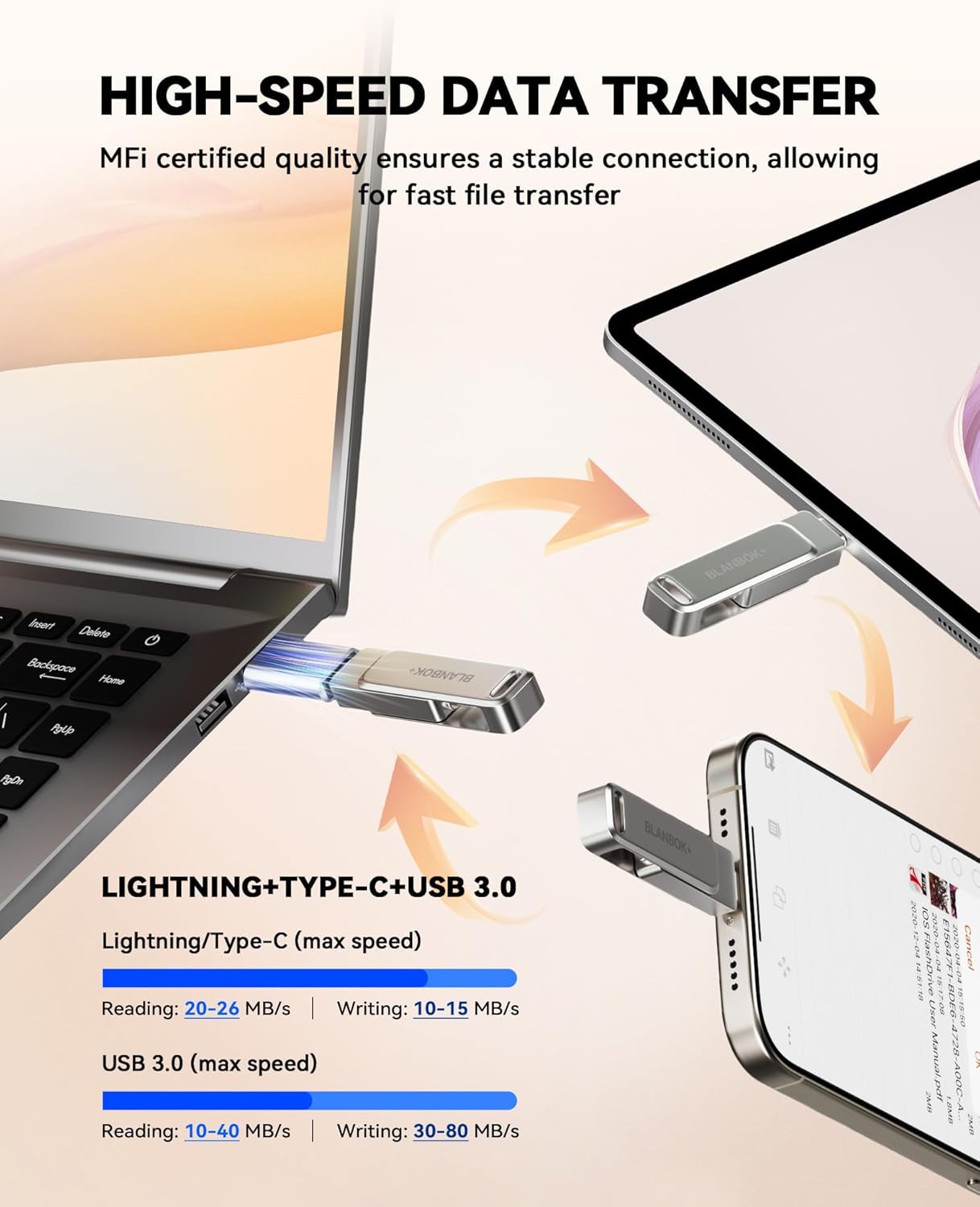
Image: Visual representation of data transfer pathways between an iPhone, the Photo Stick, and a laptop, demonstrating multi-device connectivity.
4.2. Viewing Files
- Files stored on the Photo Stick can be viewed directly through the "LuxSync PRO" app on iOS devices or via the file manager on Android and computers.
4.3. File Encryption
- The "LuxSync PRO" app allows you to encrypt sensitive files or entire folders on the Photo Stick for enhanced data privacy. Follow the in-app instructions to set up and manage encryption.

Image: An iPhone screen displaying the file encryption option within the LuxSync PRO app, indicating secure data storage.
4.4. Direct Photo/Video Recording
- The "LuxSync PRO" app enables you to take photos and record videos directly, saving them automatically to the Photo Stick, thereby conserving your device's internal storage.
5. Data Transfer Speeds
The BLANBOK+ Photo Stick is equipped with a high-speed interface and premium flash memory chips to ensure efficient data transfer.

Image: A graphic illustrating the typical read and write speeds for the Lightning/Type-C and USB 3.0 interfaces of the Photo Stick.
| Interface | Read Speed | Write Speed |
|---|---|---|
| Lightning/Type-C | 20-26 MB/s | 10-15 MB/s |
| USB 3.0 | 10-40 MB/s | 30-80 MB/s |
6. Supported File Formats
The Photo Stick supports direct transfer and playback of a wide range of media and document formats without requiring an internet connection.

Image: A visual guide to the various video, picture, document, and music file formats supported by the Photo Stick.
Supported Formats:
- Video: .mov, .mpg, .vob, .wmv, .rmvb, .avi, .mp4, .flv, .3gp
- Picture: .bmp, .tif, .tiff, .png, .gif, .jpg, .jpeg
- File: .dpf, .txt, .word (doc/docx), .excel (xls/xlsx), .ppt (pptx)
- Music: .mp3, .wma, .wav, .m4a, .aac, .m4r, .ogg
7. Memory Capacity Note
The actual available capacity of the Photo Stick may vary from the labeled capacity (e.g., 256GB) due to differences in how devices calculate storage. Manufacturers typically define 1GB as 1,000MB, while operating systems define 1GB as 1,024MB. This is a standard practice across storage devices.

Image: An explanation of how nominal memory capacity (e.g., 256GB) differs from the actual displayed capacity on devices due to calculation methods.
8. Maintenance
To ensure the longevity and proper functioning of your BLANBOK+ Photo Stick, please follow these maintenance guidelines:
- Safe Removal: Always ensure that any apps related to the Photo Stick are closed before gently unplugging the device from your phone or computer. This prevents potential data corruption or loss.
- Physical Care: The device is built to resist water, dust, and shocks, but it is recommended to handle it with care to avoid unnecessary damage.
- Storage: Store the Photo Stick in a cool, dry place when not in use.
9. Troubleshooting
If you encounter any issues with your BLANBOK+ Photo Stick, refer to the following common solutions:
- Device Not Recognized (iPhone/iPad): If the Photo Stick is not recognized, uninstall the "LuxSync PRO" app, restart your phone, and then manually download the app again from the App Store.
- Device Not Recognized (Android): Ensure your Android phone has the OTG function enabled in its settings. The external storage should appear in your "File Manager" app.
- iCloud Files: Files previously backed up on iCloud must be downloaded to your iPhone or iPad's local storage before they can be copied to the USB flash drive.
- DRM Protected Files: Media files downloaded from iTunes or other third-party applications with Digital Rights Management (DRM) protection cannot be transferred or viewed on the Photo Stick.
- Transfer Issues/Formatting: For small-capacity drives, FAT32 is the preferred format. For large-capacity drives, exFAT is recommended. If you experience transfer issues, you may need to convert the format from FAT32 to exFAT by formatting the drive. Important: Always back up your files before formatting to prevent data loss.
10. Specifications
| Feature | Detail |
|---|---|
| Brand | BLANBOK+ |
| Model Name | BLA2514 |
| Memory Storage Capacity | 256 GB |
| Connectivity Technology | USB (Lightning, Type-C, USB 3.0) |
| Read Speed | Up to 80 MB/s (USB 3.0) |
| Write Speed | Up to 80 MB/s (USB 3.0) |
| Color | Silver |
| Product Dimensions | 0.3"D x 2.5"W x 0.3"H |
| Item Weight | 1.13 ounces |
| Special Feature | Lightweight, MFi Certified |
| Manufacturer | BLANBOK+ |
| UPC | 703387467281 |
11. Warranty and Support
BLANBOK+ is committed to providing quality products and excellent customer service. We stand behind our products and offer support for any questions or concerns you may have.
- Customer Support: If you have any questions or are not satisfied with the product, please contact our support team. We aim to provide a satisfactory solution within 24 hours.
- Return Policy: The product typically comes with a 30-day return/replacement policy. Please refer to your purchase details for specific terms.