
1. Overview
The iPazzPort Bluetooth Air Mouse Remote Keyboard (Model KP-T1) is a versatile 2-in-1 input device designed for various smart systems. It features a dual-sided design with a minimalist controller on one side and a full QWERTY keyboard on the reverse. This device supports both Bluetooth and 2.4GHz wireless connectivity, offering flexible control for your entertainment and computing needs.
Key features include a 6-axis gyroscope for intuitive air mouse control, a responsive QWERTY keyboard for efficient text input, and a built-in rechargeable battery. It is compatible with Smart TVs, Android TV Boxes, Laptops, Projectors, HTPCs, Windows, and Mac systems.

Image 1.1: Front view of the iPazzPort remote control side.

Image 1.2: Back view of the iPazzPort with the full QWERTY keyboard.
2. Setup
2.1 Unpacking and Initial Charge
Upon opening the package, ensure you have the iPazzPort remote keyboard and the USB 2.4GHz dongle. A Type-C charging cable is not included and must be supplied by the user. Before first use, fully charge the device using a standard USB-C cable and a compatible power adapter.

Image 2.1: The iPazzPort remote showing its Type-C charging port.
2.2 2.4GHz Wireless Connection
- Insert the provided USB 2.4GHz dongle into an available USB port on your target device (e.g., Smart TV, Android TV Box, PC).
- The remote keyboard should automatically connect to the dongle. The indicator light on the remote will confirm connection.
- If the connection is not established, ensure the remote is charged and within range (up to 10 meters).
2.3 Bluetooth Connection
- Ensure your target device has Bluetooth enabled.
- On the iPazzPort remote, press and hold the Home button and the Back button simultaneously until the indicator light begins to flash rapidly. This indicates pairing mode.
- On your target device, navigate to the Bluetooth settings and search for new devices.
- Select "iPazzPort KP-T1" (or similar name) from the list of available devices to pair.
- Once paired, the indicator light on the remote will stop flashing and remain solid for a few seconds before turning off.
2.4 IR Learning Function
The "Power" button on the iPazzPort remote is a blank button that can learn infrared (IR) signals from your existing TV remote, allowing you to control basic TV functions (Power, Channel, Volume, Mute) with a single remote.
- Place the iPazzPort remote and your original TV remote head-to-head, ensuring their IR emitters are aligned and close to each other (within 1-3 cm).
- On the iPazzPort remote, press and hold the Power button until the indicator light starts to blink slowly.
- Press the Power button on your original TV remote. The iPazzPort's indicator light will flash rapidly, then remain solid, indicating it has successfully received the signal.
- Press the Power button on the iPazzPort remote again to save the learned signal. The indicator light will turn off.
- Repeat this process for other buttons you wish to program (e.g., Volume Up, Volume Down, Channel Up, Channel Down, Mute) if the remote supports learning for those specific buttons.

Image 2.2: Illustration of the IR learning process between the iPazzPort remote and an original TV remote.
3. Operating Instructions
3.1 Power On/Off
The device typically powers on automatically when a connection is established or a button is pressed. To conserve battery, it may enter a sleep mode after a period of inactivity. Press any button to wake it up.
3.2 Dual-Mode Switching
The iPazzPort KP-T1 supports free switching between Bluetooth and 2.4GHz modes. The device will prioritize the active connection. If both are available, you may need to manually select the desired input method on your host device's settings.
3.3 Air Mouse Function
The remote features a 6-axis gyroscope sensor for air mouse control. This allows you to move a cursor on your screen by simply moving the remote in the air. This function is ideal for navigating menus, browsing, and casual gaming.
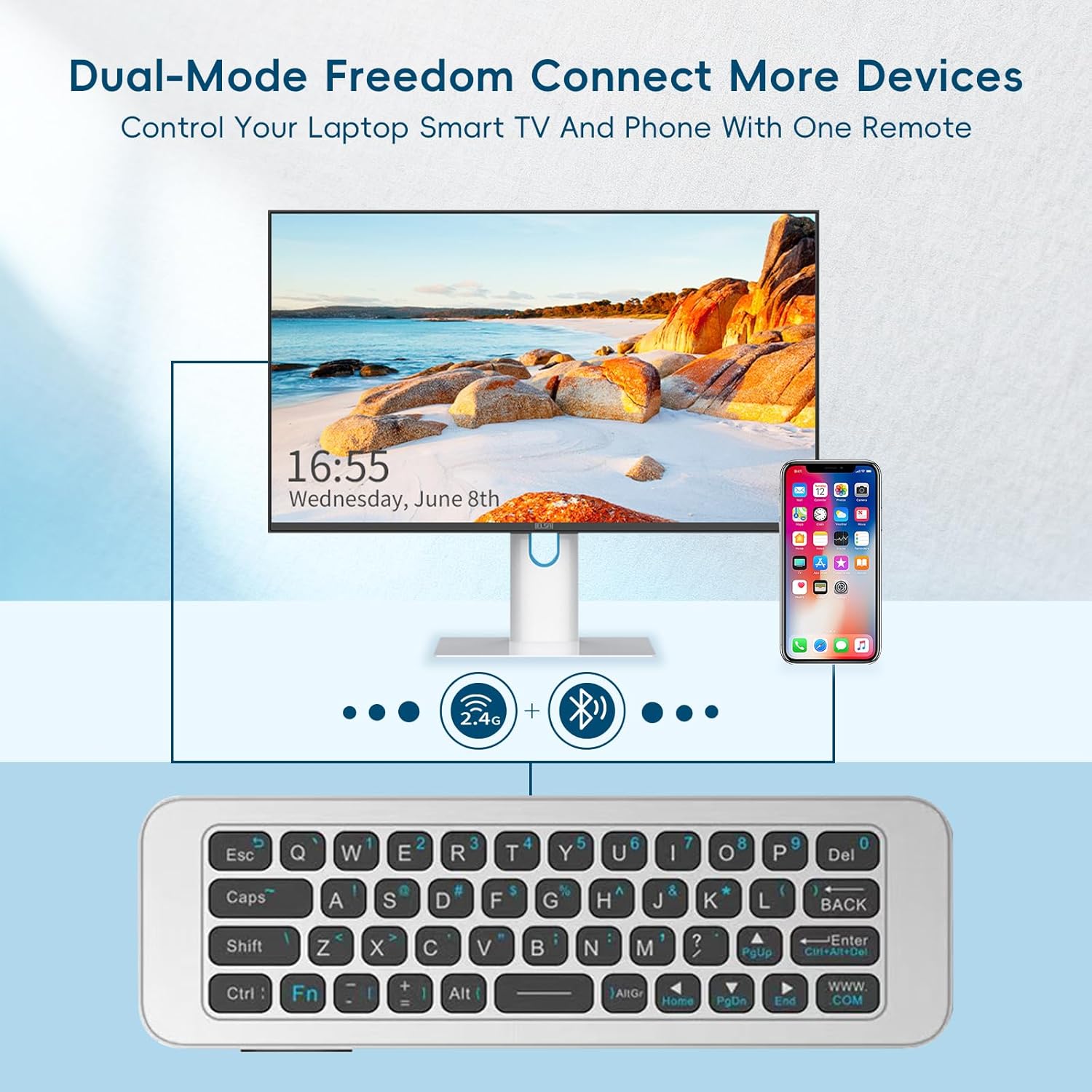
Image 3.1: Using the iPazzPort remote for air mouse control on a smart TV.
3.4 Keyboard Usage
Flip the remote to access the full QWERTY keyboard. This is useful for entering text, search queries, and passwords more efficiently than an on-screen keyboard.
Video 3.1: Demonstration of air mouse functionality and keyboard typing on a laptop screen.
4. Maintenance
4.1 Battery Charging
The iPazzPort KP-T1 features a built-in rechargeable battery. When the battery is low, the indicator light may flash or change color. Connect the device to a power source using a standard Type-C USB cable. The indicator light will typically show charging status and turn off or change color when fully charged.
4.2 Cleaning and Storage
To clean the device, use a soft, dry cloth. Avoid using liquid cleaners or abrasive materials. Store the remote in a cool, dry place away from direct sunlight and extreme temperatures when not in use for extended periods.
5. Troubleshooting
- Device not connecting: Ensure the remote is fully charged. For 2.4GHz, verify the USB dongle is securely inserted. For Bluetooth, ensure the remote is in pairing mode and your host device's Bluetooth is active.
- Air mouse is laggy or unresponsive: Ensure the remote has a clear line of sight to the host device (for 2.4GHz) or is within Bluetooth range. Low battery can also affect performance.
- IR learning not working: Confirm the remotes are placed very close, head-to-head. Ensure you follow the exact sequence of pressing and holding buttons as described in Section 2.4.
- Limited compatibility with certain Smart TVs: Some Smart TVs, particularly LG/Samsung models, use proprietary software that may limit the functionality of universal remotes. It is recommended to test with a wired keyboard first to confirm basic compatibility.
- Keyboard or air mouse not working while charging: The iPazzPort KP-T1's keyboard and air mouse functions are typically disabled during charging. Disconnect the charging cable to resume normal operation.
6. Specifications
| Feature | Detail |
|---|---|
| Brand | iPazzPort |
| Model Name/Number | KP-T1 |
| Connectivity Technology | 2.4G RF, Bluetooth, USB |
| Special Feature | Lightweight, Rechargeable |
| Color | Black |
| Max Number of Supported Devices | 1 |
| Compatible Devices | Personal Computer, Projector, Set Top Box, Tablet, Smart TV, Android TV Box, HTPC |
| Button Quantity | 45 |
| Controller Type | Button Control |
| Maximum Range | 10 Meters |
| Battery Type | Rechargeable (1 x 9V battery included) |
| Item Dimensions (L x W x H) | 6.3" x 0.35" x 0.25" (152mm x 44mm x 9.8mm) |

Image 6.1: Physical dimensions of the iPazzPort KP-T1 remote.
7. Warranty Information
The iPazzPort Bluetooth Air Mouse Remote Keyboard (Model KP-T1) comes with a 1-year warranty from the date of purchase. Please retain your proof of purchase for warranty claims. The warranty covers manufacturing defects and malfunctions under normal use. It does not cover damage caused by misuse, accidents, unauthorized modifications, or normal wear and tear.
8. Support
For further assistance, technical support, or warranty inquiries, please refer to the contact information provided with your product packaging or visit the official iPazzPort website. Ensure you have your product model number (KP-T1) and purchase details ready when contacting support.

