
Introduction
This manual provides detailed instructions for the installation, operation, and maintenance of your ikasus 10.1-inch Double Din Car Stereo Radio. This unit is designed for Nissan Quest models from 2011 to 2017 and features CarPlay, Android Auto, GPS navigation, Bluetooth connectivity, and support for a backup camera. Please read this manual thoroughly before installation and use to ensure proper function and safety.
Setup and Installation
Important Note: This car stereo is not a plug-and-play unit. Installation requires cutting and connecting wires. Professional installation is recommended.

Image: Warning indicating that the unit is not plug and play and requires wire cutting for installation.
Compatibility and Fit
Before installation, verify the dimensions of your vehicle's dashboard to ensure proper fit. The unit dimensions are approximately 250mm (9.8in) width at the top, 240mm (9.4in) width at the bottom, and 145mm (5.7in) height.

Image: Diagram illustrating the physical dimensions of the car stereo and a visual list of included accessories.
Wiring Connections
Carefully follow the wiring diagram provided. Ensure all connections are secure to prevent malfunctions.

Image: Rear view of the car stereo unit displaying the various wiring harnesses and connection ports, including RCA, USB, and power cables.
Camera Input Connection
To enable Bluetooth and Wi-Fi signals, the white plug for the camera input cable must be connected to the main device. The camera input cable is included in the package.
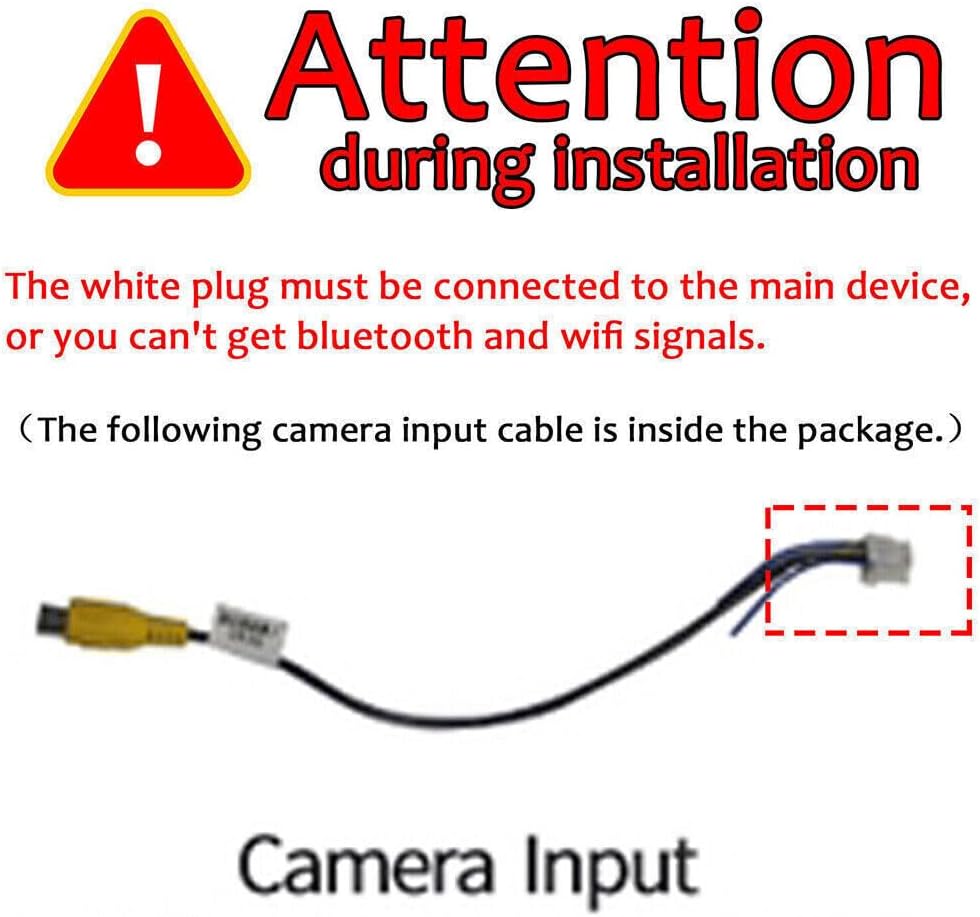
Image: Diagram highlighting the camera input cable and emphasizing the connection of the white plug to the main unit for proper signal reception.
Package Contents
The package includes:
- 1 x Car MP5 Player
- 1 x Power Cable
- 1 x GPS Antenna
- 1 x RCA Input/Output Cable
- 2 x USB Cables
- 1 x Camera Input Cable
- 1 x Instruction Manual
- Fixed brackets
Operating Instructions
Wireless CarPlay / Wired Android Auto / Mirror Link
Connect your smartphone to access contacts, emails, notifications, navigation, music, and videos. CarPlay and Android Auto offer voice control. Wired Android Auto connects via a data cable.

Image: Screenshots displaying the user interfaces for Apple CarPlay, Android Auto, and Mirror Link functionalities on the car stereo screen.
GPS Navigation & WiFi Connection
The unit supports both online and offline navigation. Connect to Wi-Fi to download offline maps from the app store or use online maps like Google Maps, Waze, and Here Maps for real-time road conditions.

Image: The car stereo screen showing a GPS navigation map with route details and icons for various navigation and utility applications.
Bluetooth Hands-free & FM/RDS Radio
Utilize Bluetooth for hands-free calling, music streaming, and automatic phonebook loading. The FM/RDS radio provides clear broadcast quality and real-time traffic information. You can preset up to 18 radio stations.

Image: Screenshots illustrating the Bluetooth hands-free calling interface with contact information and the FM radio tuner displaying frequency and preset stations.
Rear View Backup Camera
The unit supports AHD backup camera video input, providing a clear visual experience for easier reversing and parking. The 170° wide-view AHD camera offers superior night vision.
Steering Wheel Control (SWC)
If your vehicle has original steering wheel buttons, you can configure them to control the car stereo. Access the SWC learning function in the settings to map buttons to desired operations.

Image: The car stereo screen displaying a backup camera view alongside an interface for configuring steering wheel controls.
Split Screen Function
The split-screen feature allows you to run two applications simultaneously, such as navigation and music, enhancing multitasking capabilities.
Maintenance
To ensure the longevity and optimal performance of your car stereo, follow these maintenance guidelines:
- Cleaning: Use a soft, dry cloth to clean the screen and exterior. Avoid abrasive cleaners or solvents.
- Software Updates: Periodically check for available software updates via the system settings when connected to Wi-Fi. Updates can improve performance and add new features.
- Environmental Conditions: Avoid exposing the unit to extreme temperatures, direct sunlight for prolonged periods, or excessive moisture.
Troubleshooting
If you encounter issues with your car stereo, refer to the following common problems and solutions:
- No Power: Check all power connections and fuses. Ensure the vehicle's ignition is on.
- No Sound: Verify speaker connections. Check volume levels and mute settings. Ensure the correct audio source is selected.
- Bluetooth Connection Issues: Ensure Bluetooth is enabled on both the stereo and your phone. Delete previous pairings and attempt to re-pair.
- GPS Not Working: Ensure the GPS antenna is properly connected and has a clear view of the sky. Check GPS settings and ensure maps are downloaded or an internet connection is active for online maps.
- Touchscreen Unresponsive: Try restarting the unit. If the issue persists, a factory reset might be necessary (note: this will erase all user data).
- Poor Radio Reception: Check the antenna connection. Ensure the vehicle's antenna is not damaged.
For persistent issues, contact customer support.
Specifications
| Feature | Detail |
|---|---|
| System | Android 14.0 |
| Chipset | 8227L |
| Screen Size | 10.1 inches |
| Memory | 4GB (RAM) + 64GB (ROM) |
| Screen Resolution | 1024x600 |
| Radio Chip | MTK |
| Power Output | 4x45W |
| Work Temperature | -20℃ to 75℃ |
| Steering Wheel Control | Support |
| Power Amplifier Chip | TDA7388 |
| Radio Band | FM/RDS |
| Video Output | Support |
| Reversing Input | AHD/CVBS |
| External Microphone | Support |
| Split Screen | Support |
| Maps | Built-in offline maps (requires internet to download data) |
| WIFI | Support |
| USB | Double USB interface |
| CPU | Quad Core |
| Audio Format | APE/FLAC/WAV/MP3/WMA etc. |
| Video Format | MKV/RMVB/AVI/MP4/MDV etc. |
| Picture Format | PNG/JPEG/JPG/GIF/WBMP/BNP etc. |
| Factory Setting Keyword | 1234 |
| Languages | Chinese/English/French/Italian/Korean/Japanese/Arabic/Spanish/Portuguese/Russian/Turkish/Vietnamese/Hebrew/Polish/German |
Warranty and Support
For warranty information, technical support, or service inquiries, please refer to the contact details provided with your purchase documentation or visit the manufacturer's official website. Keep your purchase receipt as proof of purchase for warranty claims.