
Introduction
The Verbatim Snapback SSD UltraSlim is a high-performance external solid-state drive designed for fast data transfer and reliable storage. Featuring a magnetic attachment for smartphones, USB 3.2 Gen 2x2 connectivity, and support for Apple ProRes 4K recording, it is ideal for content creators and users requiring portable, high-speed storage across various devices including iPhone, Android, Mac, and PC.
What's in the Box
Carefully unpack the box and ensure all items are present:
- 1 x Verbatim Snapback Ultra SSD 1TB
- 1 x U-shaped USB-C cable (6.5 cm) for seamless smartphone connection
- 1 x USB-C cable (20 cm)
- Quick Start Guide
- Nero 3-2-1 Backup Software (download instructions provided in Quick Start Guide)

Image: The Verbatim Snapback SSD and its included USB-C cables. One cable is U-shaped and short for smartphone attachment, and the other is a standard 20 cm USB-C cable.
Specifications
| Digital Storage Capacity | 1 TB |
| Hard Disk Interface | USB 2.0/3.0 |
| Connectivity Technology | USB |
| Special Features | 20 Gbps USB 3.2 Gen 2x2, Magnetic attachment, Portable, ProRes 4K Support, Ultra-slim design |
| Compatible Devices | iPhone, Android, Mac, PC |
| Installation Type | External Hard Drive |
| Color | Black |
| Read Speed | Up to 2050 MB/s |
| Write Speed | Up to 1900 MB/s |
| Data Transfer Rate | 20 Gigabits Per Second |
| Form Factor | 2.5-inch |
| Hardware Connectivity | USB 3.2 Gen 2x2, USB Type C |
| Item Weight | 42 Grams |
| Dimensions (L x W x Thickness) | 7.0 cm x 5.7 cm x 0.5 cm (2.76"L x 2.24"W x 0.2"Th) |
| Model Number | 323365 |
| Material | Metal, Plastic |

Image: Physical dimensions and performance metrics of the Verbatim Snapback SSD.
Setup
Connecting to a Smartphone (MagSafe Compatible)
- Ensure your smartphone is MagSafe compatible.
- Align the Verbatim Snapback SSD with the MagSafe area on the back of your smartphone. The SSD will magnetically attach securely.
- Use the included U-shaped USB-C cable (6.5 cm) to connect the SSD to your smartphone's USB-C port. This cable is designed for a flush and secure connection.
- Your smartphone should recognize the SSD as external storage.

Image: The Verbatim Snapback SSD securely attached to an iPhone via MagSafe and connected with the short USB-C cable.
Connecting to PC or Mac
- Connect one end of the 20 cm USB-C cable to the Verbatim Snapback SSD.
- Connect the other end of the cable to an available USB-C port on your PC or Mac. For optimal performance, use a USB 3.2 Gen 2x2 compatible port.
- The operating system will detect the SSD as an external drive. You may need to format the drive if it's the first time using it with a specific operating system, or if you wish to change its file system.
Operating
Data Transfer
The Verbatim Snapback SSD supports USB 3.2 Gen 2x2, offering read speeds up to 2050 MB/s and write speeds up to 1900 MB/s. To achieve these speeds, ensure your host device (smartphone, PC, or Mac) also supports USB 3.2 Gen 2x2. For general data transfer:
- Connect the SSD to your device as described in the Setup section.
- Drag and drop files to and from the SSD, or use your device's file management system to copy and paste.
- Always safely eject the drive from your operating system before disconnecting to prevent data corruption.

Image: Users interacting with a smartphone and the attached Snapback SSD, demonstrating its portability and ease of use for data access.
Apple ProRes 4K Recording
The SSD is optimized for Apple ProRes 4K video recording up to 60fps, allowing you to record high-quality video directly to the external drive, saving valuable internal storage on your iPhone.
- Connect the SSD to your iPhone using the U-shaped USB-C cable.
- Open your iPhone's camera application or a compatible third-party video recording app that supports external storage.
- Select the Verbatim Snapback SSD as the recording destination within the app settings.
- Begin recording your Apple ProRes 4K video.

Image: A content creator utilizing the Verbatim Snapback SSD for direct Apple ProRes 4K video recording on an iPhone setup.
Nero 3-2-1 Backup Software
The included Nero 3-2-1 Backup Software provides a reliable solution for scheduled backups of your important files and projects. Refer to the Quick Start Guide for instructions on how to download and install the software. Once installed, follow the software's prompts to configure your backup routines.
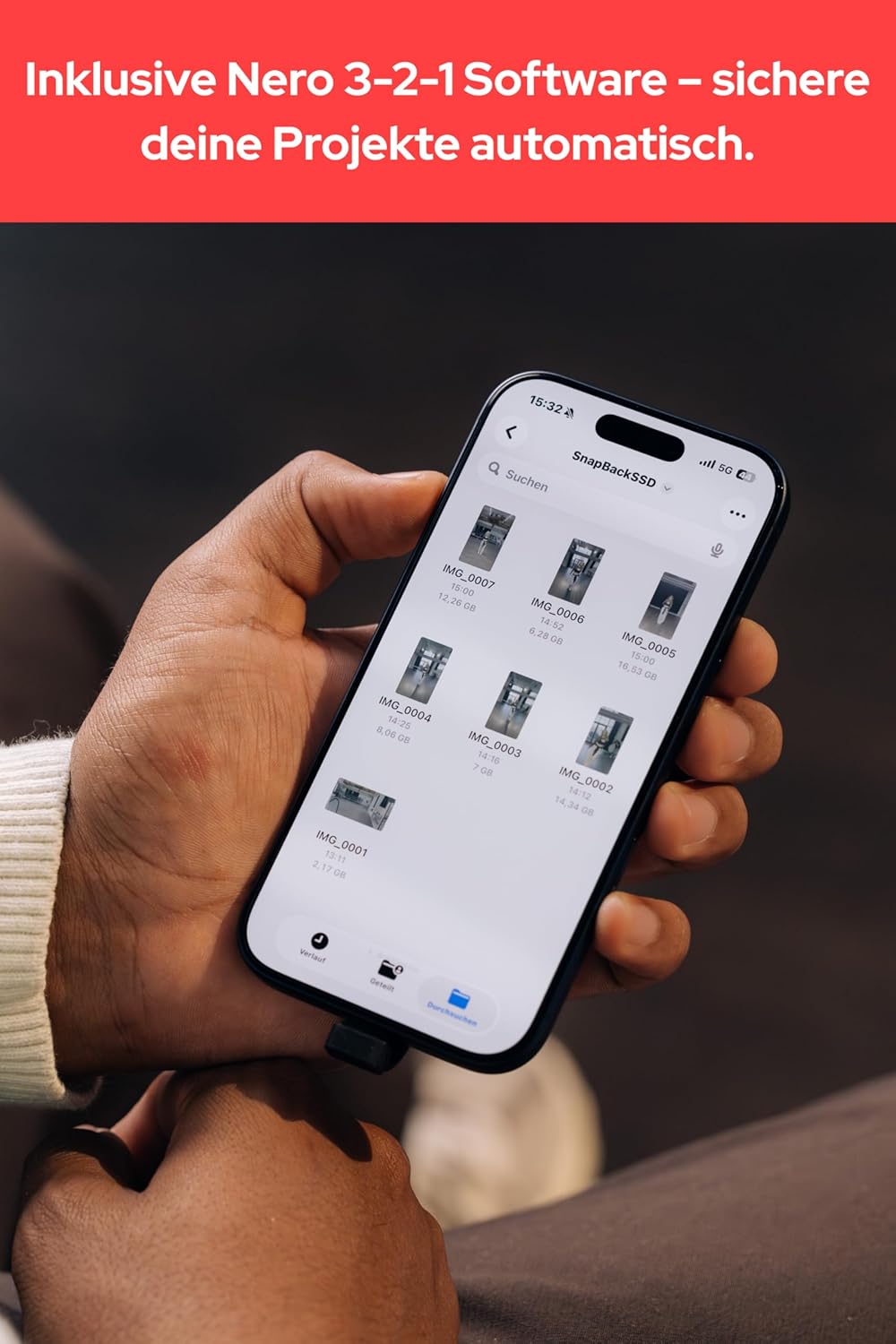
Image: A smartphone screen showing files stored on the Snapback SSD, illustrating easy access and management of data.
Maintenance
- Cleaning: Use a soft, dry, lint-free cloth to clean the exterior of the SSD. Avoid using liquid cleaners or solvents.
- Storage: Store the SSD in a cool, dry place away from direct sunlight and extreme temperatures.
- Handling: While robust, avoid dropping the SSD or subjecting it to strong impacts.
- Magnetic Interference: Keep the SSD away from strong magnetic fields when not in use, although its MagSafe compatibility is designed for safe attachment to compatible devices.
Troubleshooting
SSD Not Detected
- Check Connections: Ensure the USB-C cable is securely connected to both the SSD and your device. Try a different USB-C port if available.
- Try Different Cable: Use the other included USB-C cable to rule out a faulty cable.
- Restart Device: Restart your smartphone, PC, or Mac and try connecting the SSD again.
- Check Device Compatibility: Ensure your device's operating system and hardware are compatible with external SSDs.
- Driver Updates: For PC, ensure your USB drivers are up to date.
Slow Transfer Speeds
- USB Port: Ensure you are connected to a USB 3.2 Gen 2x2 compatible port on your host device. Older USB ports (e.g., USB 2.0, USB 3.0/3.1 Gen 1) will result in lower speeds.
- Cable Quality: Use the provided high-quality USB-C cables. Generic or lower-quality cables may not support full speeds.
- File Type: Transferring many small files is generally slower than transferring a few large files, even at high speeds.
- Device Performance: The performance of your host device (CPU, RAM, internal storage speed) can also affect transfer rates.
Magnetic Attachment Issues
- MagSafe Compatibility: Ensure your smartphone or case is genuinely MagSafe compatible.
- Obstructions: Remove any thick cases or objects between the SSD and your phone that might weaken the magnetic connection.
- Clean Surfaces: Ensure both the SSD's magnetic surface and your phone's MagSafe area are clean and free of debris.
Warranty and Support
The Verbatim Snapback SSD UltraSlim 1TB comes with a 2-Year Manufacturer Guarantee. For warranty claims or technical support, please contact Verbatim customer service through their official website or the contact information provided in your Quick Start Guide.
For additional resources and FAQs, visit the official Verbatim support page:


