
1. Introduction
This manual provides essential information for the safe and efficient operation of your RELIDOL PK01 Drone. Please read this manual thoroughly before operating the drone to ensure proper usage and to maximize your flying experience. The PK01 drone features a built-in screen on its remote controller for live HD footage, a 1080P HD adjustable camera, brushless motors, and multiple intelligent flight modes designed for beginners.
2. What's in the Box

The RELIDOL PK01 Drone package includes all necessary components for immediate use. Please verify all items are present upon unboxing.
- Drone x 1
- Remote Control x 1
- USB Charging Cable x 2
- Spare Propellers x 4
- Drone Battery x 2
- Protective Frame x 4
- Screwdriver x 1
- Carrying Bag x 1
- Users Manual x 1
- Gift Box x 1
3. Setup
3.1 Battery Installation & Charging
Video Description: This video demonstrates the battery installation and charging process for the RELIDOL PK01 drone. It shows how to remove the battery, connect the charging cable, and insert the battery back into the drone. Ensure the battery is fully charged before first flight.
- Before flying, ensure the drone battery is fully charged. Press and hold the buckle on the drone to remove the battery.
- Insert the charging cable into the battery's charging port. Connect the other end of the USB cable to a 1-2A battery adapter (not included).
- Once charged, align the aircraft battery with the battery compartment and insert it firmly until it clicks into place.
3.2 Protective Frame Installation

Image Description: A close-up view of hands attaching a protective frame to the drone's arm. The frame is designed to shield the propellers from impact.
- Align each protective frame with the corresponding arm buckle on the drone.
- Press firmly to snap the protective frame into place. Ensure all four frames are securely attached before flight.
3.3 Remote Controller Overview

Image Description: A detailed diagram labeling all buttons and joysticks on the RELIDOL PK01 remote controller, including functions like throttle, direction, power switch, camera controls, and special features.
Familiarize yourself with the remote controller's layout and functions. The remote features a built-in screen for real-time flight data and camera view. An SD card slot is available for saving media (SD card not included).
3.4 Phone Mount Installation (for APP Control)
Video Description: This video demonstrates how to install the phone mount onto the remote controller for using the drone with the mobile application. It shows securing the mount with a screw and attaching a smartphone.
- If using APP control, install the phone mount onto the remote controller using the provided screw.
- Securely place your smartphone into the mount.
4. Operating Instructions
4.1 Quick Start (Remote Control)

Image Description: A step-by-step visual guide for quickly starting the RELIDOL PK01 drone using the remote control, including power-on, frequency synchronization, and one-key takeoff.
- Place the drone on a flat ground, turn on the power switch. The drone's light will flash, indicating standby mode. Ensure the tail of the aircraft faces you.
- Power on the remote control. The drone and remote control will automatically synchronize frequencies, indicated by a 'beep' sound. The drone light will change from flashing to solid.
- Perform horizontal calibration by simultaneously pushing the left joystick and the right joystick to the bottom right 45 degrees. The drone light flashes and then turns on, completing calibration.
- Press the one-key takeoff button on the remote control for successful takeoff.
4.2 Quick Start (APP Control)

Image Description: A step-by-step visual guide for quickly starting the RELIDOL PK01 drone using the mobile application, including app download, Wi-Fi connection, and takeoff.
- Power off the remote controller. Turn on the drone. Note: Make sure the tail of the drone is facing towards you.
- Download and log in to the "PK01 DRONE" app.
- Connect your phone to the Wi-Fi network named "PK01DRONE_XXXXXX" via the app.
- Move the left and right joysticks of the remote control to the lower left or lower right 45 degrees at the same time. The drone light flashes and then turns on, completing horizontal calibration.
- Enter the app control interface, tap the "Control Switch" icon, and then select "Take Off" for a successful launch.
4.3 Basic Flight Controls
Video Description: This video provides a demonstration of basic flight controls, including one-key takeoff, landing, camera movement, and speed adjustments using the remote controller.
- One-Key Takeoff/Landing: Press the dedicated button on the remote for automatic takeoff or landing.
- Throttle Control: Use the left joystick to control altitude (up/down).
- Direction Control: Use the right joystick to control forward/backward, left/right movement.
- Speed Switch: Toggle between 3 speed gears (Low, Mid, High) for different flying experiences.
- Camera Up/Down: Use the designated buttons to adjust the camera angle during flight.
4.4 Advanced Flight Features
- Headless Mode: Eliminates the need to adjust the drone's position before flight, making it easier for beginners.
- 360° Flips & 3D Flip: Execute impressive aerial acrobatics with a single button press.
- Altitude Hold: Maintains the drone's height for stable hovering and clearer photos/videos.
- Gesture Control: Automatically take photos or videos with simple hand gestures (e.g., 'V' sign for photo, palm for video).

Image Description: An image showing individuals on a beach using hand gestures to command the drone for photography, highlighting the gesture control feature.
- Gravity Control: Control the drone's movement by tilting your smartphone (via APP control).
- Tap Fly (Waypoint Flight): Draw a flight path on your smartphone screen, and the drone will follow it automatically.

Image Description: A hand interacting with a smartphone screen, drawing a flight path for the drone to follow using the 'Tap Fly' feature, with the drone flying in the background.
- Voice Control: Command the drone with simple voice instructions (e.g., "Take off").
5. Features
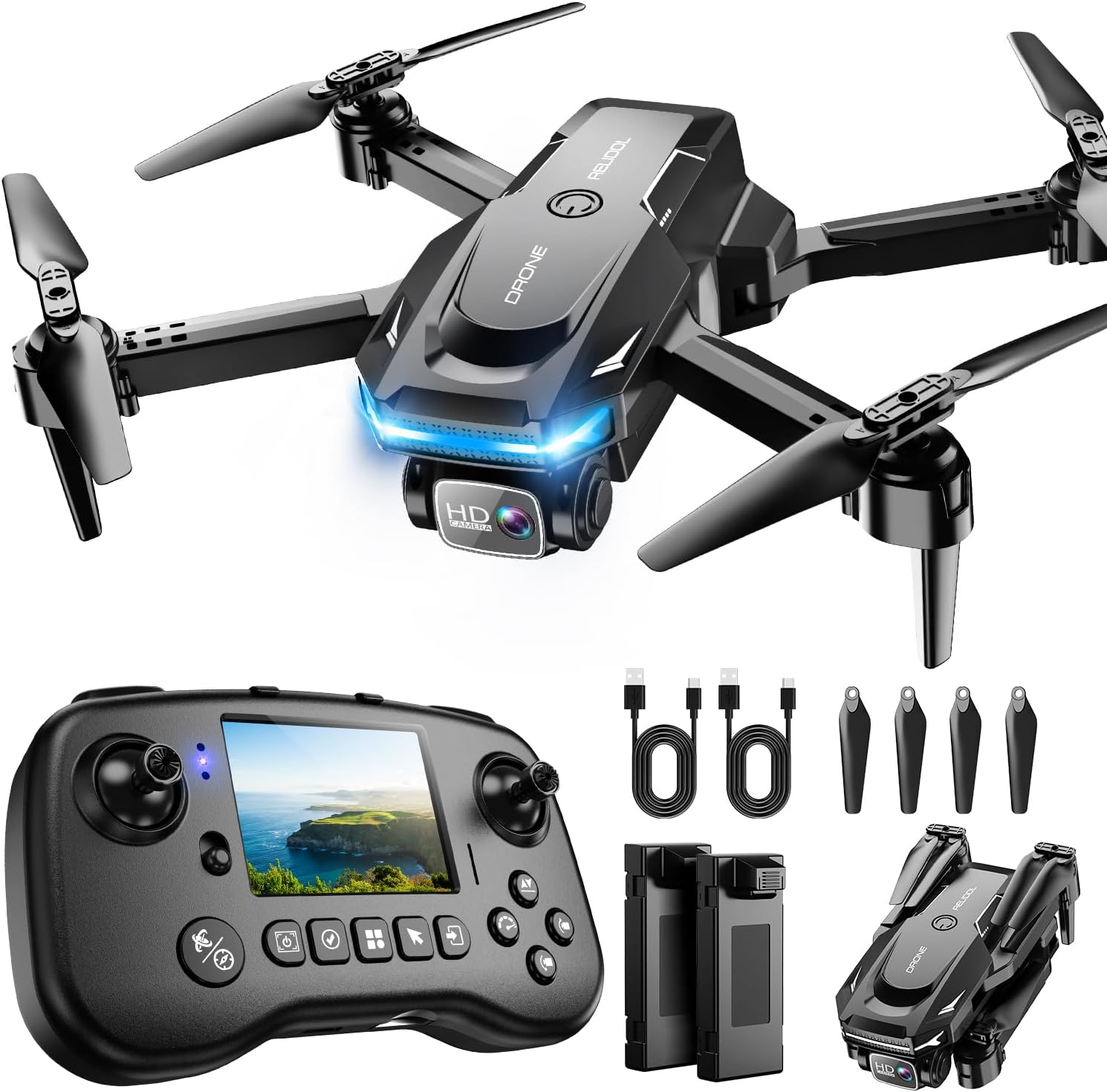
Image Description: The RELIDOL PK01 drone flying in the sky, with its remote controller prominently displayed in the foreground, showcasing the built-in screen for live viewing.
- Integrated Screen Remote: The PK01 drone's remote comes with a built-in screen, eliminating the need for a phone, allowing you to watch live HD footage and check flight stats directly. (An SD card is required to save images and videos, not included).
- 1080P HD Adjustable Camera: Equipped with a 1080P HD 80° adjustable lens, the drone captures wonderful moments from a bird's-eye perspective and is perfect for selfies or inspecting hard-to-reach areas.
- Powerful Brushless Motors: Powered by tough brushless motors, this drone offers strong, smooth, and durable flight performance.
- Dual Control Modes: Enjoy flexible control via either the remote control or the dedicated mobile APP.
- Extended Flight Time: Two enhanced batteries provide a combined flight time of up to 25 minutes, ensuring a worry-free flying experience. The controller has a built-in battery and comes with 2 USB charging cables.
- Safety Features: Includes emergency stop, 4 propeller guards, a child lock feature, and a low power alarm to ensure a safe and reliable flight. The PK01 is lightweight, portable, and requires no FAA registration.
6. Maintenance
Regular maintenance ensures the longevity and optimal performance of your RELIDOL PK01 Drone.
- Cleanliness: Keep the drone and remote controller clean. Use a soft, dry cloth to wipe away dust and debris. Avoid using harsh chemicals.
- Propeller Inspection: Regularly check propellers for any damage (cracks, bends). Replace damaged propellers immediately using the spare parts provided.
- Battery Care: Store batteries in a cool, dry place. Do not overcharge or over-discharge. If not used for a long period, charge them to about 50% capacity.
- Storage: When not in use, fold the drone and store it in its carrying bag to protect it from dust and physical damage.
7. Troubleshooting
If you encounter any issues with your RELIDOL PK01 Drone, refer to the following common problems and solutions:
| Problem | Possible Cause | Solution |
|---|---|---|
| Drone does not respond to remote. | Not paired or low battery. | Ensure drone and remote are powered on and paired. Recharge batteries. |
| Drone drifts during flight. | Gyroscope needs calibration. | Perform horizontal calibration as described in Section 4.1. |
| Camera feed is unstable or black. | Weak Wi-Fi signal or app issue. | Ensure strong Wi-Fi connection. Restart app and drone. Check SD card (if applicable). |
| Short flight time. | Battery not fully charged or old battery. | Fully charge batteries. Consider replacing old batteries if performance degrades significantly. |
8. Specifications
| Feature | Detail |
|---|---|
| Brand | RELIDOL |
| Model Name | PK01 |
| Video Capture Resolution | 1080p |
| Connectivity Technology | Wi-Fi |
| Control Type | Remote Control, App Control |
| Maximum Range | 30 Meters |
| Battery Cell Composition | Lithium Ion |
| Includes Batteries | Yes (2 included) |
| Skill Level | Beginner |
| Material | Plastic |
9. Warranty & Support

Image Description: An icon representing warranty or after-sales service, indicating support for the product.
RELIDOL is committed to providing high-quality products and excellent customer service. Your PK01 Drone comes with the following support:
- 24-Month Extended Warranty: Replacement only, no repairs.
- 7-Day No-Questions-Asked Returns: For your peace of mind.
- 15-Day Free Replacement: If the product fails within 15 days from arrival during normal usage.
- 18-Month Quality Issues Free Replacement: For any quality-related concerns.
For further assistance or inquiries, please contact RELIDOL customer support through your purchase platform.