
Introduction
This manual provides comprehensive instructions for the installation, operation, and maintenance of your SecuFirst LCA230Z-SD32 Outdoor Surveillance Camera with LED Light. This device combines a high-resolution 2K camera with an integrated, dimmable LED outdoor light and advanced AI motion detection. Please read this manual thoroughly before use to ensure proper functionality and safety.
Safety Information
- Ensure the power supply is disconnected before installation or maintenance to prevent electric shock.
- Installation should be performed by a qualified professional if you are unsure about electrical wiring.
- Do not expose the device to extreme temperatures or corrosive environments.
- Use only the specified power adapter and accessories.
- Keep the device out of reach of children.
- This product is designed for outdoor use and is waterproof (IP66 rated). However, avoid submerging it in water.
Package Contents
Verify that all items listed below are present in your package:
- 1 x LED Outdoor Light with Integrated Camera
- 1 x Mounting Bracket
- 1 x USB Cable (for initial setup/power)
- 1 x Allen Key
- 1 x Reset Pin
- 2 x Quick Start Guides
- 1 x Positioning Card
- 1 x Screw Package (for mounting)
- 1 x Antenna
- 1 x 32GB SD Card
Product Overview
Familiarize yourself with the components of your SecuFirst outdoor camera system.

Image Description: This diagram labels the various parts of the SecuFirst outdoor camera. Key components include the Wi-Fi antenna, halo light/ambient lighting, LED lamp with 10 SMD LEDs, wall mount, reset button, 2K Super HD camera, light sensor, waterproof microphone, cover, Micro-USB connection (for installation only), SD card slot, and loudspeaker.
- LED Lamp: Provides up to 900 lm of dimmable warm white light (3000K).
- 2K HD Camera: Captures high-resolution video with a 140-degree viewing angle.
- Motion Detector (PIR): Detects movement for security alerts and light activation.
- Microphone & Speaker: Enables two-way audio communication.
- SD Card Slot: For local storage of recorded video (32GB card included).
- Wi-Fi Antenna: For wireless connectivity to your home network.
- Light Sensor: Automatically adjusts light operation based on ambient light conditions.
Setup
1. Installation Location
Choose a suitable outdoor location for wall mounting. Ensure the camera has a clear view of the area you wish to monitor and is within range of your Wi-Fi network. The device requires a wired power connection.
2. Physical Mounting
- Power Disconnection: Before starting, ensure the power to the installation area is turned off at the circuit breaker.
- Positioning: Use the provided positioning card to mark drill holes on the wall.
- Drilling: Drill holes and insert wall plugs if necessary.
- Wiring: Connect the camera's power cable to your outdoor electrical wiring. Ensure all connections are secure and waterproof.
- Mounting: Secure the mounting bracket to the wall using the screws from the screw package. Attach the camera unit to the mounting bracket.
- Antenna Attachment: Screw the Wi-Fi antenna onto the designated port on the camera.
3. SD Card Insertion
The camera comes with a 32GB SD card for local storage. To insert it:
- Locate the SD card slot, typically under a protective cover (refer to the Product Overview diagram).
- Carefully open the cover.
- Insert the 32GB SD card into the slot until it clicks into place.
- Close the protective cover securely to maintain waterproofing.

Image Description: This image highlights the encrypted TF card and local storage feature. It states that camera videos are private and recorded videos are stored on the TF card (32GB included), with no subscription fees.
4. App Installation and Wi-Fi Connection
- Power On: Restore power to the camera at the circuit breaker. The camera will power on.
- Download App: Download the "SecuFirst HD" application from your smartphone's app store (compatible with Android and iOS devices).
- Account Creation: Open the app and create a new user account or log in if you already have one.
- Add Device: Follow the in-app instructions to add your new camera. This typically involves scanning a QR code on the camera or manually entering its ID.
- Wi-Fi Configuration: Connect the camera to your home Wi-Fi network through the app. Ensure your Wi-Fi signal is strong at the camera's location.
- Initial Setup: Complete any remaining setup steps within the app, such as setting time zones or initial preferences.

Image Description: This image illustrates the SecuFirst outdoor light camera, highlighting its two main features: the outdoor light with motion detector and the 2K HD outdoor surveillance camera.
Operating Instructions
1. Live View and Recording
- Open the "SecuFirst HD" app on your smartphone or tablet.
- Select your camera from the device list to view the live feed.
- You can manually initiate video recording or capture screenshots from the live view interface.
2. AI Detection and Notifications
The camera features advanced AI detection capable of distinguishing between people, animals, and vehicles. This helps reduce false alarms.

Image Description: This image illustrates the intelligent AI + PIR motion detector, showing its ability to distinguish between people, animals, and vehicles in an outdoor setting.
- Configure detection settings in the app to specify which types of motion trigger recordings and notifications.
- Receive real-time push notifications on your smartphone or tablet when motion is detected.

Image Description: A smartphone screen displays a real-time warning notification, indicating that the camera has detected movement and started recording.
3. Dimmable LED Light and Twilight Sensor
The integrated LED light provides up to 900 lumens of warm white light. An integrated twilight sensor ensures the light operates appropriately based on ambient conditions.

Image Description: This image shows the SecuFirst camera's LED light at different brightness levels, demonstrating the dimmable feature controlled via the "SecuFirst HD" app. The app interface shows a brightness slider and a light bulb icon.
- Brightness Control: Adjust the brightness (lumens) of the LED light via the "SecuFirst HD" app to your desired intensity.
- Motion-Activated Light: The light can be configured to turn on automatically when motion is detected, acting as a deterrent.
- Timer Function: Set specific times of the day via the app for the LED light to turn on and off, independent of motion detection.
4. Two-Way Audio
Utilize the built-in microphone and speaker to communicate with visitors or deter unwanted guests.
- From the live view in the app, tap the microphone icon to speak.
- Tap the speaker icon to listen to audio from the camera's location.
5. Night Vision
The camera provides clear night vision up to 20 meters, ensuring surveillance even in low-light conditions.
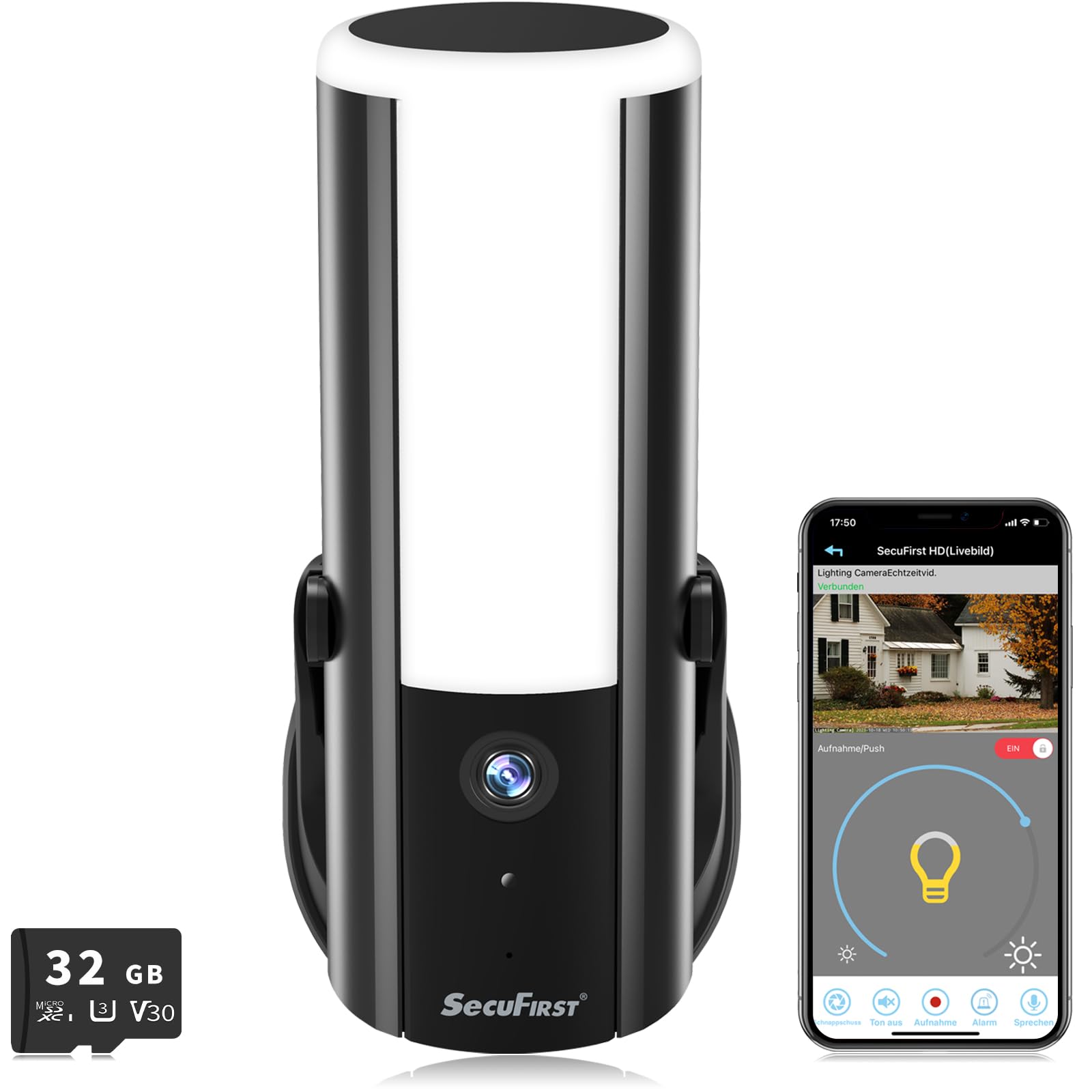
Image Description: A collage of images showing the SecuFirst camera in different scenarios. It includes the camera mounted on a wall with its LED light on, a close-up of the camera lens, a night scene demonstrating its night vision capabilities, and the mobile app interface for controlling the light and viewing the live feed.
6. Alarm Siren
An integrated alarm siren can be activated manually via the app or automatically upon motion detection to deter intruders.
Maintenance
- Cleaning: Periodically clean the camera lens and LED light cover with a soft, damp cloth. Do not use harsh chemicals or abrasive materials.
- Software Updates: Regularly check the "SecuFirst HD" app for firmware updates. Keeping your camera's software up-to-date ensures optimal performance and security.
- SD Card Management: The 32GB SD card provides local storage. Periodically review and manage recorded footage. The card will overwrite older footage once full.
- Connection Check: Ensure the Wi-Fi connection remains stable. If experiencing connectivity issues, check your router and camera placement.
Troubleshooting
| Problem | Possible Cause | Solution |
|---|---|---|
| Camera not powering on. | No power supply; loose connection. | Check power connections and circuit breaker. Ensure proper wiring. |
| Cannot connect to Wi-Fi. | Incorrect Wi-Fi password; camera too far from router; router issues. | Verify Wi-Fi password. Move camera closer to router or use a Wi-Fi extender. Restart router. |
| No motion detection alerts. | Detection sensitivity too low; AI detection settings incorrect; app notifications disabled. | Adjust motion detection sensitivity in the app. Check AI detection filters. Enable app notifications. |
| Poor video quality. | Dirty lens; poor Wi-Fi signal; low light conditions. | Clean the camera lens. Ensure strong Wi-Fi signal. Verify night vision is active in low light. |
| SD card not recording. | SD card full; card not inserted correctly; card faulty. | Check SD card status in app. Reinsert SD card. Format or replace SD card if necessary. |
Specifications
| Model Number | LCA230Z-SD32 |
| Brand | SecuFirst |
| Mounting Type | Wall Mount |
| Video Recording Resolution | 2K (2048 effective video resolution) |
| Color | Black |
| Material | Aluminum |
| Wireless Communication Technology | Wi-Fi |
| Form Factor | Outdoor lamp with integrated camera |
| Installation Type | Wired |
| Night Vision Range | 20 Meters |
| Power | 10 Watts |
| Dimensions (L x W x H) | 6.8 x 7 x 18.6 cm |
| Water Resistance Level | Waterproof (IP66) |
| Bulb Type | LED |
| Special Features | Brightness control, Motion detector, Local recording, 2K HD resolution, Integrated indicator light, Integrated lighting, AI Detection |
| Usage | Outdoor surveillance, Motion detection, Night surveillance, Pet control |
| Compatible Devices | Smartphone, Tablet |
| Power Source | Electric cable |
| Connectivity Protocol | Wi-Fi |
| Controller Type | Application (Android/iOS) |
Warranty and Support
For warranty information, please refer to the documentation included with your purchase or visit the official SecuFirst website. For technical support and assistance, you can contact the local German support office provided by ALC Electronics B.V., the manufacturer.
Manufacturer: ALC Electronics B.V.


