
1. Product Overview
The VIISAN VS13AM is a versatile 13-megapixel 4K document camera designed for various applications, including remote teaching, office presentations, and detailed object inspection. It features 4K video output at 30 frames per second, AI noise reduction for clear audio, an auto-rotate G-sensor for correct image orientation, and a 20X macro lens for capturing fine details. Its foldable multi-joint design ensures flexibility and portability.

Figure 1: The VIISAN VS13AM Document Camera.
2. Package Contents
Verify that all items are present in the package:
- VIISAN VS13AM Document Camera
- USB-C Cable
- 20X Macro Lens Adapter
- Quick Start Guide
- Soft Pouch
3. Setup
- Unfolding the Device: Carefully unfold the multi-joint arm of the document camera from its compact, folded position. Adjust the arm to the desired height and angle for your application. The stable base ensures the camera remains steady.
- Connecting to Computer: Connect the provided USB-C cable to the camera's USB port and then to an available USB-C or USB-A port on your computer (an adapter may be required for USB-A). The camera is UVC/UAC compliant, allowing for plug-and-play functionality without additional driver installation.
- Software Compatibility: The VS13AM works seamlessly with various conferencing applications such as Zoom, Google Meet, and Microsoft Teams. Select the VIISAN VS13AM as your camera and microphone source within your chosen application.

Figure 2: Unfolding the document camera.
4. Operating Instructions
- Document Scanning: Position the document or object under the camera. The camera's software can automatically detect the edges of the document, crop it, and remove the background for clear results.
- Macro Lens Usage: For capturing intricate details, attach the included 20X macro lens adapter to the camera. This allows for close-up inspection of small objects, revealing textures and features otherwise invisible to the naked eye.
- 2-in-1 Camera Mode: The camera head can be flipped 180 degrees to switch between document camera mode (facing downwards) and webcam mode (facing forwards). This allows for seamless transitions between presenting documents and engaging in face-to-face video calls.
- AI Noise Reduction: The built-in AI-powered noise reduction chip helps maintain clear voice clarity by minimizing background noise during video calls or recordings. Locate the AI Noise Reduction ON/OFF switch on the camera body to activate or deactivate this feature.
- Autofocus Modes (AF-C / AF-S): The camera supports both Continuous Autofocus (AF-C) and Single Autofocus (AF-S). Use AF-C for subjects in motion, ensuring they remain clear. Use AF-S for still objects or documents to achieve a sharp, stable focus. A switch on the camera body allows you to select the desired mode.
- Adjusting the Camera Arm: The multi-joint design allows for flexible positioning to capture various document sizes (e.g., A4, A3) or close-up views. Adjust the arm to ensure the entire subject is within the camera's field of view.
- Built-in LED Light: The camera includes a built-in LED light to provide additional illumination for your documents or objects, ensuring optimal clarity even in low-light conditions. The LED Touch Button on the camera body controls the light.

Figure 3: Document scanning in a classroom setting.

Figure 4: Attaching and using the 20X Macro Lens.
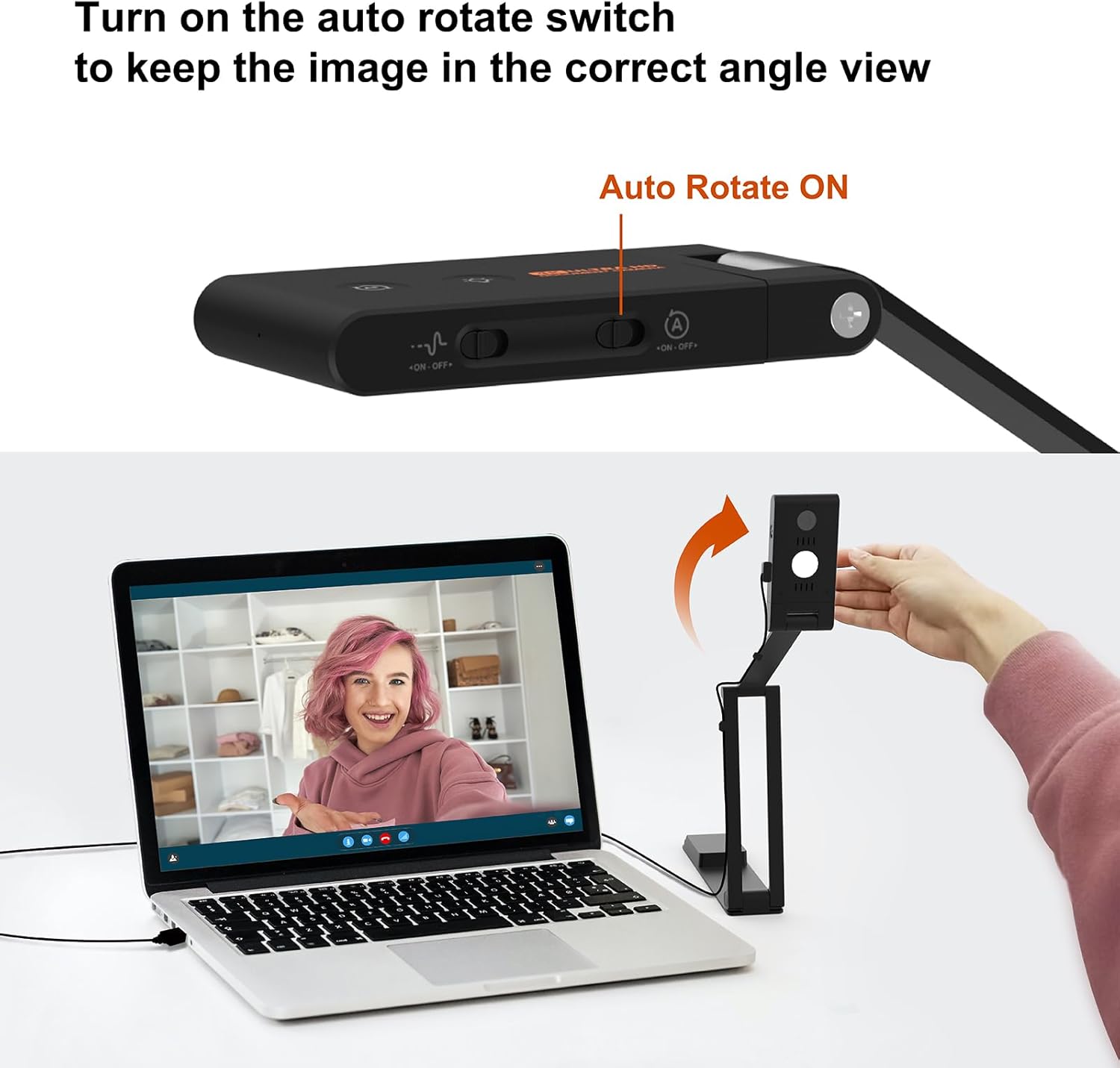
Figure 5: Switching to webcam mode with auto-rotate.

Figure 6: Camera arm adjustments for different modes.
5. Specifications
| Brand | VIISAN |
| Model Name | VS13AM |
| Image Sensor | 13 Megapixels |
| Video Output | 4K@30FPS |
| Connectivity Technology | USB |
| Macro Lens | 20X Magnification |
| Audio Features | AI Noise Reduction Microphone |
| Orientation Adjustment | Auto-Rotate G-Sensor |
| Compliance | UVC/UAC |
| Item Weight | 1.21 pounds |
| Package Dimensions | 9.45 x 3.54 x 1.97 inches |

Figure 7: Key features and controls of the VS13AM.
6. Troubleshooting
- No Image/Video Display:
- Ensure the USB cable is securely connected to both the camera and the computer.
- Verify that the VIISAN VS13AM is selected as the active camera source in your software application.
- Try connecting to a different USB port on your computer.
- Blurry Image:
- Check the autofocus mode switch (AF-C/AF-S) and ensure it's appropriate for your subject.
- Adjust the camera's height and angle to ensure the subject is within the optimal focal range.
- Clean the camera lens with a soft, dry cloth.
- Poor Audio Quality:
- Ensure the AI Noise Reduction switch is in the desired position (ON for noise reduction).
- Verify that the camera's microphone is selected as the audio input device in your software.
- Reduce background noise in your environment if possible.
- Auto-Rotate Not Functioning:
- Ensure the Auto-Rotate G-Sensor switch on the camera body is enabled.
- Confirm that the camera head is securely positioned.
7. Warranty & Support
The VIISAN VS13AM Document Camera is backed by a 1-year limited warranty. For technical assistance, troubleshooting, or warranty claims, please contact VIISAN customer support. Refer to the Quick Start Guide for contact information or visit the official VIISAN website for responsive customer support.
8. Product Videos
13MP Book & Document Scanner Overview
This video provides a comprehensive demonstration of the VIISAN VS13AM, showcasing its unboxing, setup, and various functionalities including document scanning, macro lens use, and 2-in-1 camera modes. It highlights the ease of use and versatility of the device.
VIISAN VS13AM Demonstration
Watch a detailed demonstration of the VIISAN VS13AM document camera in action. This video illustrates its key features such as 4K video quality, AI noise reduction, autofocus capabilities, and its application in various scenarios like remote learning and presentations.


