
1. Product Overview
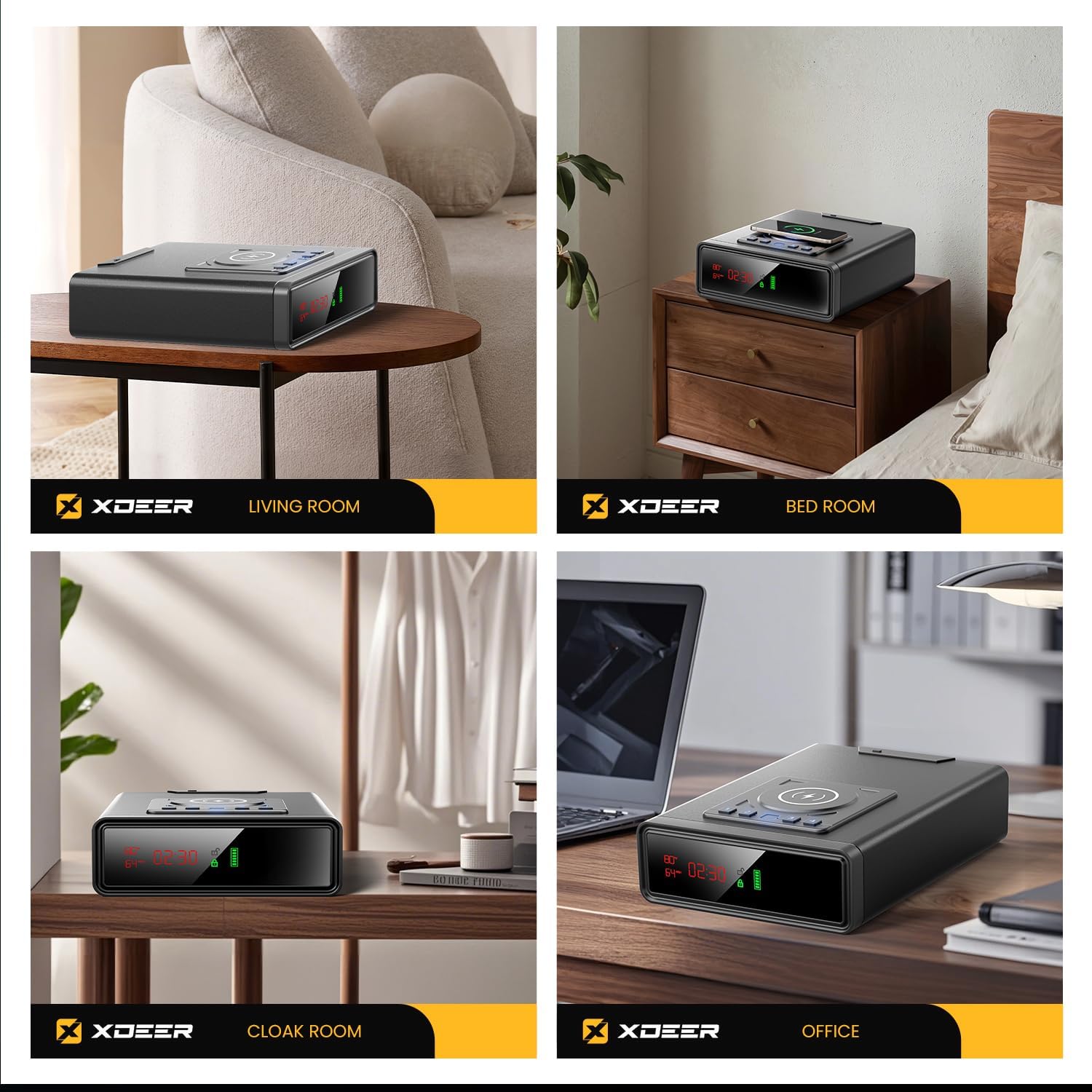
The XDeer Biometric Smart Safe Model WX001 offers advanced security features combined with modern convenience. It provides multiple quick access methods, including biometric fingerprint, PIN code, and traditional key. Designed for discreet placement, it also integrates wireless charging for compatible devices and a clear LED display for time, temperature, and humidity.
Key Features:
- Biometric Fingerprint Access: Rapid firearm access in less than 0.5 seconds.
- Digital Keypad: Secure PIN code entry (3 to 6 digits).
- Emergency Key Access: Traditional key override for backup.
- Wireless Charging: Integrated pad for phones and watches.
- Smart Display: 24/7 LED display showing time, temperature, and humidity.
- Auto-Open Drawer: Silent deployment in less than 0.5 seconds with internal illumination.
- Military-Grade Construction: Durable build to resist prying.
- Battery Backup: Ensures access during power outages.
- Silent Mode: For discreet operation.
2. Setup Guide
2.1 Unboxing and Initial Inspection
Upon receiving your XDeer Smart Safe, carefully remove all components from the packaging. Verify that all included items are present:
- Biometric Smart Safe (1)
- Keys (2)
- User Manual (1)
- Power Adapter (1)
- Data Line (1)
- Security Cable (1)
- Expansion Screws (2)
- Hexagonal Screwdriver (1)

2.2 Powering the Safe
The safe can be powered via the included power adapter or with AAA batteries for backup.
- AC Power: Connect the power adapter to the designated port at the back of the safe and plug it into a wall outlet.
- Battery Installation: The safe requires four AAA batteries for operation without AC power and as a backup. Locate the battery compartment on the underside/back of the safe, open it, insert the batteries according to polarity markings, and close the compartment.

Note: The wireless charging function requires the safe to be connected to AC power. The battery power primarily supports the locking mechanism and LED display.
2.3 Setting the Clock and Environmental Display
The safe features an LED display that shows time, temperature, and humidity. To set the clock:
- Open the safe's drawer.
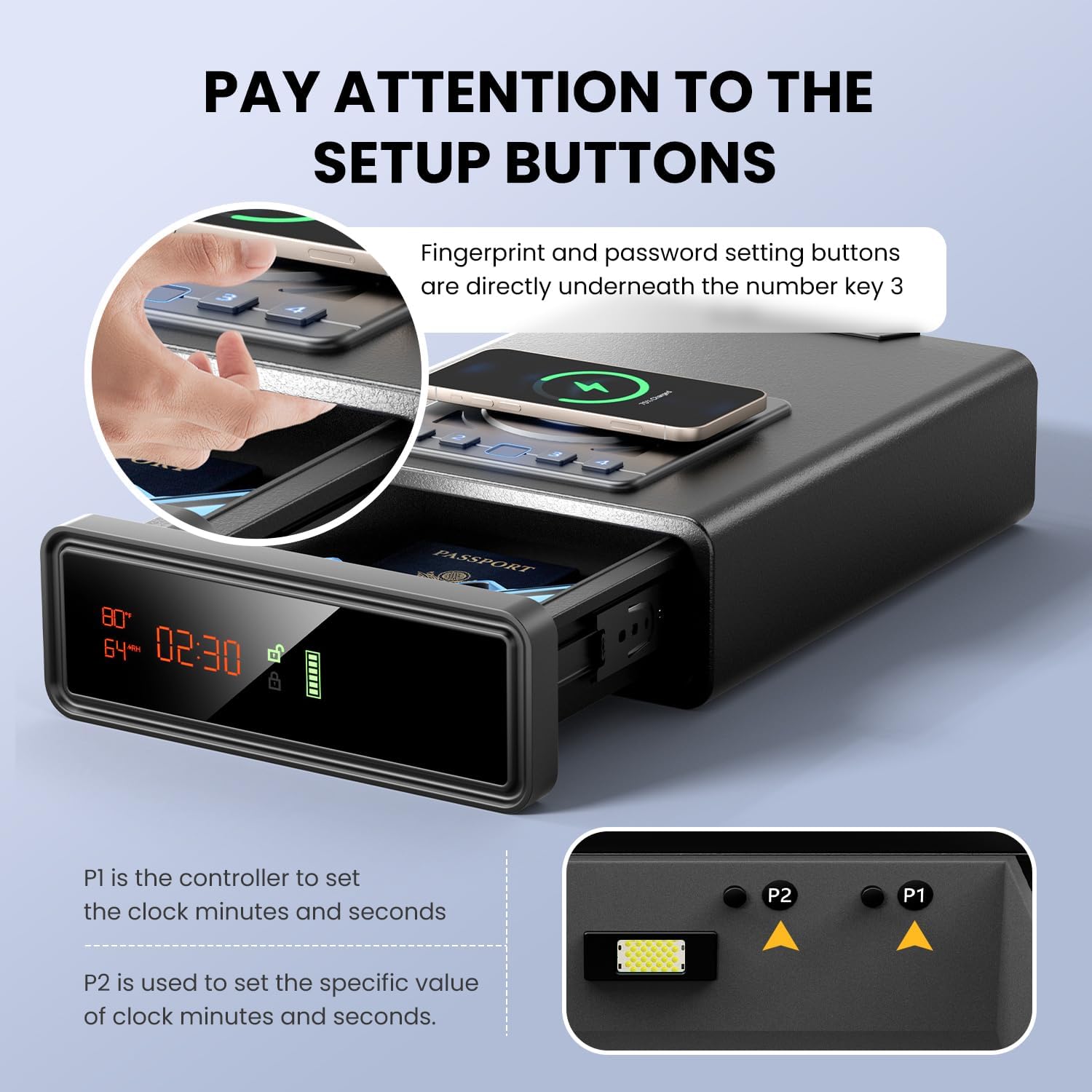
- Locate the P1 and P2 buttons inside the drawer, typically near the number 3 button on the keypad.
- Press and hold the P1 button until the time display starts flashing.
- Use the P2 button to adjust the minutes. Press P1 again to switch to adjusting the hours.
- Once the desired time is set, press and hold P1 again to save the settings and exit the clock setting mode.

The temperature and humidity readings are automatically displayed.
Video: This video demonstrates how to set the clock and adjust time settings using the P1 and P2 buttons located inside the safe drawer. It also shows the display of temperature and humidity.
3. Operating Instructions
3.1 Setting a PIN Code
To set your personal PIN code (3 to 6 digits):
- Open the safe's drawer.
- Press and hold the button located directly underneath the number 4 on the keypad until the keypad lights start flashing.
- Enter your desired 3 to 6 digit PIN code using the number buttons (1-4).
- Press the button underneath number 4 again to confirm and save your PIN.
Note: The default PIN code is 1234. It is highly recommended to change this immediately after initial setup.
3.2 Registering a Fingerprint
The safe can store up to 30 fingerprints for quick biometric access.
- Open the safe's drawer.
- Press and hold the button located directly underneath the number 4 on the keypad for approximately 2 seconds until the fingerprint sensor light starts flashing.
- Place your finger on the fingerprint sensor. Lift and reposition your finger slightly, pressing it down firmly multiple times (typically 4 times) until the sensor indicates successful registration (e.g., a green light or a specific sound).
- Repeat the process for additional fingers if desired.
3.3 Unlocking the Safe
You have three methods to unlock your safe:
- Fingerprint: Place your registered finger on the biometric sensor. The drawer will automatically open if the fingerprint is recognized.
- PIN Code: Enter your programmed PIN code using the keypad. The drawer will open automatically upon correct entry.
- Emergency Key: In case of battery depletion or forgotten codes, insert one of the provided keys into the keyhole on the back of the safe and turn it to unlock.
Video: This video demonstrates the quick access features of the safe, including unlocking with a fingerprint and PIN code. It also shows the smooth auto-open drawer mechanism and the internal LED light.
3.4 Wireless Charging
The top surface of the safe features a wireless charging pad. Simply place your Qi-compatible smartphone or smartwatch on the charging pad to initiate charging. Ensure the safe is connected to AC power for this function to work.

4. Maintenance
- Cleaning: Wipe the exterior of the safe with a soft, damp cloth. Avoid abrasive cleaners or solvents.
- Battery Replacement: Replace AAA batteries when the battery indicator on the LED display shows low power to ensure continuous operation of the lock mechanism and display.
- Fingerprint Sensor: Keep the fingerprint sensor clean and dry for optimal performance.
5. Troubleshooting
5.1 Safe Not Opening
- Check Batteries: Ensure the AAA batteries are correctly installed and not depleted. Replace if necessary.
- Power Connection: Verify the AC adapter is securely plugged into both the safe and a working power outlet.
- Correct Fingerprint/PIN: Ensure you are using a registered fingerprint or the correct PIN code.
- Emergency Key: Use the physical keys as a backup to open the safe.
5.2 Wireless Charging Not Working
- AC Power Required: Confirm the safe is connected to AC power. Wireless charging does not operate on battery power alone.
- Device Compatibility: Ensure your device is Qi-compatible for wireless charging.
- Proper Placement: Position your device centrally on the charging pad.
- Obstructions: Remove any thick cases or metal objects between your device and the charging pad.
5.3 Lockout Mode
If an incorrect PIN or fingerprint is entered multiple times, the safe may enter a lockout mode, preventing further attempts for a short period. During this time, the keypad may be unresponsive or flash a warning.
- Wait: Allow the lockout period to expire (typically 1 minute).
- Power Cycle: Disconnect and reconnect the power adapter, or remove and reinsert the batteries, to reset the system and exit lockout mode.
- Emergency Key: Use the physical key to open the safe if immediate access is required during lockout.
Video: This video demonstrates how to set the PIN code and fingerprint, and how the safe responds to incorrect entries, including entering lockout mode. It also shows how to recover from lockout mode by power cycling or using the emergency key.
6. Product Specifications
| Brand | XDeer |
| Model Number | WX001 |
| Product Dimensions | 12.8"D x 9.5"W x 3.4"H |
| Capacity | 0.86 Cubic Feet |
| Lock Type | Biometric, Combination Lock, Key |
| Color | Black |
| Material | #1 Top Safe (Steel) |
| Special Features | Alarm System, Biometric Fingerprint, Combination Lock, Scratch Resistant, Sensor Light, Wireless Charging, Digital Clock, Humidity/Temperature Display |
| Mounting Type | Under Counter Mount (with included expansion screws) |
7. Warranty & Support
For warranty information and customer support, please refer to the official XDeer website or contact their customer service. If you lose your keys, visit www.xdeersafe.com and find the "Replace Keys" click portal for assistance.
XDeer is committed to providing reliable property protection solutions. Each XDeer safe undergoes strict quality control to ensure advanced encryption locks, fire-resistant structures, and waterproof design protection.
