Introduction
This manual provides detailed instructions for the setup, operation, and maintenance of your Eyoyo EY-009L 1D Mini Bluetooth Barcode Scanner. This compact and versatile device offers three connection modes: USB Wired, 2.4G Wireless, and Bluetooth, ensuring flexible integration with various systems and devices. Please read this manual thoroughly before using the scanner to ensure optimal performance and longevity.
Product Overview
Key Features
- Compact and Portable: Weighing only 35g (1.2 oz), designed for easy carry and enhanced mobility.
- Triple-Mode Connectivity: Supports 2.4G wireless, Bluetooth, and USB wired connections for versatile use.
- Superior 1D Decoding: Accurately reads standard 1D barcodes, including damaged, distorted, or reflective codes.
- Broad Compatibility: Connects seamlessly with PCs, POS systems, smartphones, and tablets running Windows, Mac OS, and Linux.
- Long Battery Life: 650mAh rechargeable battery provides up to 8 hours of continuous scanning, with a 2-hour charge time and up to 30 days standby.
- Data Customization: Options to add/hide prefixes/suffixes, delete characters, and append keyboard keys.
- Adjustable Feedback: Features adjustable volume control and a silent vibration mode for discreet operation.
- Storage Mode: 16MB internal storage for over 100,000 barcodes when offline.
Package Contents
- 1x Eyoyo 1D Barcode Scanner (Model: EY-009L)
- 1x USB Charging Cable
- 1x 2.4G USB Dongle
- 1x Lanyard
- 1x User Manual
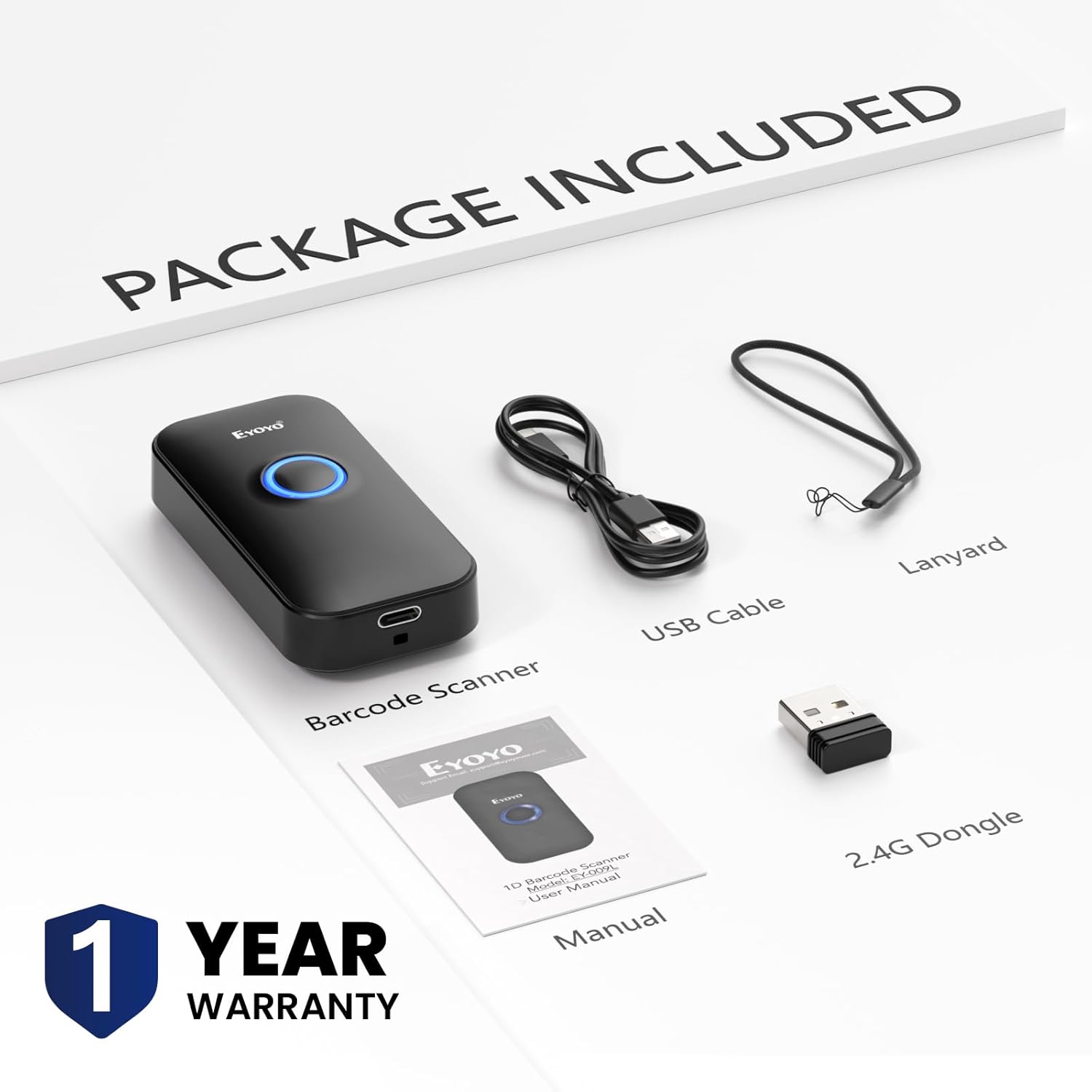
Image: Contents of the Eyoyo EY-009L barcode scanner package, including the scanner, USB cable, 2.4G dongle, lanyard, and user manual.

Image: The Eyoyo EY-009L barcode scanner being held in a pocket and scanning a package, illustrating its compact size and portability (35g/1.23oz).
Setup
The Eyoyo EY-009L scanner supports three connection methods: USB Wired, 2.4G Wireless, and Bluetooth. Choose the method that best suits your needs.
1. USB Wired Connection
- Connect the provided USB cable to the scanner's charging port.
- Plug the other end of the USB cable into an available USB port on your computer or POS system.
- The scanner will automatically enter USB wired mode and function as a keyboard input device.

Image: Diagram showing the Eyoyo EY-009L scanner connected to a laptop via a USB cable, indicating USB Wired Connection mode.
2. 2.4G Wireless Connection
- Insert the 2.4G USB dongle into an available USB port on your computer.
- Turn on the barcode scanner. It will automatically attempt to pair with the dongle.
- A successful connection is indicated by a specific sound or light pattern (refer to the scanner's LED indicator guide in the full manual).
- The wireless transmission distance is up to 30m (98 ft) in barrier-free environments and 15m (49 ft) with obstacles.

Image: Diagram showing the Eyoyo EY-009L scanner wirelessly connected to a laptop via a 2.4G USB dongle, indicating 2.4G Wireless Connection mode.
3. Bluetooth Connection
- Turn on the barcode scanner.
- Activate Bluetooth on your host device (smartphone, tablet, computer).
- Search for available Bluetooth devices and select the scanner (usually named 'Barcode Scanner HID' or similar).
- Pair the devices. A successful connection is indicated by a specific sound or light pattern.
- The Bluetooth transmission distance is up to 50m (164 ft) in barrier-free environments and 20m (66 ft) with obstacles.

Image: Diagram showing the Eyoyo EY-009L scanner connected to a tablet and smartphone via Bluetooth, indicating Bluetooth Wireless Connection mode.
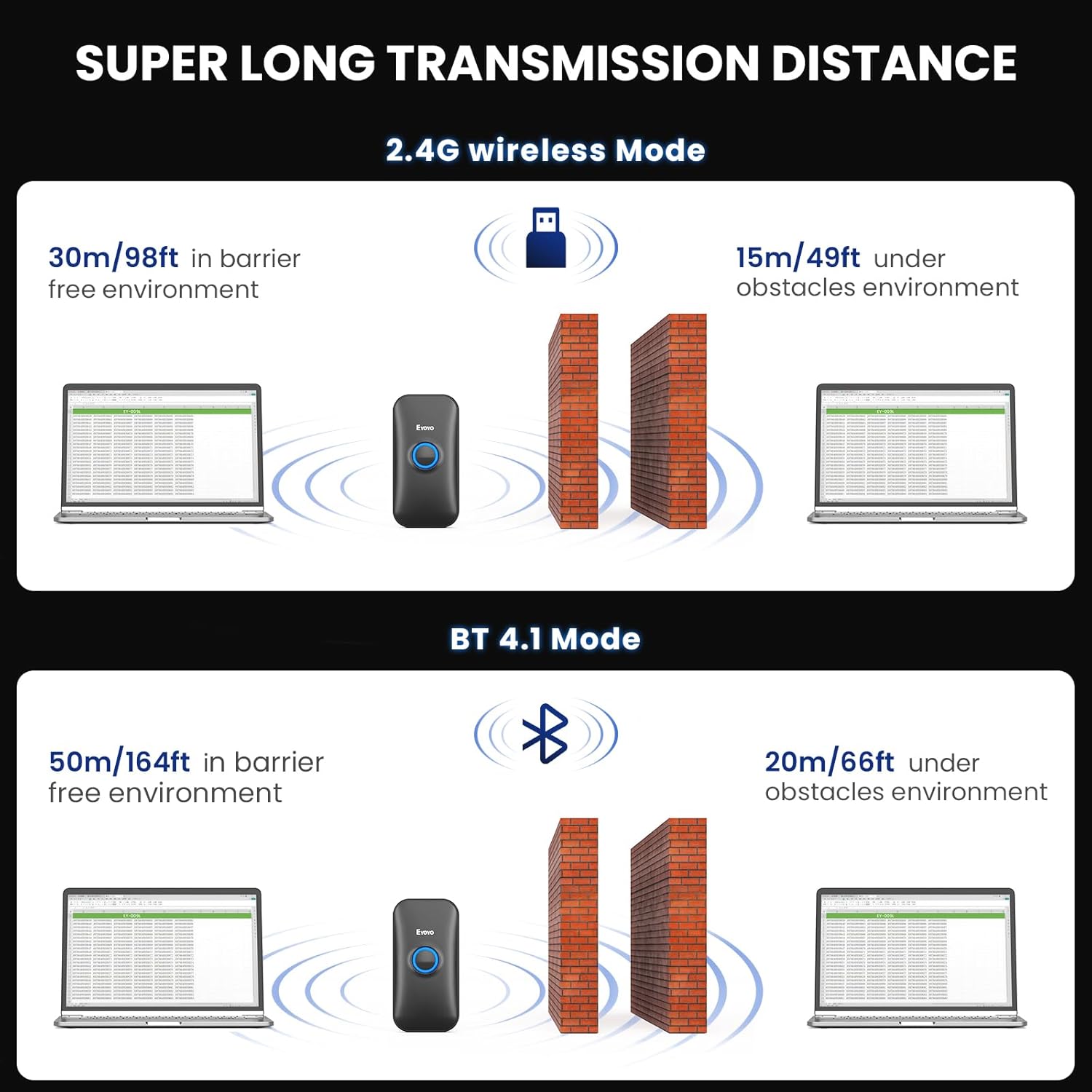
Image: Illustration of the transmission distances for 2.4G wireless mode (30m barrier-free, 15m with obstacles) and Bluetooth mode (50m barrier-free, 20m with obstacles).
Operating Instructions
Scanning Barcodes
Point the scanner's light beam at the 1D barcode you wish to scan. Ensure the beam covers the entire barcode. A successful scan is typically indicated by a beep (if enabled) and/or vibration (if enabled).

Image: The Eyoyo EY-009L scanner actively scanning various 1D barcodes on paper, demonstrating its superior decoding capability for different barcode types.
Scanning Modes
The scanner supports two primary data upload modes:
- Instant Upload Mode: Barcode data is transmitted directly to the connected device immediately after scanning. This is the default mode.
- Storage Mode: Barcode data is stored in the scanner's internal 16MB memory. This mode is useful when out of range or not connected to a host device. Data can be uploaded later by scanning a specific command barcode (refer to the full manual for command barcodes). The scanner can store over 100,000 barcodes in this mode.

Image: Illustration showing two upload modes: Storage Mode (with 16MB capacity) and Instant Upload Mode, indicating how data is handled by the scanner.
Sound and Vibration Settings
The scanner provides audible and tactile feedback for successful scans. These settings can be adjusted:
- Turn On/Off Sound: Scan the appropriate command barcode from the full user manual to enable or disable the beep sound.
- Turn On/Off Vibration: Scan the appropriate command barcode from the full user manual to enable or disable vibration feedback. This is ideal for quiet environments.

Image: Visual representation of options to turn on/off sound and turn on/off vibration for the Eyoyo EY-009L scanner, showing a hand scanning a book.
Data Customization
You can configure the scanner to modify the output data:
- Add/Hide Prefixes/Suffixes: Append custom characters before or after the scanned barcode data.
- Delete Characters: Remove specific characters from the scanned data.
- Append Keyboard Keys: Add special keys like TAB or Enter after each scan for automated data entry.
Refer to the comprehensive programming guide in the full user manual for specific command barcodes to implement these customizations.
Maintenance
Battery Charging
The scanner is equipped with a 650mAh rechargeable battery. To charge:
- Connect the scanner to a power source (computer USB port or USB wall adapter) using the provided USB charging cable.
- A full charge takes approximately 2 hours.
- The scanner provides up to 8 hours of continuous scanning time and up to 30 days of standby time.

Image: Diagram illustrating the battery performance of the Eyoyo EY-009L scanner: 8 hours working time, 2 hours charging time, and 720 hours (30 days) standby time.
Cleaning
To maintain optimal scanning performance, keep the scanner's optical window clean. Use a soft, lint-free cloth, slightly dampened with water or a mild cleaning solution. Avoid abrasive materials or harsh chemicals.
Troubleshooting
Scanner Not Connecting
- Check Power: Ensure the scanner is charged and turned on.
- Verify Mode: Confirm the scanner is in the correct connection mode (USB, 2.4G, or Bluetooth) for your setup.
- Re-pair Bluetooth/2.4G: If using wireless, try re-pairing the scanner with your device or re-inserting the 2.4G dongle.
- USB Cable: For wired connection, ensure the USB cable is securely connected to both the scanner and the host device.
- Driver Installation: For some systems, a driver might be required for the 2.4G dongle or USB connection. Check your operating system's device manager.
Scanner Not Reading Barcodes
- Barcode Type: This device is exclusively designed to read printed 1D barcodes. It cannot scan electronic codes from screens (e.g., 1D or 2D QR codes on phones/computers) or any printed 2D codes.
- Barcode Condition: Ensure the barcode is not severely damaged, smudged, or poorly printed. While the scanner has superior decoding, extreme damage can prevent reading.
- Distance and Angle: Adjust the distance and angle between the scanner and the barcode.
- Lighting: Ensure adequate lighting, but avoid direct glare on the barcode.
- Scanner Window: Clean the scanner's optical window if it is dirty.

Image: Illustration showing a 1D barcode being scanned successfully, with crossed-out 2D QR codes and screen-based barcodes, emphasizing that the scanner only reads printed 1D barcodes.
Compatibility Notes
- Not compatible with Square POS or Square Register systems.
- Compatible with Windows XP, Win7, Win8, Win10, Mac OS, Linux, Android, and iOS devices.

Image: Visual representation of the Eyoyo EY-009L scanner's compatibility with various operating systems and devices, including Windows, Mac OS, Linux, tablets, and smartphones.
Specifications
| Model Number | EY-009L |
| Product Dimensions | 4.8 x 2.44 x 1.99 inches |
| Item Weight | 3.84 ounces (35g / 1.23oz for scanner only) |
| Connectivity Technology | 2.4G Wireless, Bluetooth, USB Cable |
| Battery | 1 Nonstandard Battery (650mAh, included) |
| Working Time | Up to 8 hours continuous scanning |
| Charging Time | Approx. 2 hours |
| Standby Time | Up to 30 days |
| Storage Capacity | 16MB (stores over 100,000 barcodes) |
| 2.4G Transmission Range | 30m (98 ft) barrier-free, 15m (49 ft) with obstacles |
| Bluetooth Transmission Range | 50m (164 ft) barrier-free, 20m (66 ft) with obstacles |
| Compatible Devices | Desktop, Laptop, POS, Smartphone, Tablet |
| Compatible OS | Windows XP/7/8/10, Mac OS, Linux, Android, iOS |
Warranty and Support
Warranty Information
The Eyoyo EY-009L Barcode Scanner comes with a 1-year warranty from the date of purchase. This warranty covers manufacturing defects and malfunctions under normal use. Please retain your proof of purchase for warranty claims.
Customer Support
For technical assistance, troubleshooting, or warranty inquiries, please contact Eyoyo customer support. Refer to the contact information provided in the packaging or on the official Eyoyo website.


