
1. Introduction
The UGREEN USB-C Bluetooth Adapter (Model 65708) is designed to provide wireless audio connectivity for various devices, including PlayStation 5, other gaming consoles, and personal computers. This adapter supports Bluetooth 6.0 with LE Audio, offering advanced features such as aptX Adaptive, aptX HD, aptX, and SBC codecs for high-quality, low-latency audio transmission. It enables dual pairing in Classic Bluetooth mode and one-to-many broadcasting in LE Audio mode, allowing multiple users to share a single audio source.
Image: The UGREEN USB-C Bluetooth Adapter highlighting its support for both new-generation LE Audio and Classic Bluetooth 6.0, offering high-definition audio quality, multi-device connectivity, longer transmission distance, lower latency, lower power consumption, and higher stability.
Key Features:
- Plug and Play: No drivers required for most compatible devices.
- Bluetooth 6.0 with LE Audio: Advanced wireless technology for enhanced performance.
- Multiple Codec Support: Compatible with aptX Adaptive, aptX HD, aptX, and SBC for optimal audio quality and latency.
- Dual Pairing: Connect two Bluetooth audio devices simultaneously in Classic Bluetooth mode.
- One-to-Many Broadcast (Auracast): Share audio with multiple LE Audio compatible devices.
- Wide Compatibility: Supports PS5, Nintendo Switch, PC, Mac, and various Bluetooth headphones and speakers.

Image: Diagram illustrating the wide compatibility of the UGREEN USB-C Bluetooth Adapter with devices such as PS5, Switch, PC, Mac, Phone, Bluetooth Speakers, Earphones, and Earbuds/Airpods. It also indicates incompatibility with keyboards, mice, TVs, and cars.
2. Setup and Connection
The UGREEN USB-C Bluetooth Adapter is designed for easy plug-and-play operation. Follow these steps to connect and pair your audio devices.
2.1 Initial Connection
- Insert the UGREEN USB-C Bluetooth Adapter into an available USB-C port on your PS5, gaming console, or PC.
- The device will be recognized as an audio output device. No additional drivers are typically required.

Image: The UGREEN USB-C Bluetooth Adapter demonstrating its plug-and-play nature when inserted into a device, and its compact, portable design.
2.2 Pairing in Classic Bluetooth Mode
This mode supports standard Bluetooth connections and dual pairing.
- Ensure the adapter's mode switch is set to BR (Classic Bluetooth).
- Put your Bluetooth headphones or speakers into pairing mode.
- Double-click the multi-function button on the adapter to enter pairing mode. The indicator light will flash blue and red.
- Once paired, the indicator light will flash white once per second.
- On your device (PS5/PC), select "USB Headset (UGREEN-B701)" as the audio output.

Image: Step-by-step diagram for connecting and pairing a device in Classic Bluetooth mode, showing the adapter inserted, entering pairing mode (flashing blue & red), successful connection (flashing white), and setting the output device.
2.3 Pairing in LE Audio Unicast Mode
This mode offers ultra-low latency for gaming and video streaming. Requires LE Audio compatible headphones/speakers.
- Ensure the adapter's mode switch is set to LE (LE Audio).
- Put your LE Audio compatible headphones or speakers into pairing mode.
- Triple-click the multi-function button on the adapter to switch to Unicast mode. The LED will change from blue (or green) to a fast-flashing red and blue light.
- Once paired, the indicator light will flash white once per second.
- On your device (PS5/PC), select "USB Headset (UGREEN-B701)" as the audio output.

Image: Step-by-step diagram for connecting and pairing a device in LE Audio Unicast mode, showing the adapter inserted, entering pairing mode (flashing blue & red after triple-click), successful connection (flashing white), and setting the output device.
3. Operating Instructions
Understand the various modes and functions of your UGREEN USB-C Bluetooth Adapter.
3.1 Mode Switching (LE Audio vs. Classic Bluetooth)
The adapter features a physical switch on its side to toggle between LE Audio (LE) and Classic Bluetooth (BR) modes. Select the appropriate mode based on your audio device and desired performance.
- LE Audio Mode: Ideal for ultra-low latency gaming and high-quality music with compatible LE Audio devices.
- Classic Bluetooth Mode: Standard Bluetooth connection, supports dual pairing with most Bluetooth audio devices.
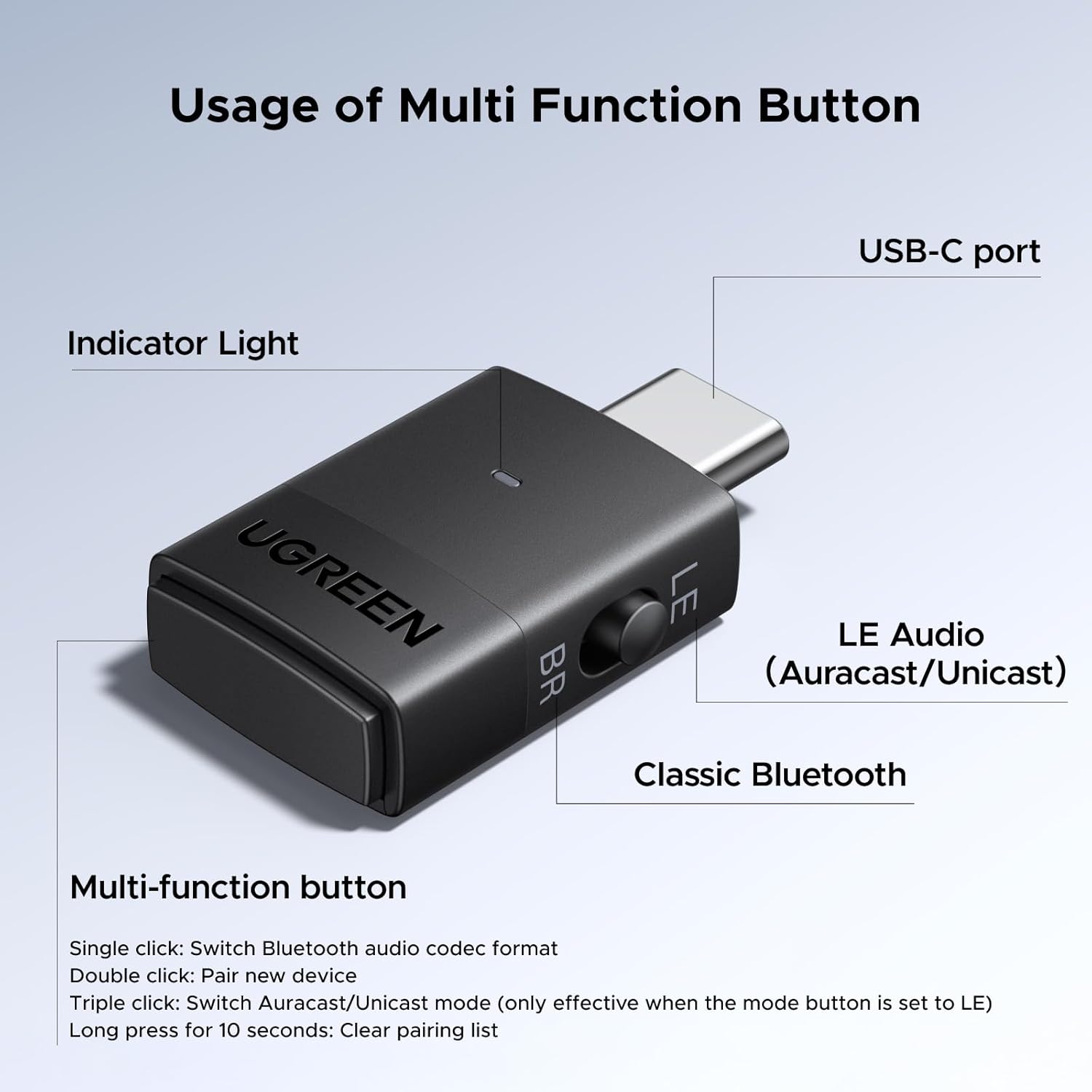
Image: Detailed view of the UGREEN USB-C Bluetooth Adapter, labeling its USB-C port, indicator light, LE/BR mode switch, and multi-function button with its various functions.
3.2 Multi-function Button Operations
- Single click: Switch Bluetooth audio codec format (e.g., aptX Adaptive, aptX HD, SBC).
- Double click: Pair a new device (in Classic Bluetooth mode).
- Triple click: Switch Auracast/Unicast mode (only effective when the mode button is set to LE).
- Long press for 10 seconds: Clear pairing list.
3.3 LE Audio Modes: Unicast and Auracast
When the adapter is in LE Audio mode, you can choose between Unicast and Auracast.
- Unicast: Provides ultra-low latency audio for a single connected device, ideal for gaming and video synchronization.
- Auracast: Enables one-to-many broadcasting, allowing multiple LE Audio compatible headphones or speakers to receive audio from a single source simultaneously without individual pairing.

Image: A group of people sharing audio from a single phone via the UGREEN Bluetooth adapter using LE Audio Auracast, demonstrating the ability to support multiple devices simultaneously without pairing.
3.4 Codec Support and Dynamic Adjustment
The adapter supports various audio codecs to ensure the best possible sound quality and latency for your connected devices.
- aptX Adaptive: Offers dynamic adjustment between high-quality audio and low-latency performance based on content and environment.
- aptX HD: Provides high-definition audio quality for music listening.
- aptX: Standard low-latency codec.
- SBC: Basic Bluetooth audio codec.
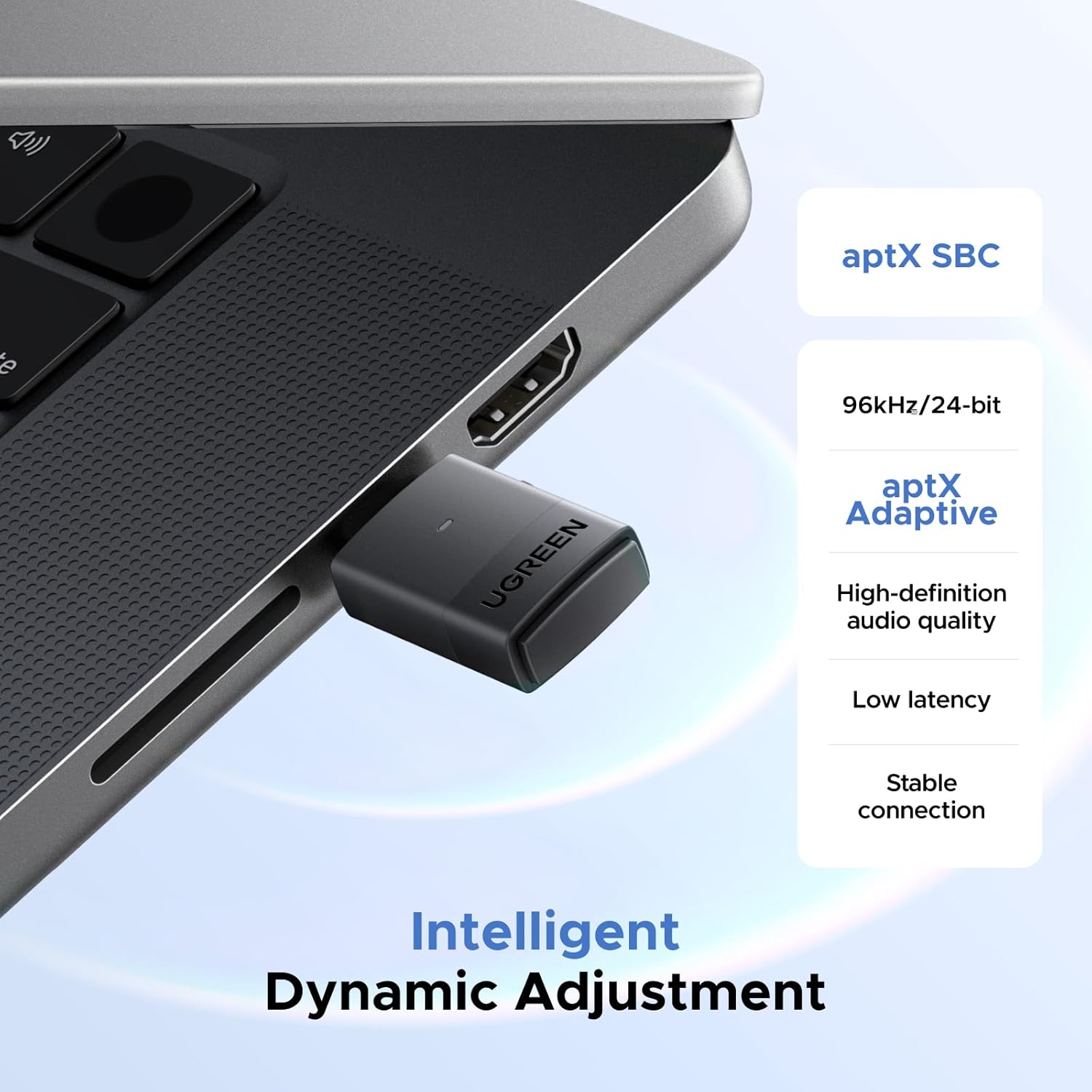
Image: Close-up of the UGREEN USB-C Bluetooth Adapter connected to a laptop, with text indicating support for aptX SBC and aptX Adaptive, offering 96kHz/24-bit audio, high-definition quality, low latency, and stable connection through intelligent dynamic adjustment.
4. Maintenance
To ensure the longevity and optimal performance of your UGREEN USB-C Bluetooth Adapter, follow these simple maintenance guidelines:
- Keep the adapter clean and dry. Avoid exposure to liquids, dust, and extreme temperatures.
- Store the adapter in a safe place when not in use to prevent physical damage.
- Do not attempt to disassemble or repair the adapter yourself, as this will void the warranty.
5. Troubleshooting
If you encounter issues with your UGREEN USB-C Bluetooth Adapter, refer to the following troubleshooting tips:
5.1 No Audio / Connection Issues
- Check Adapter Connection: Ensure the adapter is fully inserted into the USB-C port of your device.
- Verify Audio Output: On your PS5 or PC, confirm that "USB Headset (UGREEN-B701)" is selected as the primary audio output device.
- Re-pair Devices: Clear the pairing list on the adapter by long-pressing the multi-function button for 10 seconds, then re-enter pairing mode and attempt to connect your audio device again.
- Check Audio Device: Ensure your headphones/speakers are charged, powered on, and in pairing mode.
- Restart Devices: Try restarting your console/PC and your Bluetooth audio device.
5.2 Latency or Sound Quality Issues
- Check LE Audio Compatibility: For ultra-low latency, ensure both the adapter (in LE mode) and your audio device support LE Audio. If your audio device does not support LE Audio, use Classic Bluetooth mode.
- Switch Codecs: Single-click the multi-function button to cycle through available codecs (aptX Adaptive, aptX HD, aptX, SBC) to find the best performance for your audio device and content.
- Reduce Interference: Move closer to the adapter and away from other wireless devices (Wi-Fi routers, other Bluetooth devices) that might cause interference.
5.3 Dual Pairing Not Working
- Classic Bluetooth Mode: Dual pairing is supported in Classic Bluetooth (BR) mode only. Ensure the adapter is in BR mode.
- aptX HD Limitation: Note that aptX HD does not support dual-device connection. If you are using aptX HD, only one device can be connected.
- Re-pair Both Devices: Clear the pairing list and re-pair both devices one by one. After pairing the first device, double-click the multi-function button to enter pairing mode for the second device.
6. Specifications
| Feature | Detail |
|---|---|
| Model Number | 65708 |
| Brand | UGREEN |
| Compatible Devices | Gaming Console (PS5, Switch), Headphone, PC (Windows, Mac) |
| Connector Type | USB Type C |
| Bluetooth Version | 6.0 (with LE Audio) |
| Supported Codecs | aptX Adaptive, aptX HD, aptX, SBC |
| Chipset | Qualcomm QCC3086 |
| Number of Ports | 1 |
| Power Plug Type | No Plug (USB-powered) |
7. Warranty and Support
7.1 Warranty Information
UGREEN products typically come with a standard manufacturer's warranty. Please refer to the packaging or the official UGREEN website for specific warranty terms and conditions applicable to your region. Keep your purchase receipt for warranty claims.
7.2 Customer Support
For further assistance, technical support, or inquiries regarding your UGREEN USB-C Bluetooth Adapter, please visit the official UGREEN support page or contact their customer service directly. You can usually find contact information on the UGREEN website or product packaging.
UGREEN Official Website: www.ugreen.com