
Introduction
The OneOdio Solocaster is a versatile 5-channel audio mixer designed for streaming, podcasting, karaoke, and general audio production. It features 48V phantom power for XLR microphones, Bluetooth connectivity, RGB lighting, and multiple input/output options for compatibility with PC, Mac, and mobile devices. This manual provides detailed instructions for setting up, operating, maintaining, and troubleshooting your Solocaster audio mixer.

Image: The OneOdio Solocaster audio mixer in a typical streaming setup, highlighting its core functionalities.
Setup Guide
Follow these steps to connect and prepare your OneOdio Solocaster for use.
1. Unboxing and Initial Inspection
- Carefully remove all components from the packaging.
- Verify that all accessories are present: Solocaster mixer, USB-C cable, and user manual.
- Inspect the device for any signs of physical damage.
2. Connecting to Power and Device
- Connect the provided USB-C cable to the 'TYPE-C' port on the rear of the Solocaster.
- Connect the other end of the USB-C cable to your computer (PC/Mac) or a compatible USB power adapter (5V). The device will power on automatically.
- For mobile devices, use an appropriate adapter (not included) to connect the USB-C cable.

Image: Rear panel of the Solocaster, illustrating various connectivity options.
3. Audio Input Connections
- XLR Microphone: Connect your XLR microphone to the XLR/1/4" combo jack. If using a condenser microphone requiring phantom power, press the '48V' button on the mixer.
- 3.5mm Microphone/Headset: Connect a 3.5mm microphone or a gaming headset to the 'HEADSET' or 'HEADPHONE' jacks as appropriate.
- Line In: Use the 'LINE IN' 3.5mm port to connect external audio sources like smartphones or other audio players.
- Bluetooth: Activate Bluetooth on the Solocaster by pressing the 'BT' button. Pair with your mobile device to stream background music wirelessly.

Image: Detail of the 48V phantom power feature for XLR microphones.
4. Audio Output Connections
- Headphones: Connect your monitoring headphones to the 'HEADPHONE' 3.5mm jack.
- Line Out: Use the 'LINE OUT' 3.5mm port to connect to external speakers or another recording device.

Image: Comprehensive diagram of the Solocaster's compatibility and connectivity ports.
Operating Instructions
Understand the controls and features of your Solocaster mixer.
1. Basic Controls
- Faders: Adjust the volume levels for Microphone (Mic), Background Music (Music), and Headphones independently.
- Knobs: Control Echo, X-Volume (overall output volume), and Line Out volume.
- Mute Buttons: Individual mute buttons for Mic, Music, and Headphone channels provide instant silence.

Image: Front panel controls, including faders and mute buttons for independent channel management.
2. Voice Effects and Sound Pads
- Voice Changer: Press the 'Voice Changer' button to cycle through 6 different voice modes: Female, Male, Kid, Old Man, Beast, and Robot.
- Sound Pads: The four customizable sound pads can be programmed with your own audio clips (e.g., jingles, sound effects). Refer to the software instructions (if applicable) or device manual for programming details.

Image: Visual representation of the 6 creative voice-changing effects available on the Solocaster.
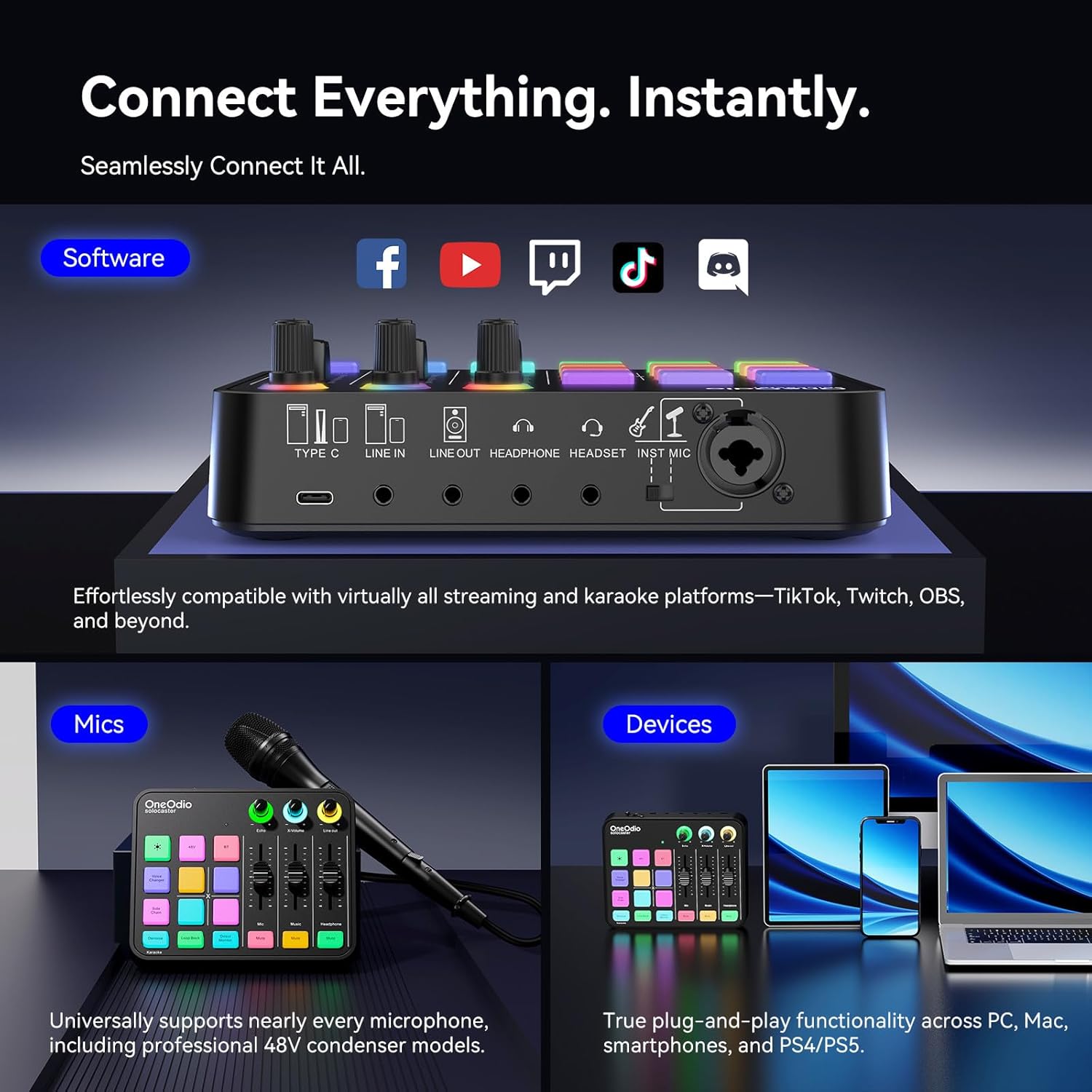
Image: Demonstrates the use of customizable sound effect pads for adding dynamic audio to streams.
3. Noise Reduction and Monitoring
- Denoise: Press the 'Denoise' button to activate one-tap noise reduction, filtering out ambient sounds like fan noise or keyboard clicks.
- Direct Monitor: The 'Direct Monitor' feature allows for zero-latency monitoring of your audio input through headphones, ensuring real-time feedback without delay.
- Auto Ducking: When enabled, this feature automatically lowers background music volume when you speak, ensuring your voice remains clear.

Image: Illustrates the noise reduction and side chain (ducking) features of the Solocaster.

Image: A user demonstrating the zero-latency direct monitoring function for real-time audio control.
4. RGB Lighting
The Solocaster features dynamic RGB lighting. Cycle through 11 lighting modes, including solid colors, smooth gradients, and rainbow cycles, to match your setup's aesthetic. The lighting can be adjusted or turned off as desired.

Image: The Solocaster showcasing its customizable RGB lighting modes.
5. Official Product Overview Video
Video: An official overview of the OneOdio Solocaster Gaming Audio Mixer, demonstrating its features and functionality.
Maintenance
Proper care ensures the longevity and optimal performance of your Solocaster mixer.
- Cleaning: Use a soft, dry cloth to wipe the surface of the mixer. Avoid abrasive cleaners or solvents.
- Dust Protection: Keep the mixer in a clean environment and consider using a dust cover when not in use.
- Storage: Store the device in a cool, dry place away from direct sunlight and extreme temperatures.
- Cable Management: Ensure cables are not kinked or strained to prevent damage to ports and connectors.
Troubleshooting
Refer to this section for solutions to common issues.
| Problem | Possible Cause | Solution |
|---|---|---|
| No power | USB-C cable not connected or faulty; power source issue. | Ensure USB-C cable is securely connected to both the mixer and a working power source. Try a different USB port or power adapter. |
| No microphone sound | Microphone not connected; Mic fader down; Mic mute active; 48V phantom power off (for condenser mics). | Check microphone connection. Raise the Mic fader. Deactivate Mic mute. Press the '48V' button if using a condenser mic. |
| Audio distortion or noise | Input gain too high; ambient noise; faulty cable. | Lower input gain. Activate 'Denoise' feature. Try different cables. Ensure proper grounding. |
| Bluetooth not connecting | Bluetooth not activated on mixer; device not in pairing mode; interference. | Press the 'BT' button on the mixer. Ensure your device's Bluetooth is on and in pairing mode. Move closer to the mixer. |
| No sound from headphones | Headphones not connected; Headphone fader down; Headphone mute active. | Check headphone connection. Raise the Headphone fader. Deactivate Headphone mute. |
| Sound pads not working | Sound pads not programmed or incorrectly programmed. | Refer to the programming instructions for the sound pads. Ensure audio files are correctly loaded. |
Specifications
| Feature | Detail |
|---|---|
| Brand | OneOdio |
| Model Number | solocaster |
| Number of Channels | 5 |
| Connectivity Technology | 3.5mm, Auxiliary, Bluetooth, USB-C, XLR |
| Power Source | Corded Electric (5 volts) |
| Audio Input | XLR, 3.5 mm, AUX, Bluetooth |
| Output Connector Type | 3.5mm, XLR |
| Item Weight | 450 g |
| Noise Level | 0.1 db |
Warranty Information
The OneOdio Solocaster Gaming Audio Mixer comes with a 2-year warranty from the date of purchase. This warranty covers manufacturing defects and ensures the product functions as intended under normal use. Please retain your proof of purchase for warranty claims.
For detailed warranty terms and conditions, please refer to the official OneOdio website or contact customer support.
Support
For further assistance, technical support, or inquiries regarding your OneOdio Solocaster, please visit the official OneOdio website or contact their customer service department. You can often find FAQs, driver downloads, and contact information on the manufacturer's support pages.
Online Resources: OneOdio Official Website