
1. Product Overview
The Celly Trainerbeat2 Smartwatch combines style and functionality, designed to accompany you throughout your day. It accurately monitors physical activity, heart rate, blood oxygen, and sleep quality. With the Trainerbeat2, you can receive notifications, control music, and stay connected with ease. This digital watch is compatible with major smartphones, making it ideal for sports and leisure, blending technology and comfort in a modern, versatile design.
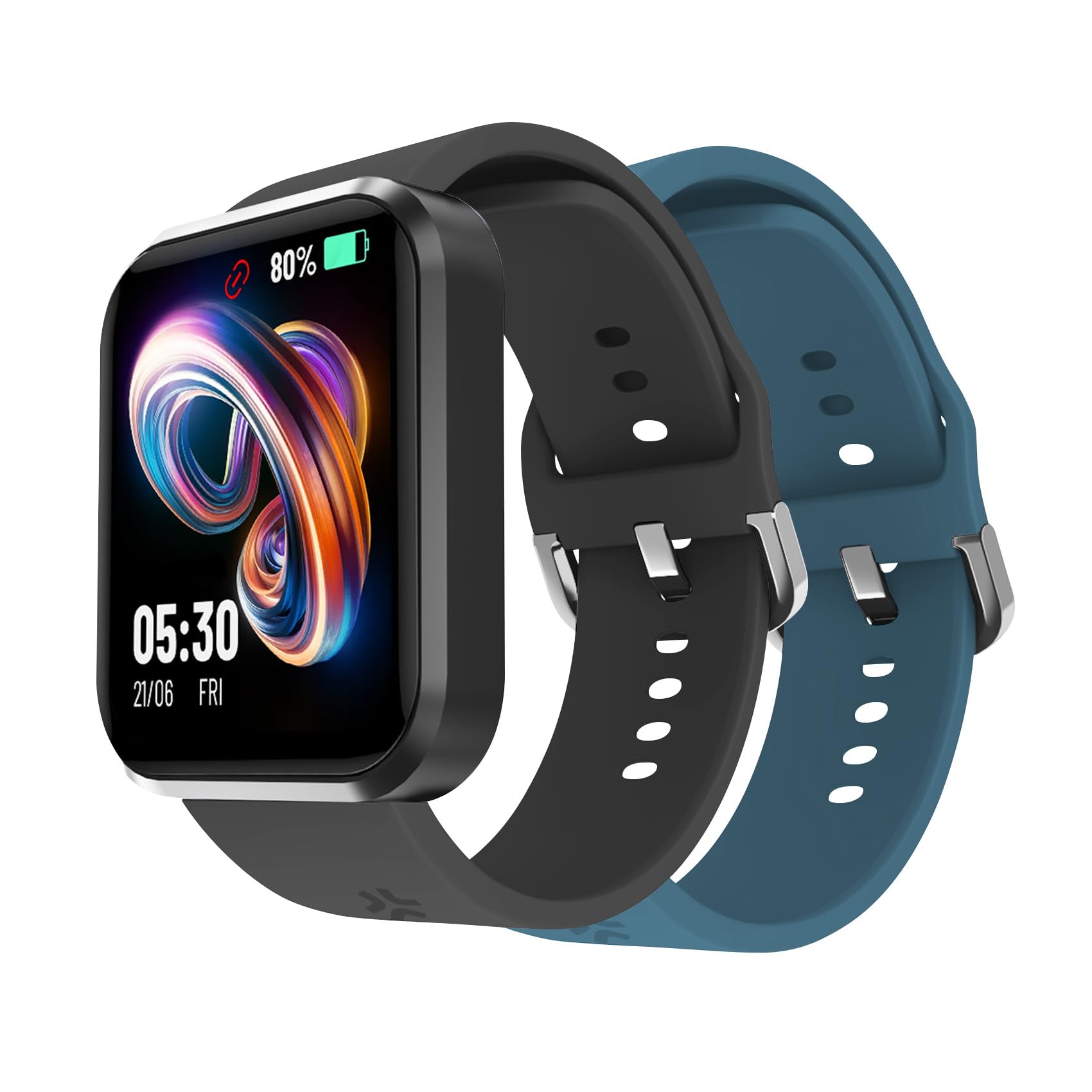
Front view of the Celly Trainerbeat2 Smartwatch packaging, showing the device and key features.
2. Package Contents
Please verify that all items are present and in good condition upon opening the package:
- Celly Trainerbeat2 Smartwatch
- Two (2) Interchangeable Straps (one pre-attached, one additional)
- Charging Cable
- User Manual (this document)

The Celly Trainerbeat2 Smartwatch displayed with two interchangeable straps, one attached and one separate.
3. Setup Guide
3.1 Initial Charging
Before first use, fully charge your Celly Trainerbeat2 Smartwatch. Connect the charging cable to the charging port on the back of the watch and plug the USB end into a compatible power adapter (not included) or a computer's USB port. The watch display will indicate charging status.
3.2 App Installation
To unlock the full features of your smartwatch, download the companion application on your smartphone. Search for the official Celly Trainerbeat2 app in your device's app store (Google Play Store for Android or Apple App Store for iOS).
3.3 Device Pairing
- Ensure your smartphone's Bluetooth is enabled.
- Open the Celly Trainerbeat2 app on your smartphone.
- Follow the on-screen instructions within the app to search for and connect to your smartwatch.
- Confirm the pairing request on both your smartphone and the smartwatch if prompted.
3.4 Attaching/Changing Straps
The Trainerbeat2 comes with interchangeable straps. To attach or change a strap, locate the quick-release pins on the back of the strap. Slide the pin inwards, align the strap with the watch lugs, and release the pin to secure it. Repeat for the other side.

Angled view of the Celly Trainerbeat2 Smartwatch with a strap attached, showing the side profile.
4. Operating Instructions
4.1 Basic Navigation
- Touchscreen: Swipe left, right, up, or down to navigate through menus and features. Tap to select an option.
- Side Button: Press the side button to return to the home screen or wake the display. A long press may access power options or specific functions depending on the context.

Side view of the Celly Trainerbeat2 Smartwatch, highlighting its slim profile and side button.
4.2 Health Monitoring
The Trainerbeat2 Smartwatch offers comprehensive health monitoring features:
- Heart Rate Monitoring: The watch continuously tracks your heart rate. View real-time data on the watch or detailed historical data in the app.
- Blood Oxygen (SpO2) Monitoring: Measure your blood oxygen levels. Ensure the watch is worn snugly on your wrist for accurate readings.
- Sleep Tracking: The watch automatically monitors your sleep patterns, including deep sleep, light sleep, and wake times. Review your sleep quality in the companion app.
- Activity Tracking: Records steps, distance, and calories burned throughout the day.
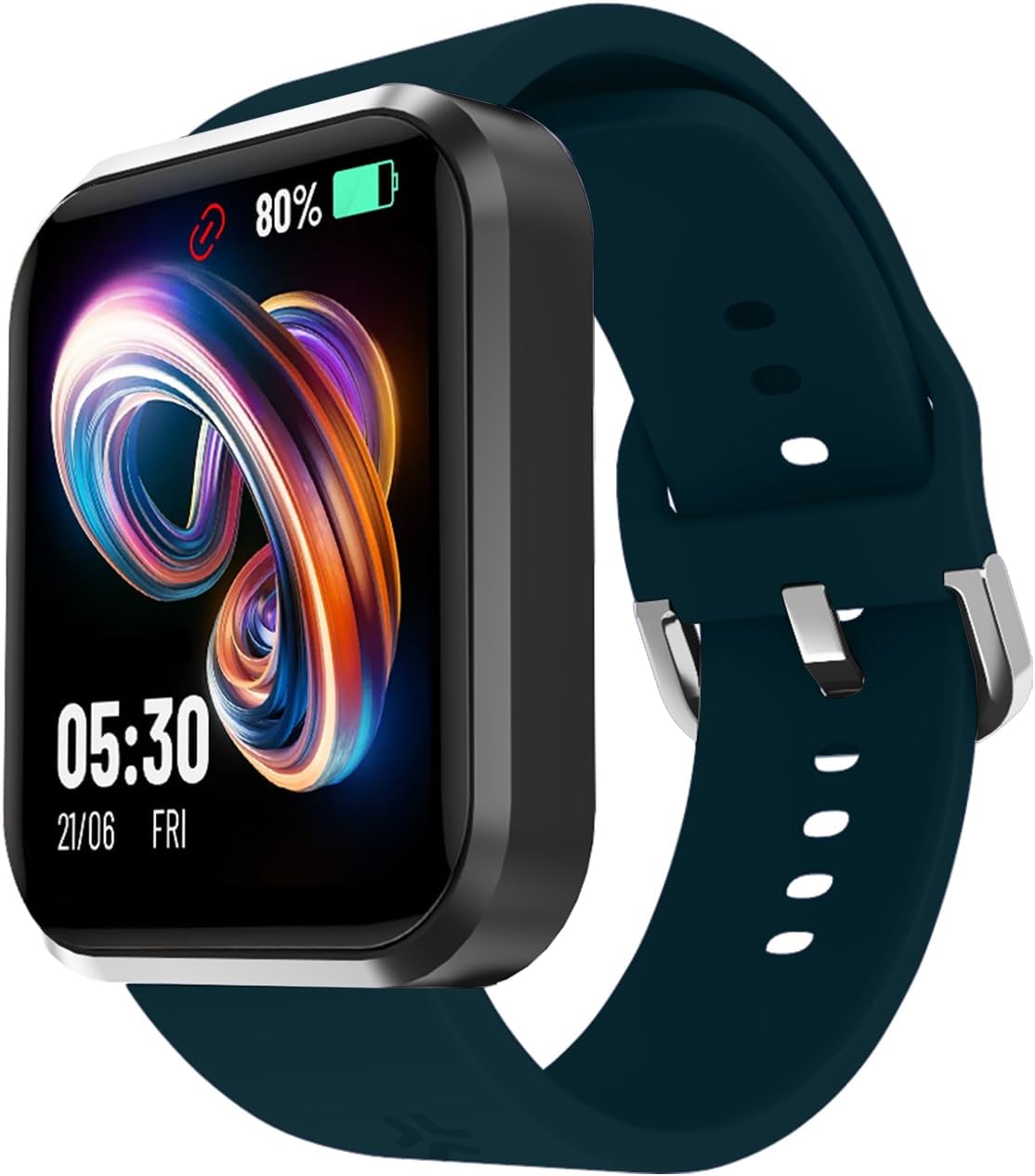
Celly Trainerbeat2 Smartwatch display showing activity data, including battery level and a graphical element.
4.3 Smart Features
- Notifications: Receive call, message, and app notifications directly on your watch when connected to your smartphone.
- Music Control: Control music playback on your smartphone (play, pause, skip tracks) directly from your smartwatch.
- Display Information: The 1.44-inch display shows time, date, battery status, and various health metrics.

Close-up of the Celly Trainerbeat2 Smartwatch display showing the time and date.
5. Maintenance
5.1 Cleaning
Regularly clean your smartwatch and straps. Use a soft, damp cloth to wipe the device. Avoid harsh chemicals or abrasive materials. Ensure the charging contacts are clean and dry.
5.2 Charging
Charge the device using the provided charging cable. Do not use damaged cables or chargers. Avoid exposing the charging port to liquids or debris.
5.3 Water Resistance
Important: The Celly Trainerbeat2 Smartwatch is NOT water resistant. Avoid exposing the device to water, rain, showers, or swimming. Water damage is not covered under warranty.
5.4 Strap Care
The silicone straps can be cleaned with mild soap and water. Ensure they are completely dry before reattaching to the watch. Avoid prolonged exposure to direct sunlight or extreme temperatures to prevent material degradation.
6. Troubleshooting
If you encounter issues with your Celly Trainerbeat2 Smartwatch, refer to the following common solutions:
- Device not turning on: Ensure the watch is fully charged. Connect it to the charger for at least 30 minutes.
- Cannot pair with smartphone:
- Ensure Bluetooth is enabled on your smartphone.
- Make sure the watch is within Bluetooth range (typically 10 meters).
- Restart both your smartphone and the smartwatch.
- Clear the Bluetooth cache on your smartphone (if applicable).
- Inaccurate health readings: Ensure the watch is worn snugly on your wrist, not too tight or too loose. Clean the sensor on the back of the watch.
- Notifications not working:
- Check app permissions on your smartphone to ensure the Celly Trainerbeat2 app has access to notifications.
- Verify that notifications are enabled within the smartwatch app settings.
- Ensure the watch is connected via Bluetooth.
- Screen unresponsive: Try restarting the watch by holding down the side button. If unresponsive, allow the battery to fully drain and then recharge.
7. Specifications
| Feature | Specification |
|---|---|
| Model Name | Trainerbeat2 |
| Display Size | 1.44 inches |
| Display Type | LCD or OLED |
| Resolution | 240 x 280 |
| Connectivity | Bluetooth |
| Battery Type | Lithium-ion |
| Sensors | Heart Rate Monitor, Blood Oxygen Monitor |
| Compatibility | Android, iOS (iPhone, Samsung, Xiaomi, Huawei, OPPO, Motorola, Realme, Honor, etc.) |
| Water Resistance | Not water resistant |
| Strap Material | Silicone |
| User Interface | Buttons, Touchscreen |
| GPS | No GPS |
| Country of Origin | China |
8. Warranty Information
The Celly Trainerbeat2 Smartwatch comes with a 2-year manufacturer's warranty. This warranty covers defects in materials and workmanship under normal use. It does not cover damage caused by misuse, accidents, unauthorized modifications, or failure to follow the instructions in this manual (e.g., water damage due to lack of water resistance). Please retain your proof of purchase for warranty claims.
9. Support
For further assistance, technical support, or warranty inquiries, please refer to the official Celly website or contact their customer service. Detailed contact information can typically be found on the product packaging or the Celly brand website.


