
Introduction
Thank you for choosing the SWZEC Osmo Dashcam Pro. This manual provides detailed instructions for the installation, operation, and maintenance of your dashcam. Please read this manual thoroughly before using the device to ensure proper functionality and safety.
Product Overview
The Osmo Dashcam Pro is a dual-camera system designed to record your journeys in high definition, providing security and evidence in various situations. It features front and rear cameras, integrated WiFi and GPS, and advanced recording capabilities.
Key Features
- Dual 4K Front & 1080P Rear Cameras: Captures clear video evidence from both the front and rear of your vehicle.
- Enhanced Night Vision: Improves visibility and recording quality in low-light conditions.
- 24/7 Loop Recording: Continuously records, overwriting the oldest footage when the memory card is full.
- Built-in WiFi: Allows wireless connection to your smartphone for video management and settings adjustment.
- Integrated GPS: Records location and speed data, providing crucial information for incident analysis.
- Parking Monitor: Protects your vehicle while parked using G-sensor and time-lapse modes (requires hardwire kit, sold separately).
- Wide Angle Lenses: Front camera with 170° field of view, rear camera with 140° field of view.
- 64GB MicroSD Card Included: Provides ample storage for recordings.
What's in the Box
- 1 x SWZEC Osmo Dashcam Pro Main Unit
- 1 x Rear Camera
- 1 x Power Cable (Car Charger)
- 1 x 64GB MicroSD Card
- Mounting Bracket and Adhesive
- User Manual
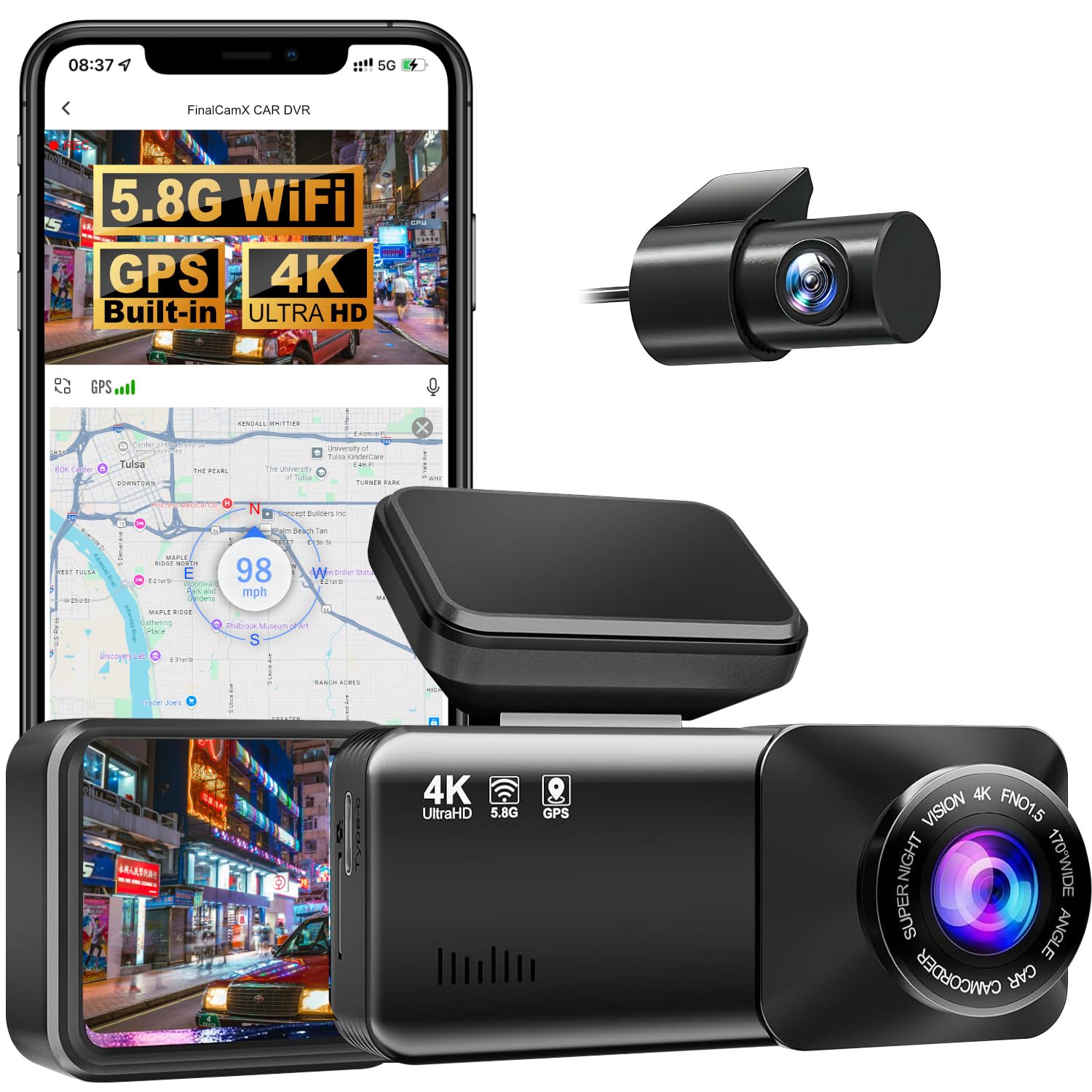
Image: The SWZEC Osmo Dashcam Pro, showcasing its compact design and key features like 4K recording, WiFi, GPS, wide angle, parking monitor, and loop recording.
Setup and Installation
Follow these steps to properly install your Osmo Dashcam Pro in your vehicle.
1. Prepare the MicroSD Card
- Insert the provided 64GB MicroSD card into the dashcam's MicroSD card slot. Ensure the card is inserted correctly.
- It is recommended to format the MicroSD card within the dashcam's settings before first use to ensure compatibility and optimal performance.
2. Install the Front Dashcam
- Choose a suitable location on your windshield, preferably behind the rearview mirror, where the dashcam will not obstruct your view.
- Clean the windshield surface thoroughly before attaching the mounting bracket.
- Attach the mounting bracket to the dashcam, then firmly press the bracket onto the chosen spot on the windshield.
- Adjust the angle of the front camera to ensure it captures the road ahead clearly.
3. Install the Rear Camera
- Mount the rear camera on the rear windshield, ensuring a clear view of the road behind.
- Route the rear camera cable to the front dashcam, connecting it to the AV-IN port. Hide the cable along the vehicle's headliner and pillars for a neat installation.
4. Power Connection
- Connect the car charger to the TYPE-C port on the main dashcam unit.
- Plug the other end of the car charger into your vehicle's cigarette lighter socket.
- The dashcam will automatically power on and begin recording when the vehicle's ignition is turned on.

Image: An illustration demonstrating the installation process for the front and rear dash cameras, including cable routing and power connection points (AV-IN, Type-C, Car Charger).
Operating Instructions
Basic Recording
- Once powered on, the dashcam automatically starts continuous loop recording.
- Video files are saved in segments (e.g., 1, 3, or 5 minutes) on the MicroSD card.
- When the MicroSD card is full, the oldest unlocked files will be overwritten by new recordings.
WiFi and GPS Functionality
The built-in WiFi allows you to connect your smartphone to the dashcam for easy access to recordings and settings. The integrated GPS module records your vehicle's location and speed data.
- Download the dedicated dashcam application from your smartphone's app store.
- Enable WiFi on your dashcam (refer to the dashcam's on-screen menu or user interface).
- Connect your smartphone to the dashcam's WiFi network (SSID and password usually displayed on the dashcam screen).
- Within the app, you can preview live footage, playback recorded videos, download files to your phone, and adjust dashcam settings. GPS data will be embedded in the video files and can be viewed via the app or compatible PC software.

Image: Demonstrates the built-in WiFi and GPS tracking features, showing how to connect phones to preview, playback, share, and download videos, and view GPS data.
Parking Monitor (24H Protection)
To enable 24-hour parking monitoring, a hardwire kit (sold separately) is required to provide continuous power to the dashcam when the vehicle is off. The parking monitor offers two main modes:
- G-sensor Mode: If an impact is detected while parked, the dashcam will automatically record a short, locked video segment.
- Time-lapse Mode: The dashcam records continuously at a low frame rate, compressing hours of footage into minutes, saving storage space while providing full coverage.
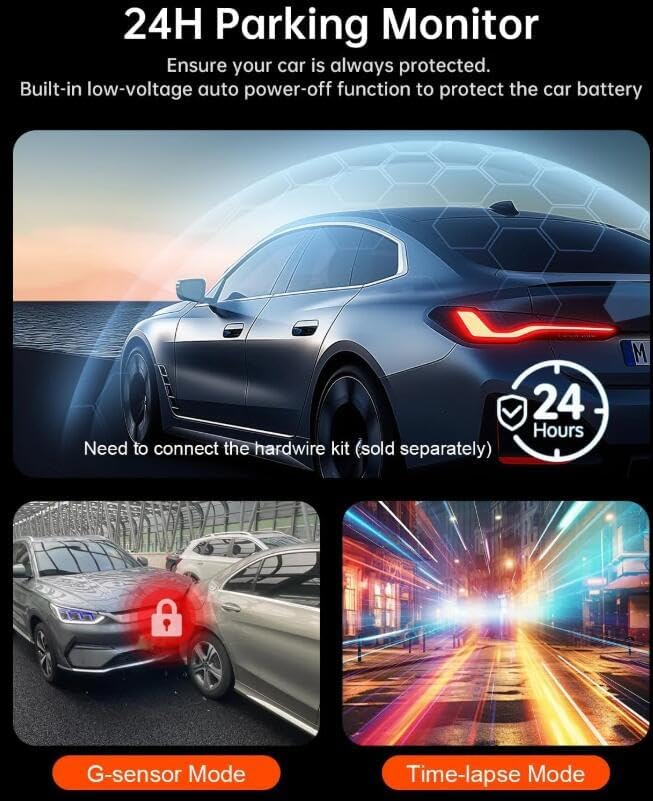
Image: Explains the 24H Parking Monitor feature, highlighting G-sensor mode for impact detection and Time-lapse mode for continuous surveillance, noting the need for a hardwire kit.
Front 4K and Rear 1080P Recording
The dashcam records simultaneously from both front and rear cameras, ensuring comprehensive coverage. The front camera captures footage in 4K UHD, while the rear camera records in 1080P.

Image: Illustrates the dual recording capability with the front camera capturing 4K UHD video and the rear camera capturing 1080P video, along with their respective wide-angle fields of view (170° front, 140° rear).
Enhanced Night Vision and WDR/HDR
The dashcam incorporates advanced technology like Wide Dynamic Range (WDR) or High Dynamic Range (HDR) to improve video clarity in challenging lighting conditions, such as tunnels, bright sunlight, or at night. This ensures details are captured even in areas of extreme light and shadow.

Image: A visual comparison demonstrating the effectiveness of the enhanced night vision system with Advanced HDR, showing significantly clearer and more detailed footage in low-light environments compared to standard recording.
Maintenance
- Clean the Lenses: Regularly clean the front and rear camera lenses with a soft, lint-free cloth to ensure clear recordings.
- MicroSD Card Management:
- Format the MicroSD card periodically (e.g., once a month) to prevent data corruption and maintain optimal recording performance.
- Replace the MicroSD card if you notice any recording errors or performance degradation, as MicroSD cards have a limited lifespan.
- Firmware Updates: Check the manufacturer's website or the companion app for available firmware updates. Keeping your dashcam's firmware updated can improve performance and add new features.
- Operating Temperature: Avoid exposing the dashcam to extreme temperatures for extended periods, as this can affect its lifespan and performance.
Troubleshooting
If you encounter issues with your Osmo Dashcam Pro, refer to the following common problems and solutions:
Dashcam Not Powering On
- Ensure the power cable is securely connected to both the dashcam and the vehicle's power outlet.
- Check the vehicle's cigarette lighter socket for power. Test with another device if possible.
- Verify the vehicle's fuse for the power outlet is not blown.
Recording Errors or Freezing
- Format the MicroSD card within the dashcam's settings.
- Ensure you are using a high-speed (Class 10 or U3) MicroSD card.
- Try a different MicroSD card to rule out card failure.
- Clean the dashcam's lens and ensure it's not overheating.
WiFi Connection Issues
- Make sure WiFi is enabled on the dashcam and your smartphone.
- Ensure your smartphone is within close proximity to the dashcam.
- Restart both the dashcam and your smartphone.
- Verify you have the correct app and are entering the correct WiFi password.
GPS Not Recording Location/Speed
- Ensure the dashcam has a clear view of the sky to receive GPS signals. Avoid mounting it under metallic tints or other obstructions.
- Allow a few minutes for the GPS to acquire a signal after powering on.
- Check dashcam settings to ensure GPS recording is enabled.
Specifications
| Brand | SWZEC |
| Model Name | Osmo Dashcam Pro |
| Connectivity Technology | Wi-Fi |
| Special Feature | Integrated Wi-Fi |
| Video Recording Resolution | 2160p (4K) |
| Field of View | Front: 170 Degrees, Rear: 140 Degrees |
| Product Dimensions (L x W x H) | 10P x 10l x 10H centimeters |
| Compatible Vehicle Type | Car |
| Automotive Part Position | Rear, Front |
| Batteries Included | No |
| Display Type | LED |
| Compatible Devices | Personal Computer, Smartphone, Tablet |
| Frame Rate | 30 FPS |
| Manufacturer | SWZEC |
| Country of Origin | China |
Warranty and Support
Limited Warranty Information
The SWZEC Osmo Dashcam Pro comes with a limited warranty. Please refer to the warranty card included in your product packaging or contact SWZEC customer support for detailed warranty terms and conditions. The warranty period is typically 1 year from the date of purchase, covering manufacturing defects.
Customer Support
For technical assistance, troubleshooting, or any questions regarding your Osmo Dashcam Pro, please contact SWZEC customer support. Contact information can usually be found on the manufacturer's official website or on the product packaging.