
1. Important Safety Information
The Twotrees TTS-10 Pro is a Class 4 laser product. Direct or scattered laser radiation can cause severe eye and skin damage. Always follow these safety guidelines:
- Wear Protective Eyewear: Always wear the provided laser safety goggles when the machine is operating.
- Avoid Direct Exposure: Never look directly into the laser beam or allow it to reflect off shiny surfaces into your eyes or skin.
- Ventilation: Operate the engraver in a well-ventilated area to dissipate smoke and fumes produced during engraving and cutting.
- Fire Safety: Keep a fire extinguisher nearby. Do not leave the machine unattended during operation, especially when cutting flammable materials.
- Material Compatibility: Do not engrave or cut materials that produce toxic fumes or are highly reflective without proper precautions.
- Children and Pets: Keep children and pets away from the operating area.
- Emergency Stop: Familiarize yourself with the emergency stop procedure.

Image 1.1: Laser safety warning signs indicating danger from direct or scattered radiation. Always observe these warnings during operation.
2. Product Overview
The Twotrees TTS-10 Pro is a high-precision laser engraving and cutting machine designed for various DIY and professional applications. It features a powerful 10000mW laser module with advanced compression spot technology, enabling efficient engraving and cutting on a wide range of materials.

Image 2.1: The Twotrees TTS-10 Pro Laser Engraver, showcasing its compact design and working area.
Key Features:
- High Power Laser: 10000mW (10W) output for effective engraving and cutting.
- Precision Spot: 0.069mm laser spot size for fine detail and clean cuts.
- High Speed: Engraving speeds up to 30000mm/min.
- Material Versatility: Capable of working with wood, metal, acrylic, glass, stainless steel, and more.
- Advanced Mainboard: 32-bit dual-core MCU for faster processing and multiple control options (online, offline, mobile app, WEB).
- Air Assist Nozzle: Integrated metal air assist nozzle to improve cutting penetration and efficiency, and reduce smoke.
3. Package Contents
Verify that all components are present in the package:
- Twotrees TTS-10 Pro Laser Engraver Frame
- 10000mW Laser Module
- Control Box
- Power Adapter and Cable
- USB Cable
- Safety Goggles
- Risers (as specified)
- Air Assist Nozzle
- Tool Kit (screws, wrenches, etc.)
- User Manual (this document)
4. Initial Setup
4.1. Assembly
The TTS-10 Pro comes 90% pre-assembled. Follow the included quick-start guide for final assembly steps, which typically involve attaching the gantry to the base frame and connecting the laser module.
4.2. Connecting Power and USB
- Connect the power adapter to the control box and then to a power outlet.
- Connect the USB cable from the control box to your computer for initial setup and software communication.
4.3. Software Installation
The TTS-10 Pro is compatible with several popular laser control software applications:
- LaserGRBL (Windows): Free software for basic engraving tasks. Download from the official LaserGRBL website.
- LightBurn (Windows, Mac): Paid, professional software offering advanced features for both engraving and cutting. A trial version is usually available. Download from the official LightBurn website.
- MKSLaser (Android, iOS): Mobile application for convenient control via smartphone or tablet. Download from your device's app store.
Install your preferred software and ensure your computer or mobile device recognizes the engraver.
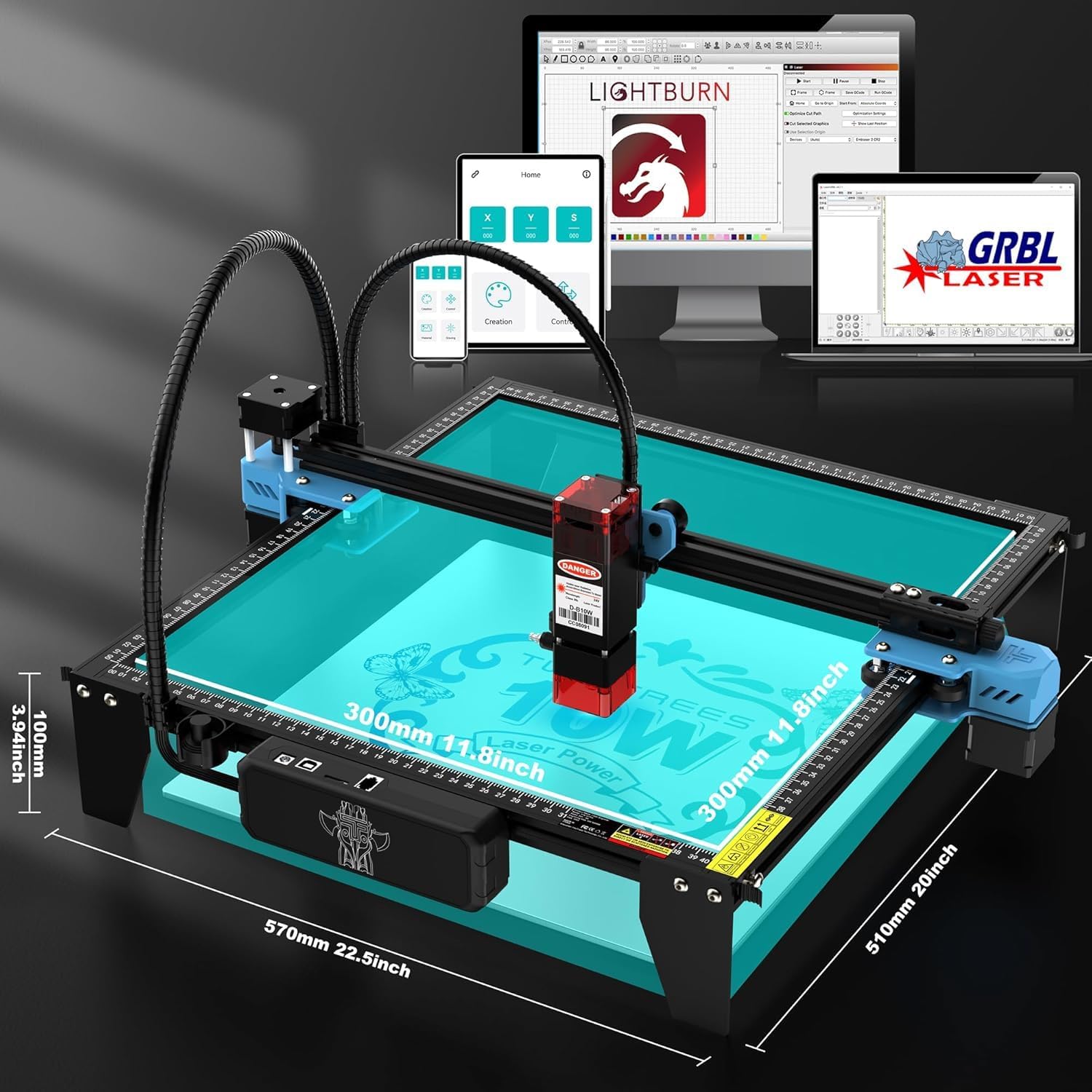
Image 4.1: The TTS-10 Pro connected to various devices, illustrating software compatibility and control options.
5. Operating Instructions
5.1. Preparing Your Material
Place the material to be engraved or cut securely on the working surface. Ensure it is flat and properly aligned within the working area (300x300mm).
5.2. Focusing the Laser
Adjust the laser module's height to achieve the optimal focal point on the material surface. Refer to your software's instructions for specific focusing procedures. Proper focus is critical for achieving precise results.

Image 5.1: Diagram illustrating the LD+FAC+C-Lens compression spot technology, which creates a fine 0.069mm laser spot for high precision.
5.3. Software Operation
- Load Design: Open your chosen software (e.g., LightBurn, LaserGRBL) and load your design file (e.g., SVG, DXF, JPG, PNG).
- Adjust Settings: Configure laser power, speed, and passes according to your material and desired effect. Start with lower power and higher speed for testing.
- Frame Area: Use the software's framing function to preview the laser's path and ensure it fits within your material.
- Start Operation: Initiate the engraving or cutting process. Monitor the machine closely.
5.4. Using the Air Assist Nozzle
The integrated air assist nozzle helps to blow away smoke and debris from the laser's path, improving cutting efficiency and reducing charring. Ensure it is properly connected and functioning for optimal results, especially during cutting operations.

Image 5.2: Illustration of the 10W laser power, demonstrating its capability to cut materials like pine board and acrylic with multiple passes.
6. Maintenance
Regular maintenance ensures the longevity and optimal performance of your TTS-10 Pro laser engraver.
- Clean the Laser Lens: Periodically clean the laser lens with a soft, lint-free cloth and lens cleaning solution to remove dust and debris that can affect laser performance.
- Clean the Working Area: Remove any accumulated dust, debris, or material scraps from the working bed and surrounding areas.
- Check Belts and Rails: Inspect the timing belts for tension and wear. Ensure the guide rails are clean and free of obstructions for smooth movement.
- Firmware Updates: Check the official Twotrees website for any available firmware updates for your machine.
7. Troubleshooting
This section addresses common issues you might encounter with your TTS-10 Pro laser engraver.
| Problem | Possible Cause | Solution |
|---|---|---|
| Laser not firing or weak output | Loose cable, dirty lens, incorrect power setting, laser module failure. | Check all connections. Clean the laser lens. Verify power settings in software. Contact support if module is faulty. |
| Machine not connecting to computer/app | USB cable issue, driver not installed, incorrect COM port, software conflict. | Try a different USB port/cable. Install necessary drivers. Select correct COM port in software. Restart computer/app. |
| Engraving/cutting results are blurry or inaccurate | Improper focus, loose belts, material movement, incorrect speed/power. | Re-focus the laser. Check and tighten belts. Secure material. Adjust speed and power settings. |
| Machine makes grinding noises | Obstruction on rails, loose motor, damaged belt. | Inspect rails for debris. Check motor mounting screws. Examine belts for damage. |
8. Technical Specifications
Detailed specifications for the Twotrees TTS-10 Pro Laser Engraver:
| Feature | Specification |
|---|---|
| Model | TTS-10 Pro |
| Laser Output Power | 10000mW (10W) |
| Laser Class | Class Ⅳ |
| Laser Spot Size | 0.069mm |
| Engraving Speed | Up to 30000mm/min |
| Working Size | 300x300mm (12x12 inches) |
| Product Dimensions | 20.1 x 7 x 7 inches (approx. 510 x 178 x 178 mm) |
| Item Weight | 7.92 pounds (approx. 3.6 kg) |
| Mainboard | 32-bit Dual-core MCU |
| Software Compatibility | LaserGRBL, LightBurn, MKSLaser (mobile app) |
| Input Rating | DC 12V, 4A |
9. Warranty and Support
Twotrees products typically come with a manufacturer's warranty covering defects in materials and workmanship. For specific warranty terms and duration, please refer to the documentation included with your purchase or visit the official Twotrees website.
For technical support, troubleshooting assistance, or spare parts, please contact Twotrees customer service through their official channels. When contacting support, provide your product model (TTS-10 Pro) and a detailed description of the issue.
Online Resources:
- Official Twotrees Website: www.twotrees3d.com (Please verify the exact support URL on your product packaging or official website)
- Software Support: Refer to the documentation or communities for LaserGRBL, LightBurn, and MKSLaser.
