
1. Introduction
This manual provides comprehensive instructions for the installation, operation, and maintenance of your YHV Homekit Smart Lock L600. This advanced keyless entry deadbolt offers multiple access methods, including Apple Home Key, fingerprint recognition, keypad codes, NFC cards, and traditional physical keys. Please read this manual thoroughly before installation and use to ensure proper functionality and safety.
2. Product Overview & Features
The YHV Homekit Smart Lock L600 is designed for enhanced home security and convenience. Key features include:
- Seamless Apple Integration: Works with HomeKit for easy unlocking via iPhone/Apple Watch and HomePod voice control.
- Multiple Access Methods: Unlock instantly via fingerprint (up to 50 fingerprints), Apple Home Key, Siri, keypad, physical keys, or remote app.
- Smart Automation: Includes auto-lock, duress alerts, and anti-peep functionality. All access is logged in real-time for security monitoring.
- 8-Month Battery & Emergency Charging: Operates on AA batteries with low-power alerts. Features a USB-C backup charging port for emergency power.
- Weather-Ready Design: IP54 rating for dust and water resistance, operating in temperatures from -20°C to 60°C.
2.1 Components
The package includes the following components:
- Exterior Keypad Unit
- Interior Lock Unit
- Deadbolt Mechanism
- Mounting Hardware (screws, backplate)
- Physical Keys (2)
- NFC Cards (2)
- User Manual & Installation Template
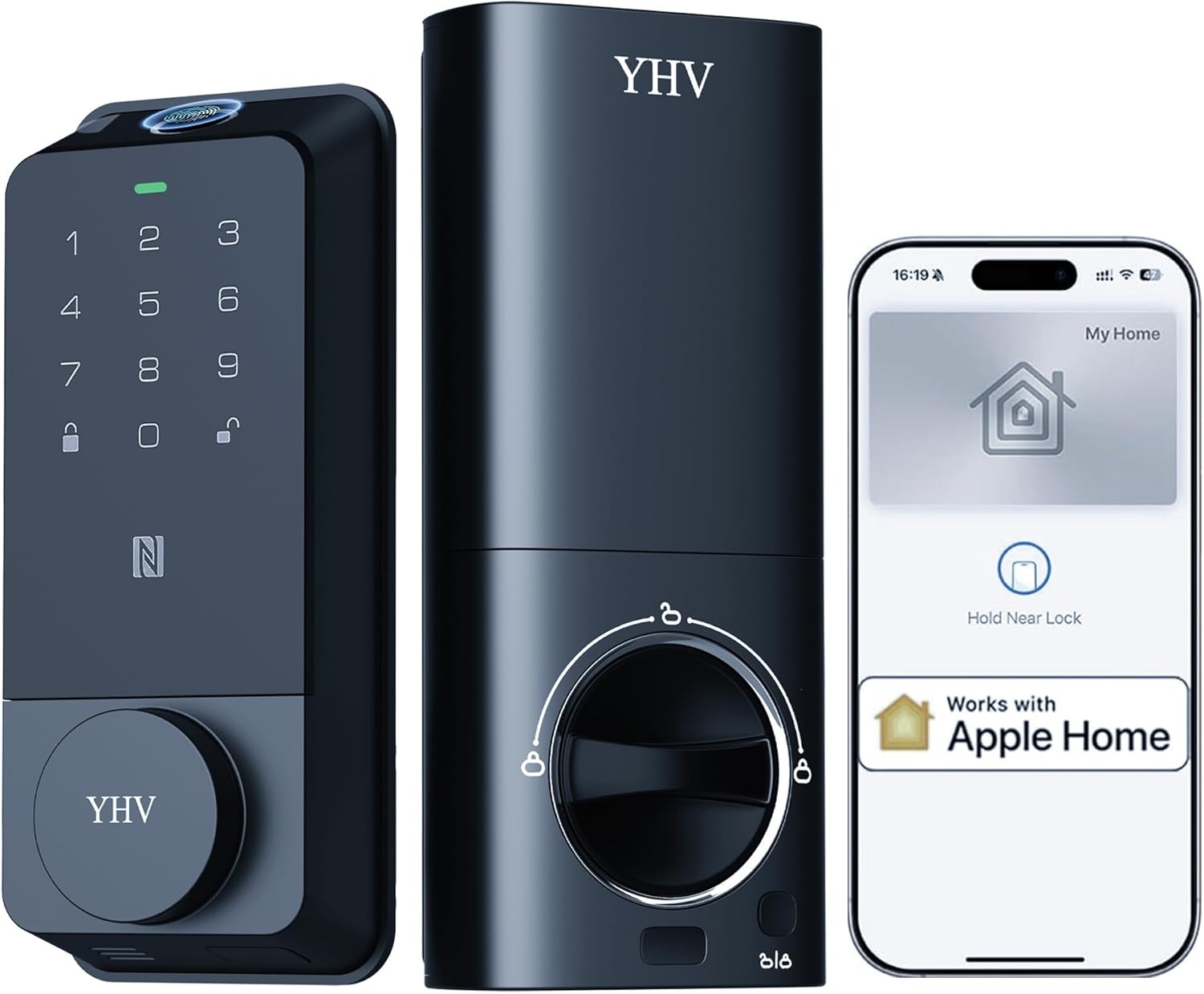
3. Setup & Installation
Installation of the YHV Smart Lock L600 is designed to be straightforward. Follow these steps carefully:
3.1 Unboxing & Component Identification
Upon opening the package, verify all components are present. The exterior unit features a flip-up design covering the keyhole and a fingerprint sensor on top. The interior unit houses the battery compartment and manual lock/unlock mechanism.
3.2 Deadbolt Installation
Begin by installing the deadbolt mechanism into your door. Use the provided template to ensure correct alignment and drilling if necessary. Secure the deadbolt with the appropriate screws based on your door's thickness.
3.3 Exterior and Interior Unit Mounting
Connect the exterior keypad unit to the interior unit through the deadbolt. Ensure the wiring is correctly routed and secured. Use the provided backplate and screws to firmly attach both units to the door. The interior unit's design allows for easy battery access.
3.4 Battery Installation
The lock requires 8 AA batteries (not included). Open the battery compartment on the interior unit and insert the batteries, ensuring correct polarity. Close the compartment securely.
3.5 App Download & Device Pairing
Download the "Cldbus" app from the App Store. Scan the QR code provided in the user manual or search directly. Follow the in-app instructions to register an account and pair your smart lock via Wi-Fi. The app will guide you through connecting the lock to your home network.
3.6 Apple HomeKit Integration
Once paired with the Cldbus app, you can integrate the lock with Apple HomeKit. Open the Apple Home app, add a new accessory, and scan the HomeKit setup code (usually found on the lock or in the manual). Follow the prompts to add the lock to your home and enable Apple Home Key functionality.
4. Operating Instructions
The YHV Smart Lock L600 offers multiple convenient ways to access your home:
4.1 Fingerprint Access
Register your fingerprints through the Cldbus app. Once registered, simply place your finger on the sensor located on the top of the exterior unit to unlock the door. The lock supports up to 50 unique fingerprints.
4.2 Keypad Access
Enter your programmed access code on the illuminated numeric keypad. The keypad is hidden until activated. Press the unlock button after entering the code to gain entry.
4.3 Apple Home Key & Siri
With Apple Home Key enabled, you can unlock your door by holding your iPhone or Apple Watch near the lock. For voice control, use Siri on your Apple devices to lock or unlock the door.
4.4 NFC Card Access
Register the included NFC cards via the Cldbus app. Tap an enrolled NFC card to the designated area on the exterior unit to unlock the door.
4.5 Physical Key Access
In case of battery depletion or electronic malfunction, a traditional physical key can be used. The keyhole is discreetly located under a flip-up cover on the exterior unit.
4.6 Remote App Control
Use the Cldbus app to remotely lock or unlock your door, manage user access, view activity logs, and adjust settings from anywhere with an internet connection.
4.7 Smart Automation Features
- Auto-Lock: Configure the lock to automatically lock after a set period.
- Duress Alerts: Set up alerts for specific situations.
- Anti-Peep: Enter random digits before or after your actual code to prevent others from guessing your entry code.
- Real-time Logs: All access events are recorded and viewable in the app.
5. Maintenance
To ensure optimal performance and longevity of your YHV Smart Lock L600, follow these maintenance guidelines:
- Battery Replacement: The lock uses 8 AA batteries. The app will provide low-power alerts. Replace all batteries simultaneously when prompted to avoid operational issues.
- Emergency Power: In case of complete battery depletion, connect a USB-C power bank to the emergency charging port on the exterior unit to temporarily power the lock and gain entry.
- Cleaning: Wipe the keypad and exterior surfaces with a soft, damp cloth. Avoid abrasive cleaners or solvents that could damage the finish or electronic components.
- Weather Protection: The lock has an IP54 rating, offering protection against dust and water splashes. While designed for outdoor use, avoid direct exposure to heavy rain or prolonged submersion.
6. Troubleshooting
If you encounter issues with your YHV Smart Lock L600, refer to the following common troubleshooting steps:
- Lock Not Responding: Check battery levels. Replace batteries if low. Ensure the lock is properly installed and all connections are secure.
- Fingerprint Not Recognized: Ensure your finger is clean and dry. Re-register your fingerprint if issues persist.
- Keypad Not Lighting Up: This may indicate low battery. Try emergency charging via USB-C.
- App Connectivity Issues: Ensure your Wi-Fi network is stable and the lock is within range. Restart your router and the lock if necessary. Verify the Cldbus app is updated to the latest version.
- Apple Home Key Not Working: Ensure your iPhone/Apple Watch is updated and Home Key is enabled in your Wallet app. Check HomeKit settings in the Apple Home app.
- Lock Mechanism Jammed: Do not force the lock. Check for any obstructions in the door frame or deadbolt.
For persistent issues, consult the detailed troubleshooting section in the full user manual or contact customer support.
7. Specifications
| Attribute | Detail |
|---|---|
| Brand | YHV |
| Model Name | L600 |
| Lock Type | Deadbolt |
| Material | Stainless Steel |
| Color | Dark Black |
| Item Dimensions (L x W x H) | 2 x 1 x 6 inches |
| Item Weight | 2.2 Pounds |
| Controller Type | Apple HomeKit |
| Control Method | App |
| Connectivity Protocol | Wi-Fi |
| Special Features | Passcode Unlock, Fingerprint Unlock, Apple Home Key, NFC Card, Physical Key, Auto-Lock, Duress Alerts, Anti-Peep, Real-time Logs, IP54 Weather Rating, USB-C Emergency Charging |
8. Warranty & Support
For warranty information, please refer to the product packaging or contact YHV customer support directly. If you require technical assistance or have questions regarding your YHV Homekit Smart Lock L600, please visit the official YHV website or contact their customer service team.
Online Support: Visit the YHV Store on Amazon