
Introduction
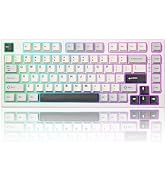
The YUNZII B75 PRO MAX is an advanced 75% layout wireless mechanical keyboard designed for enhanced productivity and gaming. It features a customizable TFT screen, a multi-function knob, and supports QMK/VIA open-source firmware for extensive personalization. This manual provides detailed instructions for setting up, operating, and maintaining your keyboard.
What's in the Box
- YUNZII B75 PRO MAX Keyboard
- USB Cable for Type-C
- Switch and Keycap Puller
- Function Card & Manual
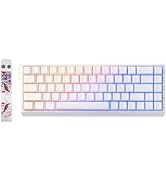
- 2.4G Dongle
- Dust Cover
- Extra Keycaps and Switches

Product Features
- 75% Layout with Screen & Knob: Compact design with a customizable TFT screen displaying battery, time, OS, GIFs, and photos. Features a multi-function rotary knob.
- QMK/VIA Customization: Fully customizable with open-source firmware for key remapping, macro creation, RGB effects, and knob customization.
- Tri-Mode Wireless Connectivity: Supports wired (Type-C), 2.4GHz wireless, and Bluetooth connections. Connects up to 5 devices.
- Hot-Swappable & Pre-Lubed Switches: Compatible with 3-pin and 5-pin switches. Pre-lubed switches ensure smooth keystrokes and consistent tactile response.
- Gasket Mount Structure: Five-layer cushioning system, internal noise-dampening, double-shot PBT keycaps, tuned stabilizers, and pre-lubricated switches for a creamy sound profile.
- NKRO & Ergonomic Design: N-Key Rollover for simultaneous key presses. Ergonomic design with 2-stage adjustable kickstand and Cherry profile keycaps.
- High-Capacity Battery: 8000mAh battery for extended wireless use.
- RGB Backlight: Over 19 vibrant backlight modes with south-facing LEDs.


Setup
Connectivity Modes
The YUNZII B75 PRO MAX supports three connection modes: Wired (USB Type-C), 2.4GHz Wireless, and Bluetooth.
Wired Connection
- Connect the provided USB Type-C cable to the keyboard's port and to your computer.
- The keyboard will automatically switch to wired mode.
2.4GHz Wireless Connection
- Switch the mode button on the keyboard to the 2.4G wireless mode.
- Long press Fn+4 to enter pairing mode. The 2.4G indicator will flash.
- Plug the 2.4G dongle into a USB port on your computer. The connection will be successful when the indicator stops flashing.
Bluetooth Connection
- Switch the mode button on the keyboard to Bluetooth mode.
- Short press Fn+1/2/3 to select a Bluetooth channel.
- Long press Fn+1/2/3 to enter pairing mode. The Bluetooth indicator will flash rapidly.
- On your device, search for "YUNZII B75PROMAX" in Bluetooth settings and connect. The connection will be successful when the indicator stops flashing.
QMK/VIA Customization
The keyboard supports QMK/VIA firmware for advanced customization. You can remap keys, create macros, adjust RGB effects, and customize the rotary knob using the YUNZII web application.
- Access the YUNZII web application for QMK/VIA customization.
- Connect your keyboard in wired mode to ensure full functionality during customization.
- Follow the on-screen instructions in the application to configure key mappings, lighting effects, multiple layers, phrase typing, and macros.

TFT Smart Screen Customization
The integrated TFT smart screen can be customized to display various information, GIFs, or images. This customization is done through the YUNZII web application.
- Connect your keyboard in wired mode.
- Access the YUNZII web application for screen customization.
- Upload pictures or GIFs to personalize the screen.
- The screen can display battery level, date, time, operating system, and custom content.

Video: This video demonstrates how to customize the TFT screen of the YUNZII B75 PRO MAX keyboard using the YUNZII web application, including uploading images and GIFs.
Operating Instructions
Basic Functions
- Multi-function Knob: By default, press the knob to mute/unmute audio. Rotate to adjust volume. This can be customized via QMK/VIA.
- TFT Screen Navigation:
- Fn+8: Home Page (displays battery, connection mode, layout, etc.)
- Fn+9: Picture Page (showcases uploaded pictures)
- Fn+0: GIF Page (customizable via web software)
- Fn+END: Switch between 12H/24H time format.
RGB Backlight Control
- Fn+Backspace: Backlight ON/OFF.
- Fn+\: Change Backlight Effect (19 default lighting effects).
- Fn+Enter: Change Backlight Color.
- Fn+Tab: White Light ON/OFF.
- Fn+Up Arrow: Increase Brightness.
- Fn+Down Arrow: Decrease Brightness.
- Fn+Right Arrow: Increase Blinking Speed.
- Fn+Left Arrow: Decrease Blinking Speed.

System Compatibility and Hotkeys
The keyboard is compatible with Windows, macOS, Linux, and Android. Use the following hotkeys for system-specific functions:
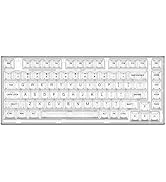
- Fn+A: Switch to Windows mode.
- Fn+S: Switch to macOS mode.
Windows Hotkeys (Fn+A)
- Fn+F1: Screen Brightness ↓
- Fn+F2: Screen Brightness ↑
- Fn+F3: Open Task View (Win+Tab)
- Fn+F4: Calculator
- Fn+F5: Email
- Fn+F6: Browser
- Fn+F7: Previous Track
- Fn+F8: Play/Pause
- Fn+F9: Next Track
- Fn+F10: Mute
- Fn+F11: Volume ↓
- Fn+F12: Volume ↑
macOS Hotkeys (Fn+S)
- Fn+F1: Screen Brightness ↓
- Fn+F2: Screen Brightness ↑
- Fn+F3: Mission Control
- Fn+F4: Launchpad
- Fn+F5: No Function
- Fn+F6: No Function
- Fn+F7: Previous Track
- Fn+F8: Play/Pause
- Fn+F9: Mute
- Fn+F10: Mute
- Fn+F11: Volume ↓
- Fn+F12: Volume ↑
Maintenance
- Cleaning: Use the provided dust cover when not in use. For cleaning, gently wipe the keycaps and keyboard surface with a soft, dry cloth. Avoid using harsh chemicals or abrasive materials.
- Switch Replacement: Use the included switch puller to carefully remove and replace switches. Ensure proper alignment when inserting new switches to avoid bending pins.
- Keycap Replacement: Use the included keycap puller to remove keycaps. Gently pull straight up to avoid damaging the switch stem. Press new keycaps straight down.
- Battery Care: To prolong battery life, avoid fully discharging the keyboard frequently. Charge the keyboard using the provided USB Type-C cable.
Troubleshooting
- Keyboard not responding:
- Ensure the keyboard is charged or connected via USB.
- Check the connection mode switch (wired, 2.4G, BT) is set correctly.
- For wireless modes, ensure the dongle is properly inserted or Bluetooth is paired.
- Try restarting your computer or device.
- Keys not registering or double-typing:
- This might indicate a faulty switch. Use the switch puller to replace the affected switch with an extra one provided.
- Ensure the switch is fully seated in the hot-swap socket.
- RGB backlight not working:
- Press Fn+Backspace to toggle the backlight.
- Adjust brightness using Fn+Up/Down Arrow.
- TFT screen not displaying correctly:
- Ensure the keyboard is connected in wired mode for customization.
- Refer to the YUNZII web application for screen settings and firmware updates.
- Connectivity issues (2.4G/Bluetooth):
- Ensure the keyboard is within range of the receiver/device.
- Avoid interference from other wireless devices.
- Re-pair the keyboard with your device.
Specifications
| Feature | Detail |
|---|---|
| Brand | YUNZII |
| Model Number | B75 PRO MAX |
| Layout | 75% (81 Keys) |
| Connectivity | Bluetooth, 2.4GHz, USB Type-C (Wired) |
| Switches | Hot-Swappable (3-pin & 5-pin), Pre-lubed Linear (Cocoa Cream V2 Switch) |
| Keycaps | Double-shot PBT, Cherry Profile |
| Backlight | RGB (19+ modes), South-facing LEDs |
| Battery Capacity | 8000mAh |
| Special Features | Customizable TFT Screen, Multi-function Knob, QMK/VIA Support, Gasket Mount, NKRO, Ergonomic Design (2-stage adjustable kickstand) |
| Compatible OS | Windows, macOS, Linux, Android |
| Material | Plastic |
| Item Weight | 0.9 Kilograms |
Warranty and Support
The YUNZII B75 PRO MAX keyboard comes with a 1-Year Manufacturer Warranty.
For product support, please contact Yunzii Keyboard directly through Amazon. You can find their seller page or use the "Ask a question" feature on the product listing.
For firmware updates and software, please visit the official YUNZII website.


