
1. Introduction
Thank you for choosing the Dexnor Keyboard Case. This manual provides essential information for setting up, operating, and maintaining your keyboard case to ensure optimal performance and longevity.
What's in the Box
- Slim Folio Magnetic Keyboard Case
- USB Cable
- Quick-start Guide
- User Manual
Compatibility
This keyboard case is designed for the following iPad models:
- iPad Air 11-inch 2025 M3 (Models: A3266/A3267/A3270)
- iPad Air 11-inch 2024 M2 (Models: A2902/A2903/A2904)
- iPad Pro 11-inch 2022 4th Gen (Models: A2435/A2759/A2761/A2762)
- iPad Pro 11-inch 2021 3rd Gen (Models: A2377/A2301/A2459/A2460)
- iPad Pro 11-inch 2020 2nd Gen (Models: A2228/A2068/A2231)
- iPad Pro 11-inch 2018 1st Gen (Models: A1980/A2013/A1934/A1979)
- iPad Air 5th Gen 2022 (Models: A2588/A2589/A2591)
- iPad Air 4th Gen 2020 (Models: A2072/A2316/A2324/A2325)
Please double-check the 'A' code on the back of your device for compatibility. This case is NOT compatible with iPad Pro 11 M4/M5 2024/2025 or iPad (A16) 11th/10th Gen. iPad and Apple Pencil are not included.

Image: Compatibility chart for Dexnor Keyboard Case.
2. Setup
2.1 Attaching Your iPad
- Open the keyboard case.
- Align your compatible iPad with the magnetic back cover of the case. The strong magnets will securely attach the iPad.
- Position the bottom edge of your iPad into the designated slot on the keyboard for a stable viewing angle. The ergonomic 120-degree viewing angle is designed for comfort during study, work, and entertainment.
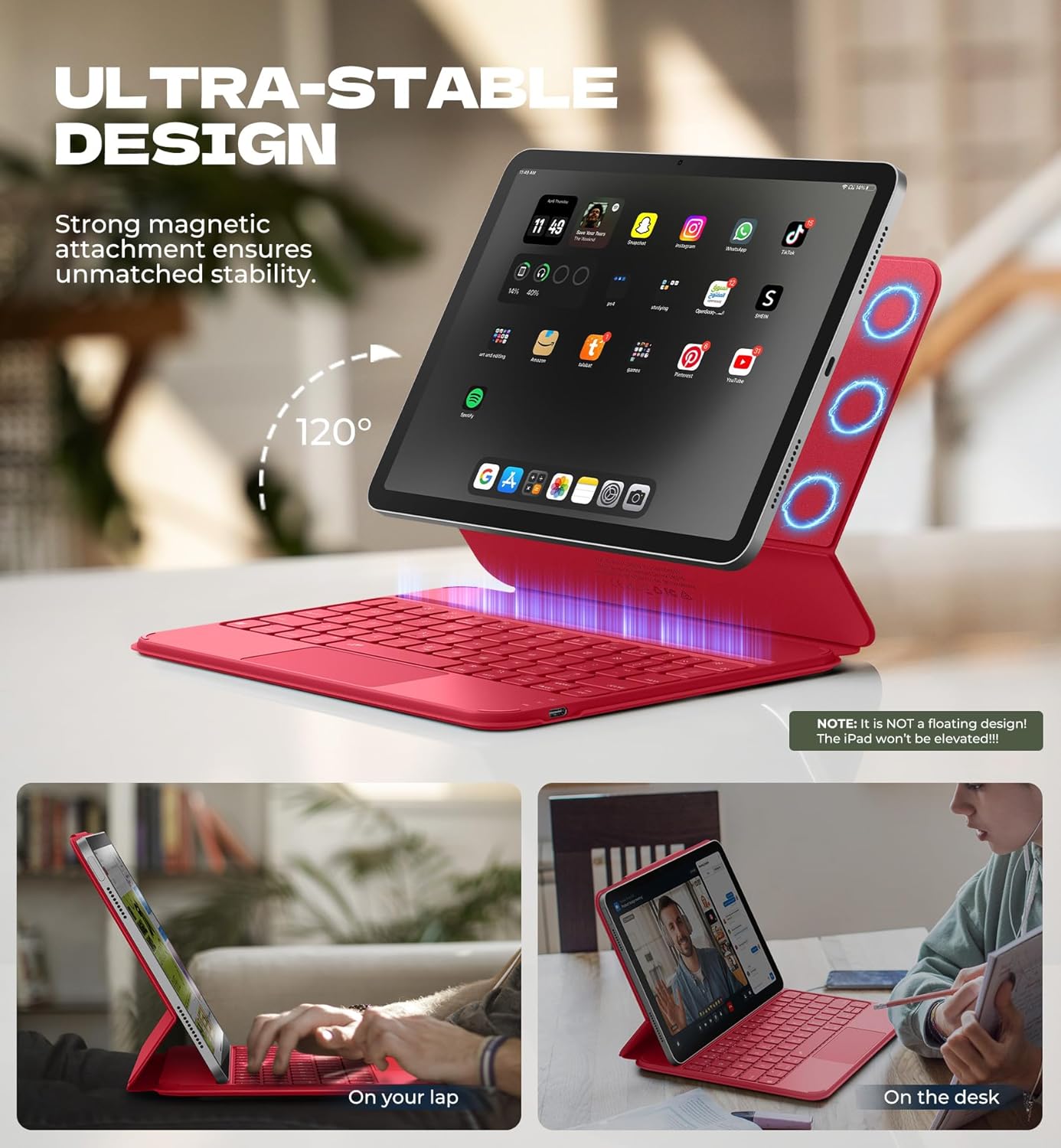
Image: iPad attached to the keyboard case, demonstrating the stable viewing angle.
2.2 Bluetooth Pairing
- Ensure your keyboard case is charged.
- Turn on the keyboard using the side power button.
- On your iPad, go to Settings > Bluetooth and turn Bluetooth ON.
- Press the Fn key and the Pair key (often indicated by a Bluetooth symbol) simultaneously on the keyboard. The Bluetooth indicator light on the keyboard will flash.
- On your iPad, locate "Dexnor Keyboard" in the "Other Devices" list and tap to connect. A pairing request pop-up will appear; tap "Pair".
- Once connected, the Bluetooth indicator light on the keyboard will stop flashing, and your iPad will show "Connected" next to "Dexnor Keyboard".
Video: Demonstrates the setup and magnetic attachment of the Dexnor Ultra-light Folio Keyboard Case with Trackpad.
Video: Shows the connection process for the Dexnor Keyboard Case for iPad Air 11/Pro 11/Air 5th/4th Gen.
3. Operating Instructions
3.1 Keyboard Features
- Backlit Keys: The keyboard features a single-color backlight with 3 adjustable brightness levels for comfortable typing in low-light conditions. Use the dedicated backlight keys (often Fn + light icon) to adjust brightness.
- Function Keys: Utilize the function keys for quick access to iPad features such as media control, volume adjustment, and screen lock.
- Auto-Wake/Sleep: The case supports auto-wake/sleep functionality, preserving battery life by automatically turning your iPad screen on or off when the case is opened or closed.
3.2 Multi-touch Trackpad
The integrated multi-touch trackpad provides precise navigation and supports various gestures for a laptop-like experience on your iPad.
- Zoom In/Out: Use pinch gestures on the trackpad.
- Manage Files: Utilize standard trackpad gestures for file navigation and selection.
- Browse Webpages: Scroll and navigate with ease.
- Switch Apps: Use multi-finger gestures to switch between applications.
- Disable Trackpad: To prevent accidental touches during typing, press Fn + Spacebar to disable or enable the trackpad.

Image: Multi-touch trackpad with gesture illustrations.

Image: Backlit keyboard keys.
4. Maintenance
4.1 Battery Care
The keyboard case is equipped with a 650mAh lithium polymer battery. To maximize battery life:
- Charge the keyboard using the provided USB cable when the battery indicator is low.
- Avoid fully discharging the battery frequently.
- Store the keyboard in a cool, dry place when not in use for extended periods.
Expected battery performance:
- Up to 720 hours of standby time.
- Up to 200 hours of use without backlight.
- Up to 10 hours of continuous use with the brightest backlight setting.
4.2 Cleaning
To clean your keyboard case:
- Wipe the exterior with a soft, damp cloth.
- Avoid using harsh chemicals or abrasive cleaners.
- Ensure no moisture enters the keyboard or charging port.
5. Troubleshooting
Keyboard Not Connecting via Bluetooth
- Check Battery: Ensure the keyboard is sufficiently charged.
- Restart Keyboard: Turn the keyboard off and then on again.
- Re-pair Bluetooth: Go to your iPad's Bluetooth settings, forget the "Dexnor Keyboard" device if it appears, and then repeat the pairing steps in Section 2.2.
- Restart iPad: Sometimes a simple iPad restart can resolve connectivity issues.
Trackpad Not Responding
- Check if Disabled: Ensure the trackpad is not disabled (press Fn + Spacebar to toggle).
- Clean Trackpad: Ensure the trackpad surface is clean and free of debris.
- Restart Keyboard/iPad: Perform a restart of both devices.
Keys Not Responding
- Check Battery: A low battery can cause keys to become unresponsive.
- Re-pair Bluetooth: Follow the steps to re-pair the keyboard.
- Clean Keys: Ensure no debris is lodged under the keys.
6. Specifications
| Feature | Detail |
|---|---|
| Model Number | DK015 |
| Item Weight | 1.06 lbs (482 grams) |
| Package Dimensions | 10.43 x 9.05 x 1.05 inches |
| Manufacturer | Dexnor |
| Connectivity Technology | Bluetooth |
| Keyboard Description | Multi Functional |
| Special Features | Backlit keys, Long-lasting rechargeable battery, Auto-wake/sleep, High precision click-anywhere trackpad, Magnetic detachable, Magnetic clasp, Pencil Holder, Smart Magnetic Keyboard Folio with Rock-solid stability (NOTE: NOT Floating), Ultra-thin slim lightweight portable compact |
| Color | Rose Red (Current Product Variant) |
| Keyboard Backlighting | Single Color |
| Material | Polycarbonate, Polyurethane (PU) |
| Battery | 1 A battery required (included) - 650mAh Lithium Polymer |
7. Warranty and Support
Dexnor is committed to providing high-quality products and customer satisfaction. For any inquiries or support needs, please refer to the following:
- Warranty: This product comes with a 10-year warranty for phone/tablet cases.
- Return Policy: A 60-day return policy is available.
- Customer Support Response: Expect a response within 24 hours on business days and 48 hours on weekends/holidays.
For further assistance, please visit the official Dexnor store or contact customer service through your purchase platform.


