
1. Introduction
This manual provides essential instructions for the installation, operation, and maintenance of your CINMOORE CM-BC22U Wireless Magnetic Home Security Camera. Please read this manual thoroughly before using the product to ensure proper function and safety. Keep this manual for future reference.
2. Safety Information
- Ensure the camera is installed in a stable location to prevent falling.
- Do not expose the camera to extreme temperatures, direct sunlight for prolonged periods, or corrosive environments.
- Use only the specified charging cable and adapter to prevent damage or fire.
- Keep the camera away from children and pets.
- Do not attempt to disassemble or repair the camera yourself. Contact customer support for assistance.
- Ensure your Wi-Fi network is secure to protect your privacy.
3. Package Contents
Verify that all items are present in your package:
- CINMOORE CM-BC22U Wireless Magnetic Home Security Camera
- Magnetic Mounting Base
- Mounting Screws and Wall Anchors
- USB Charging Cable
- User Manual (this document)
4. Product Overview
The CINMOORE CM-BC22U is a 2.5K wireless magnetic home security camera designed for outdoor use, featuring AI person detection, 4MP color night vision, and two-way audio. It is battery-powered and IP66 waterproof.
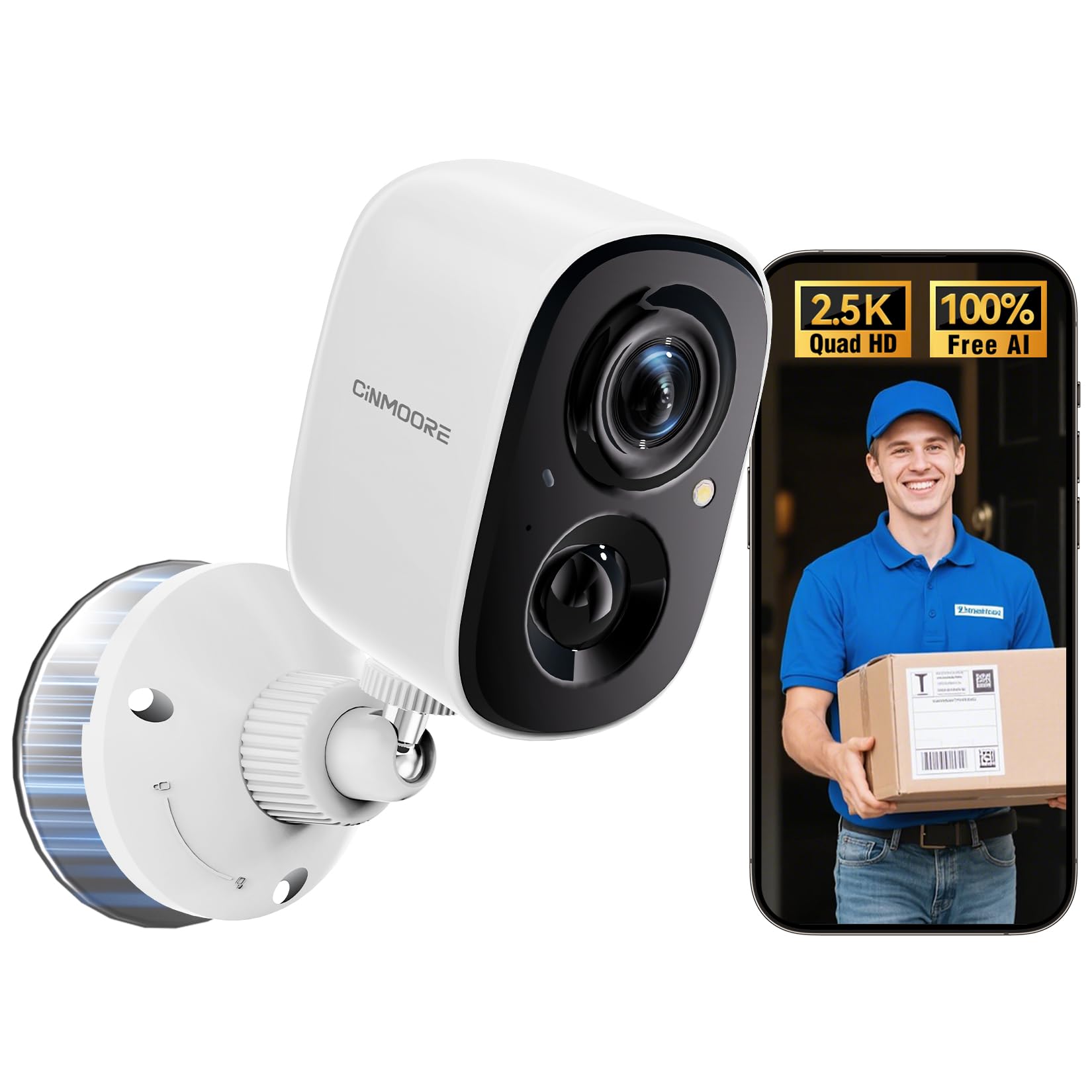
Image: CINMOORE CM-BC22U Wireless Magnetic Home Security Camera. This image shows the front and side view of the white camera unit with its magnetic base.

Image: Key features of CINMOORE CM-BC22U camera. This graphic highlights features such as 2.5K QHD resolution, sound & light siren, color night vision, built-in 5200mAh battery, wire-free installation, free person detection, and full duplex two-way audio.
5. Setup
5.1 Charging the Camera
Before initial use, fully charge the camera using the provided USB cable and a 5V/1A or 5V/2A power adapter. The charging indicator light will show the charging status. A full charge typically takes several hours.
5.2 App Installation
Download the official CINMOORE app from your smartphone's app store (iOS App Store or Google Play Store). Search for "CINMOORE" and install the application.
5.3 Camera Pairing
- Open the CINMOORE app and create an account or log in.
- Tap the "+" icon to add a new device.
- Follow the on-screen instructions to select your camera model.
- Power on the camera. The camera will enter pairing mode, indicated by a flashing LED light.
- Connect your smartphone to a 2.4GHz Wi-Fi network. The camera does not support 5GHz Wi-Fi.
- Scan the QR code displayed on your phone screen with the camera lens. Hold the phone approximately 15-20 cm (6-8 inches) from the camera.
- Once connected, the camera will confirm with an audible prompt, and the LED light will turn solid.
5.4 Mounting the Camera
The camera offers flexible installation options due to its magnetic base and wire-free design.
- Magnetic Mounting: Attach the camera directly to any metallic surface using its strong magnetic base. Ensure the surface is clean and provides a secure hold.
- Screw Mounting: For non-metallic surfaces or enhanced security, use the provided mounting screws and wall anchors.
- Choose a suitable location for optimal viewing angle and Wi-Fi signal strength.
- Mark the positions for drilling holes using the mounting base as a template.
- Drill holes and insert wall anchors if mounting on drywall or masonry.
- Secure the magnetic mounting base to the wall with screws.
- Attach the camera to the magnetic base and adjust the angle as needed.

Image: Magnetic mounting of CINMOORE camera. This image illustrates how the camera attaches to its magnetic base, which is then secured to a wall.
6. Operating the Camera
6.1 Live View
Open the CINMOORE app and select your camera from the device list to access the live video feed. You can view real-time footage from anywhere with an internet connection.
6.2 Two-Way Audio
While in live view, tap the microphone icon in the app to speak through the camera's built-in speaker. Tap the speaker icon to listen to audio from the camera's microphone. This feature allows for real-time communication.
6.3 Motion Detection & Alerts
The camera features free AI person detection to reduce false alarms. Configure detection settings in the app:
- Sensitivity: Adjust the motion detection sensitivity to suit your environment.
- Detection Zones: Set specific areas within the camera's view for motion detection.
- Alerts: Enable push notifications to receive instant alerts on your smartphone when motion or a person is detected. The camera can also activate a built-in siren and spotlight upon detection.

Image: AI Person Detection feature. This image shows a person walking towards a door, with the camera detecting them and sending a notification to a smartphone, highlighting the AI person detection capability with spotlight, notification, and siren options.

Image: Smart AI Person Detection. This image shows a person walking a dog in front of a house, with a blue box highlighting the detected 'Person' by the camera, emphasizing the smart AI detection feature.
6.4 Recording & Playback
The camera supports both local storage via a microSD card (up to 256GB, not included) and optional cloud storage. Recorded events can be accessed and played back through the CINMOORE app.

Image: Secure Video Storage Options. This graphic illustrates the camera's support for both SD local storage (expandable up to 256GB) and AWS cloud storage (with a 30-day free trial), emphasizing encrypted storage.

Image: Secure Local & Cloud Storage. This image displays various scenarios captured by the camera, such as a car, packages, a person with a dog, and a person attempting to break in, all protected by a shield icon representing secure local and cloud storage.
6.5 Night Vision
The camera provides 4MP full-color night vision, ensuring clear and detailed footage even in low-light conditions. It automatically switches between day and night modes.

Image: Full-Color Night Vision. This split image compares normal night vision (monochrome) with full-color night vision, demonstrating the camera's ability to capture clear, colored images in darkness.

Image: IR Night Vision vs Color Night Vision. This split image compares traditional IR night vision (black and white) with the camera's color night vision, showing a car in a driveway with much greater detail and color in the latter.

Image: 2.5K QHD Resolution Comparison. This split image compares 2.5K QHD resolution with 2K FHD, showing a car in a driveway with significantly sharper detail in the 2.5K QHD view.

Image: 2K HD vs 2.5K QHD Image Quality. This split image compares the visual clarity between 2K HD and 2.5K QHD, showing a dog running on grass with noticeably finer detail and sharpness in the 2.5K QHD image.
7. Maintenance
7.1 Battery Management
- Recharge the camera when the battery level is low, as indicated by the app.
- Battery life varies based on usage frequency, recording duration, and environmental conditions.
- Avoid completely draining the battery regularly to prolong its lifespan.
7.2 Cleaning
Wipe the camera lens and body with a soft, dry cloth. Do not use harsh chemicals or abrasive cleaners, as they may damage the camera's finish or lens coating.
7.3 Firmware Updates
Periodically check the CINMOORE app for available firmware updates. Keeping your camera's firmware updated ensures optimal performance, security, and access to new features. Follow the in-app instructions for updating.
8. Troubleshooting
| Issue | Possible Cause | Solution |
|---|---|---|
| Camera frequently goes offline | Weak Wi-Fi signal; Router issues; Battery low | Ensure camera is within Wi-Fi range. Restart your router. Fully charge the camera. If issues persist, consider a Wi-Fi extender. |
| Difficulty connecting to 2.4GHz Wi-Fi | Incorrect Wi-Fi password; Connecting to 5GHz network; Router settings | Verify Wi-Fi password. Ensure your phone is connected to a 2.4GHz network during setup. Check router settings to ensure 2.4GHz band is enabled. |
| Unreliable motion detection or image capturing | Incorrect sensitivity settings; Obstructions in view; Camera placement | Adjust motion detection sensitivity in the app. Ensure the camera's view is clear. Reposition the camera for optimal coverage of the desired area. |
| SD card not recording or recognized | SD card not inserted correctly; Corrupted SD card; SD card full | Ensure the SD card is inserted correctly. Format the SD card via the app. Replace the SD card if corrupted. Ensure the SD card is not removed while the camera is operating. |
| Two-way audio not working | Microphone/speaker muted in app; Low volume on phone; Network issues | Check app settings to ensure microphone and speaker are enabled. Adjust volume on your smartphone. Ensure a stable internet connection. |
9. Specifications
| Feature | Detail |
|---|---|
| Model Name | CM-BC22U |
| Video Capture Resolution | 2.5K (1440P) Quad HD |
| Connectivity Technology | Wireless (2.4GHz Wi-Fi) |
| Power Source | Battery Powered (5200mAh rechargeable battery) |
| Night Vision | Full-Color Night Vision |
| Special Features | 2-Way Audio, Built-In Light, HD Resolution, Motion Sensor, AI Person Detection |
| Indoor/Outdoor Usage | Outdoor (IP66 Waterproof) |
| Storage Options | MicroSD Card (up to 256GB, not included), Cloud Storage (optional) |
| Compatible Devices | Smartphone (Android, iOS) |
| Mount Type | Magnetic, Ceiling Mount, Tabletop Mount, Wall Mount |
| Item Dimensions | 7.6 x 5.1 x 5.1 Centimetres |
10. Warranty Information
The CINMOORE CM-BC22U Wireless Magnetic Home Security Camera comes with a 2-year manufacturer's warranty from the date of purchase. This warranty covers defects in materials and workmanship under normal use. It does not cover damage caused by misuse, accidents, unauthorized modifications, or natural disasters. Please retain your proof of purchase for warranty claims.
11. Support
For technical assistance, troubleshooting, or warranty inquiries, please contact CINMOORE customer support:
- Email: Refer to your product packaging or the CINMOORE official website for the most current contact email.
- Hotline: A free hotline is available on weekdays for product issues. Refer to your product packaging or the CINMOORE official website for the hotline number.
- Online Resources: Visit the CINMOORE official website for FAQs, updated manuals, and support articles.
