1. Introduction
This manual provides detailed instructions for the setup, operation, and maintenance of your Tenveo 4K PTZ Camera and Controller Bundle. This bundle includes the Tenveo VL20U4KN 4K NDI PTZ Camera and the Tenveo KB300PRO 7-Inch LCD Quad-Screen 4D Joystick NDI PTZ Controller. Please read this manual thoroughly before using the equipment to ensure proper functionality and to prevent damage.
2. Product Overview
2.1 Tenveo VL20U4KN 4K NDI PTZ Camera
The VL20U4KN is a high-performance 4K PTZ camera designed for professional live streaming, video conferencing, and broadcast applications. It features 20X optical zoom, AI-powered human body and face auto-tracking, and multiple output interfaces including HDMI, USB 3.0, and RJ45 (with PoE support).

Image: Key features of the Tenveo 4K AI 2.0 PTZ Camera, highlighting 4K UHD, AI Humanoid & Face Auto-Tracking, 20X Optical Zoom, 8X Digital Zoom, 1/2.8" CMOS Sensor, Multi-interface (USB3.0/HDMI/RJ45/PoE), Wide View Angle, and Autoframing.

Image: Diagram illustrating the camera's wide field of view and its ability to rotate 350 degrees horizontally, suitable for rooms up to 30m².
2.2 Tenveo KB300PRO NDI PTZ Controller
The KB300PRO is a professional NDI PTZ camera controller featuring an intuitive 4D joystick and a 7-inch LCD quad-screen for real-time preview. It supports multi-camera control and offers precise adjustments for pan, tilt, zoom, focus, iris, and other camera settings.

Image: Overview of the Tenveo KB300PRO controller, highlighting its 7-inch LCD real-time screen, variable speed 4D joystick, multi-camera precision control, 7 shortcut control buttons, PoE power, and professional interfaces.
3. Package Contents
Verify that all items are present in your package:
- Tenveo VL20U4KN 4K NDI PTZ Camera (3 units)
- Tenveo KB300PRO NDI PTZ Controller (1 unit)
- Power Adapters for Camera and Controller
- IR Remote Control for Camera
- Wall Mount Brackets and Screws for Camera
- USB 3.0 Cable
- HDMI Cable
- Ethernet Cable
- User Manual (this document)
4. Setup
4.1 Camera Installation and Connections
The VL20U4KN camera supports desktop, monitor, wall, or ceiling mounting. Wall mount brackets and screws are included. Ensure the camera is securely mounted before connecting cables.
Connect the camera using one of the following methods:
- USB PTZ Camera: Connect the camera to a PC via USB 3.0 for direct video output.
- Ethernet (PoE) PTZ Camera: Connect the camera to a network switch with PoE support via an RJ45 Ethernet cable. This provides both power and data.
- HDMI PTZ Camera: Connect the camera to a display or video switcher (e.g., Blackmagic ATEM HDMI) via an HDMI cable.
- NDI PTZ Camera: Connect the camera to a network switch via an RJ45 Ethernet cable for NDI streaming.

Image: Diagram illustrating four common connection methods for the Tenveo PTZ camera: USB to PC, Ethernet (PoE) to network switch, HDMI to Blackmagic ATEM, and NDI to network switch, all leading to live streaming platforms.
4.2 Controller Connections
The KB300PRO controller offers various interfaces for connecting to cameras and networks.

Image: Rear panel of the Tenveo KB300PRO controller, showing ports for RS-232, RS485/RS422, Ethernet (LAN/PoE), DC12V power, and the power button. Labels indicate support for VISCA/PELCO-D/PELCO-P protocols.
- Power: Connect the DC12V power adapter to the controller. Alternatively, if using a PoE-enabled network switch, connect an Ethernet cable to the RJ45 port for Power over Ethernet.
- RS232/RS485/RS422: Use these serial ports for analog control of PTZ cameras supporting VISCA, PELCO-D, or PELCO-P protocols.
- Ethernet/RJ45 (PoE): Connect to your network for IP control of NDI cameras and for PoE power if available.
4.3 System Integration
The bundle is designed for seamless integration into various live production environments.
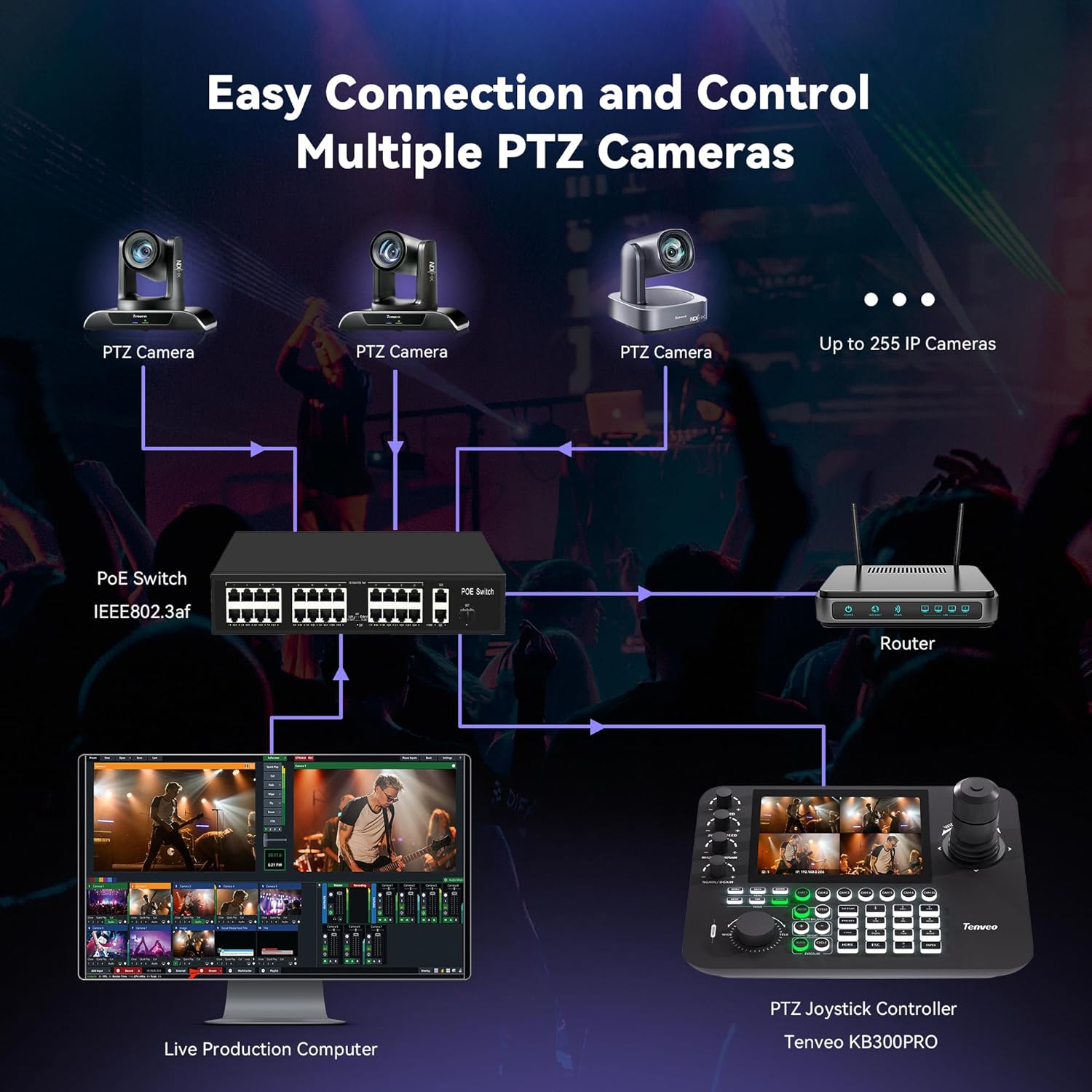
Image: Connection diagram showing multiple PTZ cameras connected to a PoE switch, which then connects to a router. The PTZ Joystick Controller (KB300PRO) and a live production computer are also connected to the network, enabling control and streaming.
For IP-based control, ensure your cameras and controller are on the same network. The controller supports auto-searching for IP cameras or manual addition via its web interface.

Image: Screenshots of the controller's interface for automatic search and manual addition of IP cameras, showing options for device list, search, protocol, IP address, and port settings.
5. Operating Instructions
5.1 Camera Control (VL20U4KN)
The camera can be controlled via the included IR remote, the KB300PRO controller, or a web UI.
- Pan/Tilt: Use the joystick on the KB300PRO or directional buttons on the IR remote to move the camera horizontally (350°) and vertically (180°).
- Zoom: Adjust the optical (20X) and digital (8X) zoom using the joystick's rotation or dedicated buttons.
- Focus: The camera supports auto-focus. Manual focus adjustment is also available.
- Presets: Store up to 255 preset positions (10 quick presets via IR remote) for instant recall of camera angles.
AI Tracking Features
The VL20U4KN camera features advanced AI for human body and face auto-tracking and autoframing.

Image: Illustration of the AI auto-tracking feature, demonstrating precise humanoid and face recognition for single-target scenarios.

Image: Comparison of dynamic autoframing (single speaker) and multi-target scenarios, showing how the camera adjusts to frame individuals or groups.

Image: Instructions for enabling/disabling autoframing and AI tracking using the camera's remote control, including selecting targets in multi-person environments.
5.2 Controller Operation (KB300PRO)
The KB300PRO controller provides comprehensive control over your PTZ cameras.

Image: Detailed layout of the KB300PRO controller, labeling the 7-inch LCD screen, 4D joystick, camera quick access controls, menu button, focus and zoom adjust, multi-function digital panel, and preset position settings.
- 4D Joystick: Use the joystick for precise, variable-speed control of pan, tilt, and zoom. Rotate the joystick for zoom adjustments.
- 7-Inch LCD Quad-Screen: Provides real-time preview of up to four camera feeds, allowing for monitoring and selection.
- Shortcut Control Buttons: Quickly select cameras (CAM 1-7) and access common functions.
- Focus/Zoom/Iris: Dedicated knobs and buttons allow for fine-tuning of camera optics.
- Presets: Store and recall camera presets directly from the controller.
5.3 Web UI Control
Both the camera and controller can be managed and configured via a web-based user interface, accessible through a web browser on a connected computer. This allows for advanced settings, firmware updates, and remote control.

Image: Screenshot of the camera's web UI, showing controls for tracking, mode selection (Presenter), PTZ adjustments, and auto-framing settings.
5.4 Software Compatibility
The Tenveo 4K PTZ Camera and Controller Bundle is compatible with a wide range of live streaming and video conferencing software and platforms.
- Blackmagic Design ATEM
- Skype, Zoom, Microsoft Teams, Google Meet, BlueJeans, Webex
- vMix, OBS Studio
- YouTube, Facebook Live
6. Maintenance
To ensure the longevity and optimal performance of your Tenveo equipment, follow these maintenance guidelines:
- Cleaning: Use a soft, dry cloth to clean the camera lens and body. For stubborn marks, a slightly damp cloth with mild cleaning solution can be used, ensuring no liquid enters the device. Do not use abrasive cleaners.
- Firmware Updates: Regularly check the Tenveo official website for firmware updates. Firmware updates can improve performance, add new features, and fix bugs. Follow the instructions provided with the firmware update carefully.
- Storage: When not in use for extended periods, store the camera and controller in a dry, dust-free environment.
7. Troubleshooting
If you encounter issues with your Tenveo 4K PTZ Camera and Controller Bundle, refer to the following common problems and solutions:
| Problem | Possible Cause | Solution |
|---|---|---|
| No video output from camera | Incorrect cable connection, power issue, incorrect input selection on display/software. | Check all cable connections (USB, HDMI, Ethernet). Ensure camera is powered on. Verify correct input source is selected on your display or software. |
| Camera not responding to controller | Incorrect protocol settings, network issue (for IP control), IR interference, camera ID mismatch. | Ensure controller and camera are using the same communication protocol (e.g., NDI, VISCA). Check network connectivity for IP control. Verify camera ID settings on the controller match the camera. Reduce IR interference if using IR remote. |
| AI tracking not working | AI tracking disabled, poor lighting conditions, subject too far/close, rapid movement. | Ensure AI tracking is enabled via remote or web UI. Optimize lighting. Ensure subject is within optimal range for tracking. Avoid excessively rapid or erratic movements. |
| Controller LCD screen is blank | Power issue, display settings. | Check power connection to the controller. Ensure the controller is powered on. Adjust display brightness settings if available. |
| Network connection issues | Incorrect IP settings, faulty Ethernet cable, network switch issue. | Verify IP addresses and subnet masks for camera and controller. Ensure DHCP is configured correctly or static IPs are set properly. Test Ethernet cables. Check network switch functionality. |
For further assistance, please refer to the support section.
8. Specifications
8.1 Tenveo VL20U4KN 4K NDI PTZ Camera
| Feature | Detail |
|---|---|
| Resolution | 4K UHD (Max 4K@30FPS) |
| Sensor | 1/2.8" CMOS, 8.29 Megapixel |
| Zoom | 20X Optical Zoom, 8X Digital Zoom |
| Pan/Tilt Range | Pan: 350° (±175°), Tilt: 180° (±90°) |
| AI Features | Human body and face auto-tracking, Autoframing |
| Video Outputs | HDMI, USB 3.0, RJ45 (LAN/PoE) |
| Protocols | NDI|HX, IP Streaming |
| Presets | Up to 255 (10 via IR remote) |
8.2 Tenveo KB300PRO NDI PTZ Controller
| Feature | Detail |
|---|---|
| Display | 7-Inch LCD Quad-Screen |
| Control Interface | 4D Joystick |
| Control Functions | Pan, Tilt, Zoom, Focus, Iris, Backlight, Presets, PTZ Speed, Camera Select |
| Connectivity | RS232, RS485/RS422, Ethernet/RJ45 (PoE) |
| Supported Protocols | VISCA, PELCO-D, PELCO-P, VISCA Over IP, NDI, Onvif |
| Power | DC12V, PoE |
9. Warranty and Support
Tenveo offers excellent after-sales service and lifetime technical support, including firmware upgrade services. If you have any questions or require assistance, please contact Tenveo customer support. We are committed to providing a satisfactory solution within 24 hours.
For the most up-to-date contact information and support resources, please visit the official Tenveo website.


