
1. Setup
1.1 Unboxing Your Device
Carefully remove all items from the packaging. Ensure all components are present before proceeding.

Image: The contents of the box, including the Galaxy A17 5G phone, a USB Type-C to Type-C cable, and a SIM tray ejector tool.
The box typically contains the Galaxy A17 5G phone, a USB Type-C to Type-C cable, a SIM tray ejector tool, and a Quick Start Guide. A wall charger is sold separately.
1.2 Inserting the SIM Card
- Locate the SIM tray on the side of your device.
- Insert the SIM ejector tool into the small hole next to the tray and press gently until the tray pops out.
- Place your Nano-SIM card(s) into the tray with the gold contacts facing down. The Galaxy A17 5G supports Dual SIM functionality.
- Carefully reinsert the tray into the phone.
1.3 Initial Power On and Data Transfer
Press and hold the power button until the Samsung logo appears. Follow the on-screen instructions to complete the initial setup. If transferring data from an old device, use Samsung's Smart Switch application for a seamless transition.
Video: An unboxing of the Samsung Galaxy A17 5G, showing the phone and included accessories.
For transferring content and apps from a previous phone, the Smart Switch feature is recommended. Wired transfers require the sending device to have Android™ 4.3 or later. For wireless connections, the sending device must have Android™ 4.0 or later. iOS transfers require iOS 5 or later. Download the Smart Switch app from the Galaxy Store or App Store.
1.4 Charging the Device
Connect the provided USB Type-C cable to your phone and a compatible 25W Super Fast Charger (sold separately). Super Fast Charging speed depends on battery level and other factors. Use only Samsung-approved chargers and cables to prevent damage.
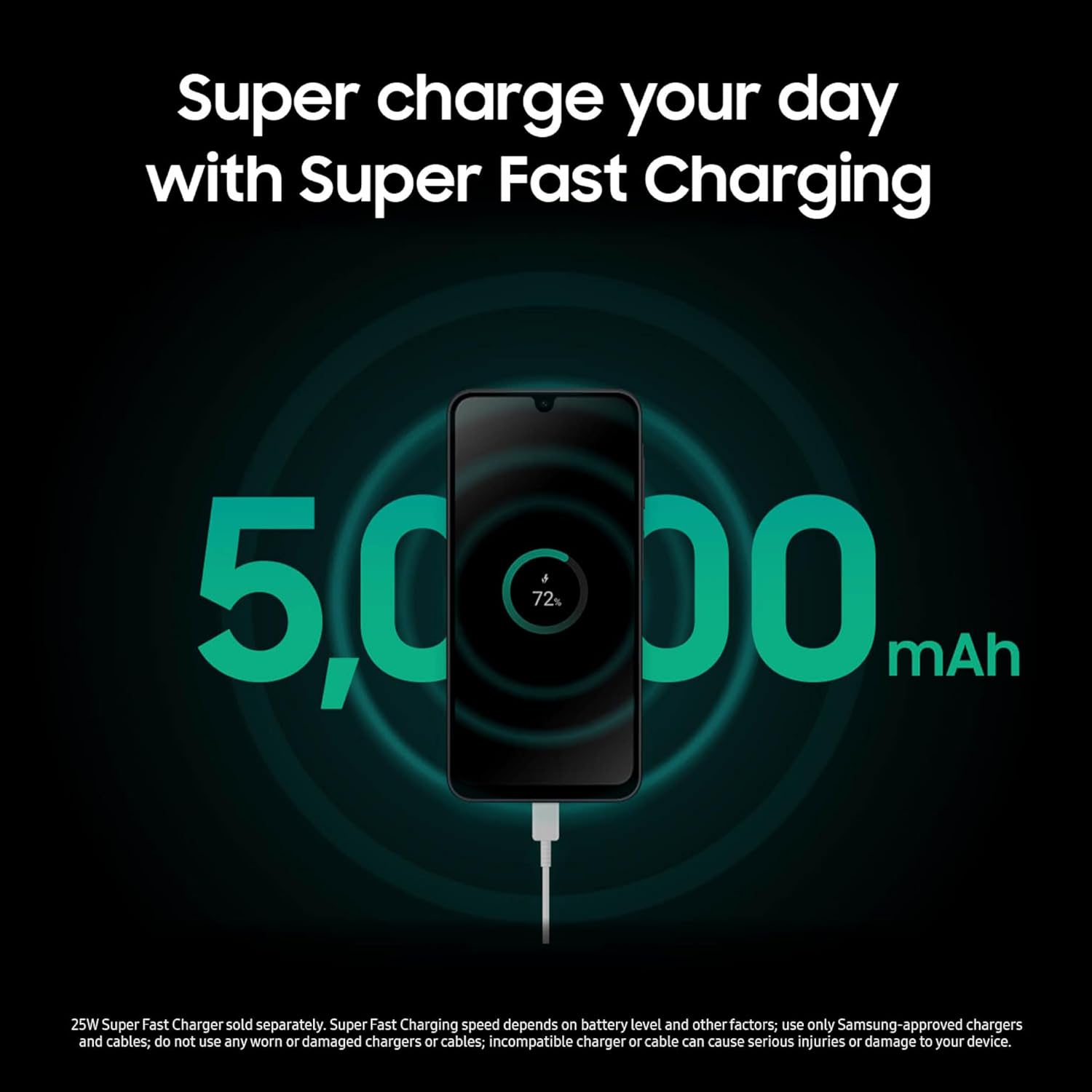
Image: A visual representation of the Samsung Galaxy A17 5G charging, highlighting its 5000 mAh battery and Super Fast Charging capability.
2. Operating Your Device
2.1 Display Features
The Galaxy A17 5G features an ultra-clear 6.7-inch FHD+ Super AMOLED display with a 90Hz fluid refresh rate, providing a smooth visual experience for scrolling and media consumption.

Image: The Samsung Galaxy A17 5G display showing a 90Hz refresh rate over a scenic background.
2.2 Camera Usage
Capture high-quality photos and videos with the triple-lens rear camera system, featuring a 50.0 MP main sensor, 5.0 MP ultra-wide, and 2.0 MP depth sensor. The front camera is 13.0 MP. Optical Image Stabilization (OIS) helps reduce blur in photos.

Image: A group of friends taking a photo, illustrating the camera capabilities of the Samsung Galaxy A17 5G with Optical Image Stabilization.
Video: Demonstration of the 5 MP Ultra Wide Camera on the Samsung Galaxy A17 5G.
Video: A short clip showcasing the rear camera video quality of the Samsung Galaxy A17 5G.
2.3 Storage Management
The device comes with 128GB of internal storage and supports expandable storage up to 2TB via a microSD card (sold separately). This allows for ample space for photos, videos, and applications.

Image: The Samsung Galaxy A17 5G display showing a gallery of images, emphasizing its expandable storage capacity.
2.4 AI Features
The Galaxy A17 5G integrates AI features such as Circle to Search with Google, allowing you to quickly search for information by circling objects on your screen. AI also assists with organizing tasks and communication.
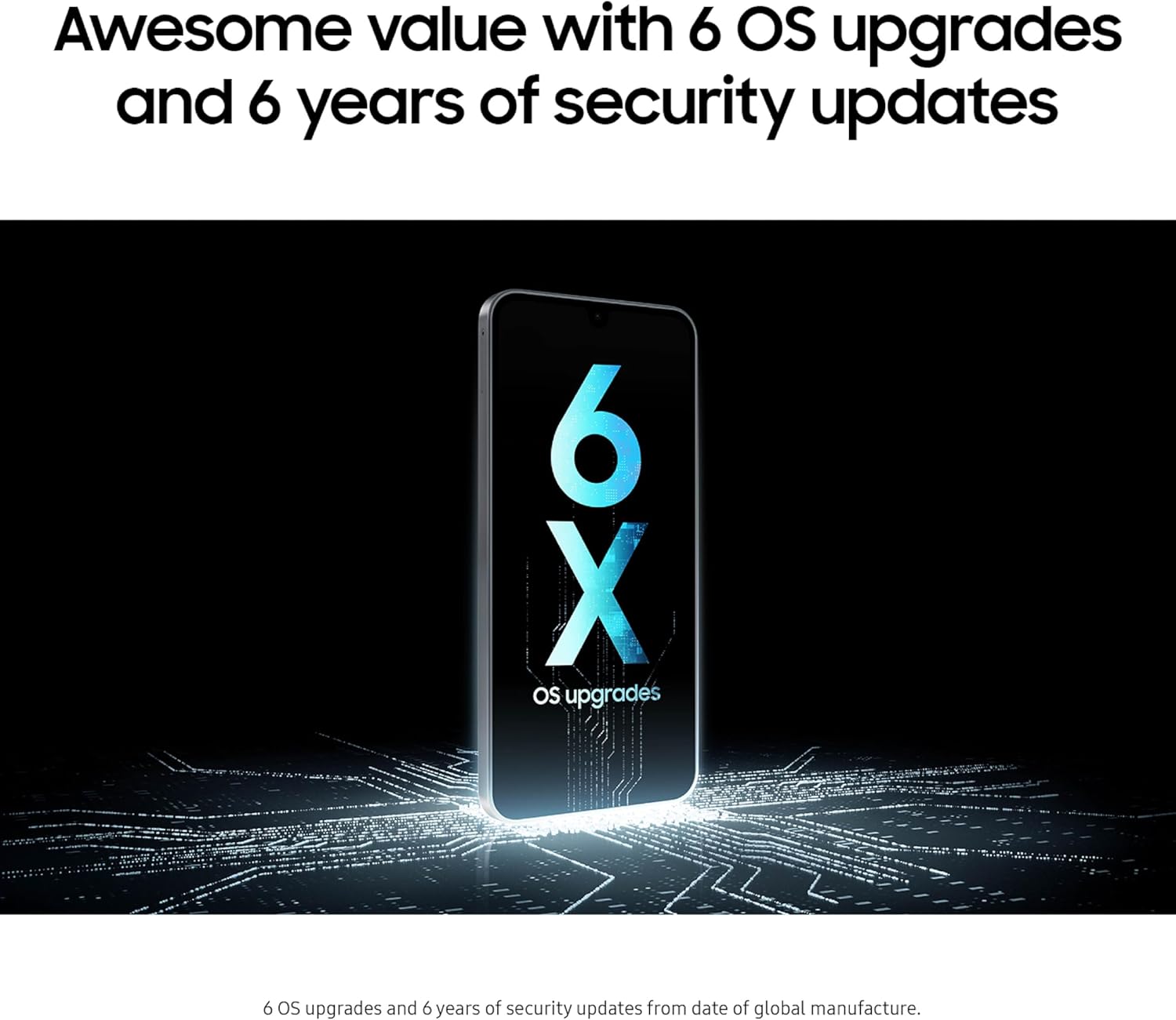
Image: The Samsung Galaxy A17 5G demonstrating the Circle to Search feature, circling an item in an image to find related products.
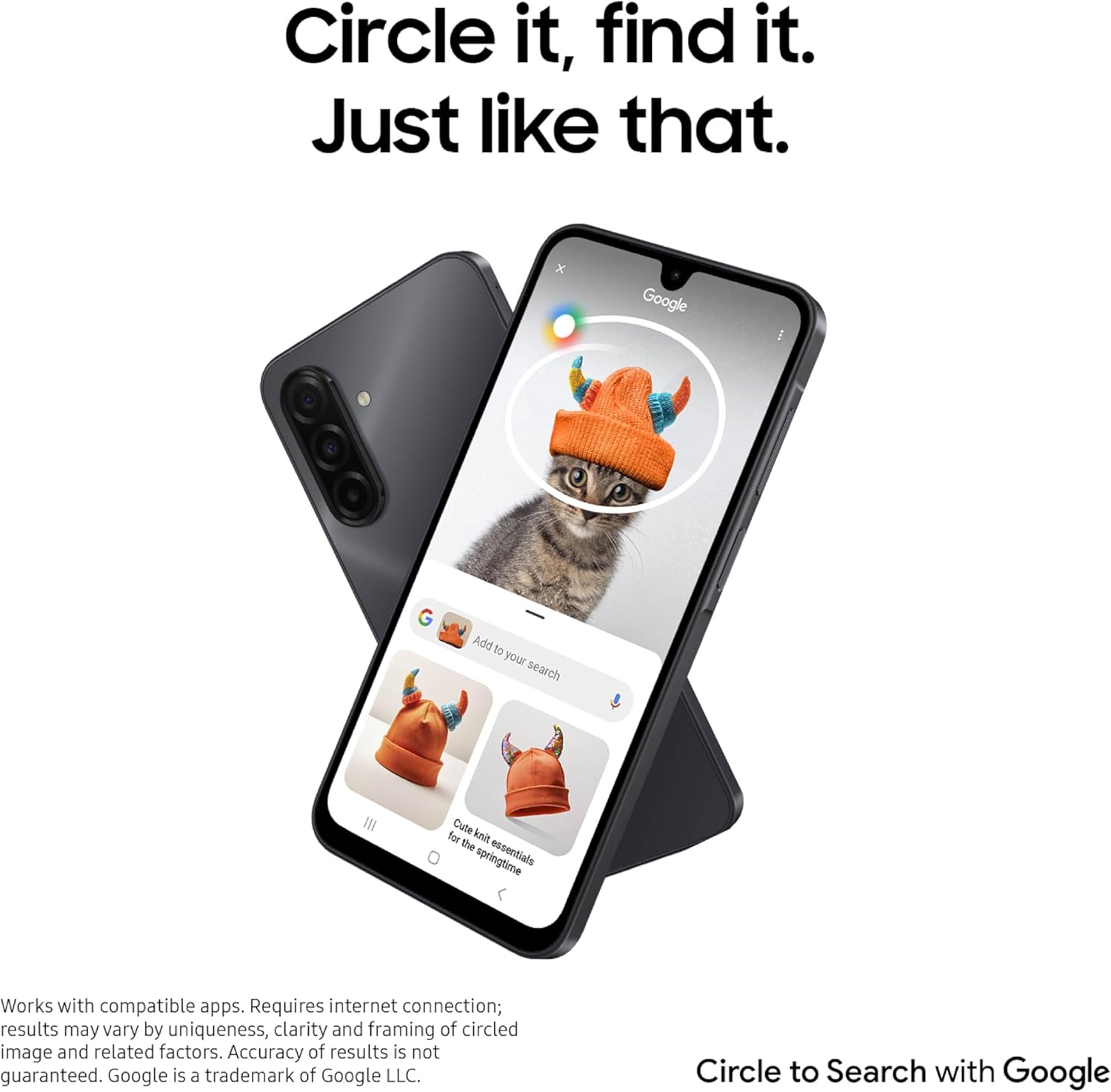
Image: The Samsung Galaxy A17 5G displaying a conversation with Google Gemini, showing real-time advice based on an image.
2.5 Samsung Wallet
Utilize Samsung Wallet for convenient access to payment cards, memberships, and digital assets. The Tap to Pay feature simplifies transactions.

Image: Multiple screens of the Samsung Galaxy A17 5G showing the Samsung Wallet interface with various cards and digital assets. Learn more about Samsung Wallet.
3. Maintenance
3.1 Durability and Protection
The Galaxy A17 5G features an IP54 rating for water and dust resistance, offering protection against splashes and limited dust ingress. It is built with Gorilla Glass Victus on the front and a Glass Fiber Reinforced Polymer back for enhanced durability.

Image: The Samsung Galaxy A17 5G with water splashing around it, illustrating its IP54 water and dust resistance rating.
3.2 Software Updates
The device is designed for longevity, offering 6 OS upgrades and 6 years of security updates from the date of global manufacture. Regularly install updates to ensure optimal performance and security.
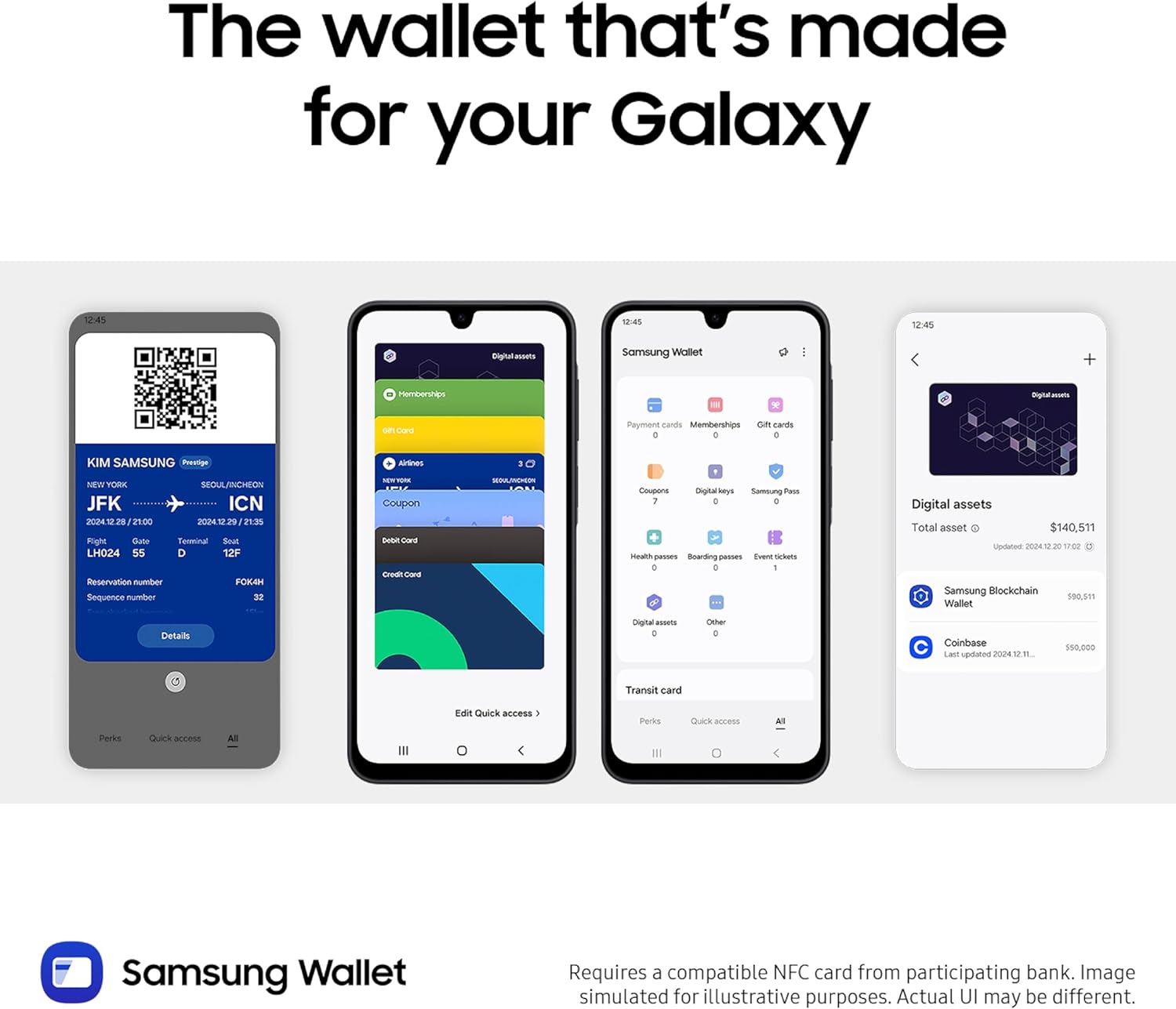
Image: The Samsung Galaxy A17 5G displaying "6x OS upgrades" on its screen, symbolizing its long-term software support.
3.3 Battery Care
To maximize battery life, avoid extreme temperatures and fully discharging the battery frequently. Use only approved charging accessories. The 5000 mAh battery provides an average talk time of 47 hours.
4. Troubleshooting
4.1 Common Issues and Solutions
- Slow Performance: If the phone feels sluggish, try closing unused applications running in the background. Restarting the device can also resolve temporary performance issues. Ensure sufficient storage space is available.
- Data Transfer Problems: If experiencing issues with Smart Switch, ensure both devices have a stable connection. If automated transfer fails, consider manual transfer of data.
- Battery Draining Quickly: Check for background apps consuming excessive power. Reduce screen brightness, disable unnecessary features like GPS or Bluetooth when not in use, and ensure software is up to date.
- Camera Quality Concerns: Ensure the camera lenses are clean. For optimal results, use good lighting conditions.
- Phone Not Turning Off with Power Button: Some Samsung devices may require a specific gesture or a voice command to power off. Check device settings for power menu options.
For persistent issues, consult the Samsung support website or contact customer service.
5. Specifications
| Feature | Detail |
|---|---|
| Brand | Samsung |
| Model Name | Galaxy A17 |
| Operating System | Android 15, One UI 8.0 |
| CPU Speed | 2.4 GHz |
| RAM Memory | 4 GB |
| Memory Storage Capacity | 128 GB |
| Expandable Storage | Up to 2 TB (MicroSD card sold separately) |
| Screen Size | 6.7 inches |
| Display Type | AMOLED |
| Resolution | 1880 x 2340 pixels |
| Refresh Rate | 90 hertz |
| Rear Camera Resolution | 50.0 MP (Main), 5.0 MP, 2.0 MP |
| Front Camera Resolution | 13.0 MP |
| Digital Zoom | 10x |
| Video Capture Resolution | 4K at 30 fps |
| Battery Capacity | 5000 mAh (Lithium-Ion) |
| Average Battery Life (Talk Time) | 47 hours |
| Wireless Carrier | Unlocked for All Carriers |
| Cellular Technology | 5G |
| Connectivity Technology | Bluetooth, NFC, USB Type C, Wi-Fi |
| SIM Card Slot Count | Dual SIM |
| Water Resistance Level | IP54 (Water Resistant) |
| Biometric Security | Fingerprint Recognition |
| Item Weight | 192 g |
| Item Dimensions | 6.47 x 3.07 x 0.3 inches |
6. Warranty
The Samsung Galaxy A17 5G comes with a 1-Year Manufacturer Warranty. Please retain your proof of purchase for warranty claims. For detailed terms and conditions, refer to the warranty information included with your device or visit the official Samsung support website.
7. Support
For additional assistance, troubleshooting guides, software updates, and service information, please visit the official Samsung support website:
- Samsung Support Website: www.samsung.com/us/support/
- Contact Customer Service: Refer to the Quick Start Guide for regional contact numbers.
You can also find helpful resources and community forums on the Samsung website.