
1. Introduction
Thank you for choosing the OSCAL PV800Pro 4K Smart Projector. This manual provides essential information for the safe and efficient use of your new device. Please read it thoroughly before operating the projector and retain it for future reference.
2. Safety Information
To ensure safe operation and prevent damage, please observe the following safety precautions:
- Do not block ventilation openings. Ensure adequate airflow around the projector to prevent overheating.
- Do not expose the projector to rain, moisture, or extreme temperatures.
- Avoid looking directly into the projector lens when the lamp is on, as it can cause eye damage.
- Use only the power adapter supplied with the projector.
- Do not attempt to disassemble or repair the projector yourself. Refer all servicing to qualified personnel.
- Keep the projector away from sources of heat, such as radiators or stoves.
3. Package Contents
Verify that all items are present in your package:
- OSCAL PV800Pro Projector
- Remote Control
- Power Adapter
- User Manual
4. Product Overview
Familiarize yourself with the components and interfaces of your OSCAL PV800Pro projector.

Top view of the OSCAL PV800Pro projector with its remote control.
Front view of the projector, highlighting the lens and auto-focus sensor.

Rear view showing the HDMI, USB, and power input ports.
Key Features:
- Official Google TV: Access a vast library of streaming content and apps.
- 1400 ANSI Lumens: Delivers bright and clear images.
- 4K Input Support (Native 1080P Output): Provides sharp, high-definition visuals.
- Autofocus & Automatic Keystone Correction: Ensures a clear and perfectly shaped image automatically.
- Automatic Obstacle Avoidance & Screen Adaptation: Adjusts projection to fit the screen and avoid obstructions.
- WiFi 6 & Bluetooth Connectivity: For fast wireless streaming and audio connections.
- Hi-Fi Stereo Speaker: Integrated audio for an immersive experience.
- Voice Control: Integrated Google Assistant for hands-free operation.
5. Setup
Follow these steps to set up your projector for the first time:
- Placement: Place the projector on a stable, flat surface. For optimal results, ensure the inclination angle is within 0-15 degrees. The projector can be placed on a desk, tripod, or mounted on the ceiling.
- Power Connection: Connect the power adapter to the projector's power input port and then plug it into a power outlet.
- Power On: Press the power button on the projector or the remote control to turn on the device.
- Initial Focus: A slightly blurry image at startup is normal. The projector will automatically focus to sharpness within a few seconds.
Video demonstrating the physical appearance of the OSCAL PV800Pro projector and its automatic focus feature.
6. Operating Instructions
6.1. Switching System Modes
Your projector supports multiple operating modes: HOME (Local Mode), HDMI, and GTV (Google TV). To switch between these modes:
- Press the "Switch" button on the top right of your remote control to open the selection menu.
- Select one of the following options: HOME (Local Mode), HDMI, or GTV.
- Press "OK" to confirm your selection.
Video demonstrating how to switch between HOME, HDMI, and GTV (Google TV) system modes on the OSCAL PV800Pro projector.
6.2. Google TV Features
The OSCAL PV800Pro comes with official Google TV, providing a comprehensive entertainment hub.

The Google TV interface, showing various streaming applications like Netflix, Prime Video, and YouTube.
- Streaming Access: Enjoy immediate access to a vast library of content from certified platforms and an integrated app store with over 10,000 apps.
- Personalized Experience: Google TV's AI suggests content based on your viewing habits. Create personalized profiles for separate histories and recommendations.
- Voice Control: Use the integrated Google Assistant by pressing the microphone button on your remote. Give commands like "Open Netflix" or search for specific movies.
- Child Protection: Features include age filters, time limits, and programmable screen lock for safe viewing.

Illustration of AI voice control using the remote's microphone button to interact with Google Assistant.
6.3. Image Adjustment
The PV800Pro offers automatic image adjustments for a perfect display.

Diagram illustrating the automatic features: autofocus, keystone correction, screen adaptation, and obstacle avoidance.
- Autofocus: The projector automatically adjusts the focus to ensure a sharp image without manual intervention.
- Automatic Keystone Correction: Corrects image distortions to maintain a rectangular projection, even if the projector is not perfectly aligned.
- Automatic Obstacle Avoidance: Detects and adjusts the projection to avoid objects in the projection path.
- Automatic Screen Adaptation: Adjusts the image size and position to fit your screen perfectly.
- Digital Zoom: Smooth digital zoom from 50% to 100% is available for fine-tuning the image size.
6.4. Connectivity
The projector supports various connectivity options:
- Wi-Fi 6: For high-speed wireless network connection and streaming.
- Bluetooth: Connect external audio devices like headphones or speakers wirelessly.
- HDMI: Connect external devices such as laptops, gaming consoles, or Blu-ray players using an HDMI cable.
- USB: For media playback from USB storage devices.
- Casting: Supports iOS Cast and Miracast for screen mirroring from compatible smartphones and tablets.
6.5. Audio
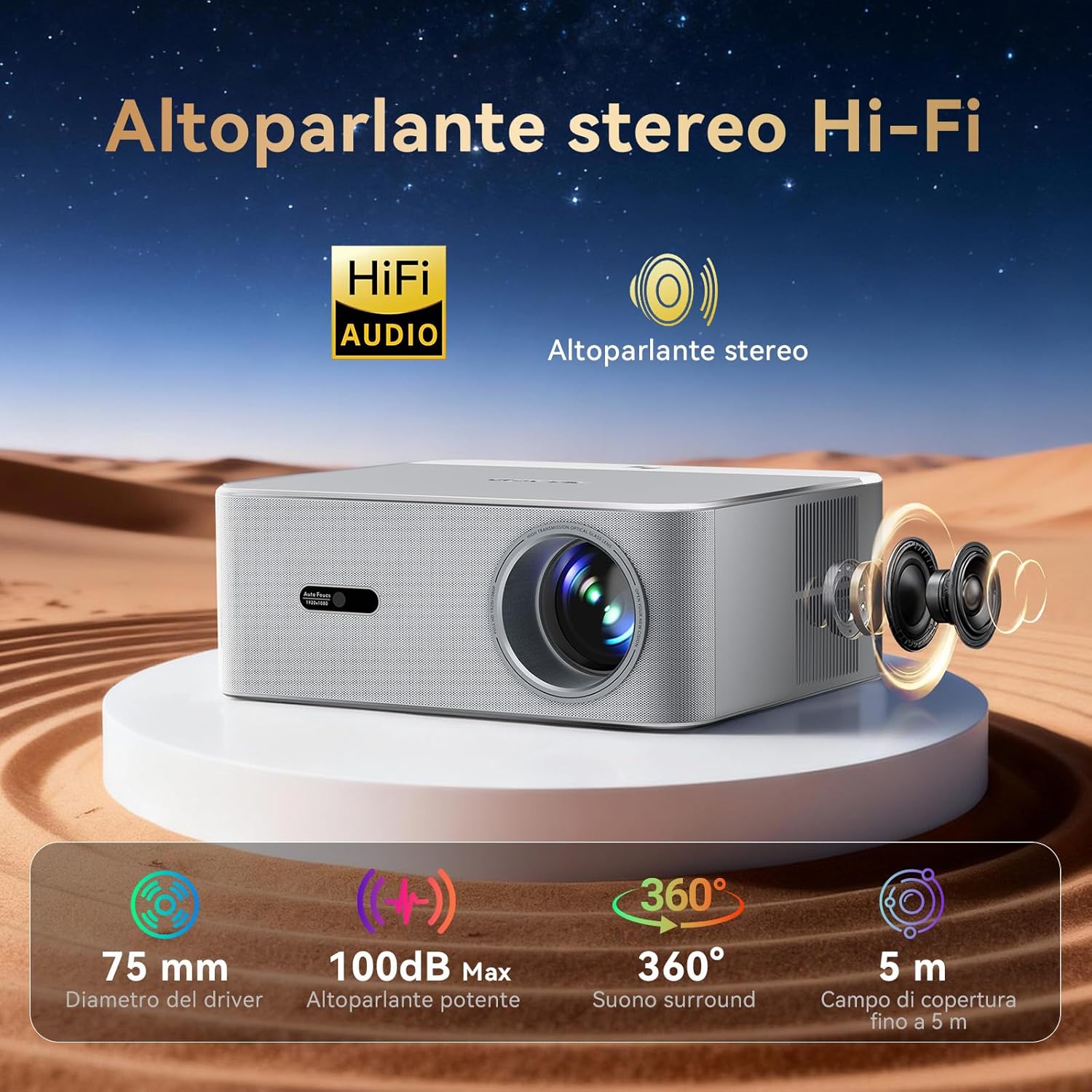
The PV800Pro features a built-in Hi-Fi stereo speaker for clear and immersive sound.

Illustration highlighting the Hi-Fi stereo speaker with 75mm driver, 100dB max output, 360-degree surround sound, and 5m coverage.
For enhanced audio, you can connect external speakers or headphones via Bluetooth or the audio output port.
7. Maintenance
Proper maintenance ensures the longevity and optimal performance of your projector.
- Lens Cleaning: Gently clean the projector lens with a soft, lint-free cloth specifically designed for optical surfaces. Do not use abrasive cleaners or solvents.
- Dust Removal: Regularly clean the projector's exterior and ventilation openings with a soft, dry cloth or a small brush to prevent dust buildup.
- Storage: When not in use for extended periods, store the projector in a cool, dry place, away from direct sunlight and extreme temperatures. Use the lens cap to protect the lens.
8. Troubleshooting
If you encounter issues with your projector, refer to the following common solutions:
| Problem | Possible Solution |
|---|---|
| Image is blurry after startup. | This is normal. The projector features autofocus and will automatically adjust the image sharpness within a few seconds. |
| No image or distorted image. | Check power connection. Ensure the correct input source (HDMI, GTV, Home) is selected. Verify the projector is placed on a stable surface and allow automatic keystone correction to function. |
| Cannot connect to Wi-Fi. | Ensure Wi-Fi is enabled on the projector and your router is working. Re-enter the Wi-Fi password. Try restarting both the projector and your router. |
| Remote control not responding. | Check the remote control batteries. Ensure there are no obstructions between the remote and the projector's IR receiver. |
| No sound. | Check volume settings on the projector and any connected external audio devices. Ensure external audio devices are correctly connected via Bluetooth or cable. |
If the problem persists, please contact OSCAL customer support for assistance.
9. Specifications
Detailed technical specifications for the OSCAL PV800Pro projector:
| Feature | Specification |
|---|---|
| Brand | OSCAL |
| Model | OSCAL PV800 Pro |
| Product Dimensions | 28 x 24.1 x 10.9 cm |
| Item Weight | 2 kg |
| Hardware Interface | Bluetooth, HDMI |
| Compatible Devices | Android, iOS smartphones, tablets |
| Additional Features | Official Google TV, Autofocus, Keystone Correction, Automatic Obstacle Avoidance, Voice Control |
| Included Components | OSCAL PV800Pro |
| Screen Technology | LCD |
| Image Brightness | 1400 ANSI Lumens |
| Image Contrast Ratio | 4000:1 |
| Aspect Ratio | 16:9 |
| Native Resolution | 1920 x 1080 Pixels (Full HD) |
| Noise Level | 25 Decibel |
| Voltage | 240 Volt |
| Wattage | 50 watts |
| Refresh Rate | 60 Hz |
| Connectivity Technology | Wi-Fi 6 |
| Form Factor | Tabletop |
| Mounting Type | Floor Mount |
| Recommended Uses | Home cinema |
10. Warranty and Support
OSCAL is committed to providing excellent customer service and support for your PV800Pro projector.
- Warranty: The OSCAL PV800Pro comes with a 3-year full device repair warranty.
- Technical Support: Lifetime professional technical support is provided.
- Customer Service: 24/7 customer service is available to assist with any questions or issues.
- Returns: A 14-day refund/replacement policy is available through the seller.
For assistance, please contact OSCAL customer support directly.


