
1. Introduction
This manual provides detailed instructions for the installation, operation, and maintenance of your IIWEY N6 360° 4-Channel Dash Cam. Please read this manual thoroughly before using the product to ensure proper functionality and safety.
The IIWEY N6 dash cam offers comprehensive 360-degree coverage with four Full HD (1080P) cameras, including front, rear, and two adjustable side cameras. It features 5.8G WiFi-6 connectivity for fast data transfer, built-in GPS for route and speed tracking, 8 IR lights for enhanced night vision, and advanced parking surveillance modes.
2. Safety Information
- Ensure the dash cam is installed in a location that does not obstruct the driver's view or interfere with vehicle operation.
- Use only the provided power cable and accessories to prevent damage or fire.
- Do not expose the device to extreme temperatures, direct sunlight for prolonged periods, or moisture.
- Regularly check the mounting to ensure the dash cam remains securely attached.
- Format the included SD card periodically to maintain optimal recording performance.
3. Package Contents
Verify that all items are present in your package:
- IIWEY N6 Dash Cam (Main Unit)
- Rear Camera with Cable
- Car Charger (Type-C)
- Car Mount (Adhesive)
- 128GB Micro SD Card
- Cable Clips
- Crowbar (Installation Tool)
- Electrostatic Films
- Quick Guide
- User Manual
- Warranty Card
4. Product Overview
The IIWEY N6 dash cam is designed for comprehensive vehicle surveillance. It features a main unit with a front-facing camera and two adjustable side cameras, complemented by a separate rear camera.
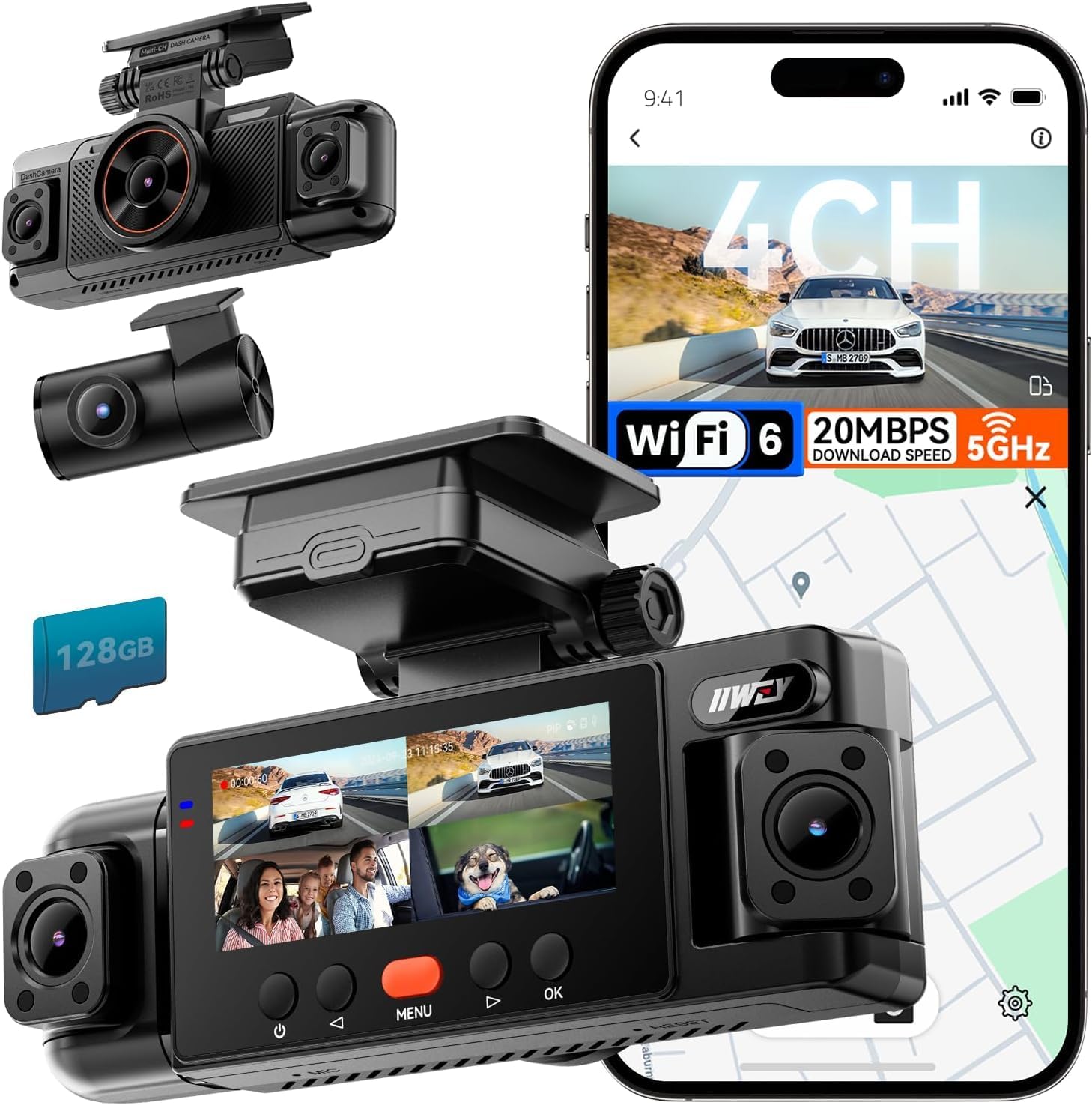
Figure 1: IIWEY N6 Dash Cam main unit, rear camera, and included 128GB SD card.
Key Features:
- 4-Channel 360° Coverage: Records simultaneously from front (170°), rear (160°), and two adjustable side cameras (150° each) in Full HD (1080P).
- Super Night Vision: Equipped with 8 IR lights and Vision Enhance technology for clear recordings in low-light conditions.
- 5.8GHz WiFi-6 & App: Provides fast in-app preview, download (up to 20MB/s), and sharing of footage. Supports both 5.8GHz and 2.4GHz bands.
- Built-in GPS: Logs speed and route data, viewable on the app or PC viewer.
- 24/7 Parking Mode: Offers Time-Lapse recording (1/3/5 fps) and Impact Detection. Requires optional hardwire kit (ASIN B0F9XWY9F1) for continuous parking surveillance.
- Loop Recording & G-Sensor: Automatically overwrites oldest files when the SD card is full, and locks critical footage during impacts.
- Included 128GB Card: Ready to use out of the box, supports up to 256GB.

Figure 2: Illustration of the 360-degree coverage provided by the four cameras.
5. Setup & Installation
Follow these steps for proper installation of your IIWEY N6 Dash Cam:
5.1 Mounting the Main Unit
- Clean the area on your windshield where you intend to mount the dash cam.
- Apply the electrostatic film to the cleaned area. This prevents adhesive residue on your windshield.
- Attach the adhesive car mount to the electrostatic film. Ensure it is secure and does not obstruct your view.
- Slide the main dash cam unit onto the mounted bracket.
5.2 Installing the Rear Camera
- Identify a suitable location on your rear window for the rear camera.
- Route the rear camera cable from the main unit to the rear window, tucking it along the headliner and door seals using the provided crowbar tool for a clean installation.
- Connect the rear camera to the main unit.
- Secure the rear camera to the rear window using its adhesive pad.
5.3 Power Connection
- Connect the Type-C car charger cable to the main dash cam unit.
- Plug the car charger into your vehicle's 12V power outlet.
- Route the power cable neatly, tucking it into the vehicle's interior trim.

Figure 3: Installation diagram for the IIWEY N6 Dash Cam.
5.4 Initial Setup
- Insert the included 128GB Micro SD card into the designated slot on the dash cam.
- Power on the dash cam.
- Follow the on-screen prompts to format the SD card. This is crucial for proper operation.
- Adjust the angle of the side cameras as needed to capture desired views.
Video 1: This video demonstrates the unboxing and installation process of the IIWEY N6 4-channel dash cam, including cable routing and mounting.
6. Operating Instructions
6.1 Basic Recording
- The dash cam automatically begins recording when powered on.
- Footage is saved in manageable segments (loop recording) and the oldest files are overwritten when the SD card is full.
- In the event of a sudden impact or braking, the built-in G-Sensor will automatically detect the event and lock the corresponding video clip to prevent it from being overwritten.
6.2 Parking Surveillance
For 24/7 parking surveillance, the IIWEY hardwire kit (ASIN B0F9XWY9F1, sold separately) is required.
- Time-Lapse Recording: Records continuously at a low frame rate (1/3/5 fps) to conserve storage while monitoring your vehicle for up to 48 hours.
- Impact Detection: Automatically records and locks a 10-second clip if an impact or tampering is detected while parked.

Figure 4: The dash cam's parking surveillance features, including the optional hardwire kit.
6.3 WiFi-6 App Connectivity
The IIWEY N6 supports 5.8GHz WiFi-6 for fast connection to the dedicated mobile app (available on iOS/Android).
- Long-press the '◀' button on the dash cam to enable Wi-Fi. It will auto-off after approximately 5 minutes to reduce heat and power consumption.
- Download and install the 'IIWEY' app from your smartphone's app store.
- Connect your smartphone to the dash cam's Wi-Fi network.
- Use the app to:
- View live footage from all four cameras.
- Download recorded videos and photos to your phone.
- Adjust dash cam settings.
- Share footage directly.

Figure 5: The IIWEY app interface for managing dash cam footage and settings.
6.4 GPS Tracking
The built-in GPS module records your vehicle's speed and route. This data is embedded in the video files and can be reviewed on the mobile app or a compatible PC viewer, providing valuable context for recorded events.
7. Menu Settings
To access the menu settings, press the 'MENU' button on the dash cam. Use the arrow buttons to navigate and 'OK' to select.
- WiFi: Enable/Disable Wi-Fi, select 5G or 2.4G band.
- Resolution: Set recording resolution (1080P for all 4 channels).
- Recording Time: Adjust the length of individual video segments (e.g., 1, 3, 5 minutes).
- Recording: Start/Stop manual recording.
- Pull Mirror Back: Adjust mirror display settings.
- Screen Saver: Set the screen to turn off after a period of inactivity.
- Preview Mode: Select display layout (e.g., split screen for multiple cameras).
- Volume: Adjust audio volume.
- Gravity Sensing: Adjust G-Sensor sensitivity (Low, Medium, High).
- Language: Select display language.
- Time Settings: Set date and time.
- GPS Watermarking: Enable/Disable GPS data overlay on videos.
- Speed Unit: Select speed unit (km/h or mph).
- Time Zone: Set your local time zone.
- Daylight Saving Time: Enable/Disable daylight saving.
- Satellite Information: View GPS satellite status.
- Format: Format the SD card.
- Restore Factory Settings: Reset all settings to default.
- Firmware Version: Display current firmware information.
8. Maintenance
- SD Card Management: Regularly format the SD card (e.g., once a month) to prevent data corruption and ensure smooth recording. The dash cam supports up to 256GB cards.
- Cleaning: Use a soft, dry cloth to clean the camera lenses and screen. Avoid abrasive materials or chemical cleaners.
- Firmware Updates: Keep your device updated by checking for Over-The-Air (OTA) firmware updates through the IIWEY app. This ensures optimal performance and access to new features.
9. Troubleshooting
- Dash Cam Not Powering On: Check the car charger connection and ensure the vehicle's 12V outlet is functioning.
- Recording Issues: Format the SD card. If issues persist, try a different compatible SD card. Ensure the card is not full or corrupted.
- Wi-Fi Connection Problems: Ensure Wi-Fi is enabled on the dash cam (long-press '◀'). Restart both the dash cam and your smartphone.
- Poor Night Vision: Ensure camera lenses are clean. Verify IR lights are functioning.
- GPS Not Tracking: Ensure the dash cam has a clear view of the sky. Check GPS settings in the menu.
- Screen Freezing/Unresponsive: Press and hold the power button to restart the device. If necessary, perform a factory reset via the menu.
10. Specifications
| Feature | Specification |
|---|---|
| Model Name | N6 |
| Video Capture Resolution | 1080P+1080P+1080P+1080P (4-Channel Full HD) |
| Connectivity Technology | Wireless 5.8GHz Wi-Fi-6, APP, Powerline |
| Special Features | 360 Degree Coverage, App Control, Built-In Display, Built-In Supercapacitor, Loop Recording, 5G Wifi, G-Sensor, Night Vision (8 IR Lights), Parking Mode |
| Mounting Type | Windshield Mount |
| Storage | Includes 128GB Micro SD Card (Supports up to 256GB) |
| Power Source | Car Charger (12V) |
| Product Dimensions | 6.9"D x 3.42"W x 5.47"H |
| Item Weight | 1.58 pounds |
11. Warranty and Support
The IIWEY N6 Dash Cam is backed by IIWEY's 12-month customer service. If you encounter any issues or have questions regarding your product, please contact our support team.
Contact Information:
- Email: support@iiwey.com
Please refer to the Warranty Card included in your package for specific terms and conditions.


